8 min read
CUPS printing in an organization: queues, quotas and permissions without the chaos
CUPS printing in an organization: how to build a print server with queues and quotas, distribute drivers and permissions, and avoid manually configuring hundreds of PCs.
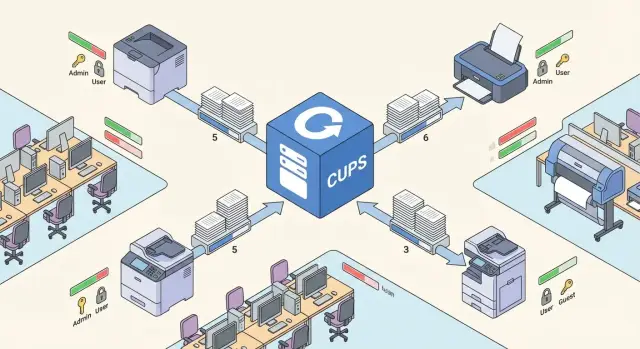
Why centralize printing and what exactly you want to fix
Printing in an organization rarely “breaks” because of hardware. Rules around it break more often. Every department has its own set of printers, workstations use different drivers, and the request “add me a printer” repeats dozens of times a week. As a result, printers exist, but printing works unpredictably.
A typical picture: queues are configured differently, the same devices are named in different ways, people print “wherever,” and access rights are kept in manual lists. Accounting is a separate pain: as soon as you need to understand who printed what and how much, it turns out the data is missing or collected in pieces.
Centralization is needed so printing becomes a normal service with clear rules. Realistic goals usually include: unified queues with readable names and predictable settings, minimal manual setup on workstations (printers are “picked up” automatically or by a template), access control by groups (for example, a shared printer vs. the accounting printer), and basic accounting and quotas where they really matter.
Before you start, it’s useful to record constraints: which OSes are used on workstations (Windows, Linux, macOS), whether there are branches and slow network links, how the network is arranged (VLAN, NAT, guest Wi‑Fi), and what security requirements apply. It’s important to understand in advance whether printing without authentication is acceptable, whether audit logs are needed, and whether you can use IPP and IPPS.
A simple example: an office has six departments and three printers, but each printer has 2–3 driver variants and queue names differ on each PC. When an employee moves to another department, printing “disappears.” A central print server with unified queues and permissions solves this once, rather than on every workstation.
Basic architecture: CUPS, printers and workstations
Typically the architecture looks like this: one or more print servers accept jobs, apply rules (permissions, quotas, routing) and forward jobs to printers. Workstations don’t have to “know” the specifics of a particular model: users print to a queue, not to a printer by IP.
Roles and responsibilities
It’s convenient to split responsibilities by roles:
- The CUPS server stores queues and policies, keeps logs and accepts jobs.
- Clients (user PCs) show queues and send jobs. Preferably without manual installation of obscure drivers.
- Printers (networked or via a print server) receive print streams over a supported protocol.
- A user directory (AD/LDAP) provides accounts and groups that permissions and reporting tie to.
Protocol-wise things are usually simpler than they seem. IPP (and IPPS for encryption) is the main modern option, especially when relying on IPP Everywhere. LPD is still found on older devices. SMB usually stays where printing historically went “through a Windows share” and a migration to IPP hasn’t happened yet.
Where settings live and what counts as a management unit
Most CUPS settings are stored in /etc/cups (queues, policies, access), driver descriptions are usually in /etc/cups/ppd, jobs in /var/spool/cups, and logs in /var/log/cups.
In day‑to‑day work it’s important to agree in advance what you manage:
- the printer as a destination device;
- the queue as a logical print point with rules;
- a class as a group of queues (for replacement or balancing);
- a policy (who can do what: print, cancel, administer).
If you manage queues and policies rather than “drivers on every PC,” roll‑out becomes predictable.
Deployment model: centralized or per-site
The deployment model usually depends on two things: where the printers are and how stable the network links are. Often you start with a single server, then add nodes in branches where the network actually hinders work.
If you have one office or a good internal network, a central print server is easier to maintain: one point of configuration, unified queues, permissions and quotas. But when printers are spread across cities, WAN latency and reliability come to the fore. A local CUPS node on site provides printing even during short link outages and avoids sending large jobs across interoffice lines.
In practice choices usually look like this: centralized — if branches are small and print little and the channel is stable; per‑site — if WAN is unstable, latency is noticeable and printing volume is high (PDFs, scans, large reports); hybrid — a central server holds policies and accounting while a local relay node sits in the branch.
Example: a head office and three branches. The head office has one CUPS instance and shared queues. In branches where the link sometimes degrades, local servers are installed so accounting doesn’t wait minutes for invoice printing.
Plan redundancy in advance: what exactly needs to be restored (queues, permissions, quotas, logs) and how fast. The minimum that pays off is regular backups of CUPS configuration and the queue list, separate storage for accounting logs, and a spare node or VM for quick recovery.
You can host the server on a virtual machine (easier for backups and migration) or on physical hardware (if maximum predictability is needed). A dedicated network zone or separate VLAN for printers often helps so printing is less affected by user traffic.
Drivers and compatibility: how not to drown in PPDs
The calmest approach is to rely on standards, not a custom driver for every model. If a printer supports IPP Everywhere (or AirPrint, which often indicates close compatibility), workstations can print with almost no vendor packages, and a queue on CUPS survives a device replacement without rewriting half the settings.
IPP Everywhere: fewer drivers, fewer surprises
IPP Everywhere suits office printing well: basic functions (paper size, duplex, tray selection, color) are usually available out of the box. This reduces the risk that after an OS update half of the computers “lose” printing because a PPD breaks.
PPDs and vendor drivers are still needed when requirements are non‑standard. Don’t default to “always install the vendor driver”; instead look for signs: need for exact color reproduction and profiles, use of finishers (stapling, booklet, sorting), secure release (PIN, card) provided only via driver, printing to nonstandard media (labels, narrow formats), or old devices that don’t play well with IPP.
Unified settings and fighting the device zoo
To avoid configuring the same thing hundreds of times, fix parameters in the queue: duplex by default, restrict color for ordinary departments, set paper format and the tray for specific forms. Agree in advance which options are considered “normal.” Otherwise users will start creating their own queues and chaos will return.
Reduce model variety with a procurement rule: where possible, buy devices that support IPP Everywhere and have the same basic options (duplex, trays, understandable paper handling). If you already have device standards for workstations and infrastructure, extend similar standards to printing: fewer models — fewer PPDs — fewer incidents.
Print queues: how to design, name and configure them
A queue in CUPS is more than a “printer in a list.” It’s a contract between IT and the user: what device it represents, where it is, who can use it, which settings are enabled by default and who supports it. When this contract is clear, printing stops being a lottery.
Start with naming. Users choose visually, so the name must be short and unambiguous, without “HP-OfficeJet-8620-2” and without duplicates. A template that reflects location and purpose works well: location + zone + type. For example:
- almaty-hq-3f-bw
- almaty-hq-3f-color
- astana-branch-1f-mfp
- clinic-registry-bw
- fin-dept-secure
Next — default policies. The goal isn’t to “forbid printing,” but to remove accidental expensive mistakes. Reasonable defaults usually include: duplex enabled, black‑and‑white where appropriate, maximum quality not set by default. If presentations are often printed, disable obscure layouts that confuse users and break formatting.
Printer classes help when you want the user to see one clear choice while you distribute load across multiple devices. Example: two identical MFPs on the 3rd floor. Create a class 3f-bw, add both printers — jobs will go to the available device. For users it’s one menu item; for IT fewer “queue stuck” complaints because there’s a fallback.
One more often‑forgotten rule: every queue must have an owner (a department or a responsible person). Otherwise “no‑one’s” printers appear, which nobody services or refills.
Permissions and access: printing without extra privileges
Chaos begins when anyone can print to any printer and manage other people’s jobs. With CUPS, separate two levels from the start: who may submit jobs to a queue and who may manage the queue and jobs.
Authentication can be simple (local users on the print server) or corporate (via a directory like AD or LDAP). The latter is usually more convenient: access is managed by groups, not manual lists of people.
How to split access by printers
Think in terms of scenarios, not devices. One physical printer can have multiple queues with different rules: a general queue for employees (controlled by department groups), a separate queue for accounting or HR, a guest queue with restrictions (e.g., black‑and‑white only and no job management), and service accounts where applications print (1C, terminal server, queue systems).
This approach prevents a new employee from getting excessive rights simply because “the printer on the floor” is visible to everyone.
Who can administer what
Not all admins need full control over CUPS. Often an “operator” role limited to specific queues is enough: stop and resume jobs in their queue, cancel stuck jobs (without access to everything else), restart the queue, and change simple defaults like paper size. If rights are role‑based and group‑based, you don’t need to hand out administrator access “just in case.” The risk of breaking printing for the whole office is much lower.
Quotas and accounting: control without manual policing
Quotas aren’t for punishment but to keep printing predictable. They control costs and protect against accidental large runs when someone sends 500 pages instead of 5.
Usually start with accounting; introduce limits later. At first agree what you measure and how you communicate it to people.
What makes sense to account for
The simpler the rules, the fewer conflicts. Typically it’s enough to record pages and jobs per user, separate color from black‑and‑white, track size (A3 separately from A4), the printer or queue (floor, department), and the department (via access groups and queue assignment).
Facts for dispute resolution are best taken from CUPS logs: job history, who printed, to which queue, when, and job outcome. This helps resolve complaints like “the printer printed all night by itself” or “jobs disappeared.”
How to introduce limits without conflict
Start with transparent rules and a soft launch: first reports, then limits. Provide clear exceptions, for example for accounting during reporting periods or for stationery staff who print for the whole office. Describe a simple scheme up front: what limits apply, how to request a temporary increase and who approves it.
Step‑by‑step deployment: from pilot to rollout
To avoid endless on‑the‑fly tweaks, launch printing as an IT service: inventory, pilot, then scale.
First collect facts: a list of printers (model, interface, location, who maintains), sites and user groups. Mark “special” devices: MFPs with finishers, PIN release cabinets, areas with strict security requirements.
Then deploy CUPS and enable a minimum of order: basic admin authentication, restricted management access, clear logs. Decide where configuration will live (one server or per site) and how backups are done.
Move in short cycles. Start with a few queues and a naming standard, run typical jobs (1 page, 50 pages, duplex, color/bw, different formats), enable permissions and quotas first in “monitoring” mode (observing and notifying), then test failures: printer offline, out of paper, queue full, wrong permissions.
Pilot on a single group (e.g., accounting or reception): fewer users, more discipline, faster feedback. After stabilization, apply templates to other departments.
When the pilot is stable, roll out not manually but through a unified delivery of settings to workstations (policies, script, image). This ensures repeatability: identical queues, identical permissions, identical support even with diverse PC fleets.
How to avoid manual setup on hundreds of workstations
The fastest way to drown is to let each workstation go its own way: someone adds a USB printer, someone finds it on the network, someone installs “their” driver. To prevent rollouts turning into office‑by‑office firefighting, split the task into two parts: how printers appear for users and what defaults they get.
Auto‑discovery (mDNS/Bonjour, “show all printers on the network”) is handy in a small office but in a large network it often hurts: strangers’ printers appear in lists, duplicate queues show up, temporary devices clutter the catalog. Allow auto‑discovery only where it genuinely saves time; publish the central server’s queues for the main fleet.
To keep users from configuring anything, create a single “client profile” and distribute it via an OS image or a configuration management system. Typically it fixes the print server address (so print dialogs only show approved queues), ensures the same print packages on all PCs (CUPS client, IPP support), sets standard print defaults (duplex, size, quality) and enforces update rules so versions don’t drift across departments.
Practical example: 250 workstations and 20 printers. If auto‑discovery is on, people will print to the wrong devices and support will be manually cleaning lists and reinstalling drivers. If each PC has one server set and the same packages, a user sees only 5–10 clear queues and changes are made once on the server.
Common mistakes and pitfalls when deploying CUPS
Printing seems minor until queues, “missing” jobs and disputes about who printed what start. Problems usually arise not from technology but from a lack of common rules.
What goes wrong most often
A common trap is mixing approaches. Some users print via locally added printers on PCs, others use server queues, and rules aren’t documented. The same printer appears differently, jobs go “to the wrong place,” and support doesn’t know where to look.
Also common: overly broad permissions (anyone can cancel others’ jobs or manage queues), ad‑hoc naming (similar names missing location/floor/department), different driver versions across PCs, ill‑considered defaults (duplex, paper size, trays, color), and lack of monitoring (problems are only discovered through complaints).
How to avoid these problems
Imagine a branch where accounting prints to one MFP and sales to another, but both see “HP‑Office” in their lists. Choosing the wrong printer leads to document leakage and extra trips to devices.
A simple rule set helps: pick one approach (server queues plus clearly described exceptions), lock down permissions (who cancels jobs, who manages queues), adopt a naming standard (city/office/floor/department/type), standardize drivers (prefer IPP Everywhere and a single configuration where possible), and set up basic monitoring (logs and simple alerts to detect failures before users report them).
Quick checklist before going to production
Before enabling printing for everyone, do a short check. It takes an hour or two but usually saves days of post‑launch fixes.
Walk through the queues. Names should be consistent and follow the rules. Verify each queue has a location and predictable defaults (duplex, paper size, color). If policies differ, document why — otherwise this becomes a source of disputes.
Then check access: who can print to which queues and who has admin rights. Ideally “print admins” are a separate group rather than everyone with server access.
For drivers, adopt one strategy and test it on representative models. If you bet on IPP Everywhere, confirm 2–3 common models print your usual documents (PDFs, office files, large spreadsheets).
Pre‑prod checklist:
- Queues named by the standard, locations filled, defaults verified.
- Roles and groups defined: users, operators, print administrators.
- One driver approach chosen and tested on typical printers.
- Quotas enabled and a simple exception process documented (who, why, for how long).
- Responsible persons assigned and an incident process defined (where to report, what to attach, expected response time).
If any item is unstable, fix it now rather than patching on live users.
Practical example: an office with branches and varied departments
In one company printing had become a lottery: three floors at the head office, two small branches, 12 printers and about 300 workstations. Each department had its habits and “favorite” printers; new computers were configured manually: find a driver, guess the right IP, check permissions. The service desk received typical tickets: “I don’t see the printer,” “it prints to the wrong device,” “the queue is stuck.”
They implemented a simple scheme: one central print server and queues that reflect the real structure — location + floor + department. Printers stayed physically in branches but were managed through the server: unified settings, unified access policy, clear queue names.
To avoid guesswork, queues were named by a readable template:
- HQ-2F-Finance-PRN01 (head office, 2nd floor, finance)
- HQ-3F-HR-PRN01 (head office, 3rd floor, HR)
- BR1-FrontDesk-PRN01 (branch 1, front desk)
- BR2-Office-PRN01 (branch 2, general)
Quotas were soft: a basic monthly user limit on shared printers to prevent accidental 200‑page runs consuming cartridges. Stationery and designated staff had no limits but were tracked for review.
Results were visible in the first month: fewer tickets, easier printer selection for users, and faster provisioning of new PCs. Instead of manual setup and guesswork, connecting to the correct queues and checking access was enough.
Next steps: lock down standards and prepare infrastructure
After the pilot, document rules so printing doesn’t become a set of ad‑hoc exceptions. New printers, departments and branches should follow a single scenario rather than manual firefighting.
Create a short document understood by IT, security and the business. Agree where printing is critical (reception, accounting), which departments need separate accounting, and how to handle branches: via central server or per site.
Adopt standards for printer models and drivers. A practical goal is to choose models supporting IPP Everywhere or close compatibility to reduce dependence on PPDs and vendor packages. For legacy devices, document which queues remain “legacy” and who supports them.
Before production validate readiness across four areas: queue naming and defaults, roles and permissions, accounting and quotas plan, and infrastructure (CUPS server(s), backups of configuration and queues, monitoring of availability and queues) and a change process (who adds printers, how exceptions are approved, how policies are updated).
If server and workstation loads grow (for example during hardware refresh), consider engaging a systems integrator. GSE.kz as a technology vendor and integrator in Kazakhstan helps select and implement infrastructure for adjacent services, including server platforms, and provides 24/7 support via its service network.
Frequently asked questions
Why should an organization centralize printing through CUPS?
CUPS brings print queues, permissions, and print settings together in one place. Users select a clearly named queue, while IT changes policies on the server rather than on every computer.
When does a branch office need a separate print server?
For a single office with a stable network, a central server is usually enough. If branch offices frequently lose connectivity or print large documents, deploy a local CUPS node on site while keeping shared policies centralized.
How should print queues be named?
Base names on location and purpose: `almaty-hq-3f-bw` or `fin-dept-secure`. Users should immediately understand where the device is located and what tasks it is available for.
Which queue settings should be configured by default?
Enable duplex printing and black-and-white mode wherever color is not needed all the time. Specify the usual paper size and tray so people need to change settings manually less often and do not send documents with incorrect settings.
Are PPDs and vendor drivers needed for every printer?
Start with IPP Everywhere if the printer supports it. It provides standard office features without installing a separate driver on every computer. A vendor driver is needed for advanced color reproduction, finishers, PIN printing, or older devices.
How can access to printers be restricted by department?
Assign access through AD or LDAP groups. Create separate groups for regular users, print operators, and administrators, then link them to the required queues.
Can multiple queues be created for one printer?
Yes, if a department needs access to the same device under different rules. For example, a shared queue may print only in black and white, while the accounting queue on the same multifunction printer may require authentication and maintain separate accounting.
How can print quotas be introduced without conflicts?
First enable page and job tracking, then add limits after reviewing the data. This lets you see normal print volumes, explain the rules to employees, and make exceptions for roles that handle large document volumes.
How can manual printer setup on hundreds of PCs be avoided?
Deploy approved queues through the OS image, policies, or a configuration management system. Do not rely on auto-discovery in a large network: it often shows unnecessary devices and creates duplicates.
What should be checked before deploying CUPS to production?
Check queue names and settings, group access, printing of PDF and office files, duplexing, color, different paper sizes, and behavior when paper runs out or a printer is turned off. Also make sure you back up the CUPS configuration and retain usage logs.
