8 min read
Continuity Plan for CRM/ERP in the Office During Connectivity Outages
CRM/ERP continuity plan: how an office can survive power or internet outages. Procedures, caches, backups, backup channels and tests.
Why an office needs a CRM/ERP continuity plan
CRM and ERP are often thought of as “programs on a computer,” but for an office they are the workplace. Sales record leads, accounting issues invoices, the warehouse ships goods, and the call center sees customer history. As soon as the system is unavailable, work stops even if people are present.
For sales, downtime means missed calls and unrecorded requests, which leads to lack of control. For accounting — delayed payments and period closing. For the call center — blind conversations, mistakes and unhappy customers. For management — missing numbers and inability to make quick decisions.
A continuity plan is needed to agree in advance what must continue during a power or internet outage and how the team will operate during those hours without chaos. Usually a "minimal mode" includes taking requests and saving drafts, checking stock and statuses from the last export, issuing primary documents using pre-prepared forms, and performing a few critical approvals (for example shipments, returns, urgent purchases).
Hardware matters, but hardware alone won't save you. If it isn't specified who switches the internet, who starts the UPS, where provider phone numbers are kept and how to record operations manually, the first 30 minutes will be lost to discussions.
The most valuable part of the plan is the first-10-minutes procedure. You need one person in charge to declare the emergency mode, assign tasks and decide: wait for restoration, switch to a backup channel, or work offline temporarily. When roles are assigned in advance, the office doesn't "freeze" and can continue key operations even on a bad day.
What failures occur and how they affect work
A failure rarely looks like “everything at once.” More often it's a chain of small problems that prevent employees from accessing CRM/ERP and cause delays for customers. To make the plan practical, identify which failures realistically happen in your environment.
The most noticeable scenario is a power outage. PCs, Wi‑Fi access points and telephony go down, and if the server or network equipment is in the office the database can stop. Even a short power dip often "kills" a router or switch, and the internet won't come back until someone reboots the equipment.
The second common issue is connectivity. The primary ISP can fail, packet loss may begin, or a router can freeze. Sometimes the internet seems available but VPN or remote/cloud access doesn't work: logins fail, pages won't load, synchronization stalls.
Human error also plays a role: someone unplugged the UPS "because it was beeping," pulled a cable in the rack, changed a port, or accidentally rebooted a server. These mistakes are tricky because they look like an "unknown glitch" and waste time searching.
Most often the first things to fail are systems tied to a single point of failure: cash registers and terminals, email and calendars (if authorization is via a shared service), access to the database and shared folders (DNS/DHCP, router), telephony and support messengers (SIP and Wi‑Fi on the same switch), and network printing.
A simple example: the ISP drops out for 20 minutes. Managers can't open client cards, the cashier can't process payments, the warehouse can't see stock, and the manager receives scattered calls instead of a clear picture. That's why it's important to know in advance what will fail first and where your single points of failure are.
Recovery goals: RTO and RPO in plain language
To make the plan actionable you need two numbers: how long the office can operate without CRM/ERP, and how much data loss is acceptable. These are the foundation of the continuity plan.
RTO is the acceptable downtime. If RTO = 2 hours, the system should be helping work again (even in a simplified mode) within 2 hours of the failure.
RPO is the acceptable amount of data loss measured in time. If RPO = 15 minutes, you accept losing at most the last 15 minutes of changes: calls, orders, payments, and journal entries.
Different departments have different needs. Sales can usually tolerate 1–2 hours without CRM if they have client lists and offer templates, but losing fresh leads is painful. Accounting can often endure longer breaks (for example until the end of the day), but RPO should usually be minimal: lost transactions and invoices can break period closing.
Before approving goals, answer four questions:
- how many orders/operations are lost per hour of downtime (in money and reputation)
- which operations cannot be done manually, even temporarily
- who decides to switch to manual mode and who records changes
- where the single source of truth is: CRM, ERP, POS, or bank-client
Record goals for management in one paragraph: "For CRM (sales) RTO 2 hours, RPO 15 minutes; for ERP (accounting) RTO 8 hours, RPO 5 minutes. In case of failure, switch to the approved manual mode, record all operations in the template, and after recovery transfer them to the system by the responsible employees."
Power: UPS, generator and priorities
If CRM/ERP runs in the office or a local server room, everything begins with deciding what must survive a power outage without stopping.
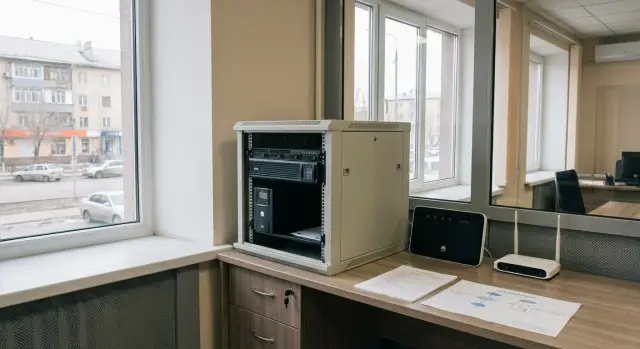
First identify the "minimum required" to be on UPS. Usually that's not everything but what keeps systems and connectivity alive: server(s) and storage, network equipment (router, switch, access points, modem), telephony (if VoIP), one workstation for the duty person, and minimal lighting in the server room for safe work.
Then calculate real runtime. Mistake number one is trusting only the UPS nameplate. In practice runtime depends on total load (W), battery condition, temperature and how heavily the UPS is loaded. Measure consumption on site (via PDU, wattmeter or PSU data), plan a 20–30% margin and run a test once: cut mains, time how long the critical set stays up.
Do you need a generator? If outages are rare and short (10–30 minutes), a UPS plus a clear procedure is often enough. If outages last 1–2 hours or longer—or operations are critical (cash desks, patient reception, document issuance)—a generator is justified. Make sure the UPS covers the time needed for generator startup and switchover.
To avoid draining batteries in minutes, define the shutdown order for nonessential equipment. Printers and MFDs, chargers and household appliances are usually the first to go, then regular workstations not involved in emergency operations and auxiliary services.
Also consider voltage surges and sags. Often the problem is not a full outage but drops and spikes that cause switches to crash or power supplies to fail. Choose UPSs with proper voltage regulation for servers and network gear, add input surge protection where possible, and avoid connecting the server room through consumer extension cords. If the rack holds enterprise-grade servers like GSE S200 or similar, plan a correct power and protection scheme from the start rather than troubleshooting unexpected reboots and data loss later.
Internet: backup channels and switching without panic
Internet often fails not "forever" but for 20 minutes or half a day. Even a short outage can halt sales, warehouse operations, requests and approvals. That's why you should plan backup connectivity and a clear switching procedure in advance.
Practical backup options
For a single office the common choice is "primary wired connection + spare wireless backup." The spare channel can be from a second ISP (different route), via LTE/5G (SIM in a modem or router), a radio link (if available locally) or satellite as a last resort.
Decide in advance what to save first. Typical priority: access to CRM/ERP, telephony and call center (SIP), email and messengers for coordination, and remote access for key personnel. Everything else (updates, cloud drives, video) can be limited.
Automatic failover or manual plan?
Automatic failover is convenient if nobody is on duty for connectivity. It reduces downtime but requires setup and testing. Manual switching suits a small office with a responsible person: they switch WAN on the router, enable backup Wi‑Fi or turn on a separate LTE modem for critical workstations.
A minimal setup without complex networking: a router with two inputs (primary ISP and LTE modem) and a separate Wi‑Fi network named "Backup." Limit heavy traffic on the backup channel so CRM/ERP remain responsive.
Test the backup beforehand, not during an outage: measure speed during work hours, check stability for 1–2 hours, make a test SIP call and open CRM/ERP on several PCs simultaneously. A good sign is when employees notice only a brief pause after switching, not "everything crashed."
Cache and offline mode: keeping work going during connectivity loss
Even if CRM/ERP is cloud-based, the office can continue working during an outage if you decide in advance what to keep locally and how to safely return data to the system.
Locally keep only what's needed daily and doesn’t change every minute: key client contacts, price lists, product cards, basic stock levels, open requests and statuses. A practical approach is scheduled exports (for example, morning and after lunch) to a secured shared drive or to devices of responsible employees.
Browser cache and offline pages can help in a limited way: sometimes previously viewed cards open, but don't rely on this. Mobile apps that support offline mode and local draft storage are more reliable. Test them in advance: turn off internet on a phone and try to create an order.
Prepare an "emergency kit": an offline order/request form (spreadsheet or printed form), an invoice/quote template with the latest prices, a list of client and responsible phone numbers, and a short instruction: who records, who approves, who inputs into CRM after recovery.
After connectivity returns, agree clear synchronization rules. Assign temporary numbers to offline entries (for example, date + initials + serial), and have one responsible person or a small team import records into CRM to minimize duplicates and conflicts.
Typical scenario: internet is out for 2 hours. Managers keep taking orders by phone and record them in an offline spreadsheet, attaching photos or screenshots as proof if needed. When connectivity returns, the responsible person imports the orders into CRM by temporary numbers and marks which ones were already processed. If CRM has fields “source” and “event time,” always fill them — it simplifies resolving disputes.
Backups: what to save and how often
Backups for CRM/ERP are more than "copy the database." After a failure you often miss small but critical things: configs, integrations, file attachments and access keys. Include everything the system cannot be rebuilt without in the plan.
Usually you need database backups (and transaction logs if used), file storage (scans, contracts, attachments), application and server configurations, integration settings and secrets: API keys, certificates, service account passwords. Store secrets separately and securely so a backup isn’t also a leak source.
A simple 3-2-1 rule works well:
- 3 copies of the data: the working copy and two backups
- 2 different media: for example NAS and remote storage
- 1 copy off-site: in another building, data center or branch
Backup frequency should reflect data-loss cost. A common setup: a full backup daily, incremental backups hourly, and a backup "before" major changes like updates or adding integrations. If ERP handles payments or real-time stock, shorten intervals for critical tables or logs.
Split storage: a fast local copy for urgent restores and a remote copy for fire/theft/flood scenarios. Most important: once a month perform a test restore on a separate machine and record the time it takes. If you never verify restores, you don't have a backup — you have hope.
Step-by-step procedure in case of an incident
A good plan starts with a simple rule: in the first 10 minutes don't try to fix everything at once, follow a short scenario. This reduces chaos and helps avoid data loss.
Basic procedure to print and keep in the server room and with the administrator:
- Record the time and type of failure: power out, internet out, or both. Note what stopped working (Wi‑Fi, wired access, telephony, server).
- Appoint the incident owner and one internal communication channel (for example, a messenger group or phone calls). They collect statuses and assign tasks.
- Switch power to the UPS, turn off nonessential devices and preserve priorities (server, network, cashier workstation). If battery is low, plan graceful shutdowns rather than sudden power-off.
- Switch internet to the backup channel and check CRM/ERP access: can users log in, does printing and accounting exchange work.
- Start offline procedures: accept requests by phone, log sales and changes in the register, and after recovery perform synchronization and integrity checks.
Make offline procedures simple: one log template, one person responsible for records, and a clear rule which operations are forbidden without the system (for example returns or stock write-offs).
After recovery don't immediately try to catch up. First check services are up, data in CRM/ERP is intact, and integrations have not accumulated errors. Then the incident owner writes a short report: cause, duration, what worked, and what to fix (for example insufficient UPS runtime or unprepared backup modem).
Common mistakes when preparing
Problems usually start not from lack of equipment but from small details. Even a solid plan fails if it isn't integrated into daily habits.
A common mistake: a UPS exists but only servers are connected to it. During an outage the switch, router and Wi‑Fi go down, leaving the office without network even though "server power is on."
Second mistake: a backup internet connection was purchased but it’s "in the box." Nobody knows where the SIM is, the modem password, how to enable hotspot mode or where to plug the cable.
Third: backups are taken on schedule but never tested. That's more dangerous than having no backup: you may find the archive is corrupted, the wrong database is copied, or access to storage is limited to one person.
Fourth: offline records are kept in many different files and later cannot be reconciled without loss.
Fifth: the plan is not updated after CRM/ERP, router or responsible-person changes. A new employee doesn't know the procedure and old instructions no longer apply.
A useful quarterly check:
- cut power for 5 minutes and confirm network and Wi‑Fi run from UPS
- enable the backup channel and time how long until CRM/ERP access is restored
- restore a test backup on a separate machine
- verify the single offline-form template and where forms are submitted
- update responsible contacts and store passwords in a sealed envelope
Example: a 20-person office lost internet and managers began recording requests "as they liked." After 4 hours some orders were duplicated and some lost. One common template and the rule "submit to one folder/chat to the responsible person" solve this much better than heroics during the incident.
Short checklist: before launch and quarterly
A checklist removes debate during an incident. It's useful for a small office with cloud CRM/ERP and for offices with their own server room. If you already have a plan, make sure it's based on real tests, not assumptions.
Before launch (or after major changes)
Spend 30–40 minutes to close basic risks:
- Check the UPS: battery level, self-test and how many minutes it actually supports critical devices (server, router, switch).
- Run a switch to backup internet: cut the primary channel and ensure connectivity recovers predictably and quickly.
- Verify responsible contacts: who decides, who calls the provider, who checks servers, and where passwords/access codes are kept.
- Open the latest backup and verify it can be read: the file must not only exist but pass integrity checks.
- Clarify how employees work without connectivity: where the templates are, which data to record manually and how to input it later.
Quarterly (15 minutes)
Short drills beat rare big rehearsals. Choose a calm time and run a mini-scenario:
- Simulate a 5-minute failure: cut the main internet or power on a noncritical circuit and time the response.
- Check that responsible people are reachable: one message or call to each in the chain.
- Confirm backup channel and CRM/ERP access work from workstations.
- Restore a test backup to a separate machine or folder.
If you have a technical partner or integrator, an annual external review is useful: most issues found are small details that break recovery.
Example: the office lost power and internet for 4 hours
Office of 25 people. CRM is cloud-based, ERP runs on a local server. Normally everything uses the primary internet, and ERP is accessed over the LAN. The goal is simple: don't lose orders and avoid accounting mistakes while power and connectivity are out.
A minute-by-minute procedure when both power and primary internet fail:
- 0–5 minutes: the owner confirms emergency mode, records the time, forbids ad-hoc actions (do not reboot servers or routers without command). The duty person checks the UPS is powering the network and server.
- 5–15 minutes: enable backup internet (LTE/5G router or modem) and move critical workstations (sales, reception) to it. If UPS runtime is short, gracefully shut down ERP sessions.
- 15–30 minutes: sales switch to pre-prepared forms (spreadsheet/template) and take orders by phone. Promise customers confirmation later in the day rather than providing CRM status updates.
- 30–240 minutes: warehouse and accounting log operations: shipments, receipts, payments, returns. Each record gets a number and an author so it can be imported into ERP later without disputes.
- 240+ minutes: after power and internet return, perform checks and only then begin bulk data entry.
How sales avoids losing customers: appoint 2–3 people to stay "on contact" via backup internet or phone. They take orders, clarify details and record entries in the offline log. CRM is updated later in one flow to avoid duplicates and confusion.
How accounting and warehouse operate: do not try to "approximate" transactions from memory. Record all movements immediately, even if on paper plus a photo. If the ERP server was cleanly stopped, there's less risk of database corruption. If the server remained on UPS, prefer read-only activities during instability and make accounting entries after stabilization.
Before returning to normal operations check:
- ERP database integrity and server time correctness
- status and availability of the latest backups
- CRM synchronization for errors and duplicate requests
- cash registers, terminals, printers and scanners are back online
- all offline logs were fully transferred and verified by the responsible people
Next steps: drills, equipment and support
A continuity plan works only if it's understood and tested. Start with specifics: map the current setup. Where are CRM/ERP hosted (local or cloud), where are backups stored, how is internet connected, what powers the server room and workstations, and who has access to passwords and settings.
Next agree on recovery goals. Some departments can handle 2 hours of downtime, others cannot. Record RTO and RPO in simple terms and approve a single 1–2 page procedure: what to do on power loss, internet failure, server problems, and who decides.
To keep it from becoming paper-only, assign an owner (a named person) and add regular verification.
Minimal actions for the next month
- Draw the power and connectivity diagram, mark weak spots and single points of failure.
- Agree RTO/RPO for key operations (sales, invoicing, warehouse, request intake).
- Prepare a short procedure and contacts for responsible people (IT, accounting, shift manager).
- Run a practice "failure" during a calm period.
- Record results and update the procedure.
Test at least quarterly. A simple scenario: "internet down for 30 minutes" or "server room on UPS but without mains for 20 minutes." The goal is not heroics but that people follow steps and know what to prioritize.
When to upgrade equipment and add support
If CRM/ERP is already slow, workstations struggle with updates, or servers are overloaded, you'll lose time during an incident. Sometimes it's cheaper to upgrade servers or workstations for real workloads than to keep patching worn-out equipment.
If internal resources are limited, consider engaging a system integrator and 24/7 support. For example, GSE.kz (gse.kz) operates as a hardware manufacturer and system integrator in Kazakhstan: they produce S200 servers and support infrastructure with round-the-clock tech support and a nationwide service network. This is useful when hours matter and the continuity plan needs not only to be written but validated on your infrastructure.
Frequently asked questions
Why does a single office need a continuity plan for CRM/ERP?
Because CRM/ERP in an office is part of the workflow, not just a “program.” When the system is unavailable, sales don't record contacts, the warehouse can't see stock, accounting delays documents, and managers lose visibility. A continuity plan describes in advance how to continue critical operations and who is responsible so the first minutes aren't spent arguing and searching for contacts.
What should be included in a “minimal mode” if CRM/ERP is unavailable?
Start with what the office must do even during an outage: accept customer requests, record orders or applications as drafts, confirm statuses using the latest available data, and issue primary documents using pre-prepared forms. In minimal mode the goal is not to “do everything,” but to preserve facts and agreements so they can be transferred back to CRM/ERP later without errors.
How to quickly and simply define RTO and RPO for CRM and ERP?
RTO is how long you can live without the system before you need at least a simplified working mode restored. RPO is how much data (in time) you can afford to lose — for example, the last 15 minutes of changes. Record these numbers separately for CRM and ERP and tie them to real losses: calls, payments, shipments, and period closing.
What must be connected to the UPS so the office doesn't “go blind” during a power outage?
A UPS should first power what keeps the system and connectivity alive. If the server is powered but the network devices are not, the server is effectively unreachable. Typically you want to power the server(s) and storage plus the router, switch, access points, modem and one workstation for the duty person so recovery can be managed. Always test real runtime under load, not only the rated figures.
When do you really need a generator and when is a UPS enough?
If outages are rare and short, a UPS plus a clear procedure for who disconnects nonessential devices is often enough. A generator makes sense when outages last hours or when operations are time-critical — for example cash desks, patient reception, document issuance or continuous shipments. Ensure the UPS covers the time required to start the generator and switch over power.
What kind of backup Internet is best so CRM/ERP won't stop?
The most practical option for a single office is a wired primary connection plus a backup channel that does not share the same physical route—most often LTE/5G. The backup must be preconfigured and tested during working hours; otherwise during an outage you may find there is no balance on the SIM, missing passwords, or insufficient speed. Agree which services have priority so heavy traffic doesn't choke access to CRM/ERP.
Which is better: automatic Internet failover or a manual plan?
Automatic failover reduces downtime because it requires no manual actions, but it must be configured and tested. A manual plan is fine if there's a responsible person who can quickly switch the WAN on the router or enable a backup Wi‑Fi network and knows the exact steps. In both cases, the most important thing is a clear procedure and verifying that CRM/ERP logins and authorizations actually work after switching.
How to organize offline work and then return data to the system without errors?
Prepare one shared template for orders and operations so everyone records data the same way, not “as they prefer.” Give each offline entry a temporary number and always note the event time, the author and the operation details. Make one person or a small group responsible for transferring records back to CRM/ERP — this reduces duplicates and confusion.
What exactly should be backed up in CRM/ERP besides the database?
Back up not only the database but also attachments, configurations, integration settings and critical credentials that the system cannot run without. Keep a fast local copy for urgent restores and a separate off-site copy in case of fire, theft or flooding. Regularly perform test restores — an untested backup is often useless at the worst moment.
How often should the plan be tested and what mistakes usually appear?
Run short drills quarterly: simulate loss of internet or power for a few minutes and measure how long it takes to resume work. The most common failures are not major hardware, but small details: an unpowered switch, a backup modem that isn't working, or the lack of a single offline template. After each test, update contact lists, the action sequence and verify that passwords and access are really available to those who will recover the system.
