8 min read
Corporate printing without chaos: architecture, permissions, quotas
Corporate printing without chaos: how to set up queues, drivers, permissions, and quotas to reduce support requests and simplify device replacement.
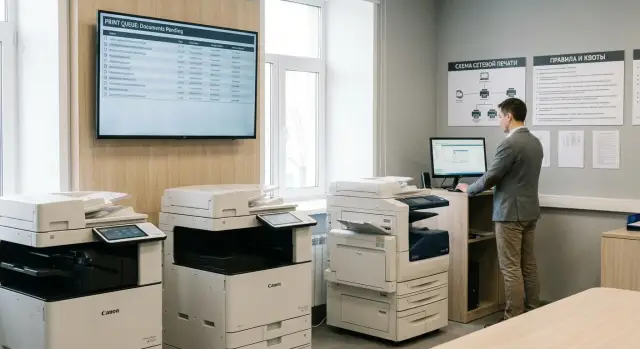
Where corporate printing chaos begins
Printing chaos usually starts quietly: one department bought a printer on its own, another asked to “temporarily” connect an MFP by USB, a third set up direct IP printing. After a couple of months this becomes a situation where people print “somewhere,” support is constantly putting out fires, and replacing a device turns into a mini-project.
The first symptoms are almost always the same. Queues live everywhere (on user PCs, on various servers, or even inside the printers), drivers differ from office to office, and installations are done manually “however it works out.” As a result the same document prints differently for different people: duplex disappears in some places, margins shift in others, and sometimes jobs just hang.
The most painful point is replacing a printer. If users connected it themselves by IP or installed it locally, the new device looks like a “different printer” to them. They must choose it again in apps, reinstall drivers, and fix default settings. This triggers a wave of support requests and downtime: accounting can’t close documents, reception can’t print tickets, and the office manager runs between floors.
Usually chaos is fueled by four reasons:
- no single owner and no clear rules for who and how printers are added
- a “zoo” of drivers and different versions for the same model
- permissions set randomly: some see all printers, others can’t see the needed one
- no accounting: printing “goes nowhere” and costs grow unnoticed
A healthy printing scheme rests on simple criteria: it should be predictable for users, manageable for IT, and secure in terms of access. If an employee always chooses the same printer by the same name, and support can replace the hardware “under the hood” without visiting workstations, you’re on the right track.
Basic architecture: where queues live and who manages them
The first step toward order is deciding where print queues will live. Essentially there are two options: print directly to the device or via a print server. For a very small team direct connections may be enough. But once the number of printers and users grows, direct connections quickly spread into diverse settings, drivers, and permissions.
Print server or direct printing
With a print server, queues and drivers are managed in one place. Users don’t need to remember a printer model or hunt for a driver, and support can more easily change devices and permissions. Direct printing seems faster to set up but produces divergence: everyone ends up with their own driver, default parameters, and distinct problems.
A print server is typically chosen when you need to:
- manage access by departments and roles
- maintain unified drivers and settings
- replace printers without visiting workstations
- gather accounting and, if needed, add quotas
How to design queues: by model, location, or task
Queues “by model” sound logical, but users care more about where the printer is and what it’s for. In practice queues organized by location and task work better: for example, “Office-3rdFloor-BlackWhite” or “Accounting-A4-WithSignature.” That reduces mistakes and misdirected prints.
To avoid assigning printers manually, use AD groups: the “Accounting” group gets its queues, the “Warehouse” group gets theirs. Queue names should be self-explanatory: location, paper format, color mode, and any special rules.
For branches and remote offices the main principle is simple: local printing should remain local. Let every office have its nearest print server or node that keeps queues close to users. Documents won’t traverse slow links, and management remains centralized and consistent.
Drivers without surprises: standardization and version control
Half of the “magical” printing problems come from drivers, not the printers. One department has an old version, another uses a universal driver, and a third uses a driver for a similar model. The same jobs print differently and complaints are hard to reproduce.
The first step to stable printing is agreeing on a list of supported models and drivers. This isn’t about bans but predictability: you know exactly which devices can be installed, which driver packages are deployed, and what will happen when a printer is replaced.
Universal drivers are useful when you need to quickly connect standard printing (text, simple PDFs) and reduce the driver zoo. But they often cut functions: trays, stapler, booklet, PIN-secure printing, proper envelope handling. If accounting prints only invoices, a universal driver may be fine. If the mailroom needs specific trays and duplex with set margins, prefer the model-specific driver.
How to keep versions under control
You need a simple plan: who updates drivers, how often, and under what rules. A practical routine usually looks like this:
- record the “reference” driver versions for each model
- update only for a reason (bug, security, new device batch)
- store driver packages centrally, not “on someone’s disk”
- keep short notes: what was updated and why
Before deploying broadly, use a test ring. For example, 5–10 users from different departments print typical documents (1C forms, large PDFs, duplex jobs, jobs using trays) for 1–2 days. If everything is fine, then roll the update to everyone. This is cheaper than “fixing it in the morning” and getting a flood of tickets during the day.
Access rights: printing, management, and administration
Permissions in printing matter as much as the server and queues. If everyone has the same access, you quickly get endless “why did jobs disappear” and “who changed settings” questions. A good objective is simple: people print, support helps, and admins administer.
Three permission levels worth separating
Printing rights answer who can send jobs to a particular queue. Usually this is tied to department, location, and document type.
Queue management rights are for those who clear stuck jobs and assist users. This includes pausing a queue, clearing the list, and restarting printing. These rights should not automatically allow changing drivers or ports.
Administration rights are the riskiest: changing drivers, ports, default settings, publishing queues, and deployment policies. Keep these with a small group; otherwise one “experiment” breaks printing for a whole floor.
A short rule of least privilege: give only what’s needed for daily work and only for queues the person actually requires.
To avoid disputes, maintain an access matrix. A minimal template:
- department (HR, finance, production)
- location (office, floor, branch)
- queue (the queue name on the server)
- document type (regular, confidential, waybills)
- role (print, manage, administer)
This provides a clear explanation of why Ivan can print to one device but should not manage the queue or change settings for everyone.
Quotas and print accounting: controlling costs
Quotas and accounting aren’t about “stopping printing” but about making costs visible. When you can see who prints what, you quickly find the reasons for overspend: color where black-and-white would do, large runs “just in case,” or drafts printed instead of saved as PDFs.
A practical order of actions: enable accounting first, then introduce limits. Collect a few weeks of statistics, show them to department managers, and agree on norms. That reduces conflicts and makes limits feel like budget management rather than punishment.
Soft limits and hard restrictions
A soft limit is a notification, not a block. For example: “You have 50 pages left this month” or “Your color printing is above average.” A hard restriction stops printing until approval or quota top-up.
Most often a combination works best:
- soft limits for most employees
- hard restrictions for expensive scenarios (color, A3, heavy paper, photos)
- separate rules for guest accounts and shared PCs
What to track and exceptions to make
Accounting is easiest to manage both by user and by department. Basic data: page count, color/BW, format, printer (queue), time, and cost per tariff. Then you can answer “why costs rose” and “where to optimize” without guessing.
Define exceptions in advance to avoid constant manual unlocks. Typical exceptions: accounting (reports), HR (personnel files), legal and contracts (agreements, annexes, acts). A practical approach is separate queues for these tasks with higher limits and BW by default, allowing color only when necessary.
Default settings: fewer clicks and fewer mistakes
Many printing support requests come from small things: someone forgot to enable duplex, another prints presentations in color because the default was color, and someone else accidentally sent 200 pages. Start with unified settings applied at the queue level, not on each PC.
A good base is a standard “for most users” queue with parameters already set. This usually reduces costs and errors:
- duplex enabled (if the device supports it)
- black-and-white as default, color by request
- A4 and correct tray assigned to avoid using letterheads
- normal print quality, not high, unless needed daily
- multiple pages per sheet disabled by default (often confusing)
You can later split queues by task without manual per-workstation configuration. For many offices one standard queue suffices. For classrooms you might need stricter limits. For a call center stability matters: minimal dialogs, no extra choices, fixed trays and format.
Sometimes one queue isn’t enough. Separate queues make sense when you need to control print behavior without retraining people:
- a “Color” queue with access only for specific roles
- a “Single-sided” queue for documents where duplex is forbidden
- a “Draft” queue for mass prints with reduced quality
- a queue for a specific format (e.g., A3) or a special tray
Key principle: the user chooses the queue, not fiddles with the driver every time. This reduces errors and simplifies support.
Replacing printers without reinstallations on user PCs
The main principle is simple: change the device, not users’ habits. If people always see the same named printer (for example, “Print - 3rd Floor - Accounting”), replacing hardware becomes a server-side admin task rather than a stream of user tickets.
When queues live on a print server, workstations connect to the queue rather than the device. On replacement you redirect the queue to the new printer by changing the port, IP, or device assignment “behind the queue.” The queue name, permissions, and default settings remain the same, so users experience no breakage.
What to prepare in advance
Replacements go faster if you have clear naming and inventory data:
- a single queue name template: location + department + role (e.g., “OfficeA-2ndFloor-HR”)
- inventory and serial numbers in the queue description
- a mapping table: queue -> model -> driver -> IP
- a fallback plan: where to print if replacement takes time
Check the driver before switching
A common surprise: the new printer needs a different driver or behaves differently with the same driver. Test compatibility on a staging queue: print PDF and Word, test duplex, trays, and BW mode.
Example: a reception printer in a branch failed. You install a new one, create a test queue, confirm the driver handles trays and duplex correctly, then move the production queue to the new port. Employees keep printing to the familiar named printer and support avoids a spike in tickets.
If you implement the print infrastructure with an integrator, it’s useful to embed queue and driver standards up front. For example, GSE.kz as a systems integrator often starts by defining the architecture and rules so device replacements happen without reinstallations on PCs.
Step-by-step setup: from audit to launch
Start with a picture of the current state, not with driver installation. Gathering facts once is cheaper than spending months fixing “it won’t print.”
1) Audit and agree rules
In 2–5 working days you can get a clear view: which devices are used, where queues live, who has access, and which drivers users have. Immediately agree on rules: who may print in color, where duplex is enabled by default, and which departments use shared devices.
Working plan:
- collect inventory: printer models, locations, IP/hostname, existing queues, frequent incidents
- record drivers and versions, note the driver “zoo” (different drivers for the same model)
- capture permissions: who prints, who manages a queue, who administers
- agree on standards: 1–2 drivers per device class, printing rules and exceptions
- design the queue scheme: by department, by floor, or by task
2) Configure and run a pilot
Create queues on the chosen control point (usually a print server), assign permissions, and set sensible defaults so users have fewer clicks. For example: duplex enabled for office documents, color allowed only for marketing, trays and paper formats preset.
Enable accounting and quotas: define thresholds (warning and block) and exceptions for critical roles (HR, accounting, reception).
Don’t switch everyone at once. Pilot one department, collect feedback for 3–7 days, tweak permissions and settings, then onboard other teams on a schedule.
Common mistakes that increase support tickets
Most issues aren’t about printers but accumulated small problems: queues multiply, drivers diverge, permissions are set “by eye,” and replacing a device becomes a mini-project.
Frequent mistakes
These scenarios appear again and again:
- too many queues with meaningless names: “HP-3,” “Printer_New,” “Acct_2ndFloor.” Users pick randomly and print to the wrong device
- identical models have different drivers. Then a random update breaks some users while others remain fine
- extremes in permissions: either everyone can change everything and move settings, or access is so locked that a whole department can’t see a needed queue
- quotas enabled but rules not explained: a quota ends and nobody knows who can add pages or where to request an override
- no replacement plan: a printer breaks, it’s replaced, but users still point to the old path and manual reinstallations begin on dozens of PCs
Why this hits support hard
Each mistake generates repeat tickets: “it won’t print,” “it prints to the wrong floor,” “the printer disappeared,” “everything broke after the update.” Support spends time guessing what a user selected and which driver they have instead of solving the problem.
A simple example: a device in accounting was replaced and given a different queue name while the old queue remained. Half of the documents go into the void and staff think 1C or the network is at fault.
To prevent recurrence, enforce discipline in three areas: a single queue naming template, one approved driver per model (with version control), and a clear process for who changes permissions, who unlocks quotas, and what to do during replacement. Integration projects by systems integrators like GSE.kz usually deliver fast reductions in tickets by applying these rules.
Quick checklist: 10 minutes for a self-check
If orderly printing seems unattainable, start with a self-check. These items quickly show where support tickets originate: names, drivers, permissions, and rules.
- Queues and names: printer and queue names are readable to everyone (use the pattern location + purpose), not obscure like “HP-3-new.” It should be clear which printer is for invoices and which for general documents.
- Drivers and versions: there’s a short list of supported drivers and a clear owner for updates and testing.
- Access rights: permissions are assigned via groups (by department, site, or role), not manually per user. Transfers and terminations don’t break printing.
- Default settings: duplex, color mode, paper format, and trays match company policy.
- Replacements, accounting, and exceptions: there’s a procedure to switch a queue to a new printer without user actions. Accounting and quotas are configured and exceptions (accounting, marketing) are recorded and agreed.
Mini-test: try replacing one printer with a “hypothetical new” device in a test zone. If you must log into users’ PCs to do this, the architecture needs improvement.
Practical example: fixing printing in an office
A 300-person office across three floors had accumulated around 20 printers of various models and more than 40 queues with similar names. People printed “at random,” picked the wrong devices, and support repeatedly reinstalled printers and hunted for the correct driver.
First, printing was organized by how the office operates rather than by model. Instead of dozens of queues they kept eight clear ones: by zone (floor/wing) and by task (regular, confidential at the receptionist, color in the meeting room). Names followed a template so they matched on laptops and terminals.
Next, permissions were cleaned up. Employees saw only their queues and could print but not change queue settings. Administrators retained management and service rights, and guests could print only in one limited zone.
Key changes:
- duplex enabled by default for all “regular” queues
- black-and-white as the default where color wasn’t needed
- quotas for interns and temporary staff to prevent accidental large runs
- a single set of tested drivers, avoiding “latest” versions installed ad hoc
A month later a printer on the second floor failed. It was replaced with another model, but users did nothing: the admin remapped the queue “Floor 2 - Regular” to the new device and kept the same settings and permissions. The replacement produced no flood of tickets and the list of printers on users’ machines didn’t change.
Next steps: how to lock in order and maintain it
Order in printing is not a one-time setup but rules that are repeated whenever a new printer, department, or office appears. Start with a short list of priorities: what matters most — security (who prints what), convenience (minimal user actions), reporting (by department and project), or budget (limits and control). Without fixed priorities printing quickly becomes a set of exceptions again.
Then make a change plan to avoid a “printer black day”:
- pick a pilot area (1–2 departments) and define success criteria
- appoint an owner for the print service and people responsible for queues and drivers
- set timelines and maintenance windows, and prepare a short user guide
- plan communications: what changes, when, and where to report issues
To keep support from drowning in small requests, enforce standards: a list of supported models, unified drivers with clear versions, queue naming rules (for example City-Office-Floor-Type), and a default settings template (duplex, BW, secure printing where needed). Any deviation must be intentional and documented.
If you lack resources for audit and deployment, consider engaging a systems integrator. GSE.kz (gse.kz) operates as both vendor and integrator: in such projects they typically start with queue architecture, driver standardization, and support processes so changes don’t return the environment to chaos.
Frequently asked questions
Where does chaos in corporate printing usually start?
Most often — with local connections and “temporary” fixes: printers are plugged in by USB or connected directly by IP, drivers vary, and queues live on different PCs or devices. After a few months this turns into unpredictable printing and constant support requests. A useful sign of chaos: the same document prints differently for different people (sometimes duplex is on, sometimes not; margins shift; jobs hang).
Which is better: printing directly by IP or via a print server?
The basic choice is: print directly to the device or via a print server. For a very small team, direct connections can be acceptable, but as you grow they quickly lead to diverging drivers, settings, and permissions. A print server is the better option when you need: - consistent drivers and settings - distribution by groups and roles - replacing printers without touching user workstations - accounting and quotas
How should print queues be named so people don't get confused?
It's best to name queues by location and task, not by model. Users care more about "where" and "what for" than about the exact model. A practical template: location + floor/zone + purpose. For example: “Office-3rdFloor-BlackWhite” or “Accounting-A4-WithSignature”. This reduces mistakes and misdirected prints.
How is it best to grant access to printers for employees?
The most practical approach is to assign queues via AD groups: a department or role gets its printers automatically. Then when someone moves or leaves, permissions change with group membership rather than per user. You should also keep a simple matrix: department → location → queue → role (print/manage/admin).
Why is it important to standardize drivers and control versions?
Because many “mystery” problems are actually driver issues: different versions, some using a universal driver while others use the vendor driver, or even a driver from a similar model. That makes bugs hard to reproduce and fix. A foundation for order: - a fixed list of supported models and drivers - “reference” driver versions - updates only for a reason (bug/security/new device batch) - testing on a pilot group before rolling out to everyone
When are universal drivers appropriate and when aren’t they?
Universal drivers are useful for typical printing (text, simple PDFs) and reducing the driver variety. But they often limit features: tray selection, stapling, booklet, PIN-secure printing, and correct handling of envelopes. Simple rule: - if special functions and stable behavior matter — use the model-specific driver - if tasks are simple and unification is needed — a universal driver can be acceptable
Which printing permissions should be separated and why?
At minimum, separate three levels: - **Print**: who can send jobs to a specific queue - **Queue management**: who can clear stuck jobs, pause or resume a queue - **Administration**: who can change drivers, ports, default settings, and deployment policies Keep administration to a small team and give access by the principle of least privilege — this greatly reduces accidental breakages.
How do you introduce accounting and quotas without causing conflict with users?
The right order is: enable accounting first, collect 1–2 weeks of data, then discuss limits with department managers. This way limits are seen as budget control, not punishment. A common working model: - soft limits (notifications) for most users - hard limits for costly scenarios (color, A3, heavy paper) - separate rules for guest accounts and shared PCs
Which default settings actually reduce errors and costs?
Set defaults at the queue level, not per PC. Then users change settings less often and printing becomes predictable. Typical default settings: - duplex enabled (if supported) - black-and-white by default, color only when needed - A4 and the correct tray to avoid using letterheads or special forms - normal quality (not high) unless required If you need variety, create separate queues (Color, Draft, A3) instead of instructing users to change driver settings every time.
How do you replace a printer so users don’t need to reinstall anything?
The key is that workstations connect to a queue on the print server, not directly to a printer. When you replace a device, you change the backend (port/IP or the device bound to the queue) while the queue name, permissions, and defaults stay the same. Before switching, test on a staging queue: - print PDF and Word documents - test duplex printing - check trays and paper formats - verify black-and-white mode That way users keep printing to the same named printer and support doesn't get flooded with tickets.
