8 min read
Convert TDP to BTU: Heat Dissipation of GPU Servers in Racks
How to convert TDP to BTU and estimate heat load of GPU servers: calculations, rack distribution, common mistakes and a quick checklist.
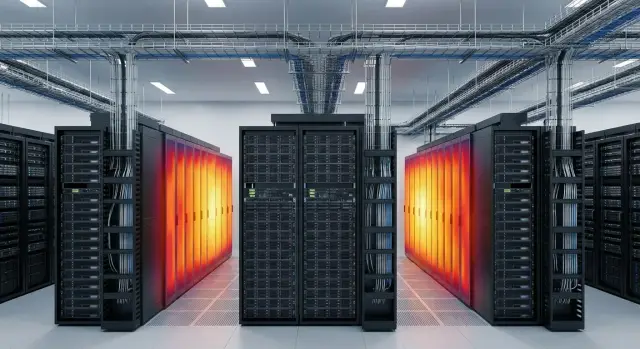
Where overheating in a GPU rack usually starts
Overheating in a rack almost never starts with a "bad server" — it starts with an incorrect thermal picture. Every watt the equipment consumes becomes heat inside the rack and the room. The denser you place GPU nodes, the faster heat builds up and the less margin the cooling system has for mistakes.
GPU servers overheat more often for a simple reason: they have a high power per unit of height (per U) and a very hot exhaust. One 2U or 4U node with multiple accelerators can produce as much heat as half a rack of typical CPU servers. If identical nodes stand nearby and intake/exhaust airflow is not as intended, temperatures climb in jumps.
A second reason is the gap between the datasheet and reality. Documentation shows TDP, but in real life there are power spikes, different power states, PSU efficiency, and how your AI stack actually behaves. On paper everything may look fine, but in practice fans go to maximum, throttling starts, then GPU errors and unexpected reboots follow.
Usually several layers constrain the system and the weakest link sets the ceiling: rack capabilities (density and front-to-back flow), room limitations (mixing of hot and cold air), actual cooling capacity for the row, and electrical limits (feed, circuits, PDUs).
The most important thing at the start is not to buy "cooling by eye" but to follow a short discipline: measure, calculate, and lay out. First record baseline temperatures and airflow, then convert expected power to heat and check rack and room limits. Only then distribute GPU nodes by U and by rows to avoid creating hot spots.
TDP, TBP and actual consumption: plain language
TDP is often read as "this many watts the hardware will burn." In reality, TDP is a guideline for cooling: how much heat the system needs to remove in typical operation. It helps compare models but doesn't guarantee that a CPU or GPU will always run at that wattage.
For graphics cards you will more often see TBP or TGP. These are closer to real life: usually they are the power limit for the whole card (not only the chip), set in firmware. A card can briefly go higher because of boost, and in some workloads it may stay near its limit. So for rack calculations TBP/TGP is usually more useful than the "nice" TDP number.
Remember that not only the GPU and CPU heat up. Individually those contributions may seem small, but inside a server they add up: memory and controllers, drives and network cards, VRMs (CPU and GPU power regulation), fans and pumps (if present), and PSU losses.
A common mistake is: "all our GPUs are 350 W, so each node is 350 W." No — 350 W is the card's limit. If a node has two GPUs at 350 W each and a CPU with 250 W TDP, you already get 950 W without counting anything else. Add memory, drives, fans and PSU losses and it's easy to reach 1.1–1.3 kW per server.
A simple scenario: a rack is planned with eight such nodes and cooling is calculated "at 1 kW each." An error of 200–300 W per node becomes an extra 1.6–2.4 kW of heat for the rack. These "small" mismatches are exactly how hot spots and unexpectedly high values appear when you convert watts to BTU/h and compare with the cooling capacity.
Converting watts to BTU/h: formula and quick examples
To "convert TDP to BTU" first accept a simple rule: nearly all electricity a server consumes eventually becomes heat inside the room. So for a rough heat estimate, power in watts is usually sufficient.
The basic formula is:
BTU/h = W × 3.412
The main trap is mixing up units. BTU can be an energy quantity (BTU) or a rate (BTU/h). For cooling you almost always need the rate, that is BTU/h.
How to calculate in practice: sum watts across nodes (or per server), then multiply the total by 3.412. This keeps the result clear and reduces the chance of mistakes compared to converting every small item separately.
A few quick examples to feel the scale:
- 500 W -> 500 × 3.412 = 1,706 BTU/h
- 1 kW (1,000 W) -> 3,412 BTU/h
- 3 kW -> 10,236 BTU/h
- 10 kW (a small "hot" rack) -> 34,120 BTU/h
If you have a GPU server with two cards at 350 W each (700 W) and CPU plus the rest at another 250 W, the total is about 950 W. In heat that is 950 × 3.412 = 3,241 BTU/h per server.
Should you add margin?
Yes, but without overkill. Typical guidance:
- +10%: you have measurements and the load is stable.
- +15–20%: growth is expected or there is uncertainty about configurations.
- +30%: no data, many variable scenarios, or risk that TDP understates real consumption.
Keep in mind network gear, storage shelves and UPS losses also add heat. It's better to build margin at the rack level rather than trying to "tweak" per GPU.
Units people often confuse
- kW: watts divided by 1,000.
- BTU/h: thermal power, what cooling is usually rated in.
- kcal/h: seen less in data centers but occasionally used. Roughly 1 W ≈ 0.86 kcal/h.
If you keep two anchors in mind (1 kW = 3,412 BTU/h and BTU/h as a rate), calculations feel much calmer.
Step-by-step heat load calculation for a rack
To prevent a GPU rack from becoming a furnace you need a simple calculation before purchase and installation. It doesn't require complex simulations but forces you to gather the right numbers and sanity-check them.
First record baseline data for each server. It's important to note not just GPU count but how the node is powered and cooled:
- server model, CPU and number of GPUs
- TDP/TBP for CPU and each GPU, and power limit settings
- number of PSUs and their efficiency (usually 80 PLUS ratings)
- expected utilization (inference, training, mixed)
- form factor and rack position (how many U)
Then follow these steps.
-
Split operating modes: peak (stress test or training), typical day, and "idle" background. Each mode gives a different number.
-
Estimate one node's consumption in watts. Almost all these watts become heat in the room. If in doubt, use the real power limits for GPU and CPU plus a 10–20% margin rather than just summing TDP numbers.
-
Convert heat to BTU/h using the same formula: BTU/h = W × 3.412. For example, a 2,200 W node is about 7,506 BTU/h.
-
Sum all nodes in the rack for each scenario and compare with the cooling capacity (per rack, per row, per room). If you hit limits at peak, plan node distribution across racks or reduce power limits.
-
Finalize the placement plan and record control measurements after installation: inlet temperatures, inlet-to-outlet delta, fan speeds, and alarm thresholds.
How to place "hot" nodes in a rack without surprises
The most common cause of overheating in GPU racks is not a "bad" air conditioner but poor layout. Distribute load not only by total watts but also by height. Warm air rises, so a dense "wall" of hot servers near the top almost guarantees problems.
Hot nodes most often show up in three places: the upper third of the rack, near the rear door (if there is recirculation), and where cables are bundled tightly and block exhaust. Even neat-looking cable management can become an airflow choke.
A few rules that usually work:
- Don't place the most powerful GPU nodes in a row at the same U positions. Spread them out vertically.
- Keep heavy nodes lower than mid-rack, and lighter devices (switches, management) higher.
- Use spacing: leave 1U empty or install a lower-heat 1U/2U device between hot servers when allowed.
- Respect airflow direction (usually front-to-back). Don't mix devices with different exhaust directions in the same rack.
- Observe manufacturer clearance: do not press rear connectors and cables against the door; leave room for exhaust and servicing.
Simple example: if you have two 4U GPU servers, don't stack them both in the upper U positions. Better to place one lower, then a 1U blank, then a 2U cooler node (e.g., storage), and then the second GPU server closer to mid-rack.
Before final mounting check:
- cables don't block intake grilles or fans;
- blanking panels are installed in empty U to prevent internal recirculation;
- top units have temperature margin (they are almost always in the worst conditions);
- device depth and clearance requirements match across the rack.
This kind of layout change often has more effect than simply increasing fan speeds.
Airflow: aisles, blanking panels and recirculation
Even with correct total heat calculations, a rack can overheat due to poor airflow. Often the reason is simple: cold air does not reach the "face" of servers, or hot exhaust is drawn back into the intake.
Cold and hot aisle: which is the intake side and which is the exhaust
One rule: servers should intake air from the front (cold aisle) and exhaust to the rear (hot aisle). If some equipment is installed "backwards," it will feed neighbors with hot exhaust. With GPU nodes this becomes obvious quickly: fans ramp up and temperatures jump.
Check orientation not only of servers but also PDUs, KVMs, network gear, and any boxes that might exhaust in unexpected directions.
Blanking panels and openings: small fixes that cure recirculation
Recirculation occurs when hot air from the rear gets into the front through empty U, gaps, cable cutouts, and unsealed penetrations. A single empty area in a rack can spoil intake air for several adjacent nodes.
Quick measures that often help:
- install blanking panels in empty U, especially near GPU servers;
- add brush strips or seals around cable openings to prevent "holes" between zones;
- route cables so they do not block front grilles or create a "curtain" before intakes;
- ensure perforated doors are clean and allow sufficient airflow;
- confirm cold supply (floor tiles, grilles, ducts) is directed into the cold aisle and not dissipated into the room.
A clear sign of air shortage: fans constantly running high, rising noise, and temperature spikes under any load. Often this means the issue is airflow direction or mixing, not necessarily too few air conditioners.
The link between heat and power: a sanity check
When planning cooling it's useful to start with power. For IT equipment almost all power drawn from the mains becomes heat in the same rack: CPUs, GPUs, memory, drives and fans all heat the air. So a heat calculation can be cross-checked by electricity: if a rack actually draws 12 kW, heat load will be close to 12 kW (and then converted to BTU/h).
A common trap is summing PSU maximum ratings. Two PSUs rated 2,000 W each don't mean the server always consumes 4,000 W. Those are redundancy or headroom values (e.g., 1+1). Actual consumption depends on GPU/CPU profiles, limits, settings and load.
PSU efficiency adds heat. If a server's components consume 3,000 W and PSU efficiency is 92%, the wall draw is about 3,000 / 0.92 ≈ 3,260 W. The difference (~260 W) is dissipated as heat inside the server, which also goes into the rack. Lower efficiency and higher load make this additional heat more noticeable.
Simple rule: when converting TDP to BTU, check expected power "at the wall" and PDU limits rather than summing PSU nameplate ratings.
Quick sanity checks before rack layout:
- sum expected server consumption in kW (prefer measurements or workload profiles, not peak nameplate values);
- confirm rack power limits: feed, PDU, breakers, number of phases and continuous ratings;
- add PSU losses (based on efficiency) and small items like switches and KVMs;
- compare: if power is near limits, cooling surprises are likely too;
- leave margin: consumption often increases with new firmware or higher loads.
Common mistakes when planning cooling for GPU racks
The most common mistake starts with a good intention: take GPU TDP, convert TDP to BTU and stop there. In reality, heat comes from more than GPUs. CPU, memory, drives, NICs, PSUs and even UPS losses add watts and thus extra cooling load.
Second trap: assume one "average" mode. A GPU server may be quiet at idle but spike sharply during job start, warm-up, stress tests and concurrent tasks. If cooling is tight, those peaks cause overheating and throttling.
Third error: poor vertical and neighbor layout. When the hottest nodes are adjacent and near the top of the rack, a layer of warm air forms and is harder to displace. Even with normal total power, local overheated zones appear.
Air mechanics things people often miss
Small details inside the rack matter: empty spaces without blanking panels, side gaps, loosely fitted panels. Air takes the path of least resistance, mixes, and may return to server intakes already warm. Then the room cooling may hold ambient temperature while servers still complain.
Sensors matter more than one room thermometer
Relying on a single thermometer in the room is risky. It's more important to know inlet air temperature for each server and the inlet-to-outlet delta.
A short check before start catches many issues:
- account for heat from all components and PSU losses, not just GPUs;
- test peak modes (job start, stress tests, training) and include margin;
- spread hot nodes vertically and leave gaps if possible;
- install blanking panels and seal gaps to prevent recirculation;
- place sensors at server inlets and compare readings across U positions.
A simple example: two identical GPU servers placed side-by-side near the top of a rack can overheat more than the same two servers spaced vertically and separated by cooler nodes, even if total power is the same.
Short pre-installation checklist
Before bringing hardware into the room, run through a short list. It helps catch mistakes that later appear as "sudden" overheating or unexplained reboots under load.
First, consolidate heat numbers into a single unit. When you reliably convert power into BTU/h it's easier to compare servers and cooling capacity per rack, row or zone.
Check this before installation and first power-up:
- Peak heat load: how many W and BTU/h one node and the whole rack produce in the worst case (turbo frequencies, full GPU load, active NICs and drives).
- Placement of hot nodes: where the densest GPU servers will be, are there 1U–2U gaps, are blanking panels installed, and is there a "wall of heat" in one part of the rack.
- Server inlet temperature: measure air directly in front of the panel, not just the room air. Often the room is 22°C while inlet to top units is 30°C.
- Margin for power and cooling: leave reserves for future cards and growth. If PDU and breakers are tight, overheating often coincides with power drops.
- Monitoring and response: which sensors you watch (inlet air, fan speed, consumption, GPU hotspot), alarm thresholds and who responds at night.
A practical tip: swapping a hot node with a cooler storage node often fixes a hot inlet without reworking the whole rack.
Realistic example: two GPU racks and neighboring nodes
Consider a typical AI project: two 42U racks. Each will host hot GPU nodes (4–8 GPUs) and nearby cooler servers for storage and services (controllers, management, auxiliary VMs).
Two node types for estimation:
- GPU node: real consumption under load about 3.5 kW (often above nameplate TDP when turbo and memory are active).
- Storage node: about 0.8 kW (drives and controllers also heat, but usually much less than GPUs).
Quick heat estimate using 1 W = 3.412 BTU/h: a 3.5 kW GPU node is roughly 11,942 BTU/h, and a 0.8 kW storage node is about 2,730 BTU/h.
How many fit depends not on U but on cooling and allowable heat density. If a rack is rated for, say, 20 kW of heat removal, in theory it can hold five 3.5 kW GPU nodes (5 × 3.5 kW = 17.5 kW). In practice leave margin for peaks, filter degradation and room temperature rise.
A vertical placement might look like:
- hottest GPU nodes near mid-rack (roughly U14–U28), where intake is often more consistent and front flow easier to manage;
- bottom reserved for PDUs and cable entries to avoid choking the intake;
- top for cooler devices (storage, services) to avoid pre-heating intake to hotter GPUs.
During the first 48 hours after launch, measure rather than guess:
- inlet temperature (front) for top, middle and bottom devices;
- inlet/outlet delta for the hottest nodes;
- fan speeds and GPU throttling frequency;
- hot spots in the aisle and rear of racks with thermal imaging or sensors;
- per-phase consumption on PDUs to detect imbalance and hidden peaks.
Next steps: from calculation to implementation
After estimating rack heat loads, turn numbers into an actionable plan. Overheating usually results from a set of small issues: incomplete datasheet data, temporary cabling, blocked grilles and lack of margin.
Start with an inventory: server and GPU models, number of PSUs, expected load, rack layout and room constraints (supply air temperature, available airflow, noise limits). If exact configuration data is missing, be conservative: real workload consumption often differs from the "paper" values.
Then validate on-site. A simple loaded run with inlet/outlet temperature sensors quickly reveals where recirculation starts and which U positions heat neighbors more than expected.
A practical sequence:
- collect datasheet values, planned U layout and room limits;
- calculate heat in W and BTU/h and compare with rack/row cooling capacity;
- do a pilot install of 1–2 nodes and measure temperatures under typical load;
- include reserve for growth, maintenance and filter degradation (don’t plan to the limit);
- finalize power and heat profiles before procurement, not after delivery.
For large projects, agree early who owns the interfaces between servers, racks, electricals and cooling. It is useful to involve a system integrator who can coordinate configurations, placement and support. For example, GSE.kz as a supplier and integrator in Kazakhstan provides servers and helps align power, cooling and rack layout to the room’s conditions.
The final step is to document the solution: rack diagram, permitted configurations, temperature thresholds, maintenance plan and who checks what before launch. This saves time when the rack grows or someone adds "one more" hot node for a few weeks.
Frequently asked questions
How do I convert server power from watts to BTU/h?
Use the formula: BTU/h = W x 3.412. A server that consumes 1,000 W produces approximately 3,412 BTU/h of heat.
What should I consider when calculating heat output for a GPU server?
Do not count GPU TDP alone. Add the GPU and CPU limits, memory, drives, network cards, fans, and power supply losses. Then validate the calculation against expected power draw at the outlet.
Can cooling be calculated using only the graphics card's TDP?
TDP provides a cooling guideline for typical operation. For a rack, it is more useful to look at the graphics card's TBP or TGP, power limits, and measurements under real workloads.
How much cooling headroom does a GPU rack need?
Yes, if the workload is stable and you have measurements. If the workload grows or the data is incomplete, a 15-20% reserve is usually built in for the entire rack.
How do I calculate the heat load for an entire rack?
First, divide power consumption into operating modes: idle, normal operation, and peak. For each mode, add the power of all devices in the rack and multiply the total by 3.412.
Where is the best place to install hot GPU servers in a rack?
Distribute the hottest nodes vertically and do not place them in a dense group at the top. Heavy GPU servers are usually placed below the middle, with cooler devices above them.
Why are blanking panels needed in empty rack units?
Cover empty rack units with blanking panels, seal cable openings, and keep cables away from grilles. Servers should draw in cold air from the front and exhaust it out the back without obstruction.
Which metrics should be monitored after deployment?
A single room temperature does not show the conditions for every server. Measure the air temperature in front of the front panel, the inlet-to-outlet temperature difference, fan speeds, and power consumption.
Why do servers overheat when the room temperature is normal?
The cause is often air recirculation, dense cabling, empty rack units without blanking panels, or hot nodes placed next to each other. Check the inlet temperature of the upper servers and the airflow direction.
How are heat calculations related to power supply limits?
Two 2,000 W power supplies may operate in a redundant configuration and do not mean 4 kW of power consumption. Use the expected power draw at the outlet, account for PSU efficiency, and compare it with PDU limits.
