7 min read
Control hardware changes on workstations without alert noise
Hardware change control for workstations: how to detect disk and RAM replacements, spot new devices and configure alerts that don’t overwhelm support.
What are hardware changes and what problems do they cause
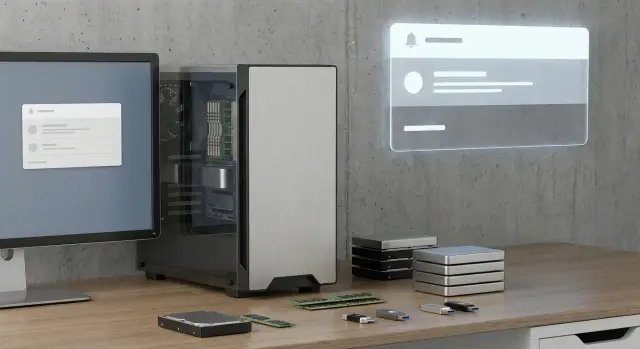
A hardware change is any replacement, addition or removal of components at a workstation that alters the PC configuration. This can be swapping an SSD, adding a RAM stick, connecting a new USB device, changing a network adapter or moving a disk between two computers. For IT, the important thing is not who opened the case but what changed and whether it can be verified.
Change control is not just bureaucracy. It helps quickly understand why “it worked yesterday, but not today” and avoids wasting hours guessing.
Subtle changes most often cause downtime (PC won’t boot, drivers change, storage not detected), licensing and access problems (some software is tied to hardware), security risks (unknown USB devices, disk swaps, untracked Wi‑Fi adapters) and disputes around warranty and responsibility (it’s hard to prove what was in the PC and who changed it).
Changes are not always initiated by IT. Contractors (during repairs), users (who added RAM “for speed”) or colleagues from another department who “temporarily” moved a disk can be the cause.
The rule is simple: track anything that affects data, security and availability. Disks, RAM and newly connected devices almost always fall into that category. Replacing a mouse, keyboard or monitor usually doesn’t require automatic alerts unless it’s a secured area with strict accounting.
What to track: disks, RAM and new devices
To make hardware-change control useful and not turn into an alert flood, agree in advance on the minimum dataset. Usually it’s enough to capture what clearly distinguishes “the same” from “different”: model, serial number, capacity and key interface characteristics.
Disks (HDD/SSD/NVMe)
For disks, it’s important not only to see a replacement but also signs of imminent failure. If a laptop has the “same capacity” but a different drive, that’s a change.
Minimum data to record for each disk:
- model and serial number
- type and interface (SATA, NVMe), form factor
- total capacity and available space (often an early signal of issues)
- SMART status and critical attributes (errors, reallocated sectors, wear)
- disk role (system/data) if it can be determined
RAM and new devices
For memory the goal is simple: detect “less”, “strange” or “a new module appeared”. In practice total capacity, frequency and the number of modules are often enough. If possible, record each module’s Part Number — it greatly simplifies investigations.
Highlight devices that frequently appear “on the fly” and later cause incidents: USB drives and external disks (ID/serial/class), new network adapters (USB‑Ethernet, Wi‑Fi dongles) with MAC addresses, and docks and hubs (they often bring new network interfaces and ports). Printers and MFPs are worth tracking too to distinguish one-off installs from permanent devices.
A simple example: an employee brought a USB‑Ethernet adapter “to speed things up”. A week later you see a new MAC and a different network profile. If device type and MAC are recorded, support immediately understands the cause and doesn’t search for a missing network in the PC settings.
Baseline and history: without them alerts will be noisy
An alert by itself is not “smart”. It just compares what was with what is. If you don’t have a single baseline snapshot, the system will treat almost everything as a change: OS reinstallation, warranty laptop replacement or moving a disk between identical PCs.
Capture the baseline at least twice: at the start (to lock the initial state) and after planned work (bulk upgrades, migrations, fleet replacements). Otherwise you’ll end up with a perpetual tail of false positives.
How often to collect data
The more frequent the polling, the more accurately you’ll see changes, but the higher the load on network, PCs and support. For most office endpoints this schedule is sufficient:
- once a day — key parameters (disks, RAM, serial numbers, network adapters)
- once a week — extended inventory (drivers, peripherals, BIOS versions)
In critical zones (finance, healthcare, or endpoints with access to sensitive data) collection can be more frequent, but keep the field set small.
Current state and change history
Storing only the current state is convenient but almost useless for investigations. The minimum that helps support is a change history with date, host and a “was/now” detail (for example: disk 256 GB, serial X — became 512 GB, serial Y). That makes it easier to tell a real upgrade from an inventory glitch.
To ensure planned upgrades don’t look like incidents, mark them: the most practical option is a ticket or change in ITSM listing devices and a maintenance window. During the window, alerts for those parameters are treated as “observations”, and after completion the baseline is updated. Support then sees only genuinely suspicious changes: outside the window and not on the approved list.
Where to get data: inventory collection options
Before you set up change control, decide where the facts come from. Mistakes at this step usually lead to blind spots (especially on remote laptops) or duplicate records.
The clearest option is an agent on the PC. It regularly collects info about disks, RAM modules and connected devices and sends it to a server. The advantage is that the agent can report the machine even when it’s outside the office: over VPN or the internet. The downside is you need to install it, update it and ensure it isn’t disabled.
Agentless collection relies on what’s already available on the network: standard protocol queries, remote commands, domain data. It’s easier to deploy but works well only where there’s stable connectivity and access to endpoints. In branches with poor links and on laptops that rarely join the corporate network, coverage will often be incomplete.
Use what’s already deployed
If you have AD, MDM, EDR or a CMDB, don’t start from scratch. These systems often already know the device model, serial number, some components and sometimes a change history. A practical approach is to choose one “source of truth” (often the CMDB) and use the other systems as providers of facts and events.
System events also provide useful signals: the Windows log (USB connections, driver changes, disk errors), udev on Linux, MDM events for managed laptops. They’re good for triggers (something happened) but do not replace inventory (what is actually installed now).
Mixed environment: office, branches, remote
In practice, a hybrid approach usually works best: an agent on laptops and critical workstations, agentless collection in office segments with good availability, MDM for mobile and remote users, EDR as a source of suspicious connection events and quick changes, and the CMDB as the single history and approval location.
Tools: built-in to specialized
Tool choice depends on whether you need a quick fleet overview, near‑real‑time change visibility or tight integration between inventory and tickets. For hardware-change control a combination of endpoint management and a dedicated inventory source is often enough.
Microsoft built‑in tools
If you already use Microsoft 365, start with Intune (Endpoint Manager). It provides device inventory and basic configuration reports. A key advantage is that data comes from managed endpoints, not just the network.
When you need to know who and when connected a device or to investigate an incident, Microsoft Defender for Endpoint is useful. It’s stronger on events and investigations than as a single hardware register.
Specialized systems
If you need accounting plus workflow, a classic stack is OCS Inventory with GLPI (or similar): inventory, change history and tickets in one system. This is convenient when a disk replacement or RAM addition should automatically create a confirmation or acceptance task.
In large networks scanners like Lansweeper help: quick start and many ready reports, but data quality depends on device reachability and access rules in segments.
Monitoring systems (Zabbix, PRTG, the Prometheus stack) are useful for availability and metrics, but usually offer limited hardware detail. Treat them as complements.
If your organization needs supply transparency and fleet support (public sector, large enterprises), decide upfront where the “truth” will live: Intune, CMDB/GLPI or a separate registry. That prevents duplicate alerts and speeds up investigations.
How to configure alerts without overloading support
Alerts should fire only for events that impact security, availability or accounting. Send everything else into daily or weekly reports. Otherwise support will stop reacting quickly.
First, define what counts as an event
A good rule: an alert should answer “do we need to act today?”. For example, an unapproved system disk replacement almost always requires investigation, while connecting a new mouse usually does not.
It helps to split events by importance:
- Critical: new or replaced disk, changed disk serial number, system disk disappearance, unknown network adapter.
- Medium: RAM capacity change, memory module replacement, Wi‑Fi card swap (if policy-sensitive).
- Low: new peripherals (keyboard, mouse), dock, printer (unless forbidden).
Reduce noise: windows, exceptions and anti‑flood
Noise often comes from scheduled work and repeated instances of the same event (reboots, driver reinstalls). Predefine maintenance windows and group exclusions: labs, classrooms, test PCs, engineers’ workstations.
Enable deduplication: one ticket for a series of identical events on one PC within a set period (for example 2–4 hours). The ticket should include a summary: what changed, when, who was on the system, and whether there’s a related request.
Choose delivery channels by criticality. Send critical events to the service desk (ticket required). Medium events can go to a general support channel or email marked “check when possible”. In a SIEM, duplicate only security‑relevant changes (unexpected disks, unknown USB drives), otherwise the SIEM itself will be noisy.
Typical alert rules: disks, RAM, USB and network
Good rules answer two questions: is it a risk or a planned change? It’s convenient to base them on “what changed”, “who owns it”, “is there a ticket” and “does it look like policy circumvention”.
Disks: replacement, swap and disappearance
For disks, the most useful signals are serial number and media type. If the serial changed, that’s an event. If the old disk “disappeared”, quickly determine whether it was removed by ticket, failed, or stolen.
For laptops give higher priority. Disk swaps there pose a greater data‑leak risk because devices move into the field. Initial checks are simple: was encryption enabled (for example, BitLocker), are there recent access events to sensitive data, who last used the device.
RAM, USB and network: where noise is common
RAM changes can look like “present or not” so record total capacity, slots (if available) and repeatability.
A practical rule set that gives a lot of value with few alerts:
- Disk: alert if the serial number is new or the media type changed (HDD→SSD) and there’s no approved ticket in the last 72 hours.
- Disk: critical if the system disk disappeared or encryption was disabled.
- RAM: alert if capacity increases or decreases by 8 GB or more and the change persists after 2 reboots.
- USB: alert if a new storage device not on the whitelist is connected; temporary exceptions can be granted for 24 hours.
- Network: alert if a new network adapter/modem appears or a tethering interface is enabled, especially on workstations not intended to share connectivity.
To avoid overwhelming support, for USB and network it’s often better to use a “summary” mode: one daily report of new devices rather than an alert for every connection. Keep real‑time alerts for critical events.
Approval process: turning alerts into actions
An alert does nothing if it’s unclear who verifies the change and what to do next. Usually three roles are enough: IT (rules and baseline owner), the performer (engineer or contractor) and the department manager (approves the work and downtime window).
A minimal process can stay simple: ticket — perform — update baseline. The ticket documents what was changed (SSD, RAM amount), which PC and why. After the work the performer uploads confirmation, IT updates the baseline and closes the event so alerts don’t repeat.
To quickly match serial numbers without heavy bureaucracy, agree a short evidence standard: old and new disk serials (or photos of labels), RAM model and capacity, date and technician name. This takes minutes but helps a lot in disputes and audits.
If a change isn’t confirmed, have a clear escalation ladder:
- first time: verification (on site or remotely), ask the user, search for a ticket
- if there’s risk (unexpected disk, USB drive, frequent changes): temporarily restrict access or isolate from the network, then investigate
- if no confirmation: document retroactively or create an official memo to close the case
Store confirmations so IT, security and procurement can find them: ticket number, device, serials, receipt/waybill, who approved. This helps with upgrade planning and warranty control.
Practical example: an SSD replaced without notice
In a branch someone upgraded a PC “quickly” by swapping an SSD. Support only learned after a failure: the user reported missing applications and files from the old disk. The issue wasn’t a corrupted OS but that the disk was changed and the change wasn’t recorded.
With change control in place the story would be calmer: the system would have logged the event that day and shown context instead of just “something changed”. Useful signals include:
- system disk serial number or storage controller serial changed
- model/capacity changed, new partitions appeared
- after replacement SMART errors increased or encryption mode changed
To prevent alerts from flooding support, mark legitimate work: set a maintenance window (time and a PC list) and the performer. The event moves into a confirmation queue rather than a red incident.
What support can do in 15 minutes when a replacement is unapproved:
- Check what changed: disk, capacity, serial, timestamp.
- Compare with the maintenance calendar and tickets, ask the branch manager.
- Log the incident: who changed it, why, and where the old SSD is stored.
- Assess risks: encryption state, presence of corporate data, backup status.
- Close the event as “confirmed” or escalate.
After that update the records: new SSD serial, replacement date, responsible person and where the old drive went (warehouse, disposal, storage). Then the next alert will be accurate and useful.
Common mistakes and how to avoid them
Chaos often starts when teams try to catch events without agreeing on what’s normal. Without a baseline every PC looks exceptional: different BIOS versions, different driver sets, different inventory sources. Start with one trusted data source and establish the baseline after a “clean” period, for example after a planned update.
A second mistake is polling too often. If an agent or script polls hardware every 5 minutes, support will get a storm of identical events: “serial read differently”, “RAM recalculated after reboot”. Poll less frequently and complement it with event triggers for truly important changes.
An alert without context almost always becomes noise. “New disk detected” is useless if you don’t know where it happened. For any event keep minimum fields:
- PC name and serial
- user (if available) and department
- location (office, floor, room)
- what changed: was/now, dates and data source
Peripherals are another blind spot. USB drives, new network adapters and docks often bypass rules, though they frequently cause leaks and a shifting network. Agree which device classes matter and track them via whitelists.
Finally: events must live in the service desk. If alerts don’t create tickets and aren’t closed with outcomes, they remain in email and get forgotten.
Weekly quick check: a checklist without extra work
A weekly check isn’t about total control but catching quiet changes before they become incidents. If performed consistently it becomes a simple routine.
Spend 15–20 minutes on a short check:
- Disks: compare model, serial and capacity to records. Mark any discrepancy as “requires confirmation” even if the PC operates normally.
- RAM: check total capacity and module count. Unexpected “half memory” often means a module was moved, not fully seated, or failed.
- New devices: review what was connected during the week (especially USB drives and external disks) and which workstations were involved. The goal is understanding “who, where and why”, not banning everything.
- Exceptions and maintenance windows: ensure temporary permissions haven’t expired. Expired exceptions are a common source of noise.
- Change summary: ensure every unconfirmed change has an owner and status (approved, in progress, rejected).
To avoid overloading support, use a simple rule: record all found changes in one place and send a short monthly summary to responsible parties (IT, security, managers).
Next steps: pilot, scaling and fleet support
Start with a short pilot to understand how many real incidents you’ll catch and how much noise you’ll get. Usually 50–100 PCs across different departments and two event types — disk replacement/addition and new USB devices — give a clear picture without overloading support.
Assign process owners immediately. Change control breaks quickly if it’s unclear who decides, investigates and updates the baseline.
- IT: configure data collection, exceptions and handle tickets
- InfoSec: USB/network rules and escalation of suspicious cases
- Procurement/warehouse: track components and confirm replacements
- Department managers: approve planned changes
Before scaling, agree on thresholds and exceptions. The same alert “disk replaced” can be normal for service engineers and critical for finance. Decide which USB classes are allowed, which PCs are in test, which work is planned and how it is marked.
When the pilot is stable, expand in stages: first the office fleet, then critical endpoints, then servers and labs. If you plan a fleet refresh, include change control from day one: record reference configurations on issuance, track replacement history by serial numbers and link changes to tickets.
If equipment is purchased and serviced through GSE.kz (gse.kz), it’s useful to record initial configurations at delivery and then track replacements by serial number. That reduces disputes and helps support resolve incidents faster.
Frequently asked questions
What counts as a hardware change on a workstation?
Hardware change — any replacement, addition or removal of components that alters the PC configuration. In practice, disks, RAM, new USB devices and network adapters cause the most issues because they affect booting, drivers, access and security.
What disk, RAM and device data should be gathered first?
Record the minimum that clearly distinguishes “the same” from “different”: model, serial number and key characteristics. For disks — type/interface and SMART data; for RAM — total capacity, frequency and, if possible, module Part Numbers; for network — adapter type and MAC address.
Why is a baseline needed, and why are alerts useless without it?
An alert compares “before” and “after”. Without a baseline, almost any difference looks like an incident. Create a baseline at the start and update it after planned work, otherwise you’ll get constant noise and a support team that stops responding.
How often should inventory be collected to see changes without overloading infrastructure?
For most office PCs it’s enough to collect key parameters once a day and a fuller inventory once a week. In critical areas you can collect more often, but reduce the number of fields to avoid overloading the network, machines and the service desk.
Why store a history of changes rather than only the current configuration?
Keeping only the current state is convenient but almost useless for investigations. You need a history with date, host and a «was/now» format so you can tell a real replacement from an inventory glitch and quickly find who made the change.
Which is better: agent-based or agentless data collection, and what’s the difference?
An agent is better for laptops and remote users because it can report the device outside the office, but it requires installation and maintenance. Agentless collection is easier to deploy but works well only where there’s stable connectivity and access to endpoints.
How to use AD/MDM/EDR/CMDB so inventory records don’t duplicate?
Choose one source of truth (often the CMDB) and pull facts from AD, MDM, EDR and event logs as supporting evidence. That reduces duplicates, gives faster context and avoids conflicting data for the same PC.
How to configure alerts so support doesn’t drown in notifications?
First, decide which events require action today: e.g., an unapproved disk replacement or a new network adapter. Then add maintenance windows, exclusions for certain groups and deduplication so the same event doesn’t create dozens of tickets.
Which alert rules are most useful for disks, USB and network?
For disks, critical signals are a changed serial number, disappearance of a system disk, or disabled encryption unless it happened in a maintenance window. For USB and network, use real-time tickets for critical cases and daily summaries for noncritical activity to avoid constant pings.
How to arrange approval for disk and RAM replacements so alerts turn into actions?
Keep the process simple: request — perform — confirm — update baseline. For proof, recording old and new serial numbers, models, dates and the technician is usually enough. If a change is unconfirmed, there should be a clear escalation path from asking the user to temporarily restricting access when there are risk indicators.
