6 min read
Conference Room as an IT Service: a checklist for network, audio and support
The conference room as an IT service: a practical checklist of requirements for network, audio, management, redundancy and remote diagnostics for typical rooms.
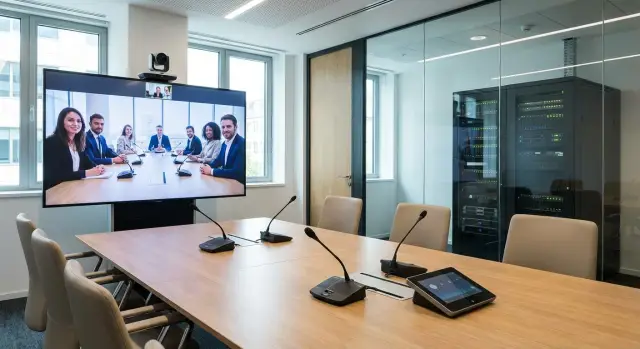
Why meeting rooms “don’t work” and how to fix it
A meeting room usually fails during a meeting not because the equipment is bad, but because the system was left without clear rules. Before a meeting nobody checks whether the camera sees people, whether microphones are quiet, or whether the network is busy with updates. And when a problem appears, there is no owner on site and it’s unclear what to do to quickly get the room back to working order.
A typical scenario: a team joins an important call, the panel shows “connected”, but the sound drops out every 30 seconds. IT says the network is fine. Facilities (AХО) are sure everything in the room is powered. Security asks not to change settings. Users lose 10–15 minutes and end up switching to laptops.
The “Meeting room as an IT service” approach shifts the focus. This is not about “installing hardware and forgetting it”, but about a repeatable service: it has an owner, clear rules, measurable indicators and predescribed actions for failures. Then the room becomes predictable: the same startup scenarios, the same settings, the same support logic.
Start with roles. IT is responsible for the network, accounts, updates and monitoring. Facilities (AХО) handle power, furniture, room acoustics and access. Security owns policies, segmentation and connection controls. Users follow simple rules: don’t unplug cables, don’t change modes, report issues through a single channel.
Measure success by metrics, not by feel. For example:
- meeting startup time (goal — under 60 seconds)
- share of meetings without incidents
- recovery time for typical failures
- number of requests per room
- clarity of support (where to write and what to report)
When that’s in place, even projects with dozens of rooms become manageable.
Step-by-step plan to implement meeting rooms as a service
To stop treating rooms as a set of disparate devices, treat them as a service: unified rules, clear support, measurable quality.
-
Inventory and real scenarios. Record what rooms you have and how they are used: small rooms for quick calls (4–6 people), medium rooms for hybrid meetings, large halls for presentations. Separately describe scenarios: internal meetings, Teams/Zoom calls, hybrid with one speaker at the board and a remote audience. These scenarios determine requirements for microphones, cameras, screens and control.
-
Minimal room standard. This is not about the maximum spec, but about a stable minimum so users always see a familiar interface and the same startup logic. This reduces support requests and speeds up onboarding.
-
Basic infrastructure requirements. Decide where wired network is required, where Wi‑Fi is acceptable, how many power outlets and how much power headroom you need. Define how you check connection quality and what you consider normal (latency, loss, stability).
-
Support as a process. Describe who accepts requests, what is done remotely, what requires on-site visits, who is responsible for updates and setting changes, which metrics are collected and which permissions users have.
-
Pilot and roll-out. Choose 2–3 representative rooms, configure them from a template, gather feedback and refine the standard. Then roll out identically: with a room passport and a clear acceptance process.
If you need a turnkey partner, it’s convenient to work with a systems integrator who can formalize standards, help with the pilot and organize post-launch support. At GSE.kz (gse.kz) this usually includes design, system integration and 24/7 service support via their own network.
Standardizing rooms: what should be the same
In a service approach, standardization matters more than expensive equipment. When rooms are similar, support finds problems faster, users make fewer mistakes, and spare parts and settings don’t turn into a zoo.
Start with names. They should match in the calendar, on the door plate, in the booking system and in support tickets. A simple “building-floor-room” logic works well (for example, A-3-12).
Next, define uniform connection points. Users shouldn’t guess where the cable is or whether it reaches the table. Agree on a minimum set at the table and at the display, and keep one spare cable kit in the room.
The control interface should also be consistent. The same buttons and the same scenarios reduce urgent requests: “Start meeting”, “Connect laptop”, “Video call”, “Shutdown”. If one room requires three steps to start and another only one, people will make mistakes and blame the equipment.
For AV placement, set simple rules: camera centered on the screen at the right height, microphones not hidden under papers, speakers not pointed at microphones. Room sizes vary, but the logic should be the same.
Also create a room passport: what is installed, serial numbers, connection diagram, where the remote is, who is responsible for support and how to get help quickly. This greatly speeds up maintenance when many rooms are distributed across offices.
Network: channels, segmentation and link quality
Plan the network for meeting rooms not “for internet” but for the specific streams that run during and after a meeting. In one room you have a video call, audio, control (panel and controller), monitoring and background updates. Problems start when all of this is mixed with ordinary office traffic and nobody knows what is critical for the room.
For stable meetings, megabits aren’t everything. Predictability matters more: low latency, minimal loss and steady jitter. If the video falls apart only during peak hours, the cause is often contention, not raw bandwidth.
Segmentation without pain
A reasonable minimum is to put AV equipment into a separate VLAN and restrict where it can go (for example, to the necessary cloud services and monitoring). It’s easier to find problems and safer to connect devices that way.
Phrase QoS in plain terms: during a meeting, voice and control are more important than updates. Test this in practice with a test call during peak time and a synthetic load: it’s important to see that voice doesn’t degrade and control remains responsive.
Wired or Wi‑Fi
Cameras, codecs, audio processors and control panels are best wired — this gives stability and repeatability. Reserve Wi‑Fi for guests and BYOD scenarios, but don’t make it the only channel for the whole room.
Redundancy and fault tolerance without unnecessary complexity
Not every room needs redundancy. The higher the cost of a failed meeting (executive meeting, regulatory negotiations, remote commissions), the more sense it makes to pay for fault tolerance. For regular rooms, a clear standard that the on-duty team can support is often enough.
Two switches or two uplinks: which to choose
Two uplinks (two ports to separate distribution switches) often deliver better value for money: less hardware in the room, easier maintenance and monitoring. Two switches in the room make sense if you need many ports and must survive a local switch failure without losing local switching, but that adds configuration, space and failure points.
Internet redundancy is usually reserved for critical rooms: a second channel or an LTE router as a backup for video calls. Decide in advance what must remain working when the main channel fails: only video calling, or also access to corporate services.
Power fails as often as the network. For AV you need UPS units of the right capacity, a dedicated power line for the rack, and a predictable power-up sequence so devices start in the same order.
Keep a short, clear failure playbook:
- where to check status (panel, indicators, monitoring)
- what to restart first and in what order
- who to call if the problem repeats
- how to log the incident so you don’t fix “by feel”
A common reason for “the backup exists but doesn’t work” is configuration errors: STP loops, IP conflicts, VLAN mixing, auto-failover that breaks audio. This is fixed by consistent configuration templates and regular failover testing, not discovering it during the first important meeting.
Audio and video: requirements that actually affect meetings
Even with a perfect network, a meeting will fail if people can’t hear or see each other. So audio and video requirements should be documented as clearly as Wi‑Fi and VLAN: what is considered normal, how it’s measured, who sets it up.
Minimum requirements to record
Start with speech intelligibility. Speech should be understandable without strain or repeated “can you repeat?”. Three common issues are echo, constant noise (HVAC, projector, street) and incorrect microphone placement.
Microphone choice depends on the scenario. Table microphones suit small fixed-seat rooms but pick up table noises. Ceiling mics free up the table and are good for medium rooms but need correct height and zoning. Wireless mics are useful if a speaker moves or the room is reconfigurable, but they must be disciplined for charging and storage.
In video the frame and lighting are critical. The camera must capture all participants without distortion and the speaker’s face shouldn’t fall into shadow because of a window behind them. For the screen, size and placement matter: someone at the far end should read text without squinting.
Quick acceptance tests
Before handing over the room, run repeatable checks:
- 30 seconds of speech recorded from different seats (words are distinguishable, no whistles or booming)
- echo test on a two-way call
- frame and lighting (faces readable, no strong glare)
- screen legibility from near and far seats
- 15 minutes of a real call with screen sharing and questions from the room
If these checks are part of the standard, meeting quality depends less on “how well someone can tune it” and more on clear requirements.
Room control: scenarios, permissions and a clear interface
Control must be as predictable as opening email or printing: the same steps in every room, minimal on-site settings, quick return to a “default” state.
Centralize only what affects meeting start and connection quality. The fewer fine settings available to users, the fewer accidental breakages.
Typically the unified interface includes room power, source selection, volume and mute, display output modes and a quick reset button.
One-button scenarios work best: “Meeting” turns on screens and microphones, “Presentation” prioritizes the laptop source, “Video call” brings up the call and sets levels. The main thing is consistent names and logic across all typical rooms.
Set permissions in advance: an employee should be able to start scenarios and change volume. Access to routing sources, equalizer, network parameters and updates must be admins-only.
Action logs are very helpful in disputes: who switched the source, who muted the mic, when the room rebooted. Manage updates by IT rules: test on one pilot room, then roll out gradually.
Remote diagnostics and monitoring: what to have in place
It’s important to see the room status before the meeting starts. Remote diagnostics aren’t only to check if a device powers on, but to quickly identify the cause of a failure and restore service without an on-site visit.
First, define what you consider normal and which metrics to collect. The minimal set usually includes: availability of key devices (codec, controller, switch, display), start time, connection quality (loss, latency, jitter), peripheral errors (camera not responding, microphone disabled, HDMI/USB not detected), and actual usage and number of failed meetings.
Next, implement checks that resemble a real meeting. A single ping to a device rarely helps. Tests that answer user questions are more useful: is there camera video, are microphone levels present, is the correct source selected, is the wired port stable.
Don’t overdo alerts. Classify events into incidents and warnings and set thresholds in advance. An incident is the room being unavailable or no audio/video. A warning is increased startup time, degraded network, or an intermittently dropping camera. Track unusual reboots and configuration changes separately.
To speed up recovery, keep logs and configuration snapshots: firmware versions, network settings, room profiles, connection diagrams. After replacing a device or a reset you can restore a working state in minutes.
Support and SLA: how to operate after launch
A service approach means a simple thing: rules exist for who helps how, and what’s considered normal.
A three-tier model is usually convenient. The first line takes the request and performs basic checks (source, cables, restart the panel). The second line (IT) handles network, accounts and integrations. The vendor or integrator gets involved when repair, firmware or hardware replacement is needed.
Write SLA in plain language. Minimum items to include: support hours, response time, recovery time, priorities (critical hall vs ordinary room) and one channel for incidents.
Spare devices and spare parts should be realistic: items that fail most often and quickly restore a room (cables, one spare mic for a typical room, basic adapter kit, spare remote). This is usually cheaper than cancelled meetings.
To prevent updates from breaking the calendar, create a change window: planned updates on schedule, and out-of-window changes only for critical fixes with a clear rollback plan.
Finally, keep on-site instructions: not a long manual, but a 30-second card: how to start a meeting, what to do if there’s no sound or camera, and how to call for help (including room number and symptoms).
Common project mistakes and how to avoid them
The most frequent complaint is simple: rooms are assembled “ad hoc” and every time differently. Users constantly relearn, and support has to deal with a unique device mix each time.
Typical problems:
- different interfaces and control logic in each room
- Wi‑Fi used as the only channel for critical meetings
- no standard for cables and adapters
- lack of monitoring, problems are discovered too late
- OS and software updates not tested on a pilot and not governed by process
Practices that help: approve 2–3 standard room profiles (small, medium, large) and stick to them; provide a wired channel for main AV traffic; standardize cables and labeling; enable remote diagnostics from day one; agree on a change window and a test room.
Quick checklist and next steps
Before launch, run basic checks and record results. A short checklist that reduces surprises:
- network and power (VLAN, traffic prioritization, stable wired channel for AV, protection from accidental unplugging)
- joining a call and screen sharing (including guest connections if needed)
- audio and camera (intelligibility, no echo, correct frame and lighting)
- button scenarios (work the same in each room)
- access and security (who changes settings and how to restore the room after a mistake)
On acceptance, avoid “seems fine” statements. Agree on measurable checks: time to connect to a call, connection stability under load, correct source switching. Record in one acceptance act the date, firmware versions and connection diagram.
After launch, allow two weeks of observation. If users complain about “low volume”, don’t rush to replace equipment: first check presets, microphone placement, noise reduction settings and common scenario mistakes.
To scale to dozens of rooms, keep simple discipline: standard specs for 2–3 room classes and consistent rules for naming, cables, ports and settings.
Next steps:
-
Approve the room standard and acceptance templates.
-
Plan roll-out, spare parts stock and update process.
-
Define support and SLA, including remote diagnostics. If monitoring and dispatch are built on your infrastructure, it’s convenient to plan for standard PCs and servers and the integration and support that can be organized using solutions and services from GSE.kz.
Frequently asked questions
Who should be the “owner” of a meeting room so it works reliably?
Appoint a single service owner (usually from IT) who is responsible for the standard, changes and metrics. Then divide responsibilities: - IT: network, accounts, updates, monitoring - Facilities (AХО): power, furniture, room acoustics, physical access - Security: segmentation, connection policies - Users: do not change connections, report issues through a single channel The main thing is that in an incident it's clear who makes the decision and who performs the first actions.
Which metrics actually help to understand meeting room quality?
Set 3–5 simple metrics and collect them regularly. Practical minimum: - meeting start time (target, e.g. under 60 seconds) - share of meetings without incidents - average recovery time for typical failures - number of support requests per room per month - share of incidents resolved remotely This is enough to see where problems are: network, interface, user habits, or updates.
What minimum standard for a meeting room should the company approve?
Create a common “skeleton” of the room that is repeated for each room type. Usually this includes: - clear start scenario (same buttons and steps) - stable wired connections for main AV devices - identical connection points for laptops (where the cable is and which one) - basic set: camera, microphones, audio, display/screen, control panel - “room passport”: inventory, connection diagrams, serial numbers, support contacts Add expensive options later, once the basic setup stops failing.
Is it necessary to use a separate VLAN and configure QoS for meeting rooms?
Put AV devices into a separate VLAN and limit what they can access to necessary services and monitoring. This gives two benefits: - easier troubleshooting (room traffic is not mixed with office traffic) - safer device onboarding and changes Define QoS simply: during a meeting, voice and control are more important than background downloads and updates.
What is better for meeting rooms: wired network or Wi‑Fi?
Use wired connections for the room’s main devices (codec/mini-PC, camera, control panel, audio processor) — they are more stable and repeatable. Wi‑Fi should remain for guests and BYOD scenarios. If Wi‑Fi is the only channel for the whole room, outages during peak hours are almost inevitable.
Should every room have network and power redundancy?
Redundancy makes sense where the cost of a failed meeting is high. Practical approach: - critical halls: network redundancy (second uplink/channel) and UPS - regular meeting rooms: a solid baseline plus a clear recovery plan Often it’s better to invest in a UPS of the right capacity and a predictable restart sequence than to complicate the setup with extra hardware that isn’t regularly tested.
What quick tests should be done when accepting a meeting room?
Use repeatable tests that simulate a real meeting. For example: - 20–30 seconds of speech recorded from different seats: intelligible, no whistles or “boom” - echo test on a two-way call - frame and lighting: faces readable, no strong glare - legibility of text on the screen from the back seats - 10–15 minute call with screen sharing and questions from the room Record results together with firmware versions and connection diagrams — it speeds up support.
What exactly should be monitored in a meeting room to find problems before a meeting?
Start with what answers users’ question “why is it not working?”. Minimum set: - availability of key devices (panel, codec/PC, camera, display) - peripheral status (camera not responding, microphone off, no HDMI/USB signal) - connection quality (loss, latency, jitter) during working hours - anomalies: frequent reboots, configuration changes Separate alerts into incidents and warnings, otherwise the team will quickly stop reacting to them.
How to organize support and SLA for meeting rooms after launch?
Make a simple flow with a single entry point for requests and clear timelines. A common model is three tiers: - 1st line: accept requests and perform basic script checks (source, cables, restart panel) - 2nd line (IT): network, accounts, integrations, remote diagnostics - 3rd line (vendor/integrator): repairs, replacements, firmware, complex cases In the SLA write plain language: support hours, response time, recovery time, priorities for different rooms.
Which user rules really reduce the number of meeting failures?
Give users short rules and a 30–60 second fallback plan. For example: - do not unplug or move cables without a request - do not change modes or settings except volume and mute - when reporting a problem, state: room number, what exactly doesn’t work (sound/camera/screen), and when it started Keep a short on-site card: how to restart the scenario/panel and how to switch quickly to a backup option (e.g., join from a laptop) so the meeting is not lost.
