6 min read
Comparing server SSDs by TBW and DWPD: how to map models
Compare server SSDs by TBW and DWPD: how to read spec sheets, account for firmware and HCL, and choose a compatible, reliable replacement.
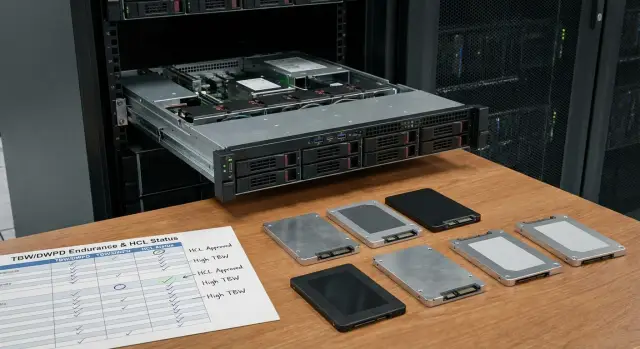
Why match server drive models across brands
Two SSDs with the same capacity can behave very differently in a server. One may keep steady throughput during long writes and never “stall”, while another can drop sharply after its cache fills. In some cases latency is critical, in others stability under small I/O matters more, and sometimes endurance is the top priority.
Comparison is complicated by different SKUs and naming across vendors, plus rebranding and OEM deliveries: the same underlying platform can be shipped with different firmware, a different feature set and different support policies. On paper models look “similar”, but in practice they differ in behavior, logs, reaction to controller commands and update requirements.
A wrong replacement isn’t only a performance issue. Typical risks include:
- accelerated wear because the endurance class is unsuitable;
- timeouts and RAID drops (false faults, degraded states);
- support problems if the drive isn’t on the compatibility list;
- unexpected downtime due to incompatible firmware or power modes.
Sometimes a “similar” drive is fine — for a test bench or a secondary service where spare performance and brief downtime are acceptable. For production (databases, virtualization, critical services) it’s usually safer to aim for exact compatibility: matching class (read‑intensive vs mixed‑use), form‑factor and interface, and meeting HCL and firmware requirements.
TBW and DWPD in plain English: how not to be misled by numbers
When comparing server SSDs by TBW and DWPD it’s easy to fall into a trap: the numbers look precise but describe different scenarios without context.
TBW (Total Bytes Written) is the total amount of data the vendor “allows” to be written to the drive during the warranty period. TBW is almost always tied to a specific model, capacity, NAND type and test methodology. So you can only directly compare TBW between drives of the same capacity and the same class (for example, read‑intensive vs mixed‑use).
DWPD (Drive Writes Per Day) converts endurance into a more intuitive metric: how many times per day you can rewrite the entire drive over the warranty period. The formulas are straightforward:
- DWPD = TBW / (drive capacity in TB × number of warranty days)
- TBW = DWPD × capacity × warranty days
Warranty length is critical. The same DWPD with 3 and 5 years of warranty means different TBW. Conversely, identical TBW with different warranty periods gives different DWPD. Comparing “drive A on a 3‑year warranty” and “drive B on a 5‑year warranty” without recalculation is almost always misleading.
Why is "more TBW" not always better for your case? Because endurance isn’t the only risk. For a file server with rare writes, stable operation, controller compatibility and predictable latency matter more than maximum DWPD. For a database with continuous write logs both high DWPD and how the drive handles sustained writes without throughput drops are important.
Example: a 3.84 TB drive at 1 DWPD for 5 years allows roughly 3.84 TB of writes per day. If your monitoring shows ~1 TB/day, you’re likely overpaying for endurance you don’t use. In that case investing in compatibility and support is more sensible.
What to collect before comparing: not only TBW and DWPD
Endurance figures aren’t enough. Two drives can look similar on paper (capacity and TBW close) but fail to mount or start throwing errors because of sector format, encryption or mismatched part numbers.
First record the basic geometry and interface: SSD or HDD, SATA/SAS/NVMe, form‑factor (2.5", M.2, U.2/U.3), height (e.g. 7 mm or 15 mm), tray type and connector. These are the items that most often break a one‑to‑one replacement even when endurance and performance match.
Then gather identifiers and spec data. The same brand may use similar names but ship different configurations and compatibility. It’s useful to keep a single card per model with fields:
- exact designation: model name, part number (PN), option kit, FRU, SKU;
- endurance and warranty: TBW/DWPD, warranty period, terms (what counts as a write);
- performance: IOPS and latency with the test profile (random/sequential, read/write, queue depth);
- workload profile: read‑intensive, mixed‑use or write‑intensive;
- special requirements: SED/encryption, sector format 512e or 4Kn, support for sanitize/secure erase.
Also note power consumption (idle and under load) and cooling requirements. In dense racks an extra 2–3 W per drive can raise bay temperature and cause throttling.
Small example: a server has 4Kn NVMe U.2 drives, but the replacement is chosen only by TBW and capacity and turns out to be 512e. The drive is detected, but RAID or the hypervisor starts complaining about the format and migration drags. Collecting these parameters up front prevents many surprises.
Step by step: how to compare models in a single table
To make TBW/DWPD comparisons practical, it’s easier to bring everything into one table and first remove options that are physically incompatible. That prevents drowning in “similar” models that differ in critical details.
-
Filter by basic parameters: interface (SATA, SAS, NVMe), form‑factor (2.5", U.2, M.2, E1.S/E3.S), height, connector type.
-
Convert endurance to a single reference period. A convenient formula:
TBW = DWPD × capacity (TB) × 365 × years of warranty.
Example: a 1.92 TB drive with 1 DWPD over 5 years: 1 × 1.92 × 365 × 5 = 3504 TBW. This compares “resource over warranty” rather than disparate numbers.
-
Add compatibility constraints that often break installs: 4Kn vs 512e (important for some controllers and older OSes), presence of power‑loss protection, operating temperatures and airflow requirements.
-
Be cautious with performance: compare results measured under comparable conditions (queue depth, block size, workload type, drive fill), not the marketing “peak”. In many cases latency stability matters more than peak IOPS.
To speed decisions, assign statuses right away:
- exact fit;
- questionable;
- not suitable.
This makes the table a decision tool, not just a reference.
Firmware: what you need to know so the drive behaves predictably
Firmware is the embedded software of an SSD. It controls writes, block cleaning, power management, error handling and how the drive communicates with the server controller. “Server” firmware is typically tuned for predictable latency, proper timeouts and clean handling of RAID commands, so two outwardly similar SSDs can behave differently.
Issues arise when firmware versions differ even for the same model and capacity. Practically this shows up as odd SMART metrics, unexpected resets, rising media errors and, worst of all, timeouts under load. RAID controllers may mark a drive degraded or failed even though the SSD is physically fine.
How to check firmware and what was changed
Check the firmware version in the OS and reconcile it with delivery documentation and the spec sheet. Request vendor release notes for that drive family.
Minimum data to collect:
- model and part number;
- current firmware version on each drive;
- delivery date and batch (if available);
- RAID/HBA model and its firmware version;
- recent error and timeout logs (if replacement is symptom‑driven).
When vendor firmware matters and why you shouldn’t always re‑flash yourself
Some server platforms test SSDs with a specific firmware and list them in the compatibility matrix. Delivering drives with the “approved” firmware reduces the risk of surprises in production.
Self‑flashing can also be risky: it may introduce incompatibility with RAID or the backplane and you may lose vendor support if updates aren’t made with approved tools or procedures.
Example: in a database cluster two drives of the same model but different firmware start responding more slowly under peak transactions; the controller logs timeouts and the array degrades. Often the fix is not changing vendors but aligning firmware and verifying compatibility.
HCL and compatibility: how to read lists correctly
HCL (Hardware Compatibility List) is a list of components the server or controller vendor tested in a given configuration. It’s often more important than “fits by spec”: even if an SSD matches format and TBW/DWPD, it may behave unstably because of firmware, timings, power‑loss protection or command queue handling.
Compatibility is typically recorded along a chain: the server, the backplane, the RAID/HBA and specific BIOS and BMC versions. When replacing drives it’s important to understand where conflicts may occur.
How to read an HCL entry
Good HCL entries include details, not just the brand. Check:
- exact part number (PN) and revision;
- capacity, interface and form‑factor;
- required or allowed firmware version;
- RAID/HBA model and operating mode (RAID, HBA, passthrough);
- restrictions like “boot only” or “do not mix”.
If the drive isn’t listed
Absence from the HCL doesn’t always mean “won’t work”. More often it means “not tested” and “not guaranteed”. Practical options include requesting validation results, picking the nearest PN from the HCL, or running a pilot on a single server while monitoring logs.
Also check mixing batches and revisions in the same array. Even identical models with different firmware or NAND stepping may differ in latency and wear. In RAID this can cause unexpected rebuild times and intermittent warnings.
How TBW/DWPD and firmware relate to RAID and real workloads
TBW and DWPD describe endurance, but in RAID they don’t operate in a vacuum. The controller balances writes, rebuilds data on failures and maintains command queues. If SSD firmware behaves differently than the controller expects, you get not only reduced endurance but a risk of unstable arrays and throughput drops.
A common conflict is timeouts. When a drive encounters a read error it may spend a long time recovering the block (long error recovery). For a single drive this is tolerable; in RAID it’s problematic: the controller waits, a command times out, and the controller can mark the drive as faulty.
Mixing SSDs from different series or batches also increases instability. The cause is usually small differences: SLC cache algorithms, latency under load, firmware differences. One drive can lag, queues build up, resets/timeouts appear, and the RAID goes degraded more often than expected.
Real workloads change wear patterns. Databases and VDI generate many small writes and high write amplification. File servers are often read‑bound and metadata heavy. System volumes can seem “light” but constant logging and updates create a steady background.
It’s useful to plan a safety margin: keep 10–20% free capacity, have a hot spare from the same series (ideally with similar firmware), avoid mixing “similar” models in one array and estimate how long an array will remain degraded during a replacement.
If something goes wrong, inspect controller and OS logs: media errors, timeouts, resets, transitions to degraded and frequency of reconstructions. These signs often reveal incompatibility or a bad firmware/RAID combination before a physical drive failure occurs.
Practical example: replacing drives without stopping the business
In one project a client’s office IT team faced failing SSDs in a RAID server. Drives were replaced hot, but the original model was no longer available and even an hour of downtime was undesirable.
The task wasn’t “find any SSD with the same capacity” but to choose a replacement so the array wouldn’t start throwing errors or degrade in endurance. TBW/DWPD comparison helped, but only together with HCL and firmware checks.
How the decision was made
They split options into two levels.
“Exact equivalent” — same form‑factor and interface (e.g. 2.5" SATA or U.2), same class (read‑intensive or mixed‑use), DWPD close to the original (typically within 10–15%), and warranty duration not worse.
“Conditional equivalent” — endurance fits the calculated workload, but PN, firmware differ or there’s no HCL confirmation.
Next they checked server and RAID controller HCL. Matching interface but different PN doesn’t automatically mean “won’t work”; it means higher risk: the controller may flag a non‑certified drive, SMART may be reported differently, or behavior under load may be unstable.
To avoid guessing they ran a pilot: installed one drive, monitored RAID logs and behavior under load, and only then approved the batch purchase.
How it was documented for procurement
They summarized the decision in a short selection table:
| Option | Interface | Endurance (DWPD/TBW) | Warranty | HCL | Firmware and risk |
|---|---|---|---|---|---|
| A (preferred) | Matches | Not worse than original | 5 years | Listed | Minimal surprises |
| B (acceptable) | Matches | Close to original | 5 years | Not listed, PN differs | Pilot and firmware lock required |
| C (temporary only) | Matches | Marginal | 3 years | Not listed | Risk of accelerated wear, only for urgent filler |
This allowed the client to replace drives in stages without downtime, and procurement clearly saw what to buy, why and what risk was accepted.
Common mistakes when selecting equivalents and why they’re costly
The most expensive mistake is assuming “any SSD is the same, capacity is all that matters”. In a server a drive runs under constant load, in conjunction with RAID, command queues and availability requirements. TBW/DWPD are meaningful only alongside compatibility and firmware checks.
Typical errors:
- buying consumer SSDs instead of server drives because of price and capacity;
- comparing TBW for models with different warranty periods and workload classes;
- ignoring 4Kn vs 512e and breaking installations or migrations;
- not checking RAID controller requirements and ending up with timeouts and constant rebuilds;
- mixing revisions and firmware within the “same” model and facing rare, hard‑to‑diagnose problems.
In production the cost of a mistake is rarely the price of a different drive. More often teams spend days diagnosing and service windows stretch.
Quick checklist before buying or replacing
Define the task: where the drive is installed (server or storage array), the role (DB logs, virtualization, cache), and what matters most — write endurance, latency or predictability in RAID.
Short checklist:
- Mechanics match: interface, form‑factor, height, tray/mounting, power and cooling fit your chassis.
- Endurance comparable: TBW/DWPD recalculated over warranty and compared to your actual daily writes.
- Compatibility confirmed: check HCL for server and RAID/HBA and allowed firmware versions. If the model isn’t in HCL, accept the risk knowingly.
- Firmware and maintenance planned: who updates firmware, with which tools, in which window, and rollback plan.
- Replacement rules clear: avoid mixing batches unless necessary, pilot 1–2 drives first, then bulk replacement.
Practical example: when replacing SSDs for a VM datastore, install one drive first, check rebuild time, logs and latency under load. That takes hours but saves days of downtime.
Next steps: how to safely roll out the selected model
Even if TBW/DWPD looks like a perfect match, safe rollout depends on details: revision, firmware, power modes, RAID behavior and error handling.
Start with a short pilot and record results. Spending 1–2 days on validation is better than spending days on array recovery.
Mini rollout plan
-
Install 1–2 drives in a test server or noncritical node. Run typical workloads (read, write, mixed) and check controller logs and S.M.A.R.T.
-
Compare actual drive firmware and controller firmware with HCL allowances. If firmware differs, decide who will update it, with what tool and where verified packages are stored.
-
Prepare a replacement plan: drive order, maintenance windows, hot spare availability, rebuild rules and alert thresholds. Document rollback steps if errors or performance drops appear.
-
Do a trial replacement on one array and measure rebuild time, temperature, error rate and write speed under real load.
-
Lock the procurement spec: exact P/Ns, capacity, form‑factor, interface, required firmware and HCL constraints (server, RAID controller, backplane).
If the environment is complex and you need a single accountable party for compatibility (HCL, firmware, controllers), a systems integrator often helps. For example, GSE.kz as a manufacturer and integrator of server infrastructure can be useful where you need a prevalidated compatible configuration and ongoing support.
Frequently asked questions
Why match server SSDs across brands if capacity and interface are the same?
Because identical capacity and even similar TBW/DWPD numbers don’t guarantee the same behavior in a server. Different firmware, sector formats, error handling timeouts and RAID/HBA support can cause slowdowns, array degradation or drives dropping out.
What’s the difference between TBW and DWPD in simple terms?
TBW is the total amount of data allowed to be written over the warranty period, while DWPD is how many times per day you can rewrite the whole drive over the warranty. DWPD is more convenient for comparisons, but only if you account for the same warranty period and workload class.
How to recalc TBW and DWPD so the comparison is fair?
Convert everything to the same warranty window: TBW = DWPD × capacity (TB) × 365 × years of warranty. That way you compare the actual resource over the same time frame, not isolated numbers from different spec sheets.
Why can’t you compare DWPD without checking the warranty period?
Because warranty length is part of the resource formula. 1 DWPD on a 3‑year warranty and 1 DWPD on a 5‑year warranty correspond to different TBW values and therefore different wear budgets in practice.
What parameters matter besides TBW/DWPD when choosing a replacement?
Check form-factor and mechanics (2.5", U.2/U.3, M.2, height), interface (SATA/SAS/NVMe), sector format (512e/4Kn), power‑loss protection, cooling requirements and power draw. These mechanical and firmware details often break a one‑to‑one replacement even when TBW/DWPD match.
Why is confusing 4Kn and 512e dangerous when replacing a drive?
They are different logical sector formats. In some configurations the drive may be detected, but RAID, hypervisor or OS will conflict with the sector format, causing long migrations or errors.
How critical is SSD firmware and why can it cause RAID degradation?
Firmware defines how an SSD behaves under load, its timeouts, error handling and interaction with the controller. The same model with different firmware can show different latencies, odd SMART metrics and timeouts that a RAID controller interprets as a drive failure.
How to read an HCL and what’s most important in it?
Match not only brand and model but exact part number, allowed firmware versions, operating mode (RAID/HBA/passthrough) and restrictions like “boot only” or “don’t mix”. If a drive isn’t in the HCL, it usually means “not tested/not guaranteed”, not “won’t work”.
Can you put drives from different series or batches in one RAID if specs look similar?
Avoid mixing without a reason, especially within the same RAID. Differences in firmware, NAND revision and caching algorithms can produce different latencies, causing the array to go degraded more often and take longer to rebuild.
How to safely roll out a new SSD model without downtime and surprises?
Run a pilot with 1–2 drives: inspect RAID/OS logs for timeouts and resets, measure temperature, latency and rebuild times under typical load. For unified responsibility over compatibility and firmware, using a systems integrator or a vendor who verifies P/Ns and configs (for example, GSE.kz) is often helpful.
