8 min read
Comparing Document Versions in a System: Storing Edits and Handling Approvals
Document version comparison in a system: options for storing edits, change log, and linking versions to approvals and tasks without unnecessary complexity.
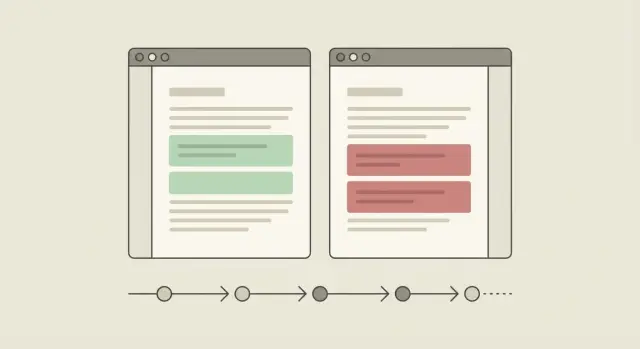
Why compare document versions in a system?
Version comparison is needed when a document lives for a long time and passes through many hands: a contract, security policy, technical spec, procurement documentation. Without a clear edit history, teams waste time on arguments like “who changed this?” and “why are the numbers different?”, and mistakes are found too late.
The “save the file with the date” approach quickly breaks down. Dozens of copies appear, nobody is sure which one is current, and changes must be found by eye. If the document goes through approval, the risk is higher: one department edits an old draft while another already sent a new one, and the wrong version gets signed.
To avoid confusion, it helps to define terms up front:
- Version — a recorded state of the document you can revert to.
- Edits — specific changes between versions (what was added, removed, or replaced).
- Comments — discussions that may explain reasons but do not necessarily change the text.
- Status — the stage of the process (draft, in approval, approved, archived). It shows “where the document is”, not “what changed”.
Business typically expects four outcomes: transparency (what changed and why), control (who made the edit and on what basis), speed (less manual reconciliation and fewer messages), and reduced risk (fewer errors, easier audits).
A simple example: finance changes payment terms in a contract, legal edits wording, security adds requirements. If the system shows differences between versions, you immediately see which clauses were affected, whether important paragraphs were lost, and which draft was submitted for approval. For organizations with strict reporting and inspection needs (for example, in the public sector), this is not a convenience but a requirement.
Basic concepts: document, version, status, draft
For comparison to work predictably, agree the terms first. Otherwise one department will call a document a file, another a record card, and a third “everything together”, and the edit history will become an argument.
By document we usually mean one logical object: for example, a supply contract. It may contain a file (DOCX/PDF), a card with fields (counterparty, amount, deadlines) and attachments. Decide in advance what is versioned: only the file, only the card fields, or the whole package.
You need two identifier levels:
- Document ID (permanent, never changes)
- Version ID (new on each save of a version)
This makes it easy to find “the latest approved version” while keeping older variants for audit.
Next, choose a history model: linear (v1, v2, v3) or branched. Linear works when edits are sequential. Branches make sense if people work in parallel and you later need to choose or merge variants. If parallel editing is rare, branching usually complicates life.
Status is not a version number but the process state. A minimal set is usually:
- Draft: being edited, not yet submitted
- In approval: frozen for edits or edited only via comments
- Published/Approved: considered active
- Rejected: not active but remains in history
Also set rules: can a document be edited in a given status, and who can move it between states?
Storage options for edits: full copies, deltas, and hybrid
The first technical decision is usually how to store changes. This affects speed, storage size and how easily you can show edits to users.
Full copies of versions
Each version is saved in full. The advantage is clear: any edition opens immediately without "reconstruction." The downside: storage grows fast for heavy files (presentations with images, scans). This approach is good for small files and formats where diffing is of limited use.
Deltas (differences)
Only what changed relative to the previous version is stored. This saves space, especially for long texts with small edits. But reconstruction is harder: to get version N you may need to apply a chain of changes. For audit this is critical: the system must reliably and quickly restore any version.
Hybrid approach
A hybrid often wins: store key versions in full (for example, “after approval” or “after legal edits”), and deltas between them. This reduces volume while avoiding very long reconstruction chains.
The choice depends on file type and scenario:
- Text documents (contracts, regulations) suit deltas or hybrid.
- Spreadsheets and forms often work better hybrid so checkpoints open faster.
- Binary files (scans, PDFs without embedded text, images) are usually easier as full copies.
In practice, allow different storage policies by document type and department so you don’t overpay for a one-size-fits-all solution.
How to compare: text, tables and binary files
Comparison differs by file type. If you try to compare everything the same way, users will stop trusting results: “why does the system show hundreds of edits when I only changed a date?” Agree first what counts as a change.
Before any diff, normalize: consistent encoding (usually UTF-8), consistent line endings, consistent handling of tabs and spaces, uniform quotation marks. Many false edits come from extra spaces, different line endings and autocorrected characters.
Text is easiest compared line-by-line with highlights for additions and deletions. For business documents a word-level mode is often better so a small edit in the middle of a line doesn’t look like a full-paragraph replacement. A UI with two views is useful: compact (only changed fragments) and full (with surrounding context).
Tables are best compared by cells, showing which value, formula or format changed. Users usually care most about:
- which cells changed (old and new value)
- inserted or deleted rows/columns
- structural shifts when ranges moved
For scans, images and many PDFs correct text diffing may not be possible. Then record the file change as an event: hash, size, date, author, and for PDFs — metadata and, if available, recognized text (marked as OCR with possible errors). In disputed cases a side-by-side visual comparison helps and be honest that it’s a visual diff.
Example: during contract approval an employee changes one number in a spreadsheet and updates a signature scan. The system should show one changed cell in the estimate and a separate event “scan file replaced,” not hundreds of alleged edits caused by formatting.
Change log and audit trail: what to record and how to store it
Any edit history depends on trust: can you understand who made changes, why, and at what stage they were accepted. You need two things: a change log (what changed) and an audit trail (what actions occurred in the system).
What to record
Entries should be concise but unambiguous and filterable. Common fields are:
- who performed the action (user, role, department)
- what was changed (section/field, event type)
- when (exact time and timezone)
- from where (application, IP/device, channel: web/mobile)
- why (comment, link to task or approval step)
Record key events separately: version creation, edit, file upload, send for approval, return for revision, decision (approved/rejected), signing.
For card fields (amount, counterparty, deadline, status) store old and new values. This helps resolve disputes — for example, who changed the contract amount before final approval.
How to store and protect it
The audit trail must be immutable: no editing or deletion, only adding new entries. Access is role-based: most people need to see status and their own activity, while security and admins need the full trail.
Set retention periods based on internal controls, industry and regulators. A common approach: active documents and their logs remain in the main storage, archived documents move to a separate storage with the same immutability rules.
Linking edits to approvals and tasks
For history to be useful, each edit needs context: who did it, why and at which stage. Otherwise you end up with a set of versions and disputes resolved only by memory.
A useful practice: create a version not “just because”, but tied to a specific task. Store the author, initiator (if it was an assignment) and a reference to the task or ticket in the version card. Then asking “why was clause 4 rewritten?” can be answered: “for legal task #123, see comment in discussion.”
Also tie a version to an approval cycle. You approve a snapshot (version_id), not an abstract document. This prevents the situation where one person approved an old draft while a new one was published.
Handling edits during approval
There are several working modes. Choose based on document criticality and policy:
- Locking: editing is forbidden during approval; only comments allowed.
- New version: edits are allowed but create a next version and start a new approval cycle.
- Branching: urgent edits go to a separate branch while the current cycle completes on the original version.
- Minor-edit rule: typos can be fixed without restarting the cycle if allowed (recorded as a specific change type).
- Compare before finalizing: the approver sees differences between the approved and current versions.
Transparency comes from the trio “decision + comment + version”: who approved, who rejected, what was unsatisfactory and which version the remark refers to. For example, when departments argue about SLA wording during interdepartmental approval (including vendors and system integrators like GSE.kz), comments should be tied to a specific edit, not the document as a whole.
Access rights: who sees versions, edits and history
Permissions around versions and history often break processes more than diff technology. If a person doesn’t understand why they see one draft but not the history, trust in the system drops.
Start from roles and actions. Simple role sets are: author, editor, approver, observer, administrator. Then define rights not “on the document” but for operations: read, create version, compare, export, print, delete (preferably as “mark for deletion” with recovery).
Separate access to version content and access to the change log. An approver needs text and comments, while the full audit trail (who, when, from which device, linked tasks) is usually for admins and security only.
Confidential fragments are a separate topic. Parts of a contract may be “lawyers only” or “finance only.” Comparison should support masking: users see that a fragment changed without seeing the secret content (for example, “fragment changed” but not the content).
A practical rollout rule: assign rights by status (draft, in approval, approved), enable comparison only for those working with text, restrict export for confidential docs, and grant delete and full audit access only with special permission.
How to implement: step-by-step rollout plan
Start with process design, not UI. Version comparison is useful only when you know which documents you have, who edits them and where accountability must be recorded.
Five steps that usually deliver quick results
-
Describe document types and approval scenarios (contracts, procurements, regulations, technical docs). For each, define roles and what counts as a critical edit.
-
Select a version storage model and diff format: full copies, deltas or hybrid. Decide how to diff text and tables and how to handle PDFs/scans.
-
Define audit events and log fields: version creation, edit, comment, send for approval, reject, approve, return for revision, restore version. For each event record who, when, what changed, reason and version id.
-
Link versions to tasks and approval routes: a task must reference a specific version, not just the document. Then it’s clear what was approved and what changed after comments.
-
Run a pilot on 1–2 processes and gather feedback (for example, contract approval and technical spec approval). After the pilot refine log fields and diff rules.
Minimal pilot example
If you often have procurements and multi-department projects, take a standard contract: the lawyer leaves comments, the author makes edits, the approver sees the changes and approves version 3.2 specifically. The audit records why version 3.1 was rejected and which clauses changed. This quickly reduces disputes and simplifies audits.
User interface: show edits clearly
The diff UI should answer one question: what exactly changed and what should be done. If users must read two drafts by eye, the system does not help.
Two clear display modes
Usually two modes suffice:
- Two-column: old version on the left, new on the right. Good for contracts and regulations where context matters.
- Single stream: text as in the new version with insertions and deletions highlighted inline. Fast for short edits and approvals.
To avoid clutter show the change type (insert, delete, replace, move) with author and time next to it. For large documents add navigation “next change”.
Filters that actually help
Filters let an approver see only what matters: edits by a specific author, changes within a date range, edits in a given section, or only one type (e.g., deletions). Keep comments separate from text edits but nearby: a discussion panel linked to fragments so you see what’s changing and what people discuss without mixing these things.
If decisions need to be made on edits, put clear actions next to the change: accept, reject, create new version. Every action should produce a clear result and automatically go into the change log.
Common mistakes and pitfalls in design
The main trap is treating a document version and an approval status as the same thing. Then it’s unclear what “final” means: the signed file, the version number, or the “approved” status. Keep these entities separate: version for content, status for the process.
A second common error is missing context for edits. After a month nobody remembers why clause X was changed, who requested it and what the task was. Without context the history becomes a “who’s to blame” search instead of a working tool.
A third mistake is allowing edits to a version already sent for approval without rules. This breaks trust: the approver sees one thing, and an hour later the text is different. If an urgent change is needed it should create a new version; the old remains viewable.
What typically trips projects at launch:
- confusing statuses (draft, in approval, approved) with versions (v1, v2, v3) and losing the single source of truth
- not recording reason, author, time and link to task/request for edits
- allowing direct edits to a version under approval without blocking or versioning
- comparing only files and ignoring card fields (amount, counterparty, deadlines)
- not planning version recovery and audit requirements: who can roll back and what counts as official history
Practical example: a contract goes for approval while the lawyer updates bank details in the same version. Finance already approved the old details and later it’s impossible to prove what was approved.
Quick checklist before launch
Before launch make sure you don’t just “have history” but a clear working model, otherwise users will bypass the system: edits will go by email and approval will become a dispute over “who changed what”.
The model should be equally clear to legal, accounting and IT: a document has versions, a version has a status, changes are tied to a task and an approval step.
A short pre-launch checklist:
- A unified scheme exists: document, version, status, approval, task, comment.
- Rules are defined for edits during approval: can you edit text, only comments, and who may edit.
- The event log is configured and protected: who created versions, what changed, who approved or rejected and why; visibility by role; retention.
- Comparison works for your main file types and card fields (for example, amount, deadline, counterparty), not only for “perfect” text documents.
- Test scenarios exist: disputed edit, rollback to an earlier version, re-approval after edits, parallel comments.
Run one real case: a supply contract where procurement changes deadlines, lawyers edit terms, finance adjusts the amount. If at the end you can quickly answer “what changed”, “who asked for it” and “when it was approved”, the process is ready.
Example: interdepartmental contract approval
Typical flow: procurement prepares a draft contract, then legal, finance and procurement (compliance or security if needed) review it. In the system it’s one document with clear versions and statuses: draft, in approval, in revision, approved.
Procurement uploads v1 and starts approval. Legal leaves comments and returns it for revision. Then v2 appears: the original remains in history and the changes are recorded as edits in the new version.
To preserve meaning, turn each comment into a task where possible: “Clarify liability in clause 7.2” or “Change payment term to 30 days.” Tasks have author, due date, assignee and a decision: accepted, rejected, partially accepted. When completed the system links the task to a specific edit in v2 or v3 and shows exactly where the text changed.
After final approval you keep a clear audit trail for review:
- who and when created versions (v1, v2, v3) and their statuses
- list of edit tasks with decisions and comments
- what exactly changed (before/after) and in which version it appeared
- who approved the final version and on what basis
In a few months you won’t have to guess why the contract clause looks the way it does and who made the decision.
Next steps: move from idea to working process
Start with one live process. Take 2–3 departments that argue most often about edits (for example legal, procurement and finance) and map the approval route from draft to final status. You’ll quickly see where version comparison is needed and where comments suffice.
Then choose an MVP. The first release usually covers 1–2 formats (for example DOCX and PDF) and the basics: what changed, who changed it, when and why. Add tables, scans and heavy files later once you have usage data and clear pain points.
To keep the project sustainable, plan storage and audit for years: retention, legal validity, export of the log, immutability of records, rules what counts as a “version” vs a “within-version edit.”
A practical roadmap to start:
- Conduct 2–3 interviews and document one approval route with points where version is recorded.
- Approve the MVP: formats, diff methods, roles (author, approver, admin).
- Define what to record in the change log: reason, task link, final decision.
- Agree retention, audit and access requirements.
- Run a pilot with one group and collect feedback for 1–2 weeks.
If you need a vendor, look for one that handles both implementation and process design: version model, audit, permissions, task integrations and post-launch support. Such projects are often supported by system integrators like GSE.kz (gse.kz), who can cover design, supply and rollout.
A readiness criterion is simple: any employee in one minute understands which version is current, how it differs from the previous one and who decided to accept or reject edits.
Frequently asked questions
Зачем вообще нужно сравнение версий, если можно просто сохранять файлы с датой?
Version comparison is needed when multiple people edit a document and it goes through approval. It helps quickly see what changed, who changed it and when, and reduces the risk of the wrong draft being approved.
Чем отличаются версия, правки, комментарии и статус?
A version is a fixed snapshot of a document you can return to. An edit is a specific change between two versions. A comment explains the reason or gives feedback and may not change the text. Status shows the process stage (e.g., draft or approved) and does not replace the version number.
Нужны ли ветки версий или достаточно линейных v1–v2–v3?
The simplest and clearest approach is a linear history (v1, v2, v3) where a new version is created for each significant change. Branches make sense only if you regularly have parallel edits that must be merged or chosen between; otherwise branching tends to confuse users.
Что выбрать для хранения версий: полные копии, дельты или гибрид?
If files are small or binary (scans, images), storing full copies is easiest: open and view immediately. For long text documents, deltas or a hybrid approach are better to save space and quickly show changes. In practice hybrid often wins: key checkpoints stored as full copies, changes between them as deltas.
Как сделать сравнение текста и таблиц так, чтобы оно было понятным?
Always start with normalization to avoid false positives from spaces or line endings. Text diffs usually work best at the word level rather than strictly by line. For tables, compare by cells and show old and new values.
Что делать со сканами и PDF, где сравнение текста работает плохо?
For scans and many PDFs, accurate text diff may not be possible. Record the file replacement as an event with attributes: who uploaded it, when, size, hash. If you use OCR, mark the result as OCR with possible errors so users won’t treat it as legally exact.
Что обязательно писать в протокол изменений и журнал аудита?
At minimum record who performed the action, what changed, when, and why. For form/card fields keep old and new values to resolve disputes. Make the audit log immutable so entries cannot be edited or removed silently.
Как правильно привязать версии к согласованию и задачам?
Approval must reference a specific snapshot (version_id), otherwise you can accidentally approve one draft and publish another. A practical approach is to create each version for a task or comment so the reason and initiator are clear later.
Можно ли править документ во время согласования или нужно всегда создавать новую версию?
The safest rule is not to edit a version that is already under approval; instead create a new version and, if needed, start a new approval cycle. If exceptions are required, define in advance what is a "minor edit" and how it appears in history so approval trust is not broken.
Как настроить права доступа к версиям, правкам и истории, чтобы не было конфликтов?
Split permissions by operations—reading, editing, creating versions, comparing, exporting and access to the audit—rather than giving total access to a document. Approvers usually need the text and comments, while full audit details are for admins and security. For confidential fragments use masking: show that a fragment changed without revealing its content.
