8 min read
Comments in the task card: threads, mentions and export
Comments in the task card: how to design threads, mentions, document links and history export so discussions keep their context.
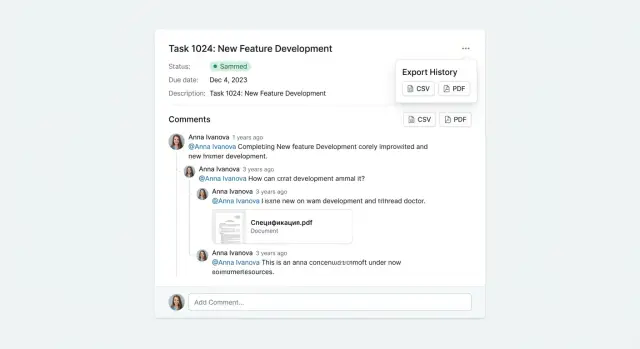
Why keep discussions inside the task card
When a discussion moves to chats and emails, it quickly falls apart into pieces. One place has the decision, another has a clarification, a third has a file. Later you have to reconstruct the final agreement from memory. As a result, the task lives separately from the conversations that actually change it.
Context is lost not because people are careless. Simple answers disappear: who approved it, what exactly was decided, when it happened, and which version of the requirement it refers to. After a week it's hard to tell from the thread whether you discussed the old text, the new mockup, or a fix after testing.
Discussion inside the task card means all meaningful information about the task stays next to the description, status, deadline and assignees. The team sees not just a chat but a chain of decisions: question -> options -> choice -> confirmation -> action.
This is especially important where losing details costs time and money: agreeing on wording, deadlines and acceptance criteria; clarifying requirements and scope; fixes after review and root-cause analysis; handing a task over to another performer or team.
A simple example: a designer asked about a button in chat, an analyst answered, a tester later found a bug — all related to the same card. If the conversation is saved in the task comments, a new participant opens the card and immediately understands why the decision was made and what must not be changed.
The principle is simple: a task should have one place for decisions, not just for chat. Then the card becomes a source of truth, not merely a status display.
Basic structure: what should be in the card
For comments in a task card to actually help, they need a predictable foundation. Users should understand without effort where to write, where to read, how live conversation differs from system changes, and how to quickly find what matters.
In the minimal version, five things usually suffice: a clear input field and send button, a message feed, reactions as quick signals of agreement, attachments, and search (or filters) by participants and event types when discussions are long.
Each message should have basic attributes. Without them a conversation loses credibility and becomes hard to audit: the author (sometimes useful to show team or role), the send time (with date for older messages), an edited marker (what was edited and when), and a sending state for the author when the connection is unstable.
Decide separately what counts as an “event.” Distinguish text comments from system actions visually: status change, assignee set, due date changed, file added. If you mix everything into one identical stream, people will start missing important decisions.
Message order should almost always be strictly chronological — either top-to-bottom or bottom-to-top — but with no surprises. Grouping by day and short separators like “Today”, “Yesterday”, “Jan 12” helps.
To make reading fast, use simple techniques: indents for replies, a short 1–2 line quote when replying to a specific phrase, attachment previews (name, size, version). Long texts are better shown collapsed with a “Show more” button. The feed then shows the essentials without requiring full-screen scrolling.
Threads: how reply branches preserve meaning
A thread is a reply to a specific message, not a new comment in the general feed. That tie prevents confusion: the reader doesn't have to guess what you're replying to, especially when several topics are discussed in parallel.
The key design question is branching depth. One level (replies only to the original comment) is almost always enough. It's easier to read and doesn't turn the discussion into a forest of indents where decisions and dates get lost.
How to show a thread in the feed
In the main feed a thread should be noticeable but not take up the whole screen. A good compromise is to show the original message and collapse the replies.
Helpful details include: a collapse/expand button with a counter (e.g., “3 replies”), a short preview of the last reply when collapsed (one line), a clear label of who and what is being replied to (mini-quote or “Reply to...”), and the ability to reply directly inside the branch without interface jumps. A “Show in context” action to quickly find the message in the full history is also useful.
Search often “breaks” on threads. Results should include both original messages and replies, and opening a result should show the entire branch — otherwise the meaning is lost.
Threads are unnecessary for short reactions like “ok” or “+1.” For that, reactions or a short inline reply without creating a branch are better so the discussion doesn't split into dozens of empty mini-dialogs.
Mentions: how to call people without creating noise
@mention is not for “hurrying” someone but for pulling a person into a conversation who can actually resolve the issue. In the comment they immediately see context: the task, attachments, deadlines and prior messages. This is especially important when task comments replace messenger chats.
Whom and how to mention
Practical rule: mention by role and by need, not “just in case.” If the card already has participants, choose from them. In large teams it's more convenient to mention a role (for example, @legal, @procurement), and a specific performer is selected within the group.
To prevent mentions from becoming noise, follow simple limits: mention only those from whom a response or action is needed; keep mentions to 2–3 per message max; always write what exactly is required and by when (e.g., “check clause 3 of the contract by 15:00”); indicate if the request is not urgent; don’t call a manager if an assignee suffices.
Notifications without spam
People are annoyed not by the tag itself but by unnecessary notifications. A helpful scheme is that only the mentioned person receives a notification, plus the task owner if it’s not the same person. Others get a visible mark in the feed without push notifications.
Make mentions “visible”: highlight them in the text, provide a quick jump to the comment, and mark the specific comment as unread for the person who was called.
Example: the manager writes “@procurement, need price and delivery time for item 4, reply by tomorrow 12:00.” The procurement specialist replies in the thread, not as a new comment. The decision stays next to the question and doesn’t get lost in the general stream.
Document links: previews, versions and access
Links in comments often become an archive of decisions: specs, spreadsheets, mockups, approval emails, internal tickets and meeting minutes. If links appear as raw addresses in the card, people waste time and make mistakes.
A good rule: every link should be understandable without opening it. Show a preview next to it: file or page title, type (document, spreadsheet, mockup), owner, updated date and access status. Then it’s clear what was attached and how fresh the information is.
Previews and access rights
Be honest and helpful with access rights. If a person lacks access, don’t leave an empty spot or just show “error 403.” Better to explicitly say “No access to the document,” show the owner (or team) to request from, and keep metadata — at least the title and date. If possible, provide a safe “Request access” action.
Versions and protection from dead links
A single link is almost always insufficient. You need two anchors: the specific version discussed and the current version so you can quickly open the latest state. That resolves the dispute “which file did we talk about.”
A common working practice: when a link is pasted, automatically save the version ID and date, and display “discussed version from 12.01” with an adjacent action “open latest.”
To avoid accumulating dead links after moves or deletions, record events like “Document moved” or “Document deleted” and add a short hint where it moved or what replaced it. This is especially useful for audits.
How to avoid losing context in long discussions
Long discussions quickly turn into hunts: who decided what, where deadlines were confirmed, which document is current. A good interface helps read the task comments as a single story rather than a chat without a beginning or end.
Where to show the feed
A unified feed next to the card fields gives more context: you can see status, due date and assignee while reading the conversation. This is handy when decisions are tied to deadlines and responsibilities.
A dedicated discussion tab reduces visual noise but increases the risk of missing important details if users constantly switch. A sidebar is good when you want to keep card fields visible while not taking too much space for text. The choice depends on what matters most in your product: focus on the text or quick access to card data.
To keep key decisions from getting lost, add pinning for messages. Pin concrete outcomes like agreed dates, approved variant, or signed document — not vague “important thoughts.”
Navigation in a long feed
When messages are many, users need anchors: jump to unread and a read marker, anchors on important messages (e.g., “Decision”, “Risk”, “Next step”), fast search across the discussion (by person, word, document number), quoting a fragment in replies, and showing system changes next to context (“status changed”, “due date shifted”, “assignee set”).
Quoting is especially useful when multiple topics are discussed. One paragraph about delivery date and another about configuration — without a quote a reply can look ambiguous.
Consider linking discussion with card fields: a discussion about moving a deadline should be displayed next to the due date, not buried 40 messages above. This preserves context even after a week when someone returns to the task.
Step by step: how to design discussions inside the card
Start not with the UI but with how the team actually communicates. Task comments should support work, not become a chat without rules.
1) Define scenarios and card types
Collect the 3–5 most common situations: requirements approval, deadline clarification, handover to support, acceptance, incidents. For each card type decide what matters more: fast replies or an accurate history that can be retrieved in a month.
Next, set the feed “skeleton”: regular messages, system events (status change, assignee), and separate decision records. If you mix decisions with chit-chat, they’ll be hard to find later.
2) Configure threads, mentions and attachments
To keep discussion focused, agree in advance what goes into a reply thread and what stays in the main feed. For example, clarifications and short questions — in the thread; new directions or risks — in the main stream.
Ensure mentions don’t create noise. Notifications should be distinct: direct mention, thread participants, and watchers of the card. Attachments and documents should be shown so they can be assessed at a glance: title, version, author, date. Prefer adding a short note explaining why the file was attached and what to check.
To avoid forgetting key settings, it helps to record a short minimum checklist:
- the team agreed on scenarios and card types;
- messages, events and decisions are visually distinct in the feed;
- there is a rule when to write in a thread and when in the main stream;
- mentions and notifications work by roles;
- attachments include a version and a short caption.
3) Test in real work for 1–2 weeks
Take 2–3 current tasks and conduct discussions only inside the cards. For example, for delivery and deployment of servers in a systems integration project: configuration questions in threads, the final “we approve the kit” as a separate decision, specs and acts as attachments with versions.
At the end of the week ask the team: what got lost, what interfered, where were too many notifications. Then adjust rules and the interface.
Common mistakes and pitfalls
The most common problem is comments turning into a dump of everything. People stop reading and important decisions drown in service messages.
One typical imbalance is mixing discussion with the change log. Auto-events like “status changed”, “fields updated”, “file added” are useful but they interrupt human meaning in the feed. Better to separate system events from live text or at least tone them down visually.
Another trap is overly deep threads. When replies go 6–8 levels deep the discussion becomes a maze: who answers whom is unclear and the decision is hard to find. Limit branch depth or encourage a short summary at the top level when a thread grows.
Mentions are also easy to ruin. If you tag everyone “just in case”, noise grows and notification fatigue sets in. The working principle is simple: mention the owner of the next action or the person who has the required information.
Context is most often lost for five reasons: comments turn into a change log; threads become too deep; mentions lack norms; attachments appear without explanations; time and versions aren’t recorded. The antidotes are the same five: separate events and discussion, limit depth, mention only when needed, add one phrase to files saying why they were attached and what to check, and always note date and version.
Example: a manager attached “Spec_final.docx” without a note. A week later “Spec_final_2.docx” appears and a dispute starts again. If you add “version 1.3 from 12.01, changes in section 4” and keep the old version, the decision history becomes readable in a minute.
Exporting history: what to save and how to format it
Export is needed when the discussion goes beyond the team: audit, project closure, handover to a contractor or incident review. If you make it “whatever”, you will lose the main things — who decided what, when and on what basis.
In exports it’s important to keep not only comment text but also structure. A reply branch is often more important than an isolated message: without it “Ok, let's do it” is meaningless.
What to save so the history reads well
A good export records context and change traces without becoming a data dump. Usually save: comments with threads (hierarchy, order, quotes), card events alongside the discussion (status changes, assignee, due dates), attachments and documents (name, version, who added, access), metadata (author, role or team, timestamps, timezone), and edits (edited marker, who edited, when, reason if provided).
Formats for different purposes
Two export types usually suffice. PDF is convenient for reading and attaching to reports; CSV or JSON works for archive, search and analytics. In the PDF save the “human view”: indented threads, continuous message numbering, visible edit and deletion markers.
Consider confidentiality. Provide export levels: full (for owners), limited (for external parties), anonymized (for reviews without personal data). This can be done by masking fields (phones, national IDs), excluding attachments, or replacing parts of text with a note like “hidden due to access policy.”
Example: when handing work to a contractor for infrastructure (a typical case for an integrator at GSE.kz) it’s convenient to give a PDF with threads and decisions while keeping attachments inside the system so access can be controlled separately.
Rules and security: who can do what in discussions
When task comments become the main place for decisions, access rights stop being an “admin setting” and become the basis of trust. People must understand what they can do, who will see it, and what will remain recorded.
The first rule — be careful with editing and deleting. Allow edits only to correct mistakes and clarify, but keep an edit history: who changed what and when. Full deletion should be limited (for example, to the project owner or admin) and replaced with “hide” or “mark as deleted” so you don't break the discussion flow.
Permissions are easier to manage by role. Four levels usually suffice: viewer (reads), participant (writes and replies in threads), editor (mentions people, attaches files, changes visibility tags), moderator or admin (manages deletion, access and retention policies).
Next — confidentiality. Cards often contain prices, personal data, procurement or infrastructure details. Visibility tags (“team only”, “internal”, “public”) should be clear and prominent, and changing a tag should leave a record in the log.
A retention policy is needed in advance. Specify what is always stored (decisions, statuses, final files), what can be cleaned up (drafts, extra system notifications), and who can trigger cleanup.
Logs and audit are especially important in government bodies and large companies. Explain simply what is recorded: logins and access changes; message edits and deletions; visibility tag changes; attachment downloads and exports; key moderation actions. When explained clearly, policies feel like protection rather than control.
Short checklist before launch
Before enabling task card comments for the whole team, run through a few checks.
Quick clarity check
- Is the decision visible without reading the entire feed: is there a clear outcome (status, summary, “accepted” marker or similar)?
- Can you pin a key conclusion at the top so a new participant can get up to speed in 30 seconds?
- Can you find the needed fragment via search: by person, keyword, tag, or contract/task number?
- Is it clear who is next: assignee, awaiting response and deadline aren't hidden inside a paragraph?
- Is the full history recoverable on export: threads, authors, dates and related attachments are preserved?
If the answer to at least two items is “probably no,” refine the mechanics: add an outcome template, pinning rules, minimal requirements for assignees and deadlines, and only then scale across projects.
Example scenario: delivery and deployment without losing details
An organization deploys server equipment for a new service. They create a single card: “Delivery and deployment of rack: delivery, installation, testing, acceptance.” All discussion happens in the card comments, not email or messengers.
The card immediately records milestones: expected delivery date, installation window, test plan and acceptance date. The project manager’s first comment sets the frame: what counts as readiness and what documents are required upon completion.
Clarifications go into threads so topics don't mix. One branch discusses configuration: number of disks, RAID, power reserve, virtualization requirements. Another branch has operations asking about noise, temperature, monitoring and spare parts. Someone arriving a week later doesn't have to read everything.
Mentions quickly gather the right people without noise: @IT confirms network ports and addressing; @Procurement clarifies delivery times and terms; @Security checks access and logging requirements; @Contractor answers about installation and cable management; @ServiceTeam sets the 24/7 support plan.
Documents are attached directly to the card and discussed beside them: spec, acceptance certificate, test protocol, rack diagram. When a document is updated, a new version is added as a separate attachment with a short note about changes and who approved them.
At acceptance the discussion history is exported as one file: decisions, Q&A, final document versions, approval markers. Such an export is attached to the acceptance package and stored in the internal archive so six months later it’s clear why a specific configuration was chosen and how tests were conducted.
Next steps: how to roll out and make it stick
Start with facts. Take 5–10 real cards from different teams and quickly check where context is lost. It’s usually where replies become new comments with no link, decisions are not recorded, and documents live separately.
Then agree on simple writing rules. They should help, not complicate:
- reply to a specific remark in a thread; post general task updates as a separate comment;
- record discussion outcomes in one line at the end: decision, who does it, and by when;
- use mentions only for the owner of the next step and those who must act;
- accompany documents with one phrase: what changed and which version is current;
- agree who closes a thread after a decision so there are no “forever tails.”
Next, adjust the card itself: add a description template and required fields (owner, due date, status, linked document or artifact). When data sits next to the discussion, there is less chance important items remain only in comments.
Run a short pilot on one project and check two things: the export (do threads, mentions, documents and outcomes appear?) and access (who can read and write, and what external participants see?).
If collaboration requires system integration, infrastructure or permission tuning, discuss that early with specialists. In projects with procurement, servers and data centers it often helps to consult the GSE.kz team (gse.kz) to account for security, support and scaling from the start.
Frequently asked questions
Why keep discussions directly in the task card instead of in chats?
Because decisions stop getting scattered across chats, emails and files. In the task card the description, deadlines, assignees and discussion history sit together, so after a week you can quickly restore what was decided and why.
What specifically will improve if communication moves to task comments?
The team finds confirmations faster: who approved what, when, which document version was discussed and what the outcome was. This reduces repeated questions, rollbacks and disputes like “we agreed otherwise.”
What minimal comment structure in a task card actually works?
At minimum you need a clear input field, a message feed, and a visible distinction between comments and system events. For long discussions add search or filters, and for files — a preview with name and version so users don't have to open everything.
What attributes should each comment have to be trustworthy?
Author, exact time with date, an edited marker, and a visible sending state for the author. Without these it's hard to verify agreements and tell what was a decision versus a late edit.
When is a thread needed and when is a regular comment enough?
A thread helps reply to a specific remark without mixing topics in the main feed. Stick to a single level of replies: it keeps the branch readable and prevents the discussion from becoming a maze of indents.
How to display threads in the feed so they don't take up the whole screen?
Show the original message and collapse replies with a counter and a short preview of the last reply. It should be possible to open the whole thread and reply inside it without jumping around the page.
How to use @mentions correctly to avoid creating spam?
Use mentions only for people whose response or action is actually needed, and state clearly what is required and by when. Marking everyone “just in case” turns notifications into noise and people start ignoring them.
How to set up comment notifications so they don't annoy people?
Notify only the mentioned person and, if needed, the task owner. Others see a mark in the feed without receiving push notifications. This keeps attention on important requests without overloading the team.
How to format links and attachments so documents and versions don't get mixed up?
A link should be understandable without opening it: show the file name, type, owner, updated date and access status. When discussing, note the version discussed and offer a quick way to open the latest version to avoid arguments about which file was meant.
What must be included in an export of discussion history so it can be understood later?
Save not only the text but also the structure: threads, authors, timestamps, edits, system events and attachment metadata. A good export should read like a history of decisions; otherwise it becomes a collection of isolated phrases like “ok” with no context.
