8 min read
Command Center Backup Kit: How to Build One
A backup command kit helps quickly set up workstations during a relocation: communications, printing, power, roles and readiness checks.
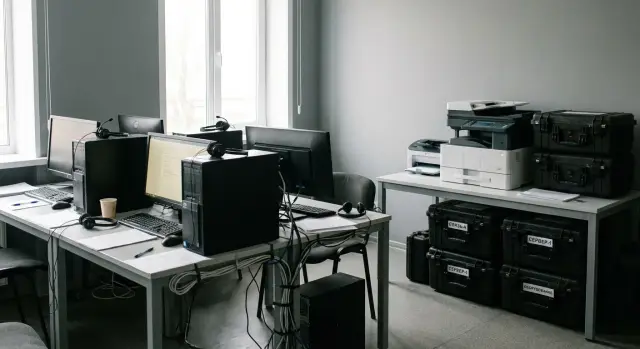
Why an emergency relocation breaks a command center's work
An emergency relocation almost never starts according to plan. It might be caused by a building outage, a leak, repairs, a power failure or an order to vacate the premises. Formally the team is just changing rooms, but in practice the familiar working environment disappears with the space.
The problem usually isn't a lack of computers. The main time loss begins with small things the command center can't operate without: who knows the passwords, where the cables are, who has access to the printer, how to bring up secure communications quickly, where the list of responsible people is. While these are being searched for in chats, in drawers and from memory, the most valuable period — the first hours — slips away.
At that moment even a strong team quickly loses momentum. One person configures the network, another does the same in parallel, a third waits for file access, a fourth can't print documents, and the leader receives fragments of information from different channels. People are busy, but overall coordination slows down.
Most often the work isn't broken by major failures but by an accumulation of simple delays:
- no ready workstations with clearly defined roles;
- there is connectivity, but it's not secure or is unstable;
- documents can't be printed and signed quickly;
- responsible people aren't assigned in advance;
- the equipment exists but isn't gathered into a single kit.
Without a pre-prepared kit staff begin duplicating tasks and getting in each other's way. Someone occupies the only printer, someone borrows a laptop from another department, someone connects a personal device because it's faster. This creates extra noise, errors and security risks.
That's why a backup command kit is needed not as spare hardware, but as a ready-to-run launch scenario. Its goal is to restore command in hours, not days. If several workstations are already assembled, labeled and ready to move, the command center after relocation doesn't have to be rebuilt from scratch — it can simply be deployed in the new room.
In practice this is especially important for organizations that cannot wait: government bodies, hospitals, large enterprises, banks, training centers. The cost of downtime is very high there, so a crisis room must start as quickly as backup power or a communication channel.
What must work in the first two hours
In the first two hours after relocation manageability matters more than perfection. The command center needs a simple, stable environment where people can contact each other, access data, record decisions and pass tasks on. Without that, even a strong team loses pace.
First, communication between the leader, operators and external contacts must work. You need voice calls, secured chats, video where necessary and a clear list of channels: who talks to whom and about what. The most common problem in a crisis room is not missing equipment but confusion over channels and roles.
Right after communication you need access to working information: email, shared documents, procedures, contact lists, message templates and an events log. If the team can't quickly open the latest action plan or find the current contractor number, time is spent on manual searching instead of solving the problem.
It's equally important to restore the paper workflow quickly. In many command centers some data still arrives on paper or requires signatures. That's why a backup command kit usually includes printing, scanning and an easy way to quickly enter data into systems without unnecessary manual work.
A critical minimum at startup looks like this:
- 1 reliable internal communication channel and 1 backup
- access to email, shared folders and the decisions log
- a printer or MFP for printing, scanning and copies
- ready workstations with preconfigured logins and permissions
- power with reserves for short outages
Power is often underestimated. In the first hours even a short interruption can break a call, corrupt a document or stop printing. So it's better to connect workstations, the network and the printer through UPS units, and keep extension cords and spare cables in one labeled box.
A useful benchmark: within 15–20 minutes of arrival the team should already be at their workstations, within 30 minutes they should see documents and communication channels, and within an hour they should be keeping a log, printing forms and exchanging data without workarounds. Uniformly prepared PCs or all-in-one systems are useful for this. For example, locally produced GSE systems are easier to keep in reserve as a standard fleet so deployments run without extra configuration.
How to determine the number of workstations and roles
Start not from a list of people but from a list of tasks the command center cannot do without in the first hours. The same person may be unavailable, delayed or replaced quickly. So count the backup kit by roles, not by names.
Usually it’s enough to define four basic roles. This is a framework that covers command, communications, documentation and technical support.
- Command leader makes decisions and keeps the big picture
- Communications operator gathers and forwards information via secure channels
- Records officer keeps the events log, prepares documents and handles printing
- IT duty person connects workstations, checks access and resolves issues
If the workload is higher, add an analyst or a leader’s assistant. But first ensure the core roles are covered. A common mistake is placing more desks for leaders than spots for communications and document handling.
For each role define the minimum required to operate. It's easiest to make a short matrix: what they need to see, how to communicate, what to print and what access is required. For example, the leader needs a large screen, reliable voice connection and access to summaries. The communications operator needs a headset, a second screen and quick logins to necessary channels. The records officer needs a comfortable keyboard, a nearby printer and document templates. The IT duty person needs admin access, cables, spare peripherals and a dedicated contact channel to providers and internal services.
Test the plan with a simple scenario. If the center relocates at night and must issue its first order in 40 minutes, who does it? Who answers calls? Who prints? Who restores access if one station doesn't start? If each question has a specific role assigned, the planning is likely correct.
Include 1–2 spare workstations. They’re useful not only for failures but when events exceed expectations. A spare can be simpler than a primary station but must be quick to power up and have ready access. If you use GSE equipment, keeping identical workstation configurations makes swaps faster and requires no extra setup.
What a single ready workstation should include
A ready workstation should start without lengthy assembly or questions. The idea is simple: open the case, connect power and network, log in and begin role work.
The core is a computer or all-in-one with a preinstalled image. Required applications, document templates, drivers, print settings, secure communication tools and a clear desktop should already be in place. If your organization uses a unified device fleet, build the backup kit with the same device types to avoid time lost on adjustments.
Near the main device provide a full set of peripherals: monitor, keyboard, mouse and headset. Headsets are important not only for calls but for working quietly in a shared room where multiple people speak. Label all cables with simple tags: power, monitor, network, headset. This saves minutes that are costly in a crisis.
Power often becomes a weak link. Include a surge protector and a small UPS in the kit. Even a brief power cut shouldn't drop a call, corrupt a document or break access to a secure system.
Put a short one-page startup checklist in the case. It should answer three questions: what to connect first, how to log in, and who to call in case of a failure. The shorter the instruction, the more likely it will actually be used.
To avoid confusion between neighboring stations, attach a clear sticker to the case or chassis indicating:
- the role (e.g., coordinator, communications operator, analyst)
- the name of the responsible person
- a short list of the kit contents
- the date of the last check
A good sign of readiness: a new person can set the station up in 10–15 minutes without an engineer’s help. If that’s not possible, the kit is not ready. For organizations that value uniform standards and fast startup, assembling workstations on standard hardware with consistent configuration and service support is especially convenient.
How to assemble the kit step by step
Start assembly not with hardware, but with deciding who, when and where should be operational after relocation. First confirm roles, startup time and storage location. If the backup kit is scattered across cabinets and rooms, it won't help on the day of the incident.
Then build identical sets rather than "perfect" stations for each individual. One type of computer, one headset, one cable set, one connection scheme — this makes swapping a faulty unit easier and avoids wasting time on setup differences.
A simple workflow:
- identify 4–6 roles needed in the first hours
- assign a uniform workstation to each role and label the kit
- create accounts, folders and print templates in advance
- run a drill and record all failures
Prepare a box or case for each role with clear labeling. Inside include not only devices but small items often forgotten: power adapter, extension cord, spare mouse, network cable, and the one-page startup note. The fewer decisions needed on site, the faster the crisis room will run.
Prepare accounts and documents ahead of time rather than on the day of relocation. Create separate profiles, folder templates for summaries and logs, print-ready forms, a contact list and a short startup procedure. Then the person sits down and starts working immediately instead of searching for access and old files.
If you're buying equipment for the kit, keep a unified fleet. Identical PCs, all-in-ones or workstations are easier to maintain and replace quickly. Large organizations often choose solutions with local service support and a clear supply cycle, as with GSE.kz.
After assembly run a drill. Move the kit to a backup room, power up all stations, check logins, printing and file sharing. These tests typically reveal missing adapters, inactive accounts, empty cartridges or misplaced forms.
A kit is ready not when it's purchased but when it can be deployed without arguments and extra calls.
How to set up secure communications
Without reliable communications a backup command kit loses its purpose. If the center relocates, people must quickly access email, internal chats, video and working documents without lengthy setup or confusion over permissions.
Start with two network access channels: primary and backup. The primary can be a wired internet or a dedicated line in the building. The backup should be independent — for example, a separate provider or a mobile router with preactivated service. The rule is simple: if one channel fails, the other must be usable within minutes, not hours.
Split traffic by priority
Don't send all traffic through the same channel and access group. Critical messages, leader coordination, contact with emergency services and urgent file transfers should be separate from general traffic. This reduces the risk that video calls, large downloads or ordinary chat will interfere with priority communications.
A useful scheme is to define two contours:
- a channel for critical communications and short operational messages;
- a channel for general email, work chats and regular internet access;
- a separate network or access profile for guests and contractors.
This approach helps during outages and overloads. If the general channel slows, the crisis room still maintains command.
Also prepare a secured data bundle for startup in advance. It should include contacts of responsible persons, backup phone numbers, accounts, login procedures and access rules. Store this not in a single file on someone’s laptop but in a protected form: role-based access, encryption and a clear issuance procedure. Two or three designated people — not just one — should have access to these data.
Test communications in conditions close to real. It's not enough to verify everything works at the main office. Test the kit in another room, on a different provider and while switching between channels. A good test looks like this: the team arrives in the backup room, powers up equipment, connects to the network, opens necessary services and confirms stable connectivity within 10–15 minutes.
If the kit uses ready workstations built from locally assembled PCs or all-in-ones, check compatibility of network equipment, security tools and channels in advance. Large organizations often prefer assembling the kit as an integrated solution with a clear access scheme and predefined roles rather than a set of disparate devices.
A key sign of good setup is simple: when the location or provider changes, people continue working almost the same way, without frantic calls to IT and without manual access recovery.
How to organize printing and rapid data entry
Don't place a printer at every workstation in the backup kit. That adds cords, failure points and confusion about access. It's much better to have a single shared printing node near the coordinator or secretary so printing, scanning and document handling are centralized.
This node should be in a quiet area where documents can be sorted and signed. In a hurry staff won't search for which printer to use. They will send files to a single print queue or hand them to the responsible person.
If there are many documents, a standard printer is insufficient. Crisis rooms often need to convert paper into digital form quickly: lists, reports, memos, requests. Provide a dedicated scanner or an MFP with an automatic feeder so sheets don't have to be fed one by one.
A simple setup works well: several ready data-entry stations and one shared printing node nearby. For example, an operator enters information into a form, the coordinator checks the entry and the secretary prints or scans the packet. This reduces manual transfer and mistakes in names, numbers and times.
To avoid redundant transcription, create a short form containing only fields essential for operation: who reported, what happened, time, address, status and responsible person. If the same form is used for paper and screen, data won't need to be retyped.
Keep a minimal supply near the printing node for the first 24 hours:
- several reams of paper
- a spare cartridge
- ready blanks/forms
- labeled folders by document type
- stickers or markers for rapid sorting
If the center is based on domestic equipment, compact PCs or all-in-ones are good for quick deployment. For organizations in Kazakhstan this is especially convenient when you need to equip a crisis room quickly with standard workstations and avoid long delivery times.
A simple scenario for relocating a crisis room
Imagine a common case: a bank or hospital floor loses power after an accident, some rooms become unavailable, and the command center must continue working without pause. Waiting for recovery isn't an option. People, communications and documents need to be moved quickly to a spare room and resume operations there.
A good scenario starts with roles, not equipment. One person is responsible for carrying cases and power supplies, a second for communications, a third for starting workstations, and a fourth for printing and paper forms. If duties aren't preassigned, even a good kit loses meaning: everyone runs around but no one starts the essentials.
A simple timeline is useful:
- 0–15 minutes: team gets the alert, grabs cases, extension cords, power sources and communication tools
- 15–30 minutes: equipment is moved to the backup room, outlets, desks and network coverage are checked
- 30–60 minutes: primary communication channels are brought up, laptops/PCs/all-in-ones are powered, the printer is connected
- 60–120 minutes: 6–8 stations are running, required forms are open, messaging and printing begin
Order of startup matters more than raw speed. First bring up communications for the shift leader and coordinator. Then enable stations for external contacts, event registration, document preparation and printing. In a hospital the priority is patient lists, referral templates and internal messaging. In a bank the priority is branch communications, decisions log and printing operational orders.
Uniform equipment helps in practice. If backup kits contain identically configured PCs, all-in-ones or workstations, it's easier to swap stations without long setup. For such scenarios uniform hardware and nationwide support are convenient, which is why many organizations consider local solutions like GSE, prepared in advance for a single work scenario.
At the end of a shift run a short debrief. The team records what was missing on site: access, memory cards, paper, cartridges, surge protectors, chargers or normal outlets. That list makes the next relocation calmer and faster — more than the fact of a successful startup alone.
Common mistakes when preparing
The most frequent problem is assembling a backup kit as a pile of hardware rather than a working tool for people. As a result cases contain good devices, but on the day of failure no one knows who gets what, where to plug the printer or how to quickly restore communications.
Where things often go wrong
- Buying laptops, monitors and printers first without describing roles. As a result leader, communications operator and records officer stations look the same even though their tasks differ.
- Leaving only one communication channel and one power method. If the main internet goes down or the single extension cord fails, everyone's work stops.
- Not labeling cables, power supplies, adapters and cases. It seems minor during a move, but looking for the right cable often takes longer than setting up the station.
- Storing passwords, startup instructions and connection order with one person. If they're unavailable, a simple startup becomes a stressful hunt for the right tech or credential.
- Never testing the kit live. On paper everything seems ready, but the first real power-up reveals missing adapters, empty cartridges, inactive accounts or cables that are too short.
A subtler mistake is not keeping spares for small items. One extra surge protector, a mouse, a keyboard, a ream of paper and a labeled USB drive with document templates are often more useful than one more powerful device.
A good guideline: any duty team member should be able to open a case and set up their station without calls or guessing. If you need "that specialist" or "the boss’s password" to start, the kit is not ready.
A simple drill reveals weak spots faster than any discussion. Ask two staff members to deploy the crisis room from instructions in 30–40 minutes. Everything they search for, clarify or replace on the fly is a real issue to fix in advance.
Quick checklist and next steps
Even a well-assembled backup command kit is useless if not tested on schedule. The main goal is simple: on the day of an incident people should open cases, power equipment and start work without searching for cables, passwords or paper.
Before storage run a final quick check. Ensure UPS batteries are charged, the printer has supplies and each case contains a full set of cables, headsets, mice, keyboards and labeled adapters. If anything is missing, fix it immediately rather than during an emergency.
Keep this basic checklist inside each case:
- check UPS charge and battery condition
- count devices, cables, media, headsets and consumables
- confirm system logins work for all key roles
- test communication, printing and overall startup time
- update paper and electronic contact lists
Quarterly run a short drill. Don’t limit the test to powering laptops or all-in-ones. Check the full workflow: staff arrival, connecting to secure communications, sending a file to print, receiving a scan and opening a shared working folder. Measure full startup time and note where delays occurred.
After any personnel change review roles and responsible people. If the shift leader, communications operator, secretary or duty admin changes, update accesses, contacts and paper instructions. Old lists in the crisis room quickly become a weak point.
Assign a single owner for the kit. This person is responsible not only for storage but also for budget to replace batteries, outdated modems, worn printers and spare workstations. When ownership is diffuse the kit usually ages unnoticed.
If you need the next step, start with a pilot kit for 3–5 stations and run a practice relocation to a nearby room. After that test you’ll immediately see what your team specifically lacks.
For organizations in Kazakhstan that require PC, all-in-one, server supply and integration, consider GSE solutions. The company offers local production, service support and experience with public and corporate sectors, which is useful when a backup kit must be quickly deployed and maintained without long delays.
Frequently asked questions
How many workstations are needed for a backup command center?
Start with 4-6 roles needed in the first hours: incident commander, communications operator, records clerk, and IT duty officer. Add one or two spare workstations in case the workload grows or equipment fails.
What should a ready-to-use workstation include?
Each station should include a preconfigured computer or all-in-one PC, monitor, keyboard, mouse, headset, power strip, small UPS, and labeled cables. Include a brief guide for connecting and signing in.
How should backup communications be arranged during a move?
Prepare a primary connection and an independent backup. For example, supplement wired access with a mobile router with an active connection so the team can switch over within minutes.
Does every workstation need a printer?
One shared printer or multifunction device is usually more convenient than several devices. Place it near the coordinator or secretary, configure a single print queue in advance, and keep spare paper, a cartridge, and ready-made forms on hand.
Where should access credentials and passwords for the crisis room be stored?
Do not keep passwords with a single employee or on a personal laptop. Restrict access by role, use secure storage, and designate two or three employees who can provide the necessary information in an emergency.
What needs to be operational in the first two hours?
Start communications first, then restore access to email, shared documents, and the decision log. After that, enable printing, scanning, and the remaining workstations. This sequence helps restore control quickly.
Why is it better to use identical equipment?
Build the kit with identical configurations and a consistent set of cables and software. The IT duty officer can then replace a faulty station faster, and employees will not have to learn unfamiliar equipment during a move.
How can you check whether the kit is ready?
Conduct a practice move to another room. The team should connect the equipment, sign in to the systems, send a document to print, and test both communication channels within 30-40 minutes.
What mistakes are most common?
The most common oversights are roles, backup internet, UPS units, adapters, consumables, and active user accounts. Labels on cases and cables also matter because they save time during setup.
How often should the backup management kit be checked?
Check the kit quarterly and after staffing changes. Verify the UPS charge, access credentials, cable condition, communications, printing, consumables, and that the contact list is up to date.
