6 min read
Computers for College Engineering Programs: the Basics for CAD
College CAD computers: how to choose a basic configuration for CAD courses so it’s enough for study without overspending.
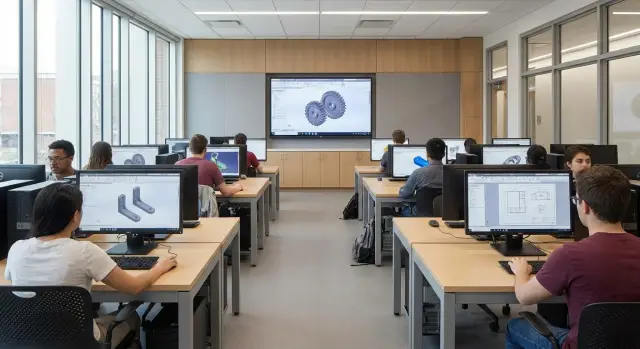
Educational CAD vs. production CAD: what’s the difference
Course assignments in CAD are almost always simpler than real-world projects. In class a student usually models a single part, a small assembly or a training drawing with a limited number of layers and views. In industry, teams open large assemblies, work with libraries, manage file versions and keep email, a browser, messengers and other tools running in parallel.
So pick computers for college CAD based on the actual teaching load, not the maximum requirements from industrial practice. For smooth work the most important things are stability and predictable speed in typical operations: launching the app, opening files, zooming, rotating the model and switching views.
Typical priorities: CPU and a fast drive matter most for day-to-day responsiveness, RAM helps avoid freezes when several files are open, and the GPU affects comfort when navigating 3D (a mid-range card is often enough for a basic course). “Top-end” graphics and rare professional features become important only when heavy assemblies and specialized modules appear.
It makes sense to leave some performance headroom if you plan to expand courses (more 3D, assemblies, rendering) or want the lab to stay relevant for 4–5 years. If tasks remain stable year to year, a basic configuration usually gives the best balance of cost and outcome.
Common tasks on CAD courses
Most college assignments are lighter than those in a design office. When choosing computers for engineering programs, understand which tasks students will do daily and which scenarios are rare and shouldn’t drive the budget.
Courses often start with 2D: drawing views, dimensions, hatching, sheet layout and frames per GOST, and preparing files for print. These tasks test CPU and RAM but rarely require an expensive GPU.
Next comes basic 3D: part modeling, simple assemblies, interference checks, and producing drawings from models. Load increases with the number of elements and multiple viewports, but a full production-grade workstation is still usually unnecessary.
Rendering, animation and simulations (stress, flow, kinematics) are another story: these are closer to production tasks and may need more RAM, a stronger GPU, and sometimes different software. If such topics are on the syllabus, clarify whether they are mandatory for everyone or only for a few final projects.
Around the core CAD work there are always “side” activities: browser, office files, learning platforms, video calls and printing.
Before procurement, check how peripherals and data storage will work: printing to required formats (printer/plotter), transferring files for 3D printing (where a slicer is located and how STL is exchanged), scanning sketches (if needed), and network folders for submitting work and storing projects.
If the group does 2D drawings and simple assemblies and rendering is only for final projects, it’s sensible to equip the lab with basic PCs and keep 1–2 more powerful stations for final work.
How to read software requirements correctly
People often skim CAD requirements and then get surprised: everything looks fine on paper, but the software is slow in class. To choose computers without overpaying, separate requirement sources and understand what they mean.
Collect requirements from three practical sources: the developer’s documentation (for the exact version and edition), the course manual (which modules and tasks will be used) and the instructor or department (plugins, file formats, licensing, and networked workflows).
“Minimum” requirements usually mean the program will start and allow simple actions. In practice that’s level: “open a drawing, make a couple of edits, save.” As soon as assemblies, multiple viewports, 3D, rendering or big libraries appear, delays and freezes start.
“Recommended” requirements are closer to reality: comfortable work, fewer waits when rebuilding models, acceptable speed when switching views. For a teaching lab this is a good target because students need predictability: identical tasks should behave the same on each PC.
Software version also matters. An update can add features but raise demands on drivers, memory or disk. Check requirements for the exact version that will be installed for the semester.
Even the same CAD can behave differently on two apparently identical PCs because of details: different drivers, power-saving modes, a full disk, background updates or disabled hardware acceleration.
Example: in a room of 20 identical PCs one student complains about 3D lag. It turns out a driver updated at that station and the graphics settings reverted from “performance” to “quality.” On paper the specs matched, but the experience differed.
CPU: what to prioritize
For CAD courses the CPU often matters more than the GPU. It affects how fast drawings open, how commands run, dimension recalculations and overall snappiness during edits. Start by asking what students will do every day.
Most teaching tasks benefit from high single-core performance. AutoCAD, simple SolidWorks assemblies and typical exercises often hit 1–2 cores harder than the rest. Fast cores therefore give a more noticeable effect than a large core count.
Extra cores help when heavy operations appear and when multiple applications run in parallel (CAD + a browser with course materials + PDF), and for rendering. If rendering is rare in the curriculum, paying extra for a high-core-count flagship usually isn’t worth it.
A practical guideline: modern mid-range CPUs—current Intel Core i5 or AMD Ryzen 5 families (or similar)—with good turbo frequencies. They deliver smooth classroom performance and remain relevant for several years.
Before buying, check simple things: single-core benchmarks (not just core count), a reasonable 6–8 core balance for the lab, adequate cooling and no throttling under load.
If the group works mainly on 2D drawings and simple 3D parts, a fast mid-range CPU will be more useful than an expensive many-core chip that only pays off for frequent rendering.
RAM and storage: avoid slowdowns
The most annoying delays in teaching CAD come from waiting: files open slowly, the cursor stutters, the app “thinks” after each change. Often the cause is not the GPU but insufficient RAM or a slow disk.
For 2D drawings and simple 3D assemblies, 16 GB of RAM is usually enough if a browser, PDFs and a messenger run alongside. 8 GB is already borderline: possible to work, but open a couple of large files and delays begin. If the course includes regular 3D assemblies, rendering and multiple heavy apps, plan for 32 GB. That keeps the lab calmer and delays the need to upgrade.
Signs of low RAM: long startup and file-open times even for moderate projects, hangs when switching windows or layers, pauses on Undo and save, “out of memory” errors or sudden closures with heavy files.
The drive in a teaching PC should almost always be an SSD. HDDs are cheaper but slow down the most common actions: booting Windows, launching CAD, loading libraries and saving projects.
Capacity guidance: at least 512 GB per PC if projects are stored locally and you keep libraries and templates. 256 GB only works with strict storage discipline (mostly network storage) and careful software installation. If multiple CAD packages and large libraries are installed, 1 TB is a safer choice.
A second drive is not mandatory but can be handy: SSD for the OS and applications, and a separate drive for student projects and temp files. This simplifies maintenance and reduces the risk of lost work during reinstallation.
GPU for CAD: a basic level without overpaying
For teaching CAD a GPU is needed for smooth model navigation, not for benchmark numbers. In many lab exercises students do 2D drafting, assemble simple 3D parts and learn navigation. For these tasks integrated graphics can be enough if the CPU is modern and RAM is sufficient.
A discrete GPU becomes noticeably useful as scene complexity grows: many parts, complex shadows, anti-aliasing, transparency and frequent model rotations. Another common case is dual monitors or high resolution: the load increases and integrated graphics hit limits sooner.
Gaming and professional GPUs differ beyond speed. In teaching, stability matters: drivers should not cause crashes, artifacts or blank windows when display modes change. Professional lines usually behave more predictably with CAD and tolerate updates better but cost more. Gaming cards are often cheaper and fine for basic tasks, but require careful driver selection and avoiding experimental settings.
A discrete GPU is justified when the software uses a lot of 3D and assemblies, heavy display modes are used often, dual monitors are standard, or there are complaints about stuttering during pan/rotate.
Expect a basic GPU to deliver smooth navigation in typical teaching models and stable CAD launches. Comfort with very large assemblies and production-level rendering is another category.
Monitor and peripherals for the lab
A good monitor and decent peripherals directly improve work speed: fewer scrolls, fewer misses on small elements, less eye and hand fatigue. In a lab this matters because students may work through two or three class sessions in a row.
A practical option for drawings and basic 3D is 24–27 inches. Resolution: 1920×1080 fits simple tasks and tight budgets, but 2560×1440 is noticeably better when a drawing, a specification and tool panels must be visible together. For 27" screens, 1440p usually gives a comfortable scale.
Color calibration is not required for most teaching tasks. For CAD, prefer even backlighting, a matte screen (fewer reflections), an IPS panel and a height-adjustable stand.
Keyboards and mice are simpler: CAD benefits from accuracy and quick shortcuts. The practical minimum for a lab is a full-size keyboard with a numeric pad, a comfortable mouse with a clear scroll wheel and two side buttons. Wired devices are often preferable in classrooms: fewer battery and connection issues.
Plan network and ports in advance. Gigabit LAN on each PC is useful for shared folders and updates. Wi‑Fi can be a backup. Common ports: several front or side USB-A and video outputs (HDMI or DisplayPort) matching your monitors.
Step by step: how to pick a configuration for CAD courses
When choosing computers for engineering programs, mistakes usually come from wrong initial data, not from hardware choices. Start with what students will actually do each day, not with the CPU model.
List the semester’s software and typical tasks (2D, simple 3D parts, assemblies, rendering, libraries). Then group users by level: most need a comfortable base, while clubs, competitions and final projects may require 2–3 upgraded seats.
Choose a base configuration and add a modest margin for 2–3 years. It’s usually easier to provision more RAM and a larger SSD up front than to upgrade the whole class later. Then check driver and peripheral compatibility (printers, plotters, scanners), and Windows versions and licensing.
Before mass purchase, test 1–2 PCs with real teaching files: open representative models, check rotation smoothness, save speed and printing.
After testing, approve a single standard for the lab. Identical configurations are easier to maintain: fewer driver and update issues and fewer cases of “it works for me but not for my neighbor.”
Common mistakes when buying for a college lab
The most frequent disappointment is simple: confusing course requirements with the software’s “minimum” spec. As a result PCs technically meet the minimum but students wait for rebuilds, file opens or assembly recalculations.
Typical errors: buying exactly to the minimum with no headroom for parallel tasks and updates; overspending on a GPU while skimping on CPU and RAM; choosing a slow or too-small SSD; buying mixed hardware in one lab; forgetting maintenance, repair timelines and spare parts availability.
Also underestimate the room conditions. If the lab is hot, dusty or PCs are packed tightly, even good hardware will overheat, get noisy and throttle.
Example: a college bought identical PCs but placed them in closed cabinets. After a few months overheating caused reboots during lessons. The fix wasn’t an upgrade but improved ventilation and regular maintenance.
Quick checks before purchasing
Before buying, ask the vendor to provide (or assemble one test PC) and run a short set of real actions. This is faster and more honest than debating "minimum requirements" on paper.
Use a typical teaching project: a 2D drawing, a 3D part or assembly and a couple of libraries. Files should resemble real assignments, not an empty part used only for benchmarks.
Check whether the project opens without pauses or crashes, whether 3D rotates smoothly, whether RAM is enough when CAD and several browser tabs run, how long CAD takes to start after reboot, and whether there is free disk space after software and updates.
Also evaluate the monitor. If text is too small, the screen reflects light or it’s hard to work with lines and dimensions, eyes will tire and lesson productivity will fall even with good hardware.
A simple rule: if a student can open a file, make edits and rotate the model for a few minutes without freezes, that’s a good sign.
Sample scenario: a college CAD lab
Imagine a typical case: 25 students, lessons in 2D drafting and basic 3D modeling, plus one instructor PC for demos. The lab goal is clear: projects open quickly, model rotation is smooth and the instructor doesn’t spend half a class solving "who’s frozen" problems.
For most seats choose a base PC tuned to daily tasks: student parts, modest assemblies, drawings, no heavy visualization. Consistency and stability matter more than peak power. A practical spec for student PCs: a modern CPU with 6–8 cores, 16 GB RAM (expandable to 32), a 512 GB SSD, and an entry-level discrete GPU with 4–8 GB VRAM. This generally covers AutoCAD and SolidWorks at a basic level while staying within budget.
Add 2–3 more powerful stations for competitions, clubs and final projects. For those, raise RAM to 32 GB, choose a higher-class GPU and allow extra power and cooling headroom.
Treat industry practice as "similar tasks," not a requirement to copy an entire engineering office. If students see large projects, PDM/PLM or heavy assemblies during internships, it doesn’t mean the whole lab must match production. Often a basic fleet plus a few beefed-up seats and clear rules for which tasks run where is enough.
If procurement approval needs to be simple, describe requirements in clear verifiable terms without tying them to a single model: CPU with at least 6 cores and good turbo frequency, RAM starting at 16 GB expandable to 32 GB, SSD at least 512 GB, discrete graphics for project seats, and IPS monitors 23–27".
Next steps: finalize the choice and prepare the lab
Once the base configuration is set, lock it down so the lab runs reliably all semester. Typically buy a majority of identical basic PCs and add 2–3 powerful seats for heavy assemblies, visualization and theses. That avoids overpaying for the whole lab while keeping capacity for demanding tasks.
Plan support before purchase. The same set of software, drivers and settings on all machines saves dozens of hours and reduces class errors.
Prepare a reference system image, clear update rules, simple license tracking and run a pilot on 1–2 PCs before full deployment.
Decide on downtime handling. Even one broken PC is a lost lesson. Define repair timelines and keep at least one spare workstation; a spare SSD with a system image speeds up recovery.
If local production, transparent supply and in-country support matter, discuss options with a system integrator or a vendor such as GSE.kz, which supplies PCs and servers and offers implementation and infrastructure support.
Frequently asked questions
Do I need to buy the same computers used in engineering firms if it’s only educational CAD?
For typical lessons (2D drawings and basic 3D) aim for the software vendor’s "recommended" requirements for the specific version, plus a little extra RAM and SSD space. Educational projects are usually lighter than production work, so consistent responsiveness for everyday actions matters more than maximum power for rare tasks.
How should I read CAD system requirements to avoid mistakes?
Gather requirements from three places: the developer’s documentation for the exact version you’ll use, the course syllabus (which modules and tasks are planned), and the instructor or department (plugins, file formats, networked workflow). “Minimum” often means the app will start, not that it will be comfortable to use for a full lesson.
What matters more for CAD classes: CPU frequency or number of cores?
For many teaching tasks, single-core speed is more noticeable than many cores. A modern mid-range CPU with good single-thread performance is a practical choice—6–8 cores is a sensible balance if it keeps high turbo frequencies and doesn’t throttle under load.
How much RAM is needed for CAD in college: 16 or 32 GB?
16 GB is enough for 2D work and simple 3D assemblies if students also use a browser and PDFs. Plan for 32 GB when assemblies get heavier, multiple large files are used at once, or visualization is regular—this reduces freezes and extends the lab’s useful life.
How important is an SSD and what capacity should a teaching lab have?
An SSD is almost mandatory because it speeds up Windows, CAD startup, library loading and saves. A practical minimum is 512 GB per PC; choose 1 TB when multiple CAD packages and local libraries/projects are stored.
Is a discrete GPU necessary for educational CAD or will integrated graphics do?
Integrated graphics are often fine for a basic course. A discrete GPU becomes useful when regular 3D work, large assemblies, high resolution or dual monitors are involved and smooth navigation is needed without stutters.
Why does the same CAD run differently on "identical" computers?
Differences usually come from drivers, power-saving modes, overheating, a full disk or background updates—not from the specs on paper. A uniform system image, identical driver versions and fixed CAD graphics settings help make behavior consistent across the class.
How should I split the budget: all mid-range PCs or a few powerful workstations?
If budget is tight, it’s often better to make most PCs identical and basic, and provide 1–3 upgraded seats for rendering, big assemblies and final projects. This avoids overspending on the entire lab while keeping capacity for heavy work.
Which monitor is best for a CAD classroom so students are comfortable?
Comfort and readability matter more than color accuracy. For a lab, 24–27" monitors are a good fit; 2560×1440 is especially convenient when a drawing, tool panels and a specification must be visible together. Prefer matte screens and height-adjustable stands.
What should I plan before buying, besides PC specs?
Test 1–2 PCs on real teaching files and lock a standard configuration for the whole class. Plan maintenance: a single set of software, drivers and settings, clear repair times and at least one spare workstation; a system integrator or local vendor can help with on-site support if needed.
