7 min read
Cisco Catalyst 9200 for the Office: Standard Procurement Specification
Cisco Catalyst 9200 for the office: a standard specification for bulk procurement. We cover uplink, stacking, power supplies, PoE and port reserves without overpaying.
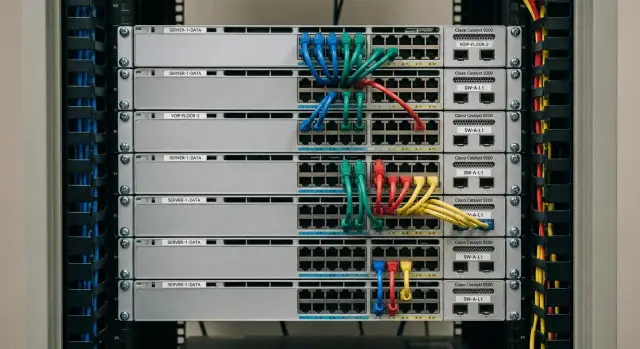
Why a standard specification is needed for office access
An office access switch is usually expected to do simple things: make the network invisible to users, power phones and Wi‑Fi APs via PoE, let the admin quickly add new workstations and see port status. Equally important are predictability and maintainability: identical devices are easier to support and keep as spares.
When buying at scale, standardization is almost always more important than "maximum options." If each branch has different models, power supplies and uplink modules, you pay not only for hardware but also for mistakes. Spare inventories grow, training becomes harder, incidents take longer to fix, and configurations drift more often.
Budgets are most often eaten by parameters that give little real benefit in office access: oversized uplinks where the backbone is 1G or limited by the provider; PoE with large headroom when there are few PoE devices; excessive power redundancy in small racks where a spare unit on site is simpler; complex stacking options "just in case" when switches are far apart or no stacking plan exists.
A standard specification fixes what cannot be decided ad hoc later: chosen models and port counts, PoE requirements, uplink type and speed, whether stacking is needed and what the kit includes, power supply options and redundancy level, and basic support requirements. Procurement becomes a repeatable template, easy to apply and verify.
Quick data collection before choosing the 9200
Before assembling a Cisco Catalyst 9200 specification for an office, it helps to collect baseline data in 30–60 minutes. This reduces the risk of buying "almost right" and later paying for upgrades, extra power supplies, additional switches or licenses.
Start with a simple port consumption map. It’s important not only to know the total number of workstations but where they are located: floors, wings, separate zones, meeting rooms, reception, storage. If ports are spread across the building, rack distribution and cable lengths become more important.
Next, estimate PoE load by device types. Phones and APs are usually predictable; cameras and intercoms often appear "out of the blue" closer to rollout. If Wi‑Fi or video surveillance expansion is planned, lock that in now. Otherwise you may have to replace a switch later for higher PoE capacity.
Also confirm whether 1G to the workstation is enough. For most employees it is, but exceptions exist: designers with NAS, engineers with large files, small departmental servers, or print areas. Better to tie these needs to specific sockets, not the office as a whole.
Simultaneously gather infrastructure limits: where cabinets are located, available rack units, dedicated power capacity, and cooling. A common story: ports match the plan, but power or temperature in the cabinet causes problems.
To avoid forgetting essentials, check five points:
- How many connection points are needed now and in 12–24 months, and where exactly?
- Which devices will be powered by PoE and how many in each zone?
- Are there users or zones requiring more than 1G?
- What are the restrictions on racks, power and cooling?
- What lifetime do you plan for the solution: 3–5 years or longer?
Example: a two‑floor office with 180 employees, 12 meeting rooms and 25 APs today, with 10 additional cameras and Wi‑Fi expansion planned next year. If recorded up front, you can size the PoE budget correctly and avoid a switch that has enough ports but insufficient power.
If data is missing, ask an integrator to do a short survey. The GSE.kz team often collects such baseline data as part of preparing a specification and deployment plan.
Ports and PoE: choosing a model without overpaying
The main fork in access is 24 vs 48 ports, and PoE vs non‑PoE. A common mistake is buying "for headroom" by feel rather than rules. That leads to paying for ports and PoE capacity that go unused.
24 ports fit small areas where one rack serves a small office block or floor. 48 ports are advantageous when the switch will be densely populated: the unit cost per port is usually lower, and you save rack space and uplink/stacking ports compared to two 24‑port units.
How to plan port headroom
Instead of "plus 10–20 ports just in case," set rules. For example: count current workstations and add a fixed reserve of 15–25% for moves and growth; list printers, meeting rooms, terminals, APs and cameras separately; keep separate numbers for "possible" vs "definite" points (better to have two figures); leave a few spare ports for emergency moves during relocations.
PoE follows similar logic. First decide which devices will actually be powered by the switch. PoE is unnecessary for ordinary workstations. It’s needed where there are APs, IP phones, cameras, access controllers, and sometimes thin clients.
How to pick the PoE level without overpaying
You don’t always need maximum PoE across all ports. It’s often better to separate zones: workstations (no or minimal PoE), Wi‑Fi/camera zones (PoE+ with a calculated power budget for the expected devices), and meeting rooms (PoE for phones and panels where present).
Example: a floor has 70 workstations, 8 APs and 12 cameras. It can be rational to use a 48‑port switch without PoE (or with limited PoE for phones) for workstations, and a separate 24‑port PoE+ switch sized for 20 devices with headroom for APs and cameras. This avoids paying for unused PoE and simplifies support.
Uplink: 1G or 10G and how to avoid mistakes
Uplink is the switch’s "upwards" connection to distribution or core. Uplink often becomes the bottleneck when more APs are added, video calls increase, files are moved to network storage, or headcount grows.
When 1G is enough. If the switch serves typical workstations, IP phones and a few printers, and heavy traffic goes out to the internet via a separate gateway, a 1G uplink is often sufficient. A common practice is to use two 1G uplinks in aggregation for both bandwidth and redundancy, particularly in an access→distribution design.
When 10G is needed. It’s justified if the uplink goes straight to the core, if there are local servers/storage in the rack, if a floor has many APs (especially in meeting rooms and open spaces), or if you stack switches and aggregate traffic from several access switches into shared uplink ports.
To avoid buying unused capacity, check five things:
- How many active devices actually stress the network concurrently?
- Are there local servers, backups, large file transfers, or VDI?
- Does the uplink go to distribution (simpler) or directly to the core?
- Will there be stacking, and how many switches per stack?
- Is Wi‑Fi and headcount expected to grow over the next 2–3 years?
A practical compromise: choose hardware that supports 10G (SFP+ uplink) but start with 1G. That leaves an upgrade path and delays the cost until it’s needed.
Stacking: when it’s needed and what to include
Offices adopt stacking for two reasons: to manage a group of switches as a single logical device and to prevent a single switch failure from taking down services. In a stack you configure one logical switch, and ports across devices behave consistently. No need to maintain multiple copies of the same settings.
Stacking makes sense when a zone needs 72–144 access ports and switches are colocated in one rack. A common scenario is two 48‑port devices stacked together: easier to operate than two independent switches, especially when workstations move frequently or phones are added.
But stacking is not always required. If a zone is small (24–48 ports), there are no high availability demands, and racks are spread out, standalone switches are cheaper and simpler. Another blocker is mismatched procurement timing: if you won’t build the stack soon, it may be better to start with standalone devices and keep stacking as an option for the next wave.
Specify stack details in advance: number of members (usually 2, sometimes 3–4) and identical models for key parameters; stacking kit (cables of the right length and any required modules); a ring connection scheme to avoid a single point of failure; some cable length margin for deep racks or routed cable trays; and a clear numbering and role plan to avoid redoing configuration later.
A simple placement rule helps: one stack per floor or per clearly defined zone (wing, block of offices). That localizes issues and avoids long copper runs.
Power supplies and redundancy: reasonable headroom
With Catalyst 9200 power supplies, mistakes usually fall into two traps: copying "what everyone uses" without PoE calculation, or universally fitting dual PSUs and overspending. The right choice depends on the switch role (ordinary floor access or a critical node), number of PoE devices and how painful downtime is.
When phones, APs and cameras are on the ports, the limiting factor is often PoE budget rather than port count. Symptoms of underpowering are simple: some APs go into reduced mode, phones reboot, cameras lose IR at night. This happens when total consumption approaches the limit and usage varies (firmware changes, IR, peaks).
Decide on one vs two PSUs by the cost of downtime. Dual PSUs make sense if the switch serves many users, critical meeting rooms, a contact center, medical rooms, or if rack access is difficult and same‑day replacement is not guaranteed. For a typical floor, one PSU plus a spare kept on site or in stock is often sufficient.
Practical sizing rules:
- Budget 20–30% PoE headroom over calculated load.
- Use dual PSUs only where downtime cost justifies the extra expense.
- Keep at least one spare PSU per procurement batch (or per several racks) and one spare switch on site if rapid recovery is critical.
Before purchase check cabinet power: enough outlets and circuits, dedicated breakers, UPS sizing for runtime, and whether PDUs are overloaded. These details often determine if redundancy will work in practice.
Step by step: assembling a standard specification for bulk procurement
To avoid fragmented solutions, build a clear standard specification and rules for scaling it. For Catalyst 9200 office access it’s usually enough to choose base models, fix rules for uplink, stacking and power, then list completeness and acceptance tests.
-
Choose 1–2 standard models for different zones. Typically you need a model for a regular office zone (PCs, phones, APs) and a model for higher PoE needs (meeting rooms, open spaces with many APs, cameras).
-
Fix headroom rules so decisions aren’t ad hoc: minimum uplink, spare copper ports, percent PoE above current need. Headroom must be a rule, not a feeling.
-
Decide where stacking and power redundancy are truly needed. Include stacking where HA and simplified management matter. For power, agree in advance: either one PSU with acceptable downtime or dual PSUs for critical zones.
-
Draft the spec as a kit for "one switch" and for "one stack": base model and licensing, PoE (yes/no and level), uplink type (1G or 10G) and required modules, stacking kit, power supplies (1 or 2), and minimum spares per your SLA.
Add non‑hardware requirements: labeling (floor, rack, port number), a unified config template, serial number export, PoE load check and uplink test at acceptance. For example, for a 40‑seat floor you might specify: one switch per floor, 15–20% port reserve, two uplinks to the core, stacking only for critical zones.
If an integrator handles procurement and deployment, agree on config formats and acceptance acts up front. This saves time and avoids disputes after delivery.
Common procurement mistakes for Catalyst 9200 in offices
Even a good model becomes an expensive mistake if the specification is built on "maximum everything." Problems usually stem not from the brand but from buying without simple checks: what will actually be connected, how the backbone is arranged, and who will install the equipment.
Typical waste or issues include:
- Buying oversized PoE without verifying the PoE device list. You pay for unused power budget.
- Ordering 10G uplinks on every switch while backbone and core remain 1G. Expensive ports then operate with constraints.
- Planning stacking but forgetting kit completeness: correct cable lengths, required modules, and sufficient positions. The stack isn’t assembled on site, and each switch ends up configured independently.
- Fitting two PSUs by default for small office racks. Often a spare PSU in stock plus a replacement plan is preferable.
- Not allocating port reserves where growth is expected (meeting rooms, flexible seating). Later you buy small batches and mix revisions and kits.
Example: a 120‑user office expecting a new department and two meeting rooms in six months. If switches are bought tight to current needs, you’ll quickly run out of ports and scramble to find space and power for another unit. Better to allocate headroom where growth is expected rather than spread it thinly across the building.
Short checklist before finalizing the specification
Do a quick final pass. It often catches small items that later become delays, extra deliveries and costs.
- Ports and PoE: chosen 24/48 format fits rack layout. Reconcile workstations, phones, APs and cameras by zone. If PoE is needed only in part of the area, compare an all‑PoE option with a mixed approach.
- Uplink: confirm a single policy (e.g., 10G for backbone, 1G for small racks). Ensure speeds and modules match distribution/core ports.
- Stacking: mark where it’s required and verify stacking cables and member rules are in the kit.
- Power and redundancy: decide where a single PSU suffices and where a second is required. Recalculate PoE budget with headroom and check electrical readiness (breakers, outlets, UPS).
- Headroom without overpaying: formalize rules for port and spare parts reserves. Often one spare switch per site is more cost‑effective than dual redundancy in each rack.
A check on a representative floor helps: trace from wall sockets to backbone. If the model works on one typical floor, it usually scales across the building.
Example scenario: standard specification for a medium office
Three‑floor office: 1st floor reception and meeting rooms, 2nd floor open space, 3rd floor management and small offices. Wi‑Fi is everywhere, some staff use IP phones, and cameras are placed at entrances and corridors. The goal is a clear standard procurement so installers don’t have to "order extras on site."
Divide equipment into three standard kits and multiply by zones:
- Kit A (regular floor/open space): 48‑port PoE+ for PCs, phones and some APs.
- Kit B (Wi‑Fi and meeting rooms): 24–48‑port PoE+ with higher PoE headroom for APs and meeting equipment.
- Kit C (cameras/perimeter): 24‑port PoE+ prioritized for PoE and placed closer to risers/cabinets.
A working rule for uplink and stacking: if a floor has two or more access switches or heavy PoE (many APs/cameras), include 10G uplink to the aggregation/core. If the floor has a single switch and moderate load, 1G uplink is acceptable with a clear growth forecast.
Headroom rules: keep 15–20% spare ports (moves, new staff, printers) and 25–30% PoE headroom (AP and camera models change). For installation include: switch model (24/48, PoE or not), uplink module/port type, SFP/SFP+ modules for chosen fiber or copper, stacking cables (if needed), power supply(ies) and redundancy, rack mounting hardware, labeling and patch cord requirements.
Next steps: procuring and deploying with minimal risk
Once models are chosen, the main risk shifts from "what to buy" to "how to place it and install it without surprises." A final matrix by point helps: floor, rack, model, number of PoE ports, uplink (1G or 10G), stacking, power supply and spare policy.
Put this into one document and mark allowed substitutions. Standardize models and uplink on typical floors and allow exceptions for meeting rooms or high‑density Wi‑Fi zones.
Before ordering verify "hardware vs reality":
- Will the gear fit existing racks (depth, mounts, ventilation)?
- Is there enough power and outlets, especially with PoE and redundant PSUs?
- Do cable routes match the plan: copper vs fiber, connector types and lengths?
- Is stacking feasible given rack space and cable management?
- Is there enough port and PoE headroom where it truly matters?
Predefine commissioning rules: labeling (switches, ports, patch panels), base settings (VLAN, trunk/access, PoE policies, SNMP/logging, accounts) and acceptance tests with clear on‑site checks.
If buying dozens of switches for multiple offices, preallocate them by site, label boxes and attach short parameter sheets (uplink, power, stack info) to each shipment. This saves days during installation and reduces kit mix‑ups.
If you need help with surveying, final specification or deployment, engage a systems integrator. GSE.kz as a manufacturer and integrator in Kazakhstan frequently delivers such projects turnkey, which is convenient for bulk deliveries and a unified site standard.
Frequently asked questions
Why make a standard specification for office access switches?
A standard specification makes procurement repeatable: the same models, the same uplink and power choices, and the same completeness. This simplifies support, reduces installation errors and cuts spare parts inventory because you keep stock for one template instead of dozens of variants.
What data should be gathered before selecting Catalyst 9200?
Collect a port map by zones (where exactly connections are needed), a list of PoE devices per cabinet, and a growth forecast for 12–24 months. Also clarify if any users or zones need more than 1G and check cabinet constraints (space, power, cooling) — these limits often break an otherwise sound design.
Which is better for the office: 24 or 48 ports?
24 ports fit when the area is small and the switch won’t be fully populated. 48 ports are usually more cost‑effective at high density: lower cost per port and fewer devices per rack. The key is to understand real needs and keep a reasonable reserve rather than buying more ports "just in case."
How to size PoE correctly to avoid overpaying or underpowering?
First list which devices will actually draw PoE: Wi‑Fi APs, IP phones, cameras, access controllers. Then add a power margin so firmware updates, camera IR, or additional devices don’t cause reboots or degraded operation.
When is 1G uplink enough and when is 10G required?
1G uplink is often enough for normal workstations, telephony and moderate Wi‑Fi, especially if heavy traffic exits via a separate internet gateway. 10G makes sense when a floor has many APs or cameras, there are local servers/storage, or you aggregate traffic from several switches through common uplinks.
Can I start on 1G and leave the option to switch to 10G later?
The practical approach is to choose hardware that supports 10G but start the deployment with 1G if that fits today. This avoids early costs while leaving a straightforward upgrade path without replacing switches.
When is stacking in an office actually needed?
Stacking is useful when you need many ports in one area and switches are colocated in a single rack: it simplifies management and improves resilience. If cabinets are dispersed, the number of ports is small, or you're unsure a stack will be built soon, standalone switches are usually cheaper and simpler to operate.
Should Catalyst 9200 have two power supplies by default?
Dual power supplies are justified where downtime is costly or access to the rack is difficult. For a typical office floor it’s often better to have one installed power supply and a spare unit in stock that can be swapped quickly according to your acceptable downtime.
What spare parts and redundancy should be planned for bulk procurement?
A practical spare policy is to keep replacement parts that most frequently restore service quickly, typically a power supply and a spare switch per site or per several racks. This approach is often more cost‑effective than equipping every node with full redundancy that rarely gets used.
What should be checked before approving the specification and who can help with deployment?
Require an acceptance checklist: verify uplink runs at the agreed speed, test PoE load with representative devices, export serial numbers and the base configuration. For many branches it’s efficient to standardize configuration templates and port labeling. If needed, engage an integrator such as GSE.kz to reduce the risk of follow‑up deliveries and rework.
