7 min read
Choosing a Wi‑Fi Adapter for an Office PC: Stability Matters More Than Speed
How to choose a Wi‑Fi adapter for an office PC: evaluate drivers, roaming, 802.1X, AP compatibility and avoid connection dropouts.
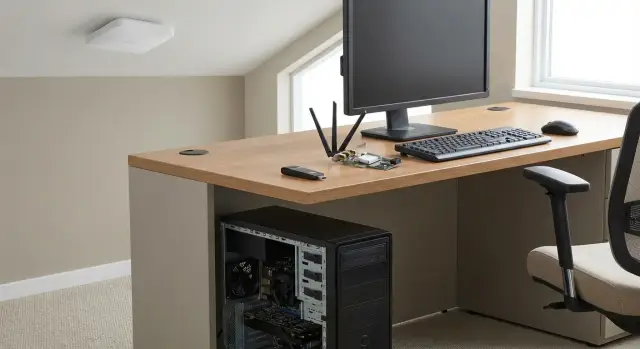
Why stability matters more than megabits in the office
Speeds on the box almost always reflect ideal conditions: one router nearby, minimal interference, no corporate policies or complex settings. Office life is different. What matters is not a peak “up to 1200 Mbps” number but how the adapter behaves during a normal workday: does it keep the connection, how does it handle sleep, does it cause ping spikes during video calls.
Typical complaints sound familiar: “disconnects every 10 minutes”, “ping jumps”, “network disappeared after sleep”, “sometimes doesn’t see the SSID”, “connected but no internet”. Often it’s not the ISP. Usually it’s a mix of driver issues, power saving and how a particular adapter behaves in a busy radio environment.
An office network is more complex than a home one for three reasons:
- there are many devices and the air is almost always busy;
- security policies apply, old protocols may be disabled and corporate authentication can be in place;
- there are usually multiple access points, so stable handoff between them matters more than a speed record.
Signs that the adapter is the bottleneck (not “bad internet”): problems only on one PC, Wi‑Fi drops after sleep, ping jumps despite good signal level, the network appears and disappears from the list, reconnecting or toggling the adapter helps.
A typical scenario: an employee moves to another office where a different AP is closer, but Teams calls start breaking up. The internet is fine, yet the adapter sticks to a distant AP and won’t roam, and the driver is too aggressive about power saving. In such cases “faster” doesn’t mean “better”.
What to learn about your office network first
Before buying, take a minute away from the “up to 1200 Mbps” numbers and understand how your network is set up and what matters for the workstation.
If the PC is used only for email and web browsing, requirements are different. If you run 1C/ERP, remote desktop, video calls and shared files all day, predictable latency and minimal dropouts are more important. Packet loss and reliable connections during peak hours become critical.
Answer these questions before choosing:
- which apps must run without hiccups (video calls, RDP, 1C/ERP, VoIP);
- how many people share Wi‑Fi in your wing or floor;
- are there areas with weak signal or noisy spots near equipment;
- is 802.1X (WPA2‑Enterprise) used and are strict security policies enforced;
- what standards and bands do your APs support (2.4/5/6 GHz).
Bands depend on layout. 5 GHz is usually cleaner but doesn’t penetrate walls as well. 6 GHz (Wi‑Fi 6E) gives more “clean air” but only if APs and corporate rules support it and distances are short.
Also check admin restrictions: are third‑party drivers allowed, can IT update them via corporate tools, are there certification or approved model lists. In large organizations this often matters more than box specs.
Form factor: USB or PCIe and why it matters
Many people pick an adapter based on standard (Wi‑Fi 6, Wi‑Fi 6E), but stability often comes down to form factor and how the adapter is placed. Two devices with the same chipset can behave differently because of the port, enclosure and antennas.
USB adapters are convenient: plug in in a minute and move between PCs easily. They’re good for temporary desks, thin clients or when you can’t open the case. But in offices USB often shows common problems: the adapter sticks out near many cables, suffers interference from USB 3.0, can overheat in a compact body, and depends heavily on the port’s quality and power. Simply moving it from the rear to the front panel (or vice versa) can noticeably change signal level and dropout frequency.
PCIe adapters more often deliver predictable results: they’re mounted firmly and usually come with proper antenna assemblies. Downsides are obvious: installation is harder (you need space inside the case; a video card can block the slot) and you can’t quickly move it to another PC. For a permanent workstation, though, this is often the calmer option.
Antennas matter more than the number on the box
Connection quality depends more on antennas and their placement than on the claimed class. If the PC sits under a desk, next to metal or a bundle of cables, signal can drop even on an expensive model.
Between a tiny USB dongle and a device with an external antenna, the latter is usually wiser for the office. An external antenna or a base on a cable lets you place the receiver higher and away from interference. Compact models are fine when discretion matters and signal is good—for example, near an AP or in a small office.
Drivers: updates, stability and post‑sleep issues
In practice drivers cause more trouble than raw speed: they can break after an update, after sleep, or when security policies change. Driver quality is often more important than “maximum megabits.”
A good sign is regular updates for your OS and clear versioning rather than a single obscure download page. This is especially visible on Windows 10/11 corporate builds: updates arrive on schedule, some drivers can be blocked by policy, and automatic installation from the internet may be disabled. As a result, an adapter that’s fine on a home laptop may misbehave on a corporate PC.
Sleep, wake and “Wi‑Fi gone”
A common story: after sleep or hibernation the network disappears, the Wi‑Fi icon is present but there’s no connectivity, and only a reboot helps. Usually this is not the AP’s fault but how the driver and system manage power saving.
A practical test before bulk purchase: put the adapter in a “typical” office PC and send it to sleep 10–15 times during a day, see how often the connection fails to restore itself. If it fails even occasionally, at department scale this becomes a daily headache.
Quick signs of unstable drivers
- Windows Event Log shows frequent Wi‑Fi disconnects/reconnects without user action;
- after reboot the network takes noticeably longer to appear compared to other PCs;
- the adapter drops connection when a VPN connects or when the user changes;
- speed and latency jump without movement or signal change;
- the issue repeats on one driver version and disappears on another.
If your office uses identical PCs, it’s easier to lock a tested driver version and avoid updating without prior testing on multiple machines.
Corporate authentication: 802.1X and EAP without surprises
In many offices Wi‑Fi is protected not by a shared password but by per‑user authentication—WPA2‑Enterprise or WPA3‑Enterprise: the device connects, then credentials and rights are verified (usually via RADIUS and domain), and only then access is granted.
802.1X is the core of this scheme. Different adapters and drivers can behave differently: one reliably reconnects after sleep, another repeatedly prompts for credentials, a third hangs on certificate validation. So before buying, know which authentication methods your IT uses.
Which EAP methods to confirm
EAP is the mechanism for authentication. Common variants: PEAP (username/password) and EAP‑TLS (certificates). Before purchase ask IT:
- which EAP method is used (PEAP, EAP‑TLS or another);
- whether server certificate validation is required (and which CA);
- whether domain accounts or separate logins are used;
- whether pre‑logon connection is needed (for policies and updates);
- whether WPA2‑Enterprise or WPA3‑Enterprise is required and if PMF is enforced.
Certificates and smart cards
If your company uses EAP‑TLS, certificates are critical. A common issue: a user moves to a new PC and Wi‑Fi won’t connect. Causes include a missing certificate, a driver that poorly handles the certificate store, or the use of a smart card.
If you’re buying PCs and network access as a package, include this test: one adapter, one typical 802.1X profile, sleep/wake, password change, and domain join. That reduces surprises during mass rollout.
Roaming: how the adapter behaves while moving around the office
Roaming is when a device switches from one AP to another while keeping the same network and credentials. In offices this happens more often than you’d expect: between desks, near meeting rooms, by elevators, or simply because a PC tower was turned or moved slightly.
The problem is usually not speed but the client sticking to a weak AP. For users this looks like: the signal is already poor, audio stutters, and the handoff to a closer AP happens late or only after a short dropout.
What 802.11k/v/r give you
These features help the device find and switch to the best AP more quickly and perform smoother handoffs. They’re most noticeable in multi‑AP offices with voice or video traffic.
- 802.11k suggests which APs and channels are nearby;
- 802.11v helps steer the client toward a better AP;
- 802.11r speeds up re‑authentication during the handoff.
Note: advertised support alone doesn’t guarantee flawless roaming if the driver misbehaves or if those modes are disabled on the APs.
How to check quickly on site
The best test is real load, not a speed test. Join a video call, share your screen or camera, and walk the route “desk → meeting room → corridor.” Watch for pauses, voice artifacts and brief dropouts. Repeat the check during peak hours.
If you get regular freezes while walking, late handoffs or incompatible roaming settings between the adapter and APs are usually to blame.
Compatibility with access points and Wi‑Fi settings
Box speeds matter little if an adapter doesn’t “play well” with your APs and their settings. What matters is how it behaves with your controllers, security policies and radio parameters.
Brand alone is not a guarantee. Even well‑known models can produce odd combos: working perfectly in one office but showing dropouts, long reconnections or speed degradation after a channel change in another. Often the cause is a specific network option rather than a weak signal.
Pay attention to radio settings. 80 or 160 MHz channel widths can give throughput gains but may reduce stability in a busy office. DFS channels (in 5 GHz) can also be a surprise: when radar is detected an AP must change channel and some clients handle that poorly. Another small but critical issue is the regulatory domain in the driver—if it’s wrong the adapter may not see some channels.
Client behavior is also affected by “smart” features: band steering, forced 5 GHz, blocking 2.4 GHz, client isolation, mandatory PMF, and WPA2/WPA3 policies. For example, an adapter may connect but not reach a network printer because client isolation is enabled.
Before buying, ask your admin:
- which bands and channel widths are actually used (2.4/5/6 GHz, 20/40/80/160);
- whether DFS channels are used and if fast roaming (802.11k/v/r) is enabled;
- what security is required (WPA2‑Enterprise, WPA3, mandatory PMF);
- whether band steering or 2.4 GHz blocking is in place;
- whether client isolation is enabled on the VLAN/SSID.
These answers quickly eliminate models that “technically connect” but perform poorly in a corporate network.
Step‑by‑step adapter selection
A short plan keeps things practical: pick not the fastest, but the one that works predictably every day.
-
Gather basics: the OS on PCs (often Windows 10/11), whether 802.1X/WPA2‑Enterprise is used, which bands are actually in use (2.4/5/6 GHz), and whether access to VLANs or guest networks is needed. If the network is policy‑managed, clarify who installs drivers and whether updates are allowed.
-
Evaluate installation place: is the tower under the desk, near metal, in a dense seating area? This determines whether external antennas and their orientation matter.
-
Choose form factor: PCIe usually gives more stable reception due to antennas; USB is good for quick tests and where you can’t open the case but is more sensitive to interference and port quality.
-
Check support for needed features: Wi‑Fi 6/6E (if the office actually uses 6 GHz), 802.11k/v/r for roaming, WPA2‑Enterprise/802.1X and required EAP methods.
-
Plan a pilot: at least 1–2 workdays on a typical desk and in a meeting room.
Make the test fair by fixing pass/fail criteria in advance:
- no dropouts during calls and file transfers;
- the PC reconnects after sleep automatically and quickly;
- signal doesn’t collapse in meeting rooms or distant corners;
- handoffs between zones don’t cause freezes.
Common mistakes when choosing a Wi‑Fi adapter
The main mistake is focusing only on the numbers on the box. In an office what matters is predictable behavior: the network comes up after sleep, video calls don’t fail, and corporate Wi‑Fi connects without manual fiddling.
What frequently wastes IT time:
- buying by speed without checking drivers and WPA2‑Enterprise support. Result: the network is visible but the needed EAP method fails, or Windows updates trigger dropouts;
- choosing the smallest USB dongle and installing it behind the PC close to a wall or metal case. The signal is shielded, noise rises and the connection worsens;
- using a “home” model for office tasks. It may be OK for browsing, but calls and remote desktop will reveal weaknesses quickly;
- ignoring security rules: drivers blocked by policy, signature requirements, or an approved model list. The adapter can’t be deployed properly;
- trying to fix coverage with a “strong” adapter. If APs are few, overloaded or misconfigured, the client device won’t solve the problem.
Another trap is expecting perfect roaming without testing. With multiple APs, not only 802.11ac/ax matters but how the specific adapter switches and whether it clings to a weak AP.
A real case: moving to another office and Wi‑Fi problems
A 12‑person team moved to another floor. Internet seemed OK, but short dropouts in calls, Teams freezes and jerky page loads began. Speed tests sometimes showed high numbers, so the ISP was blamed at first.
The issue was internal. The new floor had different APs and the network used WPA2‑Enterprise (802.1X). Also, some desks were near an elevator shaft and signal there was noticeably weaker.
Weak points showed up on certain PCs: a small USB adapter without decent antennas often latched onto a distant AP, was reluctant to switch to a closer one, and constantly varied its speed. After sleep two users needed to toggle Wi‑Fi to restore the connection.
Testing took one day: we walked the route “desk → meeting room → kitchen” with a laptop and watched how quickly the device handed off and whether 802.1X auth failed.
What helped:
- for the worst desks we replaced the form factor with PCIe adapters with external antennas;
- updated drivers for the current Windows version and turned off aggressive power saving;
- preferred 5 GHz and smoothed roaming behavior so clients didn’t bounce between APs unnecessarily;
- adjusted one AP’s placement to remove a dead zone.
After that, calls stabilized and the “works/doesn’t work” complaints stopped.
Quick checklist before purchase and installation
Start from how the adapter will live in your network every day: domain join, video calls, sleep and movement—not the box speed.
Check five things:
- corporate security: support for WPA2‑Enterprise/802.1X and the required EAP method (often PEAP or EAP‑TLS), verified for your OS;
- drivers: stable, recent versions for your Windows and a clear update strategy;
- form factor: USB is convenient for rapid deployment, PCIe usually holds signal better via antennas;
- Wi‑Fi compatibility: bands and AP modes match (channel width, security, corporate settings);
- sleep and reboot behavior: the adapter should wake and reconnect without manual toggling.
Then run a short real‑world test: a 10‑minute video call while moving between two zones where handoffs normally occur. If audio stutters, the connection freezes for a few seconds or the PC clings to a distant AP, roaming problems are very likely.
From test to full rollout
Don’t buy for the whole office immediately. Most mistakes aren’t about speed but about not verifying real‑world conditions: security policies, drivers and network behavior.
First, agree requirements with IT: allowed driver installation methods, Windows updates, USB device policies, 802.1X support and roaming expectations.
Typical steps:
- document requirements (security, 802.1X/EAP, sleep/wake, roaming, driver installation limits);
- pick 2–3 candidates and verify stable driver availability;
- pilot on 5–10 workstations in different office zones;
- collect results and only then plan bulk procurement.
Run the pilot in trouble spots—not next to an AP but where complaints usually come from: by the elevator, in remote wings, in meeting rooms. Often the adapter is innocent: coverage, overloaded channels, AP power settings or roaming parameters are at fault. Then it’s better to fix the Wi‑Fi network or add an AP than to replace every client device.
If you need an end‑to‑end outcome, involving a systems integrator reduces risk: they can test adapter compatibility with APs and 802.1X profiles and then roll out the solution department by department. In Kazakhstan such tasks are handled, for example, by GSE.kz, which supplies workstations and servers and has experience in system integration and corporate infrastructure support.
Frequently asked questions
Why is Wi‑Fi speed less important than stability in an office?
For office work, stable latency and no dropouts matter more than peak “up to N Mbps” speeds. Video calls, RDP and corporate apps react badly to spikes in ping, packet loss and reconnections, not to high speed numbers on a speed test.
How do I know the issue is the Wi‑Fi adapter and not the ISP?
If problems appear only on one PC while neighboring machines are fine, the adapter or its driver is often the culprit. Common signs: Wi‑Fi disappears after sleep, the network shows and hides in the list, reconnecting or toggling the adapter helps, and ping jumps even with a good signal level.
Which is better for an office PC: USB or PCIe adapter?
USB is convenient for quick deployment and testing, but it depends more on the port quality, power and nearby interference from cables or USB 3.0. PCIe typically gives more predictable reception thanks to external antennas and fixed placement, so it’s often the calmer choice for a permanent workstation.
How important are antennas and their placement?
In offices antenna quality and placement often matter more than the adapter class on the box. If the PC is under a desk, near metal or behind a bundle of cables, an external antenna or a base on a cable helps move the receiver out of the noise zone and reduce dropouts.
What should I look for in drivers and updates for corporate PCs?
Check for stable driver releases for your Windows version and how drivers can be updated in your company. If corporate policy blocks third‑party installs or automatic updates, pick a model whose driver your IT team can lock to a tested version and deploy via standard tools.
Why does Wi‑Fi often fail after sleep and how to test it beforehand?
Usually this is caused by power saving and how the driver restores the connection after sleep or hibernation. Before mass buying, do a simple test: put the PC to sleep 10–15 times and check if Wi‑Fi reliably comes back up without manual steps or a reboot.
What is 802.1X and why does it matter when choosing an adapter?
802.1X is used in WPA2‑Enterprise/WPA3‑Enterprise setups where each user is authenticated individually rather than by a shared password. It’s important to confirm adapter and driver compatibility with your authentication scheme; otherwise you can get hangs during certificate checks, repeated credential prompts, or failures after sleep.
Which EAP methods should I clarify before buying?
Ask IT whether PEAP (username/password) or EAP‑TLS (certificates) is used and whether strict server certificate verification is required. If your company uses EAP‑TLS, the adapter must handle password changes, user logins/logouts and wakeups without losing the profile or certificate store.
Why is roaming important in an office and what do 802.11k/v/r provide?
Roaming is the handoff between access points within the same network and it happens more often than you think. If a client clings to a distant AP, you’ll get stuttering in Teams/VoIP and short freezes. Check real roaming behavior, not just advertised support.
How should I properly test an adapter before rolling it out across the office?
Run a pilot on typical spots including trouble areas like meeting rooms and distant wings, and test real workloads: a video call, VPN, file copy, and sleep/wake. If needed, involve an integrator to validate adapter compatibility with your APs and 802.1X profiles. For full projects, companies like GSE.kz can handle hardware supply, integration and support.
