8 min read
Choosing a Scanner and MFP for an Archive: ADF Life, Drivers and Network Scanning
How to choose a scanner or MFP for an archive: assess ADF roller life, feeder behavior, drivers and network scanning to match your volumes and processes.
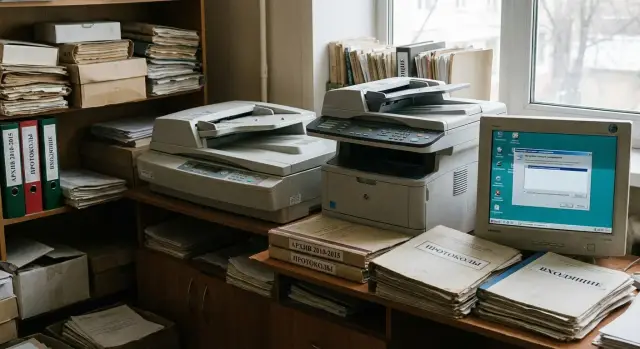
Where scanning problems usually start
Problems almost never begin at the moment of purchase — they show up in the first month of real work. At a typical office desk people scan a few sheets at a time, with pauses, often fresh sheets. An archive has a different flow: mixed batches, old files, staples, thin copies, crumpled pages and a high daily load.
Because of this, two models that look identical on paper (speed, resolution, size) can behave very differently in practice. One device calmly "eats" mixed batches, while another starts double-feeding, skewing and tearing edges. It's usually not about "luck" but how the paper path is designed: the quality of rollers, the separator, sensors and how easy those parts are to service.
Most downtime is related to feeding, not "electronics". A typical set of issues looks like:
- double picks and missing pages in the file
- frequent jams on thin or mixed-weight paper
- paper skewing, misaligned scans and cropped margins
- speed drops due to frequent stops and errors
- rapid roller wear where the rubber becomes glossy and sheets start slipping
Then a chain reaction starts: the operator spends time rescanning, the archive gets incomplete files, accounting can’t find originals quickly, and IT hears complaints about the "bad scanner." So start choosing a scanner or MFP for an archive not by the max speed in the spec sheet but by answering a simple question: what matters most for your workflow?
If scanning is done in continuous batches, reliability and consumable life usually matter more than an extra 5–10 pages per minute. If documents go into specific applications, driver compatibility and stable behavior with TWAIN/WIA/ISIS are critical. And if multiple departments will scan, having network scanning workflows prevents binding the process to one PC and one user.
Define the tasks: archive, office desk, reception, accounting
The same scanner rarely suits every department equally well. For an archive stability in batch work and predictable quality are key, while a reception desk needs speed, simplicity and minimal operator actions. Before buying, honestly split the roles: who scans, what they scan and where the scans go next.
Start with volumes. Count not only the average pages per day but also peaks: month-end reports, seasonal audits, bulk contracts. "50 pages a day" can turn into "2000 pages on Fridays," and those peak days break the process.
Next — types of originals. Thin paper, receipts, forms with stamps and stitched booklets behave differently. For front desk and office admins it’s crucial the device doesn’t "eat" paper and doesn’t require constant deskewing. For archive the scans must be flat and legible at small font sizes.
Clarify duplex and OCR requirements. Accounting often needs duplex scanning "out of the box," otherwise half the time is spent flipping batches. Archives usually need searchable text, but only if documents are actually searched by content later.
Walk through departments and answer four short questions:
- how many pages on a normal day and on a peak day
- which originals are most problematic (thin, crumpled, small receipts, stitched sets)
- do you need two-sided scanning and OCR
- where will files be stored: shared folders, EDMS, file server, cloud
Example: reception scans incoming mail and applications as they arrive and sends them to a network folder, while the archive digitizes contract batches once a week and stores them in the EDMS. These are two different scenarios and the device for the archive will differ noticeably from the "front desk" model.
Also check who is responsible for storage. If files go to a file server or internal EDMS, agree in advance on naming formats, folder structure and access rights. Otherwise even a good scanner will produce "files without a home" that are hard to find later.
Automatic document feeder (ADF) and roller life: the main unit for batch work
If you plan batch scanning, the deciding factor isn't "pages per minute" but the ADF. It's the ADF that picks a sheet, separates it from the stack and feeds it evenly without stops. A fast scanner with a finicky ADF will sit idle: staff will rescan, straighten sheets, clean the path and clear jams.
ADF life usually comes down to pickup and braking rollers (or separator components, depending on design). In the spec sheet or service manual look not only for the device life but specifically for consumable life and the recommended monthly volume. When choosing a scanner or MFP for an archive, compare these numbers — they are closer to real workload capability.
Before purchase check these specs:
- roller and brake/separator life (in pages)
- recommended daily or monthly duty cycle
- supported paper weight range and minimum sheet size
- ADF tray capacity and limits on staples, sticky notes, thermal paper
- how cleaning and calibration are performed and whether simple instructions are provided
Future problems usually show early. Double feeds mean the separation is failing: the roller is glossy from dust, the braking element is worn, or the paper is too smooth. Skew on entry often appears from uneven roller wear or a dirty path. Jams occur on thin paper, torn edges and overloaded trays.
A practical point — availability of consumables and ease of replacement. If rollers can be replaced in 5–10 minutes without service calls, you save hours of downtime. Check the price of a kit and delivery times: a cheap device can be expensive if consumables are rare.
Environment and usage mode strongly affect life. Archives are often dusty and documents may be "tired." Simple rules help:
- keep the device away from shelving with loose paper and blow out the path regularly
- don’t feed stapled, stickered or torn sheets into the ADF
- perform preventive maintenance on a schedule, not only after the first jams
Example: the reception scans 30–50 pages a day, while the archive runs 2–3 boxes once a week. In that case it’s better to choose a model with a robust ADF and clear consumables than to chase peak spec-sheet speed.
Speed and quality: which specifications really matter
Device speed and quality often look impressive on paper, but in practice everything depends on paper, settings and how you save files. When choosing a scanner or MFP for an archive think about stability on your typical batch, not the maximum.
What speed means in practice
ppm and ipm figures are measured in ideal conditions: simple sheets, low weight, minimal processing. As soon as you enable OCR, increase quality, save to PDF or scan a mixed batch, speed falls.
Understand how duplexing is implemented. If the device does two passes (flips or re-feeds), the risk of jams increases and throughput falls on batches. Single-pass duplex (two cameras or two read modules) is usually faster and more reliable in a flow.
To compare models fairly, test on your documents and with your settings:
- 30–50 sheets of mixed weights (contracts, copies, forms with stamps)
- saving in the required format (for example PDF/A for archive)
- enabled processing functions (deskew, blank-page removal, crop)
- duplex mode if you need it every day
Quality without extra megapixels
For most office documents 300 dpi is enough. It’s readable, suitable for OCR and doesn’t bloat files. 400–600 dpi makes sense when you need to preserve tiny fonts, faint pencil marks, fine stamps or to future-proof images.
Use color intentionally. Grayscale often suffices for archives; color only where marks or stamps matter. More color and higher dpi creates heavier files and slows network writes.
Formats: JPEG is convenient for individual images, TIFF is chosen for lossless frames, and PDF/PDF/A are suitable for folders and long-term storage. If your organization has archive requirements, confirm in advance whether PDF/A is accepted and which flavor.
Processing features save time if they work reliably: deskew, background removal, edge crop, blank-page skip. A simple example: accounting scans duplex acts where one side can be blank. Reliable blank-page removal immediately reduces file volume and speeds review.
Drivers and compatibility: make sure the scanner works with your software
A scanner can be fast and reliable, but if drivers don’t "play nice" with your OS and applications, work turns into a chain of failures. This usually appears not on the purchase day but after a month: after a Windows update, a PC replacement or a new EDMS rollout.
TWAIN, WIA and ISIS are the "languages" apps use to talk to the scanner.
- WIA often works out of the box on Windows and suits simple tasks: scan to file, send by email, quickly attach to a ticket.
- TWAIN is chosen when you need control: different profiles, source selection, quality settings and stable OCR workflows.
- ISIS was historically used in high-volume scanning and some EDMS, but support is less common in new projects. If your software requires ISIS, verify this before purchase.
Also check OS compatibility and update policy. If your office runs mixed Windows 10/11, terminal access, and some stations in an isolated network, clarify how often drivers are updated, whether drivers are signed and what happens after the next system update.
Also define where you scan. Accounting may need OCR and batch processing; reception needs quick saving to a network folder; archive requires strict naming and search rules. Decide in advance how files will be named and sorted: by date, department, contract number, or person. It’s convenient when a scanning profile includes a filename template and format (PDF/A, PDF, TIFF) and metadata is entered once rather than per sheet.
Before choosing a device test five things on a demo PC (or ask for a demo):
- does your key software see the scanner via the required interface (TWAIN/WIA/ISIS)
- are scan profiles saved and stable after reboots and updates
- does duplex and auto-rotation work correctly
- does a 50–100 page batch run without hangs
- are file names and destination folders created properly
Common risks are the same: outdated drivers, conflicts with other scanning devices on one PC, unstable profiles and quality shifts after updates. If you have many workstations and a server infrastructure, tie compatibility checks to your standard OS images and workstation builds. In integration projects it’s easier to fix driver versions and update rules beforehand than to investigate why scanning stopped working for half the department.
Network scanning: is it convenient and what to prepare
Network scanning is convenient because the scanner or MFP isn’t tied to a single computer. Over USB usually the scheme is "one device — one PC — one operator": if the PC is busy, driver updated or the user leaves, the process stalls. On the network, a person can approach the panel, choose a recipient and send the document where it’s expected.
Decide in advance where files will be stored. Typical options:
- a network folder (SMB) on a server or workstation
- email (convenient but limited by size and security policy)
- FTP (less common, needs careful setup)
- directly into an application or accounting system via a client on the PC (if that fits your process)
The most practical option for archive and office admin is scanning to network folders with a clear structure: "Reception", "Accounting", "Contracts", "HR". Files won’t travel via USB sticks or personal emails.
To avoid chaos you’ll need an address book and access controls. Configure separate menu items on the device for departments or specific folders, and grant access only to those who need it. Otherwise a user may put scans into a shared folder visible to everyone or accidentally send accounting files to the archive.
Network stability affects not just speed but queues. If office Wi‑Fi is unstable, large scan packages can hang and the next user will wait at the device and try to resend. For production scanning prefer wired connections and adequate bandwidth on the path "device — switch — server/PC." If many devices write to one file server, check whether it can handle concurrent writes.
Think security before purchase, especially for archive networks. Minimum questions:
- who can see the finished files and who can delete them
- are send/error logs kept (useful for incident investigation)
- can functions be restricted by user (PIN, domain account)
- is connection encryption supported where possible
Example: reception scans incoming mail into "Incoming" and accounting scans into "Invoices." With correct permissions accounting won’t see unrelated documents, and the archive gets a clean structure without manual sorting.
Step-by-step algorithm for choosing a scanner or MFP
To avoid turning the choice into a lottery, start from daily tasks rather than brand and price. This algorithm helps quickly filter out unsuitable models and not forget the details that later stop processes.
First fix volumes and the reality of paper flow. Often there are at least two modes in one office: infrequent one-off scans and regular batches at day end.
- Count pages: daily averages, peak days, average batch size.
- Describe 2–3 typical scenarios: archive (old files), office admin (incoming mail), accounting (primary documents).
- Note the most problematic originals: thin paper, receipts, duplex, crumpled sheets, staples marks.
Then choose hardware for the worst case, not ideal A4 sheets.
- Pick feed mechanism and form factor for difficult originals: robust ADF, wide weight range, gentle transport.
- Check roller life and what is consumable: rollers, separator/brake pads, repair kits.
- Verify availability and delivery times for consumables; downtime costs can outweigh initial savings.
After mechanics, move to compatibility and file routing. The device must fit your software and processes.
- Check TWAIN/WIA/ISIS drivers and support for your applications (EDMS, accounting, OCR).
- Decide on network scanning: to mail, to folders, to EDMS, to network storage.
- Plan maintenance: spare roller kit, cleaning supplies, and a maintenance schedule (who cleans and how often, where jams are logged).
Example: the archive scans 2000 pages per week from old binders while reception scans 50–100 pages daily. The archive needs a device with a durable ADF and clear consumables; reception needs easy network profiles and simple operation. That way you don’t overpay and don’t hit limits within a month.
Example: splitting load between office and archive devices
Two departments often fight over one MFP: office admin needs quick scans of incoming mail, while archive needs to run batches of contracts. These are different tasks and loads. In one case the total flow was about 2000–4000 pages per day with some duplex documents.
The solution was simple: assign a dedicated scanner with a strong ADF for batch scanning. Keep an MFP in the office for printing, copying and occasional scans (a few pages, passports, one-off requests). This approach usually works because the bottleneck in archiving is the ADF, not the printer engine.
To reduce mistakes and operator questions we standardized settings:
- network scanning into department folders: "Office", "Archive", "Accounting"
- scanner buttons with profiles: single‑side, duplex, with or without OCR
- filename templates: date + department + doc type + number (for example: 2026-01-IN-1254)
- simple quality rules: one standard for text, another for stamps and fine print
Consumables were managed proactively. Rollers and separator pads are replaced on a schedule based on counters, not after repeated jams. A spare kit is kept in stock so flow isn’t interrupted during peaks (month end, quarter close).
After a couple of weeks results were visible: fewer jams, better batch quality, archive processes faster and office staff stopped interrupting each other near the MFP.
Common mistakes during selection and rollout
The most frequent disappointment is choosing a device by the numbers on the box, and then it fails to handle real load. For an archive choose by how the device will live in your flow for months, not just by brand or price.
Mistakes that cost time and money
Common missteps look like this:
- buying the fastest model but ignoring roller life, replacement cost and downtime
- trying to cover batch archiving and heavy printing on one MFP: print, copy and scan interfere and queues grow
- not checking drivers and compatibility with your OS and software: some places need TWAIN, others WIA, sometimes ISIS is critical
- postponing network scanning setup "for later" and not thinking about access rights, folder structure and naming rules
- skipping a practical test and buying without running your documents: receipts, thin paper, stamps, old files
In practice this looks like: accounting buys an MFP "for everything," while the archive starts scanning 200–300 pages a day. After a few months rollers begin double-picking, skewing increases, and employees manually rescan batches — month‑end deadlines suffer.
Avoid these mistakes by agreeing on usage rules in advance: who scans and how much, what document types exist, where files are stored and who manages consumables and maintenance. Even a short 1–2 day pilot with real documents usually reveals more than any catalog spec.
Short checklist before purchase and next steps
Spend 30 minutes checking key points before ordering a scanner or MFP for an archive — it will save months of fighting jams, "floating" drivers and unexpected downtime.
Short checklist before purchase
Ask the vendor for confirmations in documentation, a demo or model spec:
- Find out roller and separator life, whether service kits are for sale and whether the device has a life counter to know when to replace parts.
- Test the duplex ADF: how it handles thin receipts, forms with stamps and mixed batches (different sizes and weights).
- Ensure TWAIN/WIA/ISIS support for your OS and software, and check stability: installation, updates, behavior after reboot.
- Check network scanning: where it can send (folders, mail, EDMS), how the address book works and whether rights can be limited.
- Understand who will service the device locally, how fast consumables are replaced and what happens if the ADF starts missing feeds after a week of heavy use.
Next steps
After the checklist, document the process, not just the model.
- Describe 2–3 scenarios: "archive flow" (many pages in sequence), "office" (mixed document types), "reception" (fast and error-free). Add approximate daily volumes and peak loads.
- Prepare a test stack: thin sheets, duplex pages, stamped documents, mixed sizes. Ask the vendor to run it on the chosen model and check jams, misses and skew.
- Verify compatibility with your software and security requirements: where files are saved, who can access them, filename rules, and OCR quality.
- Agree where scans will be stored and who is responsible for backups. Often the bottleneck is not the scanner but the workstation, network or storage server.
If you need a process-driven solution rather than just a device, an integrator can connect scanning with workstations, network and storage. For example GSE.kz (gse.kz) often selects PCs and servers for the load, designs storage infrastructure and provides support so the document flow doesn’t depend on a single weak link.
Frequently asked questions
Where to start when choosing a scanner or MFP for an archive if specs all look the same?
Start from *how* you actually scan: in continuous batches or little by little as documents arrive. For an archive, the feed mechanism reliability and consumable life usually matter more than the spec-sheet speed. For a reception desk or office admin, simple profiles and quick delivery to the right folder are often more important.
Why is the ADF more important than speed for continuous scanning?
Most downtime is caused not by “electronics” but by paper feeding: double feeds, skewing, jams and slipping. In a continuous flow any small problem becomes a rescan and lost time. So roller quality, sheet separation and ease of maintenance matter more than an extra 5–10 ppm.
What roller life and workload numbers actually make sense?
Look for a separate spec for the pickup rollers and separator/brake element, and for the vendor’s recommended daily/monthly volume. A clear service life figure and available repair kits matter: a cheap device can become costly if consumables are rare or take long to deliver. If rollers can be replaced locally in 5–10 minutes, that saves hours of downtime.
How to tell if a device is suitable for duplex scanning in a production flow?
Single-pass duplex (two sensors or two reading modules) is generally faster and more reliable for batch scanning. Two-pass duplex (flipping or re-feeding) reduces throughput and increases jam risk on problematic paper. If you need duplex daily, test it on your sample batch rather than trusting only the spec sheet.
What resolution (dpi) should I choose to keep files readable but not huge?
For most office documents 300 dpi is enough: readable, good for OCR and not bloated. Use 400–600 dpi selectively when you need very small fonts, faint stamps or pencil notes. Higher color and dpi settings increase file weight and slow network writes.
Is OCR necessary for archiving, or is it an unnecessary load?
OCR makes sense when documents will actually be searched by content, not only by filename and folder. A practical approach is to enable OCR for archival batches or accounting documents where search is needed, and disable it where it only slows the flow. Test OCR quality on your typical forms and stamps first.
Which matters more for compatibility: TWAIN, WIA or ISIS?
Check which interface your core software uses: WIA works out of the box for simple Windows tasks; TWAIN is chosen when you need profiles, source selection and stable OCR workflows; ISIS is still used in some high-volume or legacy solutions. The most reliable method is a short test on your PC with your software, including a reboot and a 50–100 page batch.
What should be planned in advance for network folder scanning?
The most practical scenario for archive and office admin is scanning to a network folder with a clear structure and access rights. Configure an address book on the device, naming rules and limit who can send to which folder so documents don't mix between departments. For steady throughput prefer wired network over flaky Wi‑Fi.
How to properly test a scanner before buying to avoid mistakes?
Prepare a 30–50 sheet stack with real challenges: different weights, copies, forms with stamps, thin pages and some slightly crumpled sheets. Run it with the required save format and processing enabled. Evaluate not just speed but skewing, missed pages, double feeds and how quickly an operator can restore operation after a jam. Such a test usually reveals true suitability better than catalog specs.
When is it better to separate tasks: a dedicated scanner for the archive and an MFP for the office?
When the archive has a high volume, a dedicated scanner for batch work is usually a better investment: the MFP won’t be slowed by print/copy jobs and you can choose a device with a stronger ADF and consumables. Keep an MFP for departments that scan only a few pages and need fast, simple scans. This reduces conflicts and makes maintenance predictable.
