7 min read
Checking CMOS Batteries in a PC Fleet: How to Avoid Failures
Checking CMOS batteries across a PC fleet: how to assess remaining life, identify risk groups by time and certificate issues in advance, and plan replacements without downtime.
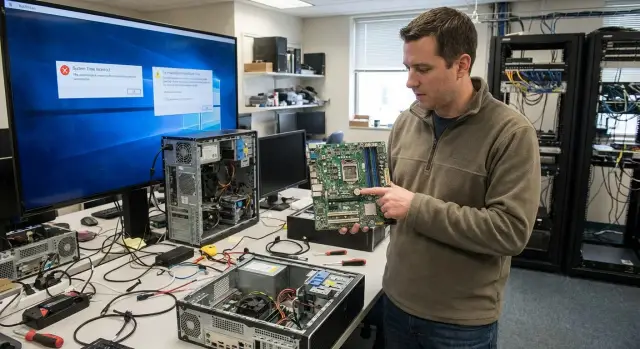
Why check CMOS batteries in advance
The RTC/CMOS is a small “memory” inside a PC that keeps the current time and basic BIOS/UEFI settings when the computer is powered off. This is powered by a simple battery (most often a CR2032). While it’s healthy, the time stays correct after a night, a weekend, or moving a workstation.
Accurate time is not just cosmetic. In corporate environments it’s involved in certificate validation, domain authentication and many security services. If a PC’s clock suddenly jumps months or years back, it looks like “everything broke at once,” even though the root cause can be a single battery.
When time gets wrong, you typically see:
- domain and corporate application login failures
- browser warnings about untrusted sites and certificates
- OS and antivirus update problems
- VPN, mail and digital signature failures
- “floating” log entries when events are out of order
Why this often happens en masse. Batteries age roughly the same when the fleet is homogeneous and purchased at the same time. So 3–6 years after delivery you can get a wave of incidents in the same month, especially after long holidays, power outages or relocations.
The most vulnerable fleets are those with many identical models bought in one year, where PCs are frequently powered off (power strips or UPSes are switched off), and branch networks where support is not always nearby. That’s why it’s better to check CMOS batteries across a fleet proactively: you find the risk before it turns into downtime and urgent visits.
The good news is that the battery is a cheap consumable. Prevention usually takes less time than troubleshooting “why the certificate won’t let someone into the system” for dozens of users at once.
How the RTC battery works and what affects its life
Each PC contains a small battery that powers the real-time clock (RTC) and the memory that stores BIOS/UEFI settings when the computer is off and disconnected from mains. Most commonly this is a CR2032 coin cell, though similar sizes and voltages also exist.
The RTC isn’t needed for everyday Windows operation so much as to ensure that after a full power loss the system immediately knows the correct date and time. If the battery dies, the PC might start with a date in the past, reset some settings, and begin failing certificate checks and domain policies.
A CR2032’s lifespan is typically measured in years, but exact numbers depend on how much power the board consumes when there’s no mains. Life is affected by battery quality and storage conditions, the standby power draw of the specific board, temperature (batteries age faster in hot environments), and how often the PC is fully de-energized.
There’s a paradox: if a computer is almost never unplugged, the battery can last longer because the RTC is powered by standby power rather than the coin cell. But if the office habit is to cut power at night or switch off power strips, the battery is used more and drains faster.
A separate fleet risk is the “age together” effect. If large batches of identical computers were purchased at once, their batteries are the same age. After a few years you get not isolated failures but a wave across several departments or branches. So assessing the remaining life is about the whole batch, not just one “suspicious” PC.
Signs the battery is nearing the end: what users will notice
A CMOS/RTC issue rarely looks like “time for a battery change.” More often it’s a chain of odd failures that irritate users and disrupt processes. If you see a rise in such reports across multiple offices or branches, it’s time to start a fleet check.
The clearest signal is date and time. After powering off overnight or losing mains, the date can roll back to years like 2009, 2012 or 1970, and the clock may jump hours forward or backward. Sometimes this doesn’t happen every day, so the problem is easily blamed on the network or an update.
BIOS/UEFI behavior often changes too: settings are reset, boot order changes, and disabled devices can reappear. The user may see a startup message like “settings reset” or notice the PC boots differently than usual.
Programs and web services quickly suffer from wrong time. Typical signs:
- browser warnings about insecure sites or certificate errors
- inability to access corporate apps, mail or digital signature services due to “invalid” certificates
- intermittent domain login: sometimes allowed, sometimes denied, or slow authentication
- scheduling failures: tasks run at wrong times, backups miss windows, event logs have gaps
Short example: in a branch the accounting team complains that the banking client won’t open and flags certificate errors. IT checks the network, proxy and updates, but an hour later it “fixes itself.” In reality, after the nightly power-off some PCs reverted to a past date and services temporarily refused to work.
Important: if time is lost only after a full power loss (unplugged, UPS switched off, breaker opened), this almost always points to a weak battery rather than Windows settings.
Inventory: what to collect before checks
Before assessing CMOS/RTC battery life, gather a simple but accurate picture of the fleet. Otherwise you’ll waste time on random PCs while critical ones remain unchecked.
Start with “what and where.” Note not only models but year of supply, installation location and operating conditions. Visually identical computers can come from different batches with different ages and environments (heat, dust, frequent power-offs).
Next mark criticality. Time errors don’t affect all workstations equally: for some it’s just wrong clocks, for others it’s blocked access to systems, problems with digital signatures, expired certificates and failures in accounting or medical systems. Sectors like public services, finance, education and healthcare usually have higher priority.
Also flag remote sites and machines admins can’t access routinely: branches, security posts, restricted rooms, racks in server rooms without staff. There, even a CR2032 swap becomes a logistical task.
It’s handy to collect data in a single table. Minimum fields:
- PC model, serial/inventory number, year of purchase, installation location
- role and criticality (till, medical workstation, public services, security, general office)
- access mode (is remote management available, who can open the chassis)
- warranty and policies (who is authorized to intervene)
- incident history (time jumps, certificate errors, failures after power loss)
Example: in a branch network you might find that POS PCs from 2019 and reception workstations from 2018 are already near the risk group, while a remote office with no on-site admin needs a separate work window and pre-staged batteries.
Step-by-step plan to check battery life across a fleet
A CMOS battery check works best as a short, repeatable process. The goal is to identify risk groups where time may drift and lead to login, certificate and update failures.
- Segment the fleet into risk groups
Divide devices by age and operating conditions. Useful ranges: under 2 years, 2–4 years, 4–6 years, and older. Separately mark 24/7 sites, security posts, reception desks and remote warehouses—they often notice problems last.
- Sample, don’t do everything at once
For each group choose a 5–10% sample. If branches differ by environment, sample each one: a single “heavy” office can give more signals than the main site.
- Check facts, not feelings
On sampled PCs gather indicators from several sources: user complaints, service-desk tickets, cases where time “reset after shutdown,” and TLS/certificate error episodes. An incorrect date often manifests as “site not secure” or “could not establish a secure connection.”
- Do a quick physical check where appropriate
On part of the sample open the chassis and inspect the battery and holder. Look for corrosion, residue, weak contacts or oxidation nearby. This is rare but worth catching before recurring incidents begin.
- Expand the check if symptoms appear
If you find symptoms in the group, don’t limit yourself to the sample. Expand the check across the group or at least double the sample until you identify the risk boundary.
In practice: in one branch 2 of 12 checked PCs older than five years lost time after overnight power-off. That’s a signal to check the rest of the same-age machines and schedule replacements before mass login and certificate failures start.
How to assess a battery: measurements, symptoms and common sense
The most frequent question is: measure voltage or just replace? For fleets the best approach is a combination: quick measurements where convenient and clear replacement rules by age and symptoms.
Measurements: what they show (and don’t)
You can measure voltage without removing the cell, directly on the holder. But this often yields “nice” numbers: under no load a battery can read about 3.0 V while still being nearly depleted.
A worn CR2032’s voltage drops sharply under load. So a meter may show normal voltage, yet after a night without mains the clock still resets or BIOS loses settings.
Treat measurements as hints rather than verdicts. Doubtful cases are easier solved by replacement, especially when access to the PC is expensive in time.
When you can skip measurements
Sometimes age and symptoms are enough. If a PC is older than 4–5 years and has had time resets, “Press F1 to continue” prompts, or certificate errors due to wrong date, replacement is usually cheaper than repeat visits and downtime.
Practical decision rules:
- symptoms or PC older than threshold (e.g., 5 years) — replace
- voltage is low or borderline — replace
- critical workstation — replace at the earliest opportunity
- no symptoms, recent PC — record the check date and wait
Record at minimum: check date, model/serial, result (measurement or “age/symptom-based”), and decision (replace now or later).
For critical sites (tills, stations using digital signatures, servers, security posts) don’t argue with the battery. One time failure can block domain login, certificate checks and critical systems.
Common mistakes when checking and replacing
CMOS battery problems often look intermittent: today fine, tomorrow half the identical PCs lose time. So process discipline matters more than one-off measurements.
Mistakes that lead to repeat visits
A common error is assuming batteries are fresh just because they were in a box. CR2032s age in storage, especially if storage conditions or batch dates are unknown.
Another error is replacing only PCs that already failed while ignoring uniform groups. If 30 identical PCs from the same year sit in one office, the chance of a wave is higher than it appears.
Also don’t forget post-replacement actions. Problems often stem from:
- incorrect date, time or time zone
- reset BIOS/UEFI settings (boot order, Secure Boot, virtualization flags)
- not verifying that time persists after a full power loss
- underestimating labor: some models require disassembly to reach the battery
- working without agreed windows and disrupting users
Many teams stumble on the organizational side: the technical work is fine, but replacement is done “between tasks” without a plan, and unexpected user requests break the rhythm.
How to avoid these pitfalls
A simple rule helps: if you find 1–2 dead batteries in a group, treat the rest as candidates for replacement, not exceptions.
Agree on a short service window for each workstation (e.g., 10–15 minutes), document who accepts the PC after work, and allow time to check BIOS/UEFI and verify time retention after power loss—these checks most often prevent repeat incidents.
How to plan a mass replacement without stopping work
Mass CMOS battery replacement looks like a minor job until dozens of offices are affected. To avoid a queue of unavailable PCs, create a schedule: split the fleet by teams and agree on service windows. Typically 10–15 minutes per workstation is enough if you know the model and location in advance.
Pick who will perform the work. Usually three options exist—internal IT, local service teams or a contractor. It’s not about who’s best, but that roles are clear: who grants access, who opens the chassis, who records results and who handles edge cases.
Don’t buy batteries “just enough.” Add spares for defects, return visits and scope creep (you’ll remember machines in meeting rooms). A practical rule is +10–15% to the plan. Also agree on a single type (usually CR2032) to avoid on-site hunting for the right cell.
To keep the process orderly, use a simple work card for each device: model, serial/inventory, date, observed symptoms before replacement, actions taken and outcome.
Typical working plan that usually succeeds:
- confirm windows by department and business contacts who will grant access
- prepare kit: batteries plus spare, tools, date stickers/marker
- use one work card and centralized result storage (not each tech’s notebook)
- split roles: operator, quality control (spot checks), escalation contact
- agree an undo plan: what to do if a PC won’t boot due to BIOS settings
Rollback plan if something goes wrong
Sometimes BIOS/UEFI settings reset after power is removed and the PC tries to boot from the wrong disk or prompts for confirmation. For these cases keep a quick scenario: restore correct boot order, verify modes (for example UEFI), set the correct date/time, then boot and confirm critical applications run. If you have “golden” BIOS settings for common models, provide them as a cheat sheet to technicians.
Short 5‑minute post‑work checklist per PC
After replacing the CMOS/RTC battery, it’s important to ensure the computer not only powers on but hasn’t reverted to default settings that later cause mass incidents. These checks take a few minutes and catch problems that cause later waves: wrong time, certificate errors, odd boot behavior or missing network resources.
Quick run-through at the workstation:
- Check date, time and time zone. Ensure time synchronization is on and the clock doesn’t jump after reboot.
- Open 1–2 corporate web services or apps that often show TLS errors. Wrong time will surface as invalid certificate messages.
- Quickly check BIOS/UEFI: boot order, disk mode (AHCI/RAID), and other key parameters critical to your standard configuration.
- Log in with a user (or test account). Verify access to network shares, printers, network drives, corporate mail or portal.
- Record the result: replacement date, PC model, symptom before replacement (if any), verification outcome and next control date.
If one PC shows an unexpected BIOS setting or TLS error after replacement, investigate whether this applies across the same model batch.
Practical example: avoiding a wave of failures across branches
One company had about 300 PCs bought the same year and distributed across branches. Initial reports looked odd: some users had time drift in the morning, others couldn’t open websites, and accounting saw “invalid certificate” messages. On some machines the issue was “fixed” by manually setting the time, but it returned after a few days.
Instead of waiting for more machines to fail, IT performed a quick risk assessment. They identified a single batch of PCs with similar service life and symptoms, then sampled 5–7 machines per branch, including ones without complaints. This quickly showed whether the issue was becoming widespread.
They proceeded with a simple approach:
- identified departments where accurate time was critical (tills, accounting, signature workflows, access control)
- scheduled replacements by branch to avoid stopping operations
- stocked spare batteries and planned for quirks (sealed cases, access restrictions, old BIOS settings)
- kept a control group and checked after a week whether repeat complaints stopped
They also set a rule: when time-related symptoms appear, trigger a fleet battery check by sampling rather than endlessly “fixing the clock.” The result was predictable: fewer incidents, planned visits, and a calm replacement rollout.
Next steps: make this a regular process
A one-off check helps, but real risk reduction comes from regularity. Treat RTC/CMOS as a consumable with predictable aging, not a sudden fault. Then fleet checks become scheduled maintenance rather than emergency work.
Update procedures to rely on two triggers: age and symptoms. For example, set an age threshold (4–5 years) and a separate track for machines reporting date/time resets, certificate errors or strange BIOS/UEFI behavior.
Include this in the annual maintenance plan: budget not only for batteries but for labor, logistics and post-replacement verification. Most important is to agree in advance who performs replacements (sysadmins, field service, contractor), where spares are stored and how changes are recorded.
If possible, ask the supplier for batch data and service recommendations: delivery dates, battery type, chassis details (are cases sealed, how easy to reach the battery). This helps identify risk groups and schedule visits, especially for branch networks.
To keep the process manageable, adopt a simple rhythm:
- quarterly — sample 5–10% of PCs at each site
- annually — replace by age for selected models/batches
- after any time-related incident — ad hoc checks of similar machines
- when buying new PCs — consider serviceability and supportability
- in inventory — record replacement date and battery type
If the fleet is regionally dispersed and predictable support is needed, discuss these issues in advance. For example, GSE.kz as a supplier and integrator in Kazakhstan covers full-cycle delivery and support, and maintenance rules (including planned consumable replacement) are easier to define from the start.
Frequently asked questions
What does the CMOS/RTC battery actually do in a computer?
RTC/CMOS powers the real-time clock and preserves basic BIOS/UEFI settings when a PC is fully powered off. If the battery is depleted, the computer can boot with the wrong date, reset settings, and trigger a chain of errors in domain authentication, certificates and corporate services.
Why can the domain, VPN and certificates stop working because of a battery?
Incorrect time breaks certificate validation and domain authentication, so issues can appear as “can’t log in” or “certificate invalid.” As a result, VPN, mail, digital signatures, updates and event logs may fail, and IT spends time hunting for a network cause when the root fault is a single battery.
What symptoms do users usually see when the battery is failing?
The most common sign is that after overnight or holiday power-off the date reverts to years in the past or the clock “jumps” after shutdown. You may also see BIOS/UEFI messages about reset settings, changed boot order, or browser warnings about untrusted certificates.
Why does this happen en masse rather than on a single PC?
Because batteries are often the same age: the fleet was bought in one batch, so many batteries reach end-of-life around the same time. After long power outages or relocations, the "wave" becomes more visible because machines lose standby power and start relying on the coin cell.
When is it better to just replace the battery rather than diagnosing?
If the fleet is homogeneous and approaching 4–6 years of service, it’s usually smarter to plan preventative replacements by groups instead of waiting for incidents. For critical workplaces (tills, accounting, digital signatures, security posts, medical stations), replacing at the first sign is almost always cheaper than downtime and emergency visits.
Can you trust a CR2032 voltage measurement with a multimeter?
Measuring without load can still show about 3.0 V even for a nearly depleted CR2032, so readings are not always reliable. A practical approach is to treat voltage checks as hints and decide based on a combination of age, symptoms and the cost of accessing the PC.
What data should be gathered before checking batteries across the fleet?
Collect model, year of supply, installation location and operating conditions, as well as the criticality of the workstation and incident history related to time. Mark remote sites and machines that are hard to reach so replacing a coin cell does not turn into a logistics issue.
How to organize sample-based checks so you don’t have to inspect everything?
Start with risk groups by age and conditions, then take a sample in each branch when environments differ. If symptoms appear in the sample, expand the check to the entire group to avoid missing a batch likely to fail in the coming weeks.
What must be checked on a PC after replacing the battery?
After replacement, verify date, time and time zone, and ensure time synchronization is enabled and the clock doesn’t drift after reboot. If you can access BIOS/UEFI, confirm the boot order and key parameters so the PC starts in the expected mode.
What mistakes are most common during mass CMOS/RTC battery replacement?
Common mistakes include buying batteries with no margin (not enough spare), using old stock of unknown freshness, and changing only the machines that already failed while ignoring uniform groups of the same age. That approach often leads to repeat visits.
