8 min read
Centralized Wi‑Fi Management: Cloud, Controller or On‑Prem?
Centralized Wi‑Fi management: how to choose controller, cloud or on‑prem for campus and branches, which features matter and how to validate them in a pilot.
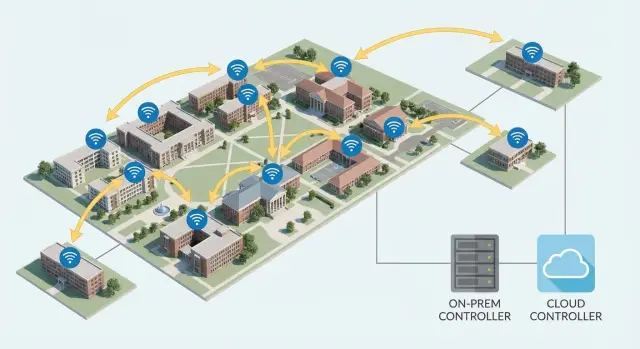
Why centralized Wi‑Fi management matters
When Wi‑Fi grows organically, it quickly becomes a set of "islands." One building has a differently named SSID, another changed the password six months ago, and a branch was set up "as it worked out." Any small change becomes manual work: visit each access point, repeat settings, avoid mistakes, and then explain to users why "it worked yesterday."
Centralized Wi‑Fi management gives you a single pane showing access points, clients, settings and issues. The real value isn’t just admin convenience but predictability: consistent policies, unified security rules and fewer accidental differences between sites.
Campuses and branches usually need different approaches. In a campus, continuity while moving and control of client density are more important: people move between floors, lecture halls and departments. Branches typically bring other challenges: unstable links, minimal local IT, and the need to deploy identical configurations quickly and maintain them remotely.
Users almost always expect three things: a stable signal without drops and long re‑authentications, a clear guest experience that doesn’t threaten the internal network, and fast support where issues are found by logs and metrics rather than "by eye."
A simple example: in a teaching building staff complain about dropped calls in a messenger when moving between wings, while two branches occasionally "lose internet." With unified management you can more quickly separate radio and roaming issues from provider problems, see where the network is degrading, and apply the same policies everywhere.
Controller, cloud and on‑prem: practical differences
Centralized Wi‑Fi management can be implemented three ways: a physical (or virtual) on‑site controller, a cloud console, or a hybrid where some functions stay local and others run in the cloud.
Controller (on‑prem) is chosen when predictability and full control matter. Management and key services run inside your network, so even if the internet fails, campus Wi‑Fi continues to operate under the configured policies. The cost is extra infrastructure (server/appliance), redundancy and updates that your team or a contractor must handle.
Cloud‑based Wi‑Fi management is convenient because settings, monitoring and reports are available from one console without deploying a controller. It’s often faster for branch networks: add an AP, connect it to the internet, and it pulls its configuration. But evaluate the dependency on connectivity and data handling in advance: where will network metadata be stored, who can access it, and what happens during an extended outage.
Hybrid is a compromise: policies and reporting in the cloud, while critical functions like authentication or local routing remain on site.
To choose a model without too much theory, answer a few practical questions:
- How many access points will you have in 1–2 years and how fast is the network growing?
- Do you have branches with unstable or expensive links?
- Are there data restrictions (government, healthcare, finance) or audit requirements?
- Who will operate the network: your IT team or a 24/7 service?
- How important is the ability to change vendors without reworking the entire setup?
A vendor‑neutral approach avoids locking architecture and requirements to a single brand. That reduces procurement risk: it’s easier to compare solutions and replace equipment without a full migration. In Kazakhstan this is often useful due to compatibility, procurement transparency and local support considerations.
Network profiles and access policies for campus and branches
Centralized Wi‑Fi management should start with clear network profiles. A profile is a set of settings: network name, authentication method, where traffic goes, what’s allowed and how it’s enforced. With well‑designed profiles, campus and branches behave the same and admins don’t have to remember exceptions for each floor.
Typically an organization needs several roles: staff network with corporate authentication, a guest network with simplified access, and an IoT network (cameras, sensors, turnstiles) with strict restrictions. Often there are separate profiles for classrooms or medical equipment where predictability and minimal changes are essential.
Unified policies: what to lock down in advance
Policies are best written as simple rules that apply everywhere. Common items to define ahead of time include:
- traffic segmentation (VLANs or zones) so guests and IoT can’t reach internal systems;
- access restrictions (which subnets and services are allowed; for example, guests get only internet);
- schedules (when networks are available — relevant for classrooms, meeting rooms, temporary zones);
- limits (per‑user speed, device counts, guest session time);
- unified security settings (encryption type and minimum device requirements).
What matters most for branches
Branches benefit from a consistent connection experience: the same SSID, the same rules, the same guest portal. Employees don’t have to relearn settings when traveling, and support isn’t overwhelmed by "each site is different."
Decide whether traffic goes directly to the internet locally or back to head office — this affects latency, cloud services behavior and what happens during a link outage.
A practical test before scaling: enable a profile on one campus floor and on one branch with a weaker line. Verify that staff get needed access, guests cannot see internal resources, and IoT stays isolated even if a configuration error occurs. In integration projects these profiles are usually recorded as a standard and then reproduced across sites without manual tweaking.
Roaming: how to avoid drops when moving around campus
Roaming is when a device (phone, laptop, scanner) silently switches between access points while a person moves across a building or site. The user should not have to select a network or log in again. This is crucial in places where people move constantly: campuses, warehouses, production halls, hospitals, airports and large offices.
Poor roaming is often noticed not by signal level but by application behavior. If someone walks down a corridor and a call drops, video freezes or a data-collection terminal loses a session, the problem is usually how the network hands the client between APs.
Common signs:
- dropped VoIP calls and voice delays during zone handovers;
- video conference freezes for 2–10 seconds;
- repeated authentication in corporate or guest portals;
- unexplained speed drops.
Stable roaming depends not only on the management model (controller, cloud or on‑prem) but on treating the network as a whole: identical SSIDs, clear access rules, and coordinated radio settings. The practical benefit of centralized management is that you manage not individual APs but the network behavior along users’ movement paths.
In a pilot, focus on three checks:
- handover time: walk a typical route with an active call and note any pauses;
- coverage quality: look for "holes" in corridors, elevators, stairwells and entrances;
- peak stability: repeat the test at the busiest time.
A simple scenario: in a hospital a nurse walks from a ward to a treatment room with a tablet. If the connection to the medical system remains active and no re‑login is required, roaming is configured correctly. If not, causes are often excessive AP transmit power, wrong handover thresholds, or overloaded zones. Detect these before rolling out campus‑ or branch‑wide.
Guest Wi‑Fi: convenient for people, safe for the network
Guest Wi‑Fi is often implemented "quickly" and then generates complaints, leaks and security questions. Treat it as a separate service with clear rules: how a user logs in, what they can access and how it’s controlled centrally.
Ways to grant guest access
Choose a method based on visitor flow and who issues access. Common options:
- a shared guest password (simple but harder to control);
- a captive portal with terms and acceptance;
- SMS verification (good for public spaces but consider personal data rules);
- vouchers or access codes issued by reception or IT.
In a campus it’s helpful when the experience is uniform: a visitor sees the same screen in any building. For branches a single template is even more important to avoid turning support into manual work.
Minimum security—don’t launch without this
Guests should not see internal resources. Typical settings include client isolation (guests don’t see each other), a separate VLAN or segment, blocked access to corporate subnets, and limits on time and speed. This matters in high‑traffic places like clinics or lecture buildings where visitors only need messaging, not P2P or torrenting.
Centralized management makes it easy to keep these rules consistent across APs, quickly change the portal template and collect unified reports: how many connections, peak hours, and overloaded points.
Pilot checks to avoid rework:
- a guest gets access in 30–60 seconds without complicated steps;
- isolation is enabled and internal addresses are unreachable;
- speed and session time limits work;
- reports are centralized, including branches;
- during an internet outage at a branch, guest policy behaves predictably and doesn’t open unintended access.
Monitoring and reports: what to check daily and monthly
With centralized Wi‑Fi the benefit isn’t just charts but seeing issues before users do. Good monitoring answers: where did things get worse and why.
Daily checks should focus on what affects people now. A 5–10 minute routine usually covers:
- AP and uplink status: who is offline, who reboots often, where power is lost;
- radio errors and quality: rising retransmits, high interference, speed drops on particular channels;
- overload: too many clients on one AP, queues, air congestion;
- "hot" zones: lecture halls, lobbies, meeting rooms where coverage dips;
- security events: unexpected new devices, anomalous activity, brute‑force attempts on the guest network.
Alerts should be quiet and accurate. If the system sends dozens of notifications without clear actions, they will be ignored. Start with thresholds that match real operation: e.g. "AP offline for more than 3 minutes", "errors doubled vs normal", "channel load >80% for 15 minutes."
Monthly reports are for decisions, not firefighting: where to expand, what to tune, and how demand grows. Useful slices include:
- dynamics by branch and campus: where load grows fastest;
- worst zones for signal quality and roaming;
- traffic types (video calls, learning platforms, corporate services);
- incidents and recovery times;
- executive metrics: availability, number of tickets and quality trends.
Example: campus Wi‑Fi fluctuates in the library while a branch gets busy in the evenings. Daily monitoring shows rising errors and overload, and a monthly report confirms the pattern and supports decisions to move or add APs, change channels or update firmware.
Updates and security: keep the network stable during business hours
Updates are often postponed with "it works anyway." With centralized management, follow a simple rule: update regularly but invisibly to users.
To reduce downtime risk, schedule updates as routine maintenance with staged rollouts. In a campus update by building or floor; in branches update one site at a time, starting with less critical ones.
A practical process to avoid surprises:
- set a maintenance window (night/weekend) and notify owners;
- start with 1–2 APs or a small branch;
- verify authentication, guest access and roaming on key routes;
- roll out updates in waves and monitor logs for errors;
- record version and results for faster incident analysis.
Security is more than "strong passwords." Ensure management access is protected and admin actions are auditable, especially when multiple staff or contractors operate the network.
Minimum checks:
- unique admin accounts and roles (no shared "admin" account);
- multi‑factor authentication where possible;
- certificates for corporate access (e.g. 802.1X) and expiry management;
- logging of logins, configuration changes and updates;
- regular rotation of service and device passwords.
Prepare a rollback plan before updating. Have a configuration backup, a clear way to restore the previous version and someone able to do it quickly. In a pilot, deliberately simulate a failure: update a test group, observe an issue (for example, guest portal failure) and practice rollback on a timer.
How to run a pilot: step‑by‑step functional checks
A pilot is not just to "check Wi‑Fi works" but to see if centralized management fits your campus and branches. Agree in advance what success looks like: where connections must not drop, how many complaints are acceptable, and which reports IT and security need.
Choose an area that mirrors everyday life: part of a building with meeting rooms and corridors plus one typical floor or small wing. For branches pick a site with an average connection (not perfect) to observe policy and update behavior over unstable links.
Follow a clear plan and record results in a single document:
- define goals and criteria: roaming without call drops, coverage in tricky spots, guest access within 1–2 minutes, clear reports;
- pick representative devices: 2–3 laptop models, 2–3 smartphone models, one printer or terminal if present;
- set policies and capture a "before": signal levels at key points, speed, latency, reconnections, guest login time;
- test scenarios: walk a route with a video call "office – corridor – elevator – meeting room", simulate load in a cafeteria or a meeting, try to access internal resources as a guest;
- record findings and a scaling plan: what to change in settings, where to add APs, and which templates to apply to branches.
On the pilot check not only the dashboard but real operation: how quickly incidents appear, how easy weekly reports are, whether scheduled updates can be applied and rolled back. Rule of thumb: if a call drops at least once in five passes between two APs, treat it as a reason to tune roaming, power or AP placement before full rollout.
Example scenario: campus plus branches on different links
Imagine an organization with a campus of three buildings (administration, teaching block, labs) and six small branches across the city and region. The campus has a stable line and its own server room. Branch links vary: fiber in some, LTE routers in others, and one branch uses a radio link that sags noticeably in the evening.
The main question is not fashion but constraints: how much can you rely on branch internet, are there requirements to keep logs inside the organization, and is there an IT specialist who can maintain a controller and updates.
If branch internet is unstable, APs must keep serving per the latest configuration even when disconnected from the management center. If data rules are strict, on‑prem or a campus controller is common. If the IT team is small and ease of operation matters, cloud is often more convenient.
Pilot checks
Run the pilot in one campus building and two branches (one with a good link and one with a poor link). Test in real scenarios:
- roaming: walk the route "corridor – lecture hall – stairs – lobby" and verify no call drops;
- guest access: give a guest Wi‑Fi for 2 hours and confirm no internal access;
- reports: get per‑branch stats (connections, signal quality, busiest APs);
- updates: schedule a night window and ensure APs update without morning surprises;
- link loss: cut the internet in a branch and see how the network and monitoring behave.
Summarize results concisely: AP placement map, list of problems (where calls drop, coverage gaps) and remedies (move an AP, add one, change guest settings, choose a management model). If working with a contractor, measure outcomes with concrete criteria: "no call drops during a 5‑minute call", "guest denied access to internal subnets", "night update with no morning outage."
Common mistakes when choosing and deploying Wi‑Fi management
The most frequent mistake is buying APs first and thinking about management later. The network may work, but each branch becomes a separate configuration, reports are fragmented and changes turn into manual routines. Centralized management exists to make rules and control uniform.
Second mistake is lacking an addressing and segmentation plan. If you don’t decide where corporate, guest and IoT traffic will live, growth brings hacks: duplicate SSIDs, VLAN confusion and complex exceptions.
Pilots are also often done "for show": a few APs in a quiet corridor and a conclusion that everything is fine. Real deployments then face roaming drops, peak‑time slowdowns and guest instability. A pilot must test real load and movement, not only connectivity.
Another risk is updating without a maintenance window or rollback plan. Firmware can change roaming behavior, encryption or device compatibility. Updating "when there’s time" can take down an entire floor.
Quick self‑check:
- unified policies exist for campus and branches, not a collection of disparate settings;
- segmentation is planned: corporate, guest and management networks separated;
- the pilot includes load, user movement and report checks;
- updates have a window, test contour and rollback procedure;
- guest Wi‑Fi is isolated and limited.
Good practice: agree on success metrics in advance (e.g. time to connect, number of roaming drops between classrooms, peak‑time speed) and measure them before and after.
Quick checklist and next steps
If time is short, start simply: where is the pain — campus (many APs and movement) or branches (different providers and links)? That determines what to demand from centralized Wi‑Fi management and how to run the pilot.
Selection checklist (campus, branches, constraints)
Before comparing vendors and prices, check basics:
- campus: is seamless roaming between buildings and floors required and how critical are call/video drops?
- branches: how many, what links, and what must keep working when internet is poor?
- guest access: how many guests per day, SMS or voucher authorization needed, and how long to keep logs?
- reporting and monitoring: who needs them (IT, security, management) and in what form (by AP, branch, device)?
- data and compliance: can management and logs be placed in the cloud or must they stay on‑prem?
When the picture is clear, pick the "center": cloud, on‑prem controller or hybrid. Often campuses need local resilience and predictability, while branches prefer simplicity and quick policy updates.
Pilot checklist and launch preparation
Build the pilot around scenarios, not "connected = works." Agree measurable metrics:
- roaming: reconnection time when moving between 2–3 APs, call/video quality, number of drops per hour;
- guest Wi‑Fi: clear login, isolation from corporate network, correct speed/time limits;
- reports: can you spot problem zones and busy channels, and produce a weekly report quickly?
- updates: is there a maintenance window and rollback, do waves pass without mass outages?
- resilience: what happens when the cloud/controller is unreachable and do clients keep working?
Then prepare operations: admin roles (who changes policies, who handles alerts), incident procedures (what we do within 15 minutes, what within 24 hours) and a scaling plan (how many APs/branches to add per year).
If you choose on‑prem, budget server room resources for the controller and services and include support during pilot and rollout. In Kazakhstan this is often delivered as a turnkey service via a systems integrator: for example, GSE.kz supplies server platforms and provides system integration and 24/7 technical support when Wi‑Fi is part of the organization’s IT infrastructure.
Frequently asked questions
Why do I need centralized Wi‑Fi management if access points already work?
Centralized management ensures the same settings, security and access policies are applied to all access points and sites. Changes don’t require touching every device manually, and issues are located faster using logs and metrics — important when you have branches and multiple providers.
What should I choose: on‑prem controller, cloud or hybrid?
If Wi‑Fi must keep enforcing policies even when the internet is down, on‑prem controllers are common. If you need fast remote deployment and a single console for branches without on‑site infrastructure, cloud is usually more convenient. Hybrid is a fit when some services must stay local while management and reporting live in the cloud.
How should branches operate if internet is unstable or expensive?
Verify behavior when the management center is unreachable: access points should keep serving the network using their last configuration rather than falling back to inconsistent settings. Decide where traffic goes when the link is down and how you will detect and troubleshoot issues remotely so you don’t depend on local staff.
What network profiles are usually needed for campus and branches?
Start with 3–4 clear profiles: staff with corporate authentication, guests with isolation and limits, IoT with very restricted access, and, if needed, a separate profile for classrooms or medical equipment. Lock in segmentation and rules early so you don’t accumulate exceptions per floor or branch.
How to set up guest Wi‑Fi to be convenient and secure?
Make guest Wi‑Fi a separate segment and block access to corporate subnets by default. Add client isolation, speed and time limits, and an easy access issuance method that doesn’t require constant IT involvement. That keeps guests happy while internal systems remain protected.
How to reduce call drops when roaming across campus?
Ensure unified SSIDs and coordinated radio settings so the network behaves as a single system rather than isolated points. During testing, walk a typical route with an active call or video session and measure pauses at handovers. Often adjustments to transmit power, handover thresholds and relieving overloaded areas will fix drops.
What should I really watch in monitoring daily and monthly?
Daily focus should be on what affects users right now: which access points and uplinks are offline, where radio errors are increasing, client or channel congestion, and suspicious activity. Monthly reports should show trends by site, problem areas, incident and recovery times, and traffic types to guide capacity and configuration changes.
How to update Wi‑Fi safely without breaking the network during business hours?
Roll out updates in stages within a pre‑agreed maintenance window, starting from a small group of access points or a non‑critical branch. After updating, verify corporate authentication, guest portal and roaming along key routes. Have configuration backups and a tested rollback plan ready before you start.
How to run a pilot for centralized Wi‑Fi management correctly?
Pick a real campus area and at least one branch with a typical—not ideal—connection. Define measurable criteria in advance: no roaming call drops, guest login time within a set limit, actionable reports per site, and predictable behavior on internet loss. Record results and use them as the template for scaling, not a one‑off check.
What are frequent mistakes when deploying centralized Wi‑Fi and how to avoid them?
Common mistakes include buying access points without a management architecture or segmentation plan, and running pilots in quiet corridors that don’t reflect real load or movement. Also avoid updates without a maintenance window and rollback. If you lack 24/7 operations, consider including a systems integrator in support from the start.
