8 min read
Centralized management of Teams Rooms and Zoom Rooms for your company
Centralized management of Teams Rooms and Zoom Rooms: room monitoring, device updates, remote support and common mistakes — all without frequent on-site visits.
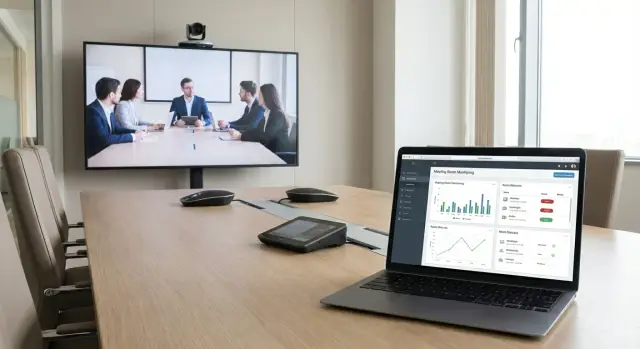
Where the problem begins: many meeting rooms, little time
When the number of meeting rooms grows beyond five or ten, every small issue starts to consume time. In one room the sound disappears, in another the camera shows a black screen, in a third someone can’t join a meeting because the app hung. If you send someone on-site for every event like that, support quickly becomes a chain of visits and calls "on the fly."
Most failures are simple but very noticeable: echo, a missing microphone, devices that stopped working after an update, a controller that didn’t connect to the network, or a room account that needs to be signed in again. Almost always these are discovered at the last minute, when the meeting has already started.
A centralized approach helps here, especially when Teams Rooms and Zoom Rooms are used in parallel. It delivers three clear outcomes: visibility (what and where is failing), control (updates and settings by policy, not "as it happens"), and repeatability (the same setup for all rooms).
You can resolve a large portion of routine issues remotely: check room and device status (camera, microphone, display, network), restart the app or a specific module, roll out updates on a schedule, see who changed settings, and help a user choose the correct audio devices.
But some tasks almost always require on-site presence: replacing a cable or power unit, a physically damaged camera, an intermittent HDMI contact, incorrect reconnection after repair, or room acoustics problems.
A typical picture: 20 meeting rooms across different offices supported by 1–2 people. Without monitoring you learn about a problem from a manager a minute before a call. With monitoring, degradation is visible in advance and can be fixed on schedule. Projects for meeting rooms implemented and supported by system integrators like GSE.kz usually start not with buying new equipment but with management discipline: unified settings, clear roles and decent remote support.
What exactly needs to be managed in a meeting room
A meeting room is not just a "PC for calls." It’s a set of devices that must work as a single system every day. When the number of rooms grows, the problem is rarely the meeting itself but that you don’t know where the failure is and what needs updating.
A typical meeting room usually includes a mini-PC or built-in computer running the room client, a touch controller on the table, sometimes a door panel, a camera (often with auto-framing) and audio (speakerphone, table microphones, soundbar or DSP).
It’s important to separate the "meeting platform" and the "hardware in the room." The platform is Teams or Zoom: accounts, calendar, access policies, security settings, and licenses. The hardware is sound and video, and it’s usually what causes complaints like "we can’t be heard" or "the camera froze."
Teams Rooms and Zoom Rooms are meeting-room modes where the room’s computer acts as a dedicated meeting terminal. It pulls the schedule, provides a "Join" button, controls camera and audio, and lets an admin see room status centrally. For stable management you must monitor two levels: the service (Teams/Zoom) and the devices in the room.
Also consider peripherals (Logitech and other brands). They have their own firmware, diagnostics and typical failures. Often the issue is not Teams or Zoom but a camera update, a fallen USB connection, an incorrect audio device selection, or a driver conflict.
In practice it makes sense to monitor: room health (online/offline, overheating, disk space), audio and video quality (which devices are selected, any disconnects), versions (Rooms client, OS, drivers, firmware), availability (calendar, correct account, service sign-in), and incidents (restarts, connection errors, frequent "failed to start meeting").
Example: in one room the sound drops only after lunch. Monitoring shows that at that time an audio device update runs and the output source changes. Without that data the problem looks like "something’s wrong again," but with the data it’s resolved by update policies and fixing the correct audio output.
Teams Rooms, Zoom Rooms and Logitech Sync: how to split responsibilities
When there are many rooms, it quickly becomes clear that one dashboard is often not enough. It’s usually more convenient to separate responsibilities between the meeting platform (Teams or Zoom) and the device management layer (for example, Logitech Sync), and then agree on names, statuses and alerts.
Built-in consoles for Microsoft Teams Rooms or Zoom Rooms are sufficient if you control the "meeting" side: room account sign-ins, calendar, app state, basic call errors and simple remote help. This is a good start, especially when the fleet is homogeneous and configurations do not change weekly.
A separate device management layer is needed when hardware and peripherals matter: camera, microphones, hubs, controllers, displays. Logitech Sync is useful where you need to see real equipment state, manage settings and firmware, and get clear statuses without manual checks.
To make unified monitoring work, fix rules in advance: consistent room names (for example, city-floor-room) across all systems, identical tags (city, branch, room type), common statuses (online, degraded, critical) and owners, plus a set of alerts for key failures (no network, microphone not detected, app not updated).
To avoid a "zoo" of consoles, choose one main view for daily support work (where alerts are monitored) and use others as needed. For example, the dispatcher sees a problem in the general queue, an engineer opens Teams Admin Center or Zoom Admin for meeting logs, and Sync is used to check camera and firmware.
Preparation: standards, inventory and access rights
If you start centralized management of Teams Rooms and Zoom Rooms without preparation, chaos appears quickly: identical problems are solved differently, devices go missing, and updates are applied blindly. Basic standards can be assembled in 1–2 working days, after which support becomes noticeably more predictable.
Room kit standards
Agree on 3–4 standard kits first. The brand matters less than repeatability of components and logic: then monitoring, updates and spare parts are easier to manage.
Typical templates are enough: small (controller/mini-PC, camera, speakerphone, one display), medium (more powerful PC, auto-framing camera, table microphones, one or two displays), large (amplified audio, ceiling microphones, PTZ camera, two displays, possibly a matrix switcher), and training room (focus on recording, streaming and stable audio).
If equipment and integration are provided through GSE.kz, it’s convenient to align these templates with space and requirements to avoid maintaining dozens of unique builds later.
Inventory and naming scheme
Next you need a naming convention that both people and systems immediately understand. Example: ALM-HQ-05-051-M (city, office, floor, number, kit type). Such a format is equally useful in Teams/Zoom, Logitech Sync and tickets.
For each room record at least: serial numbers of key devices and the PC/controller, current OS and firmware versions (camera, controller, docking stations), the on-site responsible contact for physical checks, and any special notes (nonstandard cable, extra screen, amplifier).
Access rights
Define roles in advance: who can only view status, who can change settings remotely, and who can approve updates. Also specify who can start a remote session in a room and how actions are logged (at least via internal tickets). This reduces accidental updates during work hours and makes support more transparent.
Step by step: how to set up centralized monitoring and alerts
The point of monitoring is simple: you should see a problem before a user does. For that you must not only "connect the room to a console" but also categorize rooms within the company and decide in advance which signals are critical.
First, build a single registry of meeting rooms: name, address, time zone, type (Teams Rooms or Zoom Rooms), PC/codecs model, displays, camera, microphones, speakers, control panel, software version, and the responsible office. Fix the naming principle immediately, otherwise alerts will arrive "to nowhere."
Then connect rooms to your consoles: Teams Rooms to Microsoft admin, Zoom Rooms to Zoom admin. Equipment (for example, cameras and panels) is convenient to view in Logitech Sync if supported. This gives centralized control without walking the rooms.
After connection, enable status collection and verify data fills in: network (online/offline, quality), peripherals (camera/microphone/speaker), account sign-in (is the login intact), calendar, and meeting launch success. Empty fields usually mean simple causes: rights, network blocks, or wrong device account.
There should be few notifications, and each should require action. Typical alerts include: offline longer than a set time, peripheral loss (camera or microphone not detected), account sign-in error or expired password, overheating/low disk/frequent reboots, and poor network quality (thresholds for packet loss or latency).
Finally, perform a "controlled failure" and verify the chain: event → alert → task → resolution. For testing, disconnect a USB camera or microphone for 30 seconds, temporarily power down the network (unplug a cable), reboot the room PC and measure recovery time, sign out of the account and confirm a warning arrives, then restore everything and check status returns.
If support is distributed by region, bind rooms to dashboards by city and assign owners. In projects run by system integrators like GSE.kz this is often done alongside inventory so monitoring does not become chaotic in the second week.
Updates without visits: policy, schedule, version control
When there are many rooms, updates become a risk: a single bad version can put half the rooms out of service before an important morning call. Start management not with the Update button but with a clear policy.
First, separate what you update: OS (Windows/Android and security patches), the Rooms app (Teams Rooms or Zoom Rooms), drivers (camera, audio, USB), device firmware (panels, cameras, controllers), and management/monitoring agents (e.g., Logitech Sync components). This separation helps to find causes faster and avoids lumping "everything" in one release.
Next, create a test group: 1–2 meeting rooms of each standard kit (for example, a small and a large room). The test group receives updates first and the rest are deployed in waves.
Wave deployment and maintenance windows
A typical plan is simple: wave 0 (test rooms, verify for 1–2 days), wave 1 (20–30% of rooms, preferably in one office), wave 2 (the rest), emergency pause (stop deployment if a recurring issue appears), and rollback (define what is critical and how to return to the previous version).
Fix maintenance windows: night or early morning local time with time for reboots. After updates perform short post-checks: room availability, calendar connection, camera, microphones, and screen output.
Version control and change log
If sound disappeared after an update, investigation is much faster when you have a simple log: date, room, what was updated, to which versions, and who approved. This also helps when working with support or an integrator. Teams that deploy meeting rooms and support in Kazakhstan (including solutions from GSE.kz) usually require version records as a must for predictable operation.
The rule is simple: less often but manageable. A plan, a test group and a clear rollback are almost always more important than update speed.
Remote support: diagnostics and fixes for common incidents
Remote support works only when access and diagnostic data are prepared in advance. Otherwise, even with centralized management you’ll see the symptom but not the cause.
The support team needs a baseline kit always available: roles and accounts (who can reboot, update and change settings), a single room list with clear names, logs and statuses (camera, microphones, display, software versions), quick screenshots of status or photos of panels on request, the on-site contact who can check cable or power by instruction.
A simple logic helps: separate a room problem from a network or service problem. If a black screen occurs only in one room, it’s usually HDMI, the selected input, display power or a failed output device. If several rooms cannot join a meeting, first check internet, DNS, proxy and then the Teams/Zoom service status for your organization.
Typical remote actions repeat: restart the compute unit (and separately the panel), reconnect USB camera or speakerphone, change hub port, check selected input/output devices in room settings, reinstall or roll back the latest update. "No camera" is often resolved by restarting the room app and checking whether another process uses the device. Echo usually appears when a speakerphone and TV microphones run simultaneously, and this is visible from chosen audio devices.
If an incident repeats, log the time, the specific room and any changes (update, cable replacement, furniture move). This speeds root-cause analysis and reduces duplicate tickets.
Sometimes you still need to send someone on-site. Ship hardware when a device is not detected at the USB or power level after restarts and reconnections, there are signs of hardware failure (overheating, smell, blinking indicators, physical damage), the issue involves local cabling/outlets/switches, or a camera/microphone/cable/display must be replaced.
Before a visit gather a packet: model and serial number, software versions, recent logs, photos of connections and a short history of steps taken. If support is through an integrator like GSE.kz, this helps the service team arrive with the correct replacement and close the issue in one trip.
Security and access: what to check before scaling
Centralized management often fails not because of technology but because of access. The more meeting rooms, the higher the risk that one compromised account or unnecessary role gives an attacker extra control, up to turning off cameras and microphones.
First tidy up the network. Keep meeting rooms in a separate segment (VLAN) and allow only required outbound traffic: to cloud services for Teams/Zoom, to DNS/NTP, to update servers and to your monitoring tool. The "allow everything just in case" approach almost always leads to problems later.
Second, accounts and permissions. Use separate room accounts for rooms and personal accounts for administrators. Enable multi-factor authentication where possible and adhere to the principle of least privilege: support usually only needs status viewing and remote session rights, while policy and update rights should be limited to a small group.
Before scaling check: network segmentation for rooms and outbound rules (what is allowed and why), MFA for admins, ban on shared logins, separation of support and policy-change roles, lifecycle of room accounts (who creates them, how passwords change, what happens when a room is decommissioned), logs (where stored, retention, who can access, how admin actions are recorded) and a plan to avoid losing control (backup admin, documentation, org-level access, not only contractor access).
A simple example: a company handed room support to a contractor, then changed contractor a year later. If portal policies, access and the "main admin" were registered to the contractor, you may lose monitoring and update access until recovery. Key roles should remain on the company side while contractors get limited and reviewed permissions.
Example scenario: 20 rooms, different offices, one support team
Imagine a company with headquarters in Almaty and three regional branches. There are 20 meeting rooms: 6 large halls with two displays, 10 standard rooms for 6–8 people and 4 small huddle rooms. One support team handles them and on-site visits take half a day and often disrupt meetings.
Internal meetings run via Teams Rooms and external meetings (partners, clients) often use Zoom Rooms. Each room has typical devices: a room PC or appliance, a touch controller, a camera, microphones and audio. To keep management resilient roles are split: Teams and Zoom cover the room service state, and Logitech Sync (if used) covers hardware and firmware of peripherals.
Daily monitoring takes 10–15 minutes. They don’t check everything, only a few key indicators and react by the rules: room status (online/offline, ready to call), audio/video state (device not found, disabled), account sign-in errors, and network quality (loss, high latency).
If a room is offline for more than 5 minutes they first do a remote reboot and check the network. If audio is missing they check USB and default device, then restart the app. Every downtime is given a root cause so the problem doesn’t recur.
Updates run monthly without surprises: one pilot room in each office, an update window after work hours, no auto-updates midweek, and a version report the next morning.
After 1–2 months the everyday effect shows: fewer tickets and faster root-cause identification (account, network, specific device). On-site visits are rare.
Common mistakes in centralized meeting-room management
Expectations are simple: centralized management will make support easier. In practice, many failures come from organizational details and inconsistent approaches to rooms rather than platforms.
Common problems include: each room has a different set of equipment and cables (the same incident is solved differently), updates applied only after complaints (versions pile up and risk increases), too many alerts (notifications become noise), broad access rights given to many people (later it’s unclear who made changes), and updates pushed to all rooms at once (then suddenly cameras, microphones or audio control stop working).
Real-life example: a branch updated a room 10 minutes before an important call. Teams Rooms started but after the driver update the correct audio device disappeared and the meeting went through a laptop. This would have been a minor issue if the update had gone to a test group first and there had been time to roll back.
To avoid these pitfalls follow simple rules: standardize 2–3 kits and keep an accurate inventory, assign an owner for updates and fix maintenance windows even when "everything works," set alert priorities (critical separate from warnings), split roles (view, remote support, admin) and enable logging, use a test group and staged deployment—especially for peripherals and audio.
Quick checklist and next steps for implementation
To make centralized management of Teams Rooms and Zoom Rooms really save time, start with quick checks. They immediately show where control is lost: inventory, alerts, or updates.
Minimum that must be ready
Check these five basics:
- Each meeting room is in the registry: room type, equipment list, serial numbers, responsible person and contacts.
- There is a unified naming convention (office, floor, number) and clear room health statuses.
- Alerts are set for critical events (camera not detected, microphone disabled, device offline) and there are reaction procedures.
- There is an update calendar and version-control rules: when Rooms clients, firmware and management components are updated.
- There is a test group: 1–2 rooms where updates are validated before mass rollout.
Next steps to avoid getting stuck
Start with a pilot of 2–3 rooms of differing complexity: one typical room, one with extra devices, and one in a remote office. In 1–2 weeks finalize standards: registry template, naming rules, list of critical alerts, and update schedule.
Then expand in waves: add 5–10 rooms at a time and finish each wave with a short quality check (test call, camera/microphone check, confirm statuses in the console). This leads to remote support with fewer visits and catching problems before users notice them.
If you need help with supply, integration and a single support standard, system integrators usually handle this work. For example, GSE.kz in Kazakhstan provides system integration and IT infrastructure support, including meeting rooms and their equipment.
Frequently asked questions
Where is the best place to start centralized management of meeting rooms if there are already many rooms?
Start with discipline: standard room templates, clear names, an equipment registry and defined access roles. After that, connect rooms to Teams/Zoom admin consoles and, if needed, to a device management layer so you can see not only the meeting app but also cameras, microphones and controllers.
What is the difference between management via Teams/Zoom and via Logitech Sync?
Teams Rooms and Zoom Admin consoles cover accounts, calendars, the app state and basic call diagnostics. Device management tools like Logitech Sync are useful when you need visibility into hardware health: firmware, camera/microphone status, USB disconnects and typical hardware errors.
Why is a unified room naming scheme needed and how does it help support?
Use a single naming format across systems and tickets so the name immediately shows location and room type. A good name shortens diagnostic time because support can quickly find the room in the console and match alerts to the physical space.
What must be included in a meeting room inventory?
In the registry note the room type (Teams or Zoom), equipment list, serial numbers of key devices, software and firmware versions, the on-site contact and any connection peculiarities. This helps to troubleshoot remotely and to arrive on-site already knowing what to replace or check.
Which alerts are really useful and which turn into noise?
Only alerts that require action: a room offline, an undetected camera or microphone, account sign-in errors, overheating or low disk space, and network degradation beyond set thresholds. Too many alerts become noise and are ignored, which defeats monitoring.
Can most meeting room incidents really be resolved remotely?
Yes—if access and runbooks are prepared in advance. Commonly solved remotely are restarting the room or panel, checking selected audio/video devices, restoring an account login, rolling back or reapplying an update, and diagnosing peripheral and network statuses.
When is an on-site visit almost always required, even with good monitoring?
On-site work is needed for physical or cabling issues: cables, power, wall outlets, switches, a damaged camera, a flaky HDMI contact or room acoustics. If a device is not detected at the USB or power level after restarts and reconnections, or there are clear hardware-failure signs, an on-site visit is faster.
How to safely update Teams Rooms and Zoom Rooms so you don't 'take down' all rooms at once?
Create a policy: separate what you update (OS, Rooms client, drivers, device firmware), define who approves, use a test group of representative rooms and deploy updates in waves so one bad version does not affect the entire estate.
What access and security measures should be checked before scaling?
Use separate room accounts and personal admin accounts, give minimal necessary roles, and enable multi-factor authentication for admins where possible. It’s useful to keep meeting rooms in a dedicated network segment and allow only required outbound traffic to reduce risk and simplify control.
How to organize work if there are 20 rooms but only 1–2 people supporting them?
You need standards and repeatability: 2–4 standard room kits, a clear update policy and a change log. Choose one main dashboard for alerts and use others for detail. With these rules, 10–15 minutes of daily monitoring is far more effective than frequent site visits.
