8 min read
Centralized BIOS and UEFI Configuration: Standards for a PC Fleet
Centralized BIOS and UEFI configuration helps standardize Secure Boot, boot order and passwords. What to standardize and how to document it.
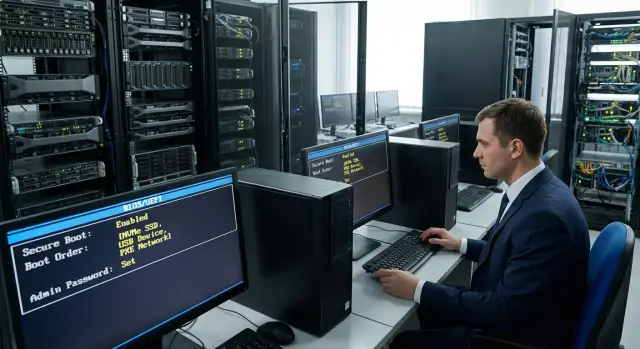
Why centralize BIOS and UEFI settings at all
Variation in BIOS and UEFI rarely becomes apparent until the first incident. One PC suddenly stops booting after an update, another allows booting from a flash drive, a third fails compatibility checks for disk encryption. When you have dozens or hundreds of machines, support quickly becomes guesswork.
A centralized approach is necessary because firmware defines rules before the OS starts. Even if you confidently manage Windows or Linux via policies, basics like Secure Boot, TPM, boot order and access to settings sit below the OS level. You can’t reliably "fix" them later if someone has already changed parameters on the device.
Common risks when everyone configures devices differently:
- Boot failures after OS or firmware updates due to mixed UEFI/Legacy modes.
- Weakened security: Secure Boot disabled, external boot allowed.
- Long recovery times: an engineer first needs to figure out "how this was configured."
- Audit and compliance issues.
- Unexpected behavioral differences on identical PC models.
The boundary is simple: record in firmware what affects trusted boot, basic security and hardware compatibility. Things that belong to users, applications, networks and updates are better kept in OS policies—those are easier to change and control.
Not only IT and InfoSec are involved. Procurement matters to ensure new device batches support required options, and the service team is responsible for propagating profiles and managing exceptions. In organizations that have both workstations and servers (including local manufacturers like GSE.kz), a single firmware standard speeds device onboarding and simplifies security audits.
Which settings to standardize and which to put into profiles
The point of standardization is not to make all computers identical, but to eliminate chaos. Usually it’s enough to split the fleet into a few clear groups: office PCs, accounting, classrooms, medical offices, plus categories like all-in-ones and workstations. Even with a mixed fleet (for example, GSE L200/M200 and devices from other vendors), the logic is the same: a common baseline plus profiles.
A useful way to think about it: some parameters should be the same everywhere because they affect security and manageability. Others depend on the role of the workstation and its tasks.
Quick guidance:
- Common security baseline: Secure Boot enabled, TPM enabled, prevention of lowering protections, passwords for entering and changing settings, unified UEFI mode (no Legacy/CSM if possible).
- Common manageability baseline: predictable boot order (local disk first), prohibition of accidental external-media boot, consistent virtualization policy (enable or disable as decided by you).
- Role-based profiles: USB drives (allow in classrooms for printing tasks or forbid in accounting), network boot (PXE) for labs/classrooms, enable camera/microphone in meeting rooms or disable in locations where policy forbids them.
- Hardware-based profiles: power settings, performance, fan behavior, enabling/disabling onboard devices (e.g., second NIC, Wi‑Fi, COM/LPT if present).
Example: in accounting you set UEFI-only, Secure Boot and TPM, disable USB boot and set a strong password for changing settings. In a classroom you keep the same security baseline, but allow PXE and temporary USB access by request.
The rule is simple: if a setting affects breach risk or the ability to recover remotely, include it in the common standard. Anything that affects usability and depends on the role goes into a profile and is documented as an exception, not as the norm.
Basic security minimum: Secure Boot, TPM and key flags
Define the basic UEFI security standard once and apply it across the fleet. This reduces random exceptions where one PC boots differently or allows protection bypass. Start with the trio: Secure Boot, TPM and control of boot methods.
Enable Secure Boot by default if you use modern Windows or Linux images with properly signed bootloaders. Before mass enabling, check compatibility on a pilot group: typical OS image, drivers, disk encryption tool and security agents. After enabling, record how you check status (for example, via OS inventory) and what to do if a boot error occurs.
TPM is usually enabled by default because it’s required for BitLocker, credentials and trusted boot. A dangerous area is clearing the TPM: this can make encryption keys inaccessible. The standard should explicitly state who can Clear/Reset TPM, in which situations this is allowed (for example, during decommissioning or reinstallation with confirmation that keys are backed up), and forbid unauthorized operations.
Key flags to lock down with short rules:
- USB Boot: disabled by default; allowed only for service work by request.
- Virtualization (Intel VT-x/AMD-V): enabled where needed (hypervisors, VDI, secure sandboxes); otherwise follow your policy.
- Firmware protection: enable rollback protection and lock settings changes if these options exist.
- UEFI-only mode: avoid Legacy/CSM to prevent extra boot paths.
For desktops and all-in-ones (including L200/M200 series) it’s practical to keep Secure Boot and TPM enabled, USB Boot closed, and treat temporary flash-boot permissions as exceptions with a defined time, responsible person and log entry.
Boot order: what to include in the standard
Boot order in UEFI seems minor until one PC boots from a user’s flash drive or another falls into network installation due to a connected cable. So the standard should fix a basic scheme consistent across typical workstations.
A practical order for normal operations:
- Internal drive (Windows Boot Manager on the system disk).
- Secondary internal drive (if used for mirroring or a second disk).
- Network boot (UEFI Network or PXE) — only if actually needed.
- USB and external media — usually not in the permanent list.
Plan maintenance separately. A common mistake is leaving USB Boot enabled "just in case" to simplify reinstallations. It’s safer to use one-time boot via the Boot Menu and grant access only for the duration of maintenance. Support can boot from a service device, but regular users won’t have a persistent bypass.
Network boot (PXE/UEFI Network) is useful for mass installation and recovery, for example when deploying a new classroom. But it carries risks: wrong DHCP settings, bootloader spoofing, accidental boot into installer. If PXE is required, agree with InfoSec where it’s allowed (network segment, VLAN), who may use it, and how images are controlled.
Fast Boot speeds startup but can hinder diagnostics and servicing from external media. Often the compromise is: enabled for typical user machines, disabled for support machines, labs and systems where diagnostics are important.
To avoid arguments about "what’s correct," define two variants: user profile and support profile. For typical PCs (including GSE lines), support gets one-time boot and clear rules, not permanent on-site exceptions.
BIOS/UEFI passwords: rules, storage and rotation
BIOS/UEFI passwords provide basic control over who can change settings, disable Secure Boot or alter boot order. In a centralized scheme it’s important not just to set passwords, but to agree on types, storage and rotation so security doesn’t turn into a cause of downtime.
Start by separating roles. Usually there is an administrator (Setup/Admin) password that protects entry to settings, and a user (Boot/User) password that can be required at startup. A Boot password makes sense where physical access control matters. For ordinary office PCs it often causes more trouble than benefit, especially at scale for support.
A baseline policy that usually works:
- Setup/Admin password is mandatory; Boot/User is enabled only for agreed profiles (e.g., accounting or locations with guest access).
- Passwords are stored in a corporate secret store/password manager with role-based access and access logs.
- At least two responsible people are designated (substitution principle) and an "emergency access" procedure is documented for incidents.
- Records are kept: who requested the password, for what task and for how long, with results logged.
- Don’t set a unique password per PC unless you have a mature tracking system—this leads to chaos during repairs and reinstallations.
Tie password changes to events rather than a calendar. Change them when staff with access leave, after an incident (suspected compromise), when a device moves between departments, or when switching contractors.
A practical compromise is different passwords by groups (departments or device types) but a limited number of groups. On a fleet of identical models this is easier to manage and document than trying to be "perfect" at the cost of frequent lockouts.
Stability and maintenance settings: power, ports, updates
These parameters rarely come up until a failure occurs. Yet they are often the source of "quiet" problems: PCs won’t power on after an outage, can’t be reached for remote maintenance, or unexpectedly change disk mode after an update.
BIOS/UEFI date and time matter beyond aesthetics. Wrong clock breaks certificate checks, can cause domain login issues and renders event logs useless for investigations. Minimum controls to set: correct time zone, prevent manual edits by users and a rule to check time after CMOS battery replacement.
Standardize power modes too. The common question is what a PC should do after power loss: remain off or power on automatically. For office workstations choose "remain off," and for critical points (reception, POS, security post) choose "power on." Wake-on-LAN is not needed everywhere: enable it only where you truly use night updates and remote diagnostics, otherwise disable to reduce unwanted wake-ups.
For ports and devices the logic is simple: enable only what policy requires. For example, classrooms often disable integrated cameras and microphones, while a call center leaves audio enabled but disables Wi‑Fi.
To avoid downtime from standardization, fix two additional points:
- Disk controller mode (AHCI or RAID) must not be changed without a migration plan or the OS may fail to boot.
- Firmware updates are applied only in a maintenance window and after pilot testing.
A practical update process: take 5–10 "typical" PCs from different departments, apply the update, test sleep/wake, network, USB and disk behavior. Then roll out to the fleet. If workstations and servers come from the same vendor (for example, GSE), pilots are easier to repeat by model and firmware revision.
Step-by-step process to roll out the standard across the fleet
Centralized controls work when treated as a process, not a one-off. The fleet is always heterogeneous: different models, firmware versions, and some settings may be named differently.
Start with a short inventory. List models, BIOS/UEFI versions, enabled features (e.g., Secure Boot and TPM) and current exceptions. Often you’ll find new workstations at headquarters and older PCs with different menus and limits in branches.
Next, group devices and create a reference profile for each group. Group by model and usage scenario (office, accounting, classroom, engineering workstation) rather than trying one profile for all. Separate profiles for desktops, all-in-ones and servers are still necessary.
Before mass deployment run a pilot. Take 5–10 devices from each group and test not only OS boot but typical actions: network boot during maintenance, USB peripherals, and recovery after power loss. Record results: what changed, what broke, and what was left as-is.
For deployment use the method realistic for your environment: vendor utilities and templates (where supported), scripts and batch configuration via your management system, and manual steps for rare models during maintenance windows.
After rollout set up deviation control. At minimum, regularly compare key parameters (Secure Boot, boot order, passwords) and keep a change log. A useful routine is quarterly spot-checks of 10% of devices and a dedicated check after firmware updates.
Documentation: how to keep profiles, versions and exceptions
Without documentation, standardization quickly becomes a set of scattered tweaks no one can reproduce. Keep records concise by documenting only what helps manage the fleet.
Basic rule: every change must be tied to a specific device and profile. In practice, a device card and a profile card are sufficient.
For each PC or batch note:
- Model and identifier (line, inventory tag, serial number).
- BIOS/UEFI version before and after change.
- Profile name (e.g., "Office-UEFI-Secure").
- Date of change and who performed it.
- Reason (ticket, request, order) and goal (e.g., "enable Secure Boot").
Describe parameters so another person can find them in the menu: clear name, exact value and menu path. Example: "Secure Boot: Enabled" and alongside "Security -> Secure Boot." If menu items move between firmware versions, add a short note: "in v2.14 the item is under Boot."
Record exceptions separately and strictly: what differs, why, who approved and until when. For example, enable network boot for image deployment temporarily but document it as a time-limited exception.
Version profiles simply (v1.0, v1.1): if you change a setting, increment the version and add a one-line reason. That makes it easy to see why a subset of devices uses a different configuration.
Typical mistakes and pitfalls when standardizing
Even with a template, problems often start from small issues and appear later: some PCs stop booting, some lose access to network installation, some become easy entry points for attackers.
Common mistakes:
The most painful case is mixing Legacy and UEFI modes in the fleet and applying one profile to all. A machine installed in one mode gets settings for the other and can fall into a reboot loop.
Another frequent failure is enabling Secure Boot without checking real images, drivers and the boot chain. A pilot can look fine, but later you may find a set of machines with different drivers, partitioning schemes or older bootloaders.
Leaving USB Boot enabled "just in case" is another trap: convenient for admins, but a daily risk in operation.
Organizational mistakes with BIOS/UEFI passwords are common: a password is set but no owner is assigned, no recovery process is defined, and nothing is decided for when the responsible person leaves.
Finally, rolling out a firmware update to the entire fleet at once is dangerous. Without a pilot and rollback plan you may cause mass downtime, especially if different batches have different board revisions or peripherals.
What helps avoid most problems:
- Before applying a profile check the boot mode (UEFI/Legacy) and disk partitioning type.
- Before enabling Secure Boot run typical scenarios: corporate image, antivirus, disk encryption, remote install.
- Open USB Boot only during work and close it using a checklist after the job.
- Document the "forgot password" process in advance: who confirms requests, where access is stored and how long recovery takes.
- Roll out firmware updates in waves: pilot, then groups, then the entire fleet.
Short checklist for post-deployment control
After rolling out the standard, verify that settings actually match the profiles. This checklist is useful for spot checks (e.g., 5–10% of PCs per department) and for acceptance after a mass update.
Check on a real device: enter BIOS/UEFI, then boot the OS and confirm expected behavior.
- Secure Boot is enabled, OS boots normally, no unexpected prompts to recover or change keys.
- TPM is enabled and in the expected state, visible in the OS and not requiring manual re-initialization on each PC.
- Boot order matches the standard (usually internal disk first), and USB boot is allowed or denied according to rules.
- BIOS/UEFI admin passwords are set, users cannot change critical parameters; it’s clear who has access and where that is recorded.
- Firmware version, selected profile and key parameters match the device record (including exceptions).
If you find deviations, record not only "what’s wrong" but also "why": device model, BIOS/UEFI version, date of deployment and who performed the change. This saves hours when the same setting is named differently across generations or after a firmware update.
Example scenario: how to unify settings in a real organization
An institution moves all PCs to a single OS image. Devices are in different rooms: accounting and HR, classrooms, and several high-security workstations. Before standardization each engineer configured BIOS/UEFI differently, resulting in some machines booting from flash drives, others not seeing the network, and some unexpectedly prompting for passwords.
They start with an inventory and choose 2–3 profiles rather than one "perfect" profile for all. A common baseline plus clear exceptions is usually sufficient.
Profiles that often work:
- Typical office: Secure Boot enabled, internal disk only, BIOS/UEFI settings locked by password.
- High-security office: same as office plus disabled unnecessary ports/devices and forbidden external boot.
- Training classroom: Secure Boot enabled, but one-time media boot allowed via Boot Menu under supervision.
For maintenance, avoid weakening policy permanently. A good practice is to keep the primary boot order fixed (internal disk first) and perform service tasks via one-time boot with logged work.
How to document exceptions without chaos
If a department requests network boot for deployment, handle it as an exception: a separate profile or a variant "Office + PXE" with justification, expiry and responsible person. The document lists which devices are in the exception and exactly which parameters differ (for example PXE enabled while Secure Boot remains on), and how to return to the standard.
After rollout you usually see measurable benefits: fewer "won’t boot" and "asks for password" tickets, faster onboarding of new PCs, fewer accidental flash-boot incidents, and less divergence in versions and settings.
Next steps: lock the standard and maintain it
Start with inventory: which PC models do you have, BIOS/UEFI versions, is TPM enabled, how is Secure Boot set, what is the boot order and where are passwords set. At this stage pick 1–2 pilot profiles (e.g., office PCs and high-security workstations) to test the standard on a small group without disrupting everyone.
Then agree the standard with InfoSec. It’s important to define not only what to enable but what to forbid (for example default external-media boot) and how changes are maintained: who may temporarily relax settings for diagnostics and how quickly they must be restored.
To prevent standard drift, establish a short regulation: who and on what basis changes settings, how changes are recorded (profile version, reason, date, owner), how compliance is checked (on issuance, after repair, quarterly), how exceptions work (temporary, with expiry and InfoSec approval), and how firmware updates are handled (maintenance window, pilot, rollback plan).
Support for the standard begins at procurement. Add "BIOS/UEFI manageability" to procurement criteria: centralized profile application, predictable updates, clear password policies, compatibility with Secure Boot and TPM requirements. This avoids a situation where part of the fleet cannot meet the chosen standard.
If you plan to upgrade the fleet and avoid manual setup for each PC, consider full delivery and implementation. For example, GSE.kz as a manufacturer and system integrator supplies workstations, PCs and all-in-ones (L200 and M200 series) and can provide end-to-end integration and 24/7 support, helping keep a single standard throughout the equipment lifecycle.
Frequently asked questions
Why centralize BIOS/UEFI settings if the OS is managed by policies?
Centralizing removes the variability that only shows up during failures: one PC boots in UEFI, another in Legacy, a third fails encryption requirements. Firmware defines rules before the OS starts, and if firmware settings are chaotic, Windows/Linux policies alone won’t fix it. A single standard makes device behavior predictable and speeds up support.
Which BIOS/UEFI settings should be made the same across the fleet?
The common standard usually includes parameters that affect trusted boot and basic security: UEFI mode (preferably without Legacy/CSM), Secure Boot, enabled TPM, prohibition of permanent USB boot, and a password protecting access to settings. Fixing these consistently reduces the risk of bypassing protections and simplifies recovery.
What should be put into profiles rather than the general standard?
Profiles are needed where operational requirements differ: classroom, accounting, meeting room, lab, engineer workstation. Profiles typically change things related to peripherals and maintenance—e.g., allowing PXE, camera/microphone access, power behavior, or temporary service scenarios—while the base security minimum remains common.
Should Secure Boot be enabled everywhere immediately?
By default, enable Secure Boot when your corporate OS images and bootloaders are signed and compatible. But don’t enable it fleet-wide without testing: first validate on a pilot group, since enabling Secure Boot without compatibility checks can break boot on some devices. Also decide in advance how you will monitor Secure Boot state and handle failures.
What is important when enabling TPM and why is Clear/Reset TPM feared?
TPM is usually enabled because it’s needed for BitLocker, credentials and the trusted boot chain. The risky operation is clearing/resetting the TPM—this can make encryption keys inaccessible. Your standard should explicitly state who may perform Clear/Reset TPM, under what conditions (for example, decommissioning or reinstalling with confirmation that keys were backed up) and forbid unauthorized actions.
How to set the boot order correctly to avoid surprises?
The safest default for normal operations is to boot from the internal drive first so a PC won’t unexpectedly boot from a user’s flash drive or into a network installer. If PXE is needed only for deployment, include it in a separate profile or enable it temporarily rather than keep it always active. For maintenance, prefer one-time boot through the Boot Menu rather than permanent USB boot.
Which BIOS/UEFI passwords are really needed and how should they be stored?
A practical minimum is an administrator (Setup/Admin) password to protect BIOS/UEFI settings and critical parameters. A boot/user password makes sense only where physical access control is enforced and you accept the extra support overhead. Crucially, store passwords in a managed secrets storage or password manager with role-based access and access logs—don’t keep them only in people’s heads.
Which firmware settings most often cause hidden failures after standardization?
The settings that most often cause hidden failures are power options, system time, and disk controller mode. Wrong time breaks certificate checks and can spoil domain authentication and event logs; changing AHCI/RAID mode without a migration plan often results in an unbootable system. Firmware updates should be rolled out in waves with a pilot, not pushed to the entire fleet at once.
How to start implementing a BIOS/UEFI standard across the fleet?
Start with an inventory of models and BIOS/UEFI versions, then group devices and create a reference profile for each group. Run a pilot on a small number of PCs from each group, test OS boot, encryption, USB peripherals and recovery after power loss, then roll out to the rest. Finally, set up deviation controls so settings don’t drift over time.
How to document profiles and exceptions to make them repeatable?
A minimally useful record is the profile settings with a version and a device card showing where the profile was applied. Each entry should clearly state what is set and where to find it in the menu, including firmware version and change date. Exceptions should be documented separately with a reason and an expiry so temporary relaxations don’t become permanent.
