7 min read
Careful use of equipment in school: a 1–2 page memo
Careful use of school equipment: a short 1–2 page guide for students and teachers to reduce broken keyboards, ports and monitors.
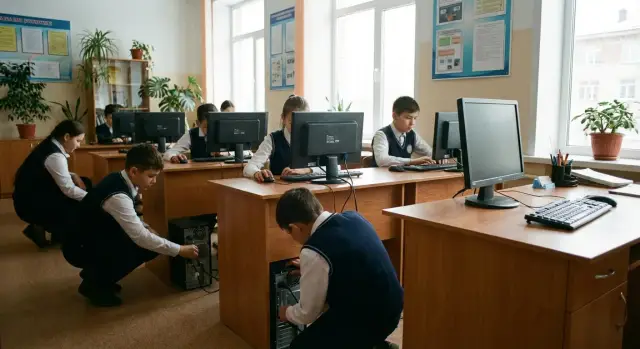
Why this memo exists and what it protects
Classroom equipment is needed every day: for lessons, tests, projects and electronic gradebooks. When something breaks, it affects more than one computer—lessons get disrupted, queues form, and someone must find a replacement quickly.
This memo aims to reduce breakdowns and keep devices out of repair longer. That makes things easier for everyone: students work more calmly, the teacher is less distracted, and those on duty know what to check.
Most failures at school happen to items everyone touches each lesson: keyboards (spills, crumbs, broken keys), ports and connectors (USB, headphones, chargers) from misalignment and force, and monitors/screens (scratches, stains, cracks) from touching or improper cleaning.
The rules are for everyone: students, teachers and those on duty. A student is responsible for careful use at their station. The teacher sets rules and reminds the class before hands-on work. Those on duty help notice issues early: a loose cable, a dirty screen, a wobbly connector.
The main principle is simple: be careful, don’t use force and don’t rush. Most damage doesn’t happen by itself but because of habits: yanking a cable, inserting a flash drive blindly, pounding a key, or wiping a screen with a wet chemical cloth. If something won’t plug in, won’t press, or behaves oddly—stop and call an adult instead of forcing it.
This memo protects devices and your time. One repair can mean weeks without a workstation. Small habits of care extend equipment life and make lessons calmer.
Before you start: the workstation and basic rules
Equipment fails most often because of small things around it. Spending 30 seconds before class to tidy up helps keyboards, ports and monitors last much longer.
Work only with clean, dry hands. Moisture, creams, grease and crumbs get under keys and make them sticky or unresponsive.
Food and drinks near the computer are a frequent cause of damage. Drink only where the teacher allows and keep beverages away from the keyboard, mouse and tower. If you need water, take a break, step away from the desk, and then return.
Personal items matter too. Don’t place backpacks, jackets or sportswear near the keyboard and cables—a zipper or velcro can catch a cable and pull a connector. Zippers and fasteners can also scratch the case or screen.
Before sitting down, do a quick check: no water or crumbs on the desk, cables aren’t underfoot, the monitor sits level, and the chair is positioned so you won’t have to reach the screen.
Sit calmly and straight. Don’t press the desk so it wobbles, and don’t lean on the monitor with your hand or shoulder. Screens aren’t designed for load; mounts can loosen over time.
If you notice a hazard (wet desk, loose cable, tilted monitor), don’t start work anyway. Call the teacher or the person responsible and ask for it to be fixed. That’s faster than later replacing a keyboard or repairing a connector.
How to turn the computer on and off correctly
Proper startup and shutdown may seem minor, but many freezes, file damage and power issues start here. In class, do everything calmly and in order.
Turning on: no rush, one press
Before powering on, make sure there’s no water, food or loose items that could catch cables. Sit so knees and backpack don’t press against cables under the desk.
Press the power button once. Don’t hold the button or press it repeatedly: the computer won’t start faster and repeated presses can interrupt startup.
If the monitor doesn’t light immediately, wait 10–20 seconds—sometimes it powers on a little later. Check simple things without yanking cables: the monitor’s power switch, and brightness isn’t at minimum. If it’s still dark, don’t touch connectors—raise your hand and call the teacher.
While the system boots, don’t plug in or unplug USB sticks, headphones or other devices. The equipment is especially sensitive to sudden actions at this time.
Shutting down: follow the correct order
Shut down through the system menu (as shown by the teacher), not by the case button. This lets the computer save files and close programs.
Simple shutdown steps:
- save your work and close programs;
- use the system menu to shut down;
- wait until the screen goes dark and the computer fully stops;
- only then clear your desk.
Do not pull power from the outlet or turn off a surge protector to speed things up. Sudden power loss can corrupt files and sometimes damage the device.
If the computer freezes and doesn’t respond, don’t press every button. Tell the teacher what happened (for example: the screen froze, the mouse doesn’t move). The teacher will decide if a safe reboot is possible.
Keyboard: how to type without breaking it
Keyboards in classrooms take the most wear: lots of typing, notebooks placed on them, and attempts to fix a key with force. Start with something simple: press keys gently, not by banging.
Type with your fingertips, not with force. If a key doesn’t register, don’t hit it harder—press again calmly. Use short, firm taps for Space, Enter and Backspace; avoid holding or rocking keys.
Do not remove keys or clean between them with rulers, paperclips, knives or pencils. Those tools easily break mounts, causing keys to fall off or stick. If debris needs removal, tell the teacher or a responsible person so cleaning is done safely.
If a key is stuck or not working:
- stop typing and don’t press the problematic key;
- check for visible debris like paper without poking inside;
- if a liquid has spilled (water, tea), report it immediately;
- don’t flip or shake the keyboard over the floor—debris can move deeper;
- move to another station only with permission to avoid pulling cables or dropping devices.
Clean hands extend a keyboard’s life. Hand cream, food grease and dirt make keys sticky, and dust sticks faster.
Example: a student writing a report notices Backspace sticking. The right step is to stop, save the work, quietly tell the teacher, and not try to fix the key by hitting it.
Ports and connectors: USB, headphones, chargers
Ports fail more often from haste than from age: a plug inserted at an angle, pulling the cord, inserting the wrong way and forcing it. Inside the port are thin contacts that bend easily.
For USB: align first, then insert. Find the mark on the plug (often the USB symbol) and check the plug shape. If unsure, don’t force it. Turn the plug over, check again and insert straight.
Headphone and charger plugs follow the same rule. Hold the plug by its hard body, not the cable. Pulling by the cable will eventually detach it, and the connector will loosen.
A few practical rules that really reduce damage:
- insert connectors straight, without tilting or strong pressure;
- hold the plug by the body, not the cable;
- don’t leave a flash drive or charger stretched so someone can catch it;
- before removing a USB drive, close files and wait for copying to finish;
- unplug gently, without jerks (if needed, steady the computer case with a free hand).
If a connector won’t go in, stop. Pull it out, check the orientation, and try another port if available. If it still won’t, ask the teacher or lab assistant. Force almost always causes damage.
Example: a student copies a presentation, the bell rings, and they yank the USB out. The file gets corrupted and the port starts to wobble. The right approach is to wait for copying to finish and remove the stick by the plug—10 seconds that save on repairs.
Monitor and screen: protecting from scratches and stains
The monitor is the most visible and fragile part of the workstation. It doesn’t tolerate impacts, strong pressure with fingers, or attempts to “press the image” when a button seems unresponsive. Even a small crack or line often means expensive repair or replacement.
A common cause of damage is moving the monitor by the screen itself. If you need to change tilt, hold the stand or the lower part of the case where the plastic is thicker. Don’t pull at the screen corner or lift the monitor by the top frame.
How to wipe the screen correctly
Remove dust and fingerprints only by the methods allowed in the classroom. If there are no rules, the safest option is a soft dry lint-free cloth (microfiber). If the room has special screen wipes, use them according to instructions: gently, without pressure, and don’t scrub the same spot.
Do not pour liquid onto the screen or wipe it with anything at hand. Wet hand wipes, paper towels and rough cloths leave scratches and streaks.
Do not clean the screen with products not intended for electronics: alcohol, acetone, glass cleaners or powders. They damage the coating. If someone drew on the screen or frame with a marker, don’t try to erase it with an eraser or sharp objects—tell the teacher or responsible person.
Brightness, sleep and caring habits
Don’t keep the screen on unnecessarily and avoid maxing out brightness “just in case.” If you leave for a break or move seats, put the computer to sleep or ask the teacher how to pause correctly.
Example: you notice a greasy fingerprint. Instead of rubbing your sleeve, ask for a screen wipe and clean gently without pressure.
Mouse, cables and power: what not to do
Most damage comes from jerks, sharp bends and pinched cables. This is almost always preventable if you move calmly and pay attention to cables under the desk.
Don’t pull a wired mouse by its cable. If the mouse is stuck or the cursor jumps, pick it up by the body and move it closer. The cable should lie loosely on the desk without tension.
Treat cables with care: don’t twist or bend them sharply. Don’t wrap a cable around a table leg or shove it into a gap. The thin wires inside break from repeated bending. If a cable gets in the way, route it along the desk edge so it doesn’t hang or get caught.
Chairs are a separate risk. Wheels easily run over a cable, which can damage the cord, the connector, and sometimes the power unit. Before moving the chair, check under the desk for cable loops or wires under the legs.
Things strictly forbidden
- Do not pull a device by its cable (mouse, headphones, charger).
- Do not bend the cable right at the connector or break it at a sharp angle.
- Do not roll the chair over cables or place the chair leg on a cable.
- Do not yank a plug from an outlet—pull by the plug body.
- Do not connect or disconnect power with wet hands.
Example: a student rushes to break and drags the chair back; a wheel snags the mouse cable. The mouse still works, but a week later the contact fails and the cursor jumps. It’s better to take five seconds to move the chair slowly and free the cable.
After class, do a quick check: cables don’t hang, nothing is pinched by a chair leg, the mouse is on the desk, and cables aren’t under tension.
Common mistakes that break equipment
Most classroom damage is caused by habits, not age. They seem harmless but each time they add stress to keyboards, connectors and screens.
Typical destructive actions:
- sudden movements (pounding the desk, putting heavy items on a device, slamming lids);
- cables and power (yanking cables, pulling devices by cords, rocking an inserted connector);
- connectors (inserting USB, headphones or chargers by force or at an angle);
- carrying (lifting equipment with one hand, moving it without teacher’s permission, placing it on the desk edge);
- attempted repairs (opening the case, removing keys, prying the monitor frame, cleaning with sharp objects).
Another common mistake is connecting unknown flash drives and devices without the teacher. Even if it’s “just a presentation,” the media may contain a virus. The computer may freeze, files can be lost, or the system may need reinstallation.
Why reporting immediately matters
Many are afraid to report a problem to avoid being scolded, but silence often makes the issue more expensive. If a loose connector keeps being used it can detach from the board. If a stripe appears on the screen, rubbing it harder only makes things worse.
Example: a student tries to insert a USB the wrong way, forces it, and the connector becomes loose. The right action is to stop, not pull, call the teacher and explain what happened.
In many schools equipment is purchased locally and serviced under warranty. For example, GSE.kz provides support and a service network. But that only helps if the problem is noticed early and not “fixed” by students.
Example situations: how to act calmly and correctly
If something goes wrong, the main thing is to stop and not make it worse. Often 2–3 safe steps and calling the responsible person solve the issue.
Flash drive won’t insert. Don’t force or wiggle the plug. Check orientation, look for debris, and try once gently. If it still won’t go in, stop and ask the teacher or lab assistant for help.
A small rule of thumb: if an action requires force, you’re probably doing it wrong.
Liquid spilled on the keyboard. Stop typing immediately and don’t try to shake or flip the keyboard. Raise your hand and tell the teacher; carefully move the cup away and dab the top with a paper towel. Power-off steps are usually done by an adult—don’t try to dry it with a hairdryer or power the computer back on yourself.
Monitor starts flickering or showing lines. Don’t hit the screen or press the frame. Stop work and tell the teacher. It helps to remember when the flicker started (right after startup, after moving a cable, only in one program). If possible, note the computer number, room, date and what you were doing.
No sound in headphones. Don’t twist or force the plug in the jack. Check basic things: volume isn’t muted, the correct output is selected, and the plug is fully inserted. If sound only occurs in one position, stop trying and tell the teacher—otherwise the jack can be ruined.
If in doubt, choose the safe option: stop, don’t pull or press, call an adult and briefly explain what happened.
Short checklist and next steps
Careful use of school equipment relies on small habits. This checklist is handy to print and post near computers.
Before starting: hands clean and dry, no water or crumbs on the desk, cables not taut, connectors look intact.
During work: press keys gently, don’t yank cables, don’t eat or drink near equipment, don’t touch the screen with fingers.
Connecting: insert USB and headphones straight, without tilting. If it doesn’t go in—stop and check the side.
After class: save work, close programs, shut down properly, leave mouse and keyboard on the desk, avoid stretched cables.
If something goes wrong: don’t try to fix it with force—report to an adult immediately.
A calm pause is better than a broken port. For example, if a flash drive isn’t detected, don’t repeatedly remove and reinsert it. Tell the teacher and the issue will be resolved without risking the connector.
Where to report a problem
It’s important that the school has a clear routine: notice a problem—report it. Tell the classroom teacher, the lab assistant or the person responsible for equipment (as is customary at your school). Say briefly: what you were doing, what stopped working, and where the computer is.
The next step for the school is to simplify maintenance and upgrades: a single standard of models, regular preventive checks and clear service support. Classrooms work better when PCs and all-in-ones are of one type and there is a clear repair procedure. For example, consider locally produced educational solutions from GSE.kz and support through a service network to fix issues faster and plan upgrades without downtime.
Frequently asked questions
Why is this memo needed if the computers are already “school” ones?
This memo reduces breakdowns caused by rush and habits: pulling cables, forcing connectors, touching the screen and eating near the keyboard. As a result there are fewer interrupted lessons, shorter queues for workstations and less time spent on repairs.
What should I quickly check before starting work at the computer?
Sit properly, check that the desk is dry and clean, and that cables under the desk don’t get in the way. Move water, food, backpacks and items with zippers away from the keyboard and cables so nothing gets caught or spilled.
How should I turn the computer on and off in class?
Press the power button once and wait for the system to boot—don’t click the button repeatedly. Shut down through the system menu so the computer can save files and close programs; use the case power button only if the teacher instructs or if the device is unresponsive.
What if a USB or headphones plug doesn’t go in the first time?
Align the plug with the port and insert it straight, without forcing or tilting. If it doesn’t go in, stop, check the plug orientation and try once more gently. Forcing almost always bends contacts and loosens the port.
Why shouldn’t I pull a mouse, headphones or charger by the cable?
Hold the connector by its hard body, not the cable, and pull out without yanking. If the cable is taut or likely to be snagged, tuck it so it rests loosely on the desk and doesn’t dangle or get under chair wheels.
What should I do if water or tea spills on the keyboard?
Stop typing immediately and don’t try to shake or flip the keyboard. Raise your hand and tell the teacher; an adult will advise how to safely cut power and handle the situation so the device isn’t damaged further.
How should I clean the monitor and what must I not do?
Avoid touching the screen with fingers or pressing it. Wipe gently with a soft, lint-free microfiber cloth without pressing; do not pour liquid on the screen or use hand wipes or window cleaners, which can damage the coating.
When should I call the teacher or responsible person instead of trying to “fix” it myself?
Tell the teacher or responsible person as soon as you notice a problem: a loose connector, a stripe on the screen, flickering, a sticky key or a burning smell. Quick reporting often lets small issues be fixed cheaply; staying silent usually makes repairs more expensive and longer.
Can I connect my own or someone else's flash drive to a school computer?
Do not plug in unknown USB drives or other devices without the teacher’s permission. Even if there’s “just a presentation,” removable media can carry malware that freezes the computer or forces a reinstall.
Who is responsible for what: the student, the teacher and the classroom assistants?
The student works carefully at their place and avoids sudden actions with connectors, cables and the screen. The teacher sets rules and guides proper actions when something goes wrong, and classroom assistants help spot small issues early—like a loose cable or a dirty screen—so equipment needs repair less often.
