7 min read
BIOS/UEFI Password Policy in an Organization: Rules and Control
BIOS/UEFI password policy: rules for storage, rotation, emergency access and control to keep devices manageable without creating a vulnerability.
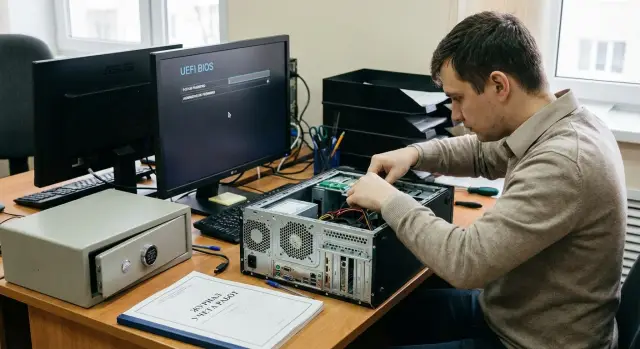
What a BIOS/UEFI password policy solves
BIOS/UEFI passwords are not just formalities. They close gaps that exist before the operating system loads: changing the boot order to boot from a USB drive, disabling Secure Boot, enabling network boot, resetting security settings, and sometimes attempts to bypass disk encryption.
It’s important not to confuse protection layers. A Windows password or an AD account limits system login but does not stop someone from entering BIOS/UEFI and, for example, booting from external media or changing parameters that alter how the machine behaves. The BIOS/UEFI password belongs to the “hardware” level and affects what can start and in which mode.
Without clear rules two extremes usually occur. In one case no passwords are set at all, and anyone with physical access to a PC or server can quickly change settings so that traces are hard to notice. In the other case passwords are set “however it’s convenient,” and the organization loses manageability: a key employee leaves, the password is nowhere to be found, the device sits idle, and recovery becomes expensive and stressful.
A BIOS/UEFI password policy helps strike a balance between security and manageability. It limits changes before the OS boots, defines rules for storage and granting access, prescribes an emergency procedure, and makes control auditable rather than just verbal.
A simple example: in a school or clinic an employee accidentally changes the boot order and the computer stops booting. If access to settings is protected, that error is harder to make. And if the problem still happens, a clear recovery procedure avoids panic and ad-hoc fixes.
Types of passwords and where to use them
BIOS/UEFI usually supports several password types, each covering a different risk. A common mistake is enabling everything and then losing access to devices.
Common items:
- Supervisor/Admin (Setup) password — protects access to BIOS/UEFI settings and any changes.
- User/Power‑on password — asked at device power‑on before the OS loads.
- Boot restrictions — forbid booting from USB, network or external drives and often block changing the boot order.
- Passwords for specific functions — for example, to change Secure Boot settings or to perform TPM operations (if supported on that model).
For most scenarios an Admin password plus blocking external-media boot is enough. That protects settings without making daily work harder.
Devices differ by need. On laptops a Power‑on password is useful where theft or removal from the office is a risk, but it also increases support calls (forgotten codes, staff changes). For office desktops it’s usually more important to block USB‑boot and prevent Boot Order changes than to require a password on every power‑on. Servers have different priorities: strict control of console access, protection of boot settings, Secure Boot and TPM operations matter because any change can affect service availability.
Example: in a classroom or call center, an Admin password and USB‑boot block are often sufficient. For a server rack (for example S200 Series from GSE.kz) it makes sense to additionally protect Secure Boot and TPM operations so an administrator cannot accidentally or temporarily weaken protection.
Scope and levels of strictness
The policy doesn’t have to be identical for every device. It’s more practical to group the fleet by risk: what happens if someone gains physical access and changes the boot order, disables Secure Boot, or resets settings.
Mandatory coverage normally includes laptops, regular workstations, and computers in areas with visitors or contractors. Protection is always required for field laptops: a lost device is automatically a risk to data and the corporate network. Shared workstations (reception, classrooms, self‑service kiosks) also need protection because many people have physical access.
A convenient approach is three levels of strictness:
- Basic: stationary office PCs in controlled access areas.
- Elevated: shared workstations, public reception desks, visitor areas.
- Maximum: field laptops, admin workstations, systems with sensitive data.
When can a password be omitted? Only when physical risk is truly mitigated by the environment, not just for convenience: locked rooms without outsiders, isolated racks, controlled access with passes, CCTV and a visitor log.
Example: an organization has office PCs, some shared terminals and rack servers. Terminals and field laptops get the maximum level. Servers in a locked server room may be set to elevated level only if access to the room is strictly controlled; if many people (on‑call staff, contractors) access the room, requirements should be near the maximum level.
Roles and responsibilities
Rules don’t work if “everyone knows the password” or “no one knows it.” You need an owner and clear roles: who sets the password, who stores it, who may use it, and who verifies compliance.
Typical distribution:
- IT sets the password and manages its lifecycle (new devices, repairs, replacements).
- InfoSec defines requirements and controls compliance.
Sometimes responsibility is shared: IT manages changes, InfoSec approves access rules and exceptions.
Separate duties: one person should not set a password, store it and authorize emergency use. A practical model: IT changes passwords and records them; InfoSec approves exceptions and emergency access.
For emergency access and unblocking, use a two‑person principle. For example, a service engineer logs the request and reason, and an InfoSec staff member confirms and opens access (or provides part of a secret) strictly for the duration of work.
When handing a device to a user, assign responsibility: the user is accountable for physical safekeeping and must not attempt to bypass protection; IT is accountable for BIOS/UEFI configuration and change records. For field laptops define procedures for loss, repair or urgent replacement so the circle of people who know passwords does not expand unnecessarily.
Password requirements: simple and practical rules
Good requirements protect settings without turning support into a quest. Make rules short, verifiable and equally clear to IT and security.
Length and complexity without extremes
A simple guideline: long enough to avoid guessing, easy enough to enter. For most organizations a base of 10–12 characters is suitable; avoid dictionary words and obvious templates like Company2026 or Qwerty123. If firmware limits length or allowed characters, document this per model rather than averaging across the fleet.
Different levels: admin vs. user
Admin (Setup/Administrator) passwords should be stronger and used less frequently. A user (Power‑on) password makes sense for specific cases, e.g., laptops used for sensitive data.
To avoid “one password for everything” while preventing chaos, use controlled uniqueness. Commonly applied rules: admin password is unique per device or a small group (by branch or delivery batch); global passwords are forbidden; reuse of the same password is disallowed for at least 24 months (if you actually enforce this). Also define allowed characters per BIOS/UEFI model and avoid setting passwords in front of end users unless necessary.
Example: a school sets the same admin password on all new PCs “for convenience.” A month later it’s posted in a chat, and anyone can remove the USB‑boot restriction. Group uniqueness (by classroom or lab) limits damage and keeps replacement manageable.
Storing and accessing passwords: avoid losing or leaking them
Goal: passwords must be available to authorized people when needed, but not become a “shared secret” that circulates in chats and notebooks. Practical security often starts not with password complexity but with where and how passwords are stored.
Optimal: a corporate secrets store or password manager with encryption, roles and an audit log. For a small organization an encrypted container with a formal access process may suffice. Poor options are well known: sticky notes, tables on a desktop, emails, or a shared file on a network drive.
To keep access controlled, set minimum requirements: role‑based issuance (IT admin, InfoSec, on‑call support), logging of views and exports, regular review of rights (quarterly and on terminations), prohibition on copying passwords into tickets or chat, and linking records to a specific device (serial number, model).
Plan backups and a “what if” scenario. Back up the secrets store and verify restorability. For store unavailability have a break‑glass process: predesignated people and an offline sealed copy with recorded opening. This preserves manageability without creating a silent leak.
Password rotation: triggers, frequency, and records
Rotate passwords based on events that change risk, not just calendar routines. Use clear triggers and simple logging so the process stays manageable.
Define triggers for mandatory immediate changes: termination or role change of staff with access, suspected compromise (leak, lost laptop, unauthorized access), repair or diagnostics outside a controlled environment, transfer of a device between departments or sites, change of the person responsible for the fleet or a contractor.
Periodic rotation makes sense where multiple people know the password or frequent field repairs occur. If access is tightly controlled and stored securely, it can be better not to rotate too often; instead, strengthen controls: grant access only for work, log who used it and when, and check settings after interventions.
To avoid service interruption, plan rotations in waves: pilot a small group, then by device type (office PCs, workstations, servers), then bulk. Predefine a maintenance window and a simple rollback path if a wrong password prevents boot.
After each change log at minimum: device identifier, which password type was changed (admin/user), reason, who performed the change and who approved, date and location (office, datacenter, service), and the verification result (OS boots and key settings unchanged).
Emergency access: how to open BIOS safely
Emergency access is needed when a device won’t boot, boot parameters are lost, TPM must be enabled, or operation must be restored after component replacement. The risk is obvious: under the pretext of “urgent” someone could gain full control over a device.
Start with unified request channels. Allow only verifiable and logged requests: service desk ticket, a recorded call to an official number, or a request via the on‑call administrator. Messages in messengers and “verbal in the corridor” requests should be considered unacceptable.
Temporary access procedure
Emergency access should be short and observable. The request must specify the device (serial number) and reason; the dispatcher verifies identity and rights; access is granted for a limited time and in the presence of a second person. Only actions specified in the request are allowed (for example, restore the boot order), no “while I’m here, I’ll check a few things.” After the work rotate the password and compare settings to the standard profile.
Log at minimum who requested access, who performed it, when, which device, what parameters were changed, and the boot verification result.
When it becomes an incident
Escalate to InfoSec if someone asks to remove a password without a clear reason, the requester fails identity checks, disabled Secure Boot/TPM or unknown USB‑boot is found, there are signs of case tampering, or the same changes are observed across multiple devices (for example, in one batch of PCs or servers).
Key settings to protect with a password
The point of BIOS/UEFI passwords is not to “check all the boxes” but to close the most dangerous points: where one can boot from, what can be enabled, and who may change these settings. In most cases protect changes to settings rather than daily startup.
1) Boot and boot order
The attacker’s or curious user’s first goal is to boot from a flash drive and bypass protections or extract data.
A practical baseline: block external‑media boot (USB, external drives) unless separately authorized; lock Boot Order changes and, if possible, disable or protect the quick‑boot menu; disable PXE if you don’t use network boot for support.
2) Secure Boot, TPM and unnecessary interfaces
Enable Secure Boot and TPM where supported by your OS and corporate protection tools. Do this carefully: test image and driver compatibility and recovery procedures first, otherwise you may end up with systems that won’t boot after an update.
Also consider disabling rarely used features that often help attackers: Legacy/CSM if you use pure UEFI, debug or insecure modes enabled for diagnostics, and unused ports or controllers if disabling them actually reduces risk (for example, block USB for booting but don’t disable USB entirely unless justified).
The balance is straightforward: the stricter the locks, the more important it is to plan maintenance. For an office fleet, blocking USB‑boot and having a controlled recovery path through the service team and a pre‑tested image is usually sufficient.
Device and password inventory: what to record
Good rules fail if inventory is kept “in one person’s head” or scattered files. The inventory’s task is simple: know at any time what protection a device has, who set it and when, and how to get access by policy.
Minimum per device: model and serial number (plus inventory tag if any), owner or department and installation location, which password types are set and which restrictions are enabled, installation and last‑change dates, who made the change and on what basis (ticket, scheduled operation).
Link records to the specific unit and its location, not to a “batch of laptops.” Otherwise moves and rack rearrangements will quickly break manageability. In the device record note where the secret is stored and who may request access.
For rack servers add rack position (row, cabinet, U‑slot), on‑call contact and maintenance window. For user laptops include disk encryption status and remote support scenario so emergency BIOS access does not become a way to bypass internal rules.
Common mistakes and pitfalls
The most common problem is having a policy on paper while manageability disappears at the first incident. This usually comes from rules that look strict but don’t work in real life.
Typical failures:
- the same password on all devices (one leak makes risk systemic);
- only one person knows the password (vacation, sick leave or termination causes downtime);
- too‑frequent rotation without proper records (sticky notes and temporary exceptions appear);
- blanket bans without maintenance scenarios (suddenly firmware updates or repairs are blocked);
- ignoring model‑specific constraints (no admin/user separation, limited character set, or only a service reset).
Mini case: a branch needs an urgent BIOS update for compatibility with a new SSD. The password is held by one engineer who is unavailable, and USB‑boot is prohibited. The result is workstation downtime and an emergency trip.
A good rule: any protective measure must have a verifiable maintenance and emergency path. Otherwise you protect settings at the cost of stopping work.
Short self‑checklist
Check what is actually implemented, not just what’s written.
- Admin BIOS/UEFI password set (not temporary). USB and external‑media boot are blocked or allowed only by approved exceptions. Secure Boot enabled where required.
- Passwords are stored in an approved location. Access is role‑based and logged. There is a backup recovery method (second authorized person, sealed code in a safe or other approved variant).
- Emergency request log is maintained: who initiated, who approved, device, reason, date/time, result.
Additionally, perform quarterly spot checks: does the inventory match actual device settings (passwords, boot options, restrictions)? Keep a documented plan for lost passwords: who acts, expected recovery time, required documents, and steps for critical devices.
Example: after a motherboard replacement in a regional field site the BIOS was reset. The team must know where to get emergency access and who may request it so work continues without opening an unnecessary security hole.
Practical examples: 3 situations and actions
Situation 1: lost laptop; an attacker tries to boot from a flash drive. If a BIOS/UEFI password is set and external‑media boot is blocked, booting a LiveUSB usually fails at the password. Next steps are rapid: block user accounts, revoke tokens/VPN, record the incident and check for exceptions (e.g., temporarily disabled protection for repair). BIOS/UEFI password is an additional layer, not the only protection.
Situation 2: a rack server needs urgent BIOS access for diagnostics. Follow the preapproved emergency process: role approval (on‑call engineer plus service owner), retrieve password from a controlled store, enter BIOS only for the required work, then restore settings and log the access. If a contractor services the server, grant minimum necessary access under supervision.
Situation 3: motherboard repair and CMOS reset. A reset often clears passwords and sets insecure defaults. After replacement apply the standard BIOS/UEFI profile, set passwords, verify boot order and critical settings (Secure Boot, TPM, disabled interfaces). A short model‑specific checklist helps in practice.
After each case log device ID and owner, who and when accessed it and why, what settings changed, whether there was a reset or board replacement, which passwords were reinstalled and where the current secret is stored.
Next steps: implement the policy without pain
Start small and make rules realistic. They should not rest on one administrator’s memory and must not block repairs, replacements or urgent recovery.
2–4 week implementation plan
-
Inventory devices and group them by risk: office PCs, field laptops, servers, public terminals. Decide for each group where an admin password is needed, where blocking external boot is enough, and where exceptions apply.
-
Choose a secrets store and assign at least two responsible people. Grant access on a need‑to‑know basis and log actions: who requested the password, why and for which device.
-
Approve a short inventory template: device ID, owner, strictness level, install date, last change date, emergency access scenario. The shorter the form, the more likely it will be filled.
-
Pilot in one department. Within a week you’ll see where problems occur: field service, board replacement, firmware updates, or staff moves. Improve the procedure before scaling.
-
Include firmware management requirements in procurement. Ensure equipment supports corporate management and service scenarios; otherwise policy will remain “on paper.”
In Kazakhstan this approach is often applied together with GSE.kz, where product lines of PCs, workstations and servers are available along with system integration and 24/7 technical support.
After rollout keep one clear channel for questions and incidents. A policy works when people know what to do on a normal day and in an emergency.
Frequently asked questions
Why have a BIOS/UEFI password if there is already a Windows or AD password?
The BIOS/UEFI password protects settings before the operating system loads. It prevents changing the boot order, enabling boot from USB or network, disabling Secure Boot, and weakening settings that disk encryption and the overall security posture rely on.
What types of BIOS/UEFI passwords are actually needed in most cases?
Usually an administrator (Setup/Admin) password to protect the firmware settings and a block on booting from external media are sufficient. Other options should be enabled selectively when there is a clear risk and a documented maintenance procedure.
Should every device have a Power-on password?
For laptops, a Power-on password makes sense when there is a risk of loss or theft because it is requested before the OS boots. For standard office desktops it is often more practical to block USB-boot and protect settings with an admin password to avoid lots of support calls from forgotten codes.
What should be disabled in BIOS/UEFI to prevent booting from a flash drive?
The practical minimum is an admin password plus prohibition of USB and external disk booting unless an approved exception exists. Additionally, restrict changing the Boot Order and, if possible, protect or disable the Boot Menu so bypassing protection isn’t a one‑click action.
Should Secure Boot and TPM operations be protected separately?
If Secure Boot and TPM are part of your corporate setup, protect them from being disabled in BIOS/UEFI and verify settings after maintenance. Do this after testing compatibility with images, drivers and recovery procedures so updates don’t cause unexpected boot failures.
What should BIOS/UEFI password requirements be so they are secure but not painful in practice?
Make passwords long enough to be hard to guess but short enough to enter reliably—usually 10–12 characters. Avoid dictionary words and obvious templates like Company2026 or Qwerty123. Don’t use the same password across the whole fleet and account for firmware limitations per model (length and allowed characters).
Where and how should BIOS/UEFI passwords be stored to avoid loss and leakage?
Store passwords in a controlled secrets repository or an approved encrypted password manager with role-based access and an audit log. Do not store them in chats, tickets, spreadsheets on desktop, or email. Keep backups of the store and define a documented break-glass procedure with sealed offline copies and recorded openings.
When should BIOS/UEFI passwords be changed and how to avoid disrupting operations?
Change passwords in response to events that increase risk: termination or role changes of staff with access, suspected compromise (leak, lost laptop, unauthorized access), repairs outside a controlled zone, device transfers between units, or a change of the person responsible for the fleet. If access is tightly controlled and audited, calendar-based frequent changes can do more harm than good.
How to organize emergency BIOS/UEFI access so it’s not a loophole?
Only through a verifiable channel such as a service desk ticket with device identifier and reason. Grant temporary access for a limited time, preferably with a second person present, and after work verify critical settings and rotate the password if needed.
What should be tracked in inventory and how to verify the policy is followed?
Record model and serial number, which passwords and restrictions are set, installation and last-change dates, who performed the change and why. Periodically sample-check actual devices against the inventory to ensure the documented state matches reality.
