7 min read
BIOS and Microcode Update Plan: Avoiding Mass Outages
A BIOS and microcode update plan reduces vulnerability and downtime risk. We cover scheduling, testing, maintenance windows, rollback and change control.
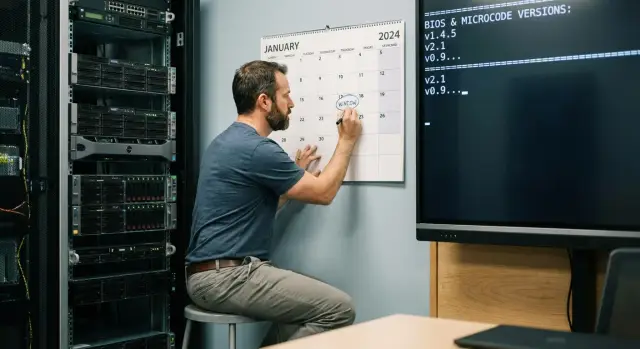
What we update and why it reduces risk
BIOS (or UEFI in modern systems) starts a PC or server, checks hardware and hands control to the operating system. CPU microcode is low-level instructions inside the processor. Vendors update microcode to fix bugs and close vulnerabilities.
Planned BIOS and microcode updates reduce risk because they address issues that regular Windows or Linux patches do not. These include the boot chain, CPU bugs and scenarios where an attacker gains capabilities before OS-level protections are active.
There are two types of updates:
- Security. Usually they don't change system behavior much, but can enable new protection mechanisms.
- Functional. Add support for new hardware or modes, and may change default settings.
Both types can affect performance and compatibility. After an update power-saving behavior, memory handling or virtualization features may change. Sometimes new driver or configuration requirements appear.
Most affected devices are:
- servers (especially virtualization hosts and databases where stability and predictable performance matter)
- office PCs and workstations where mass rollouts and consistent configurations are critical
- engineering workstations where drivers and accelerators matter
- all-in-one and specialized stations in healthcare and education
A practical example: if your fleet consists of identical PCs and servers (for example, L200 and S200 series), one firmware can impact hundreds of devices. The goal of an update is not just to close a vulnerability, but to make changes manageable: understand what changes and pre-assess effects on compatibility and performance.
Common pain points: vulnerabilities, downtime and unexpected effects
Firmware is often updated the same way on dozens or hundreds of similar machines. If the package contains an error, it repeats everywhere. Even a good plan can lead to a mass incident if you roll out all at once without limits.
1) Security and compliance. CPU microcode and platform firmware close real issues exploitable remotely or with local privileges. Delaying updates widens the risk window. Auditors also check timelines for vulnerability mitigation and how postponements are justified.
2) Downtime of critical services. A firmware bug, wrong UEFI setting or incompatibility with current boot parameters can bring down a server or workstation and take hours to recover. Worst cases hit virtualization nodes and infrastructure roles (domain controllers, databases, gateways).
3) Post-update effects. The update may succeed but the system behaves differently. Typical surprises:
- drivers conflict with a new security mode or ACPI
- virtualization requires settings review (for example, available CPU features)
- disk encryption requests a recovery key because the trust chain changed
- monitoring and security agents produce false positives due to altered parameters
Simple scenario: BIOS was updated on identical PCs at night, and in the morning some employees can’t log in. Secure Boot was enabled by default and an older driver no longer loads. The risk is not only “didn't install” but also “installed and changed the working conditions”.
Inventory and prioritization before any update
Work starts not with firmware, but with an accurate map of what you have. Mass failures often occur where diverse devices are updated in one maintenance window without recognizing differences in boards, revisions and roles.
Collect inventory at a level that affects the outcome: device model, motherboard revision, current BIOS/UEFI version, CPU model and current microcode level (if visible from the OS or management tools). Note the boot mode (UEFI or Legacy), enabled virtualization features and external controllers affecting boot.
Then mark criticality. The same BIOS may be safe to update on an office PC and cause trouble on a virtualization host or database server. Identify systems where downtime is nearly unacceptable: domain controllers, DB clusters, VDI, medical systems, security nodes and gateways.
To make the pilot honest, segment the fleet into groups of identical configurations. If branches use the same workstations and the data center has identical racks, treat these as separate waves even if the vendor is the same.
A minimal set of fields and owners to record immediately:
- configuration: model, board revision, BIOS/UEFI, CPU, microcode
- role: critical or regular, cluster/backup presence
- owners: IT responsible and business service owner
- allowed downtime and notification requirements
- pilot: 1–2 representative nodes per configuration
If you use uniform equipment batches (identical racks or PC lots), these groups often match procurement lots. That simplifies work order: pilot first, then less critical groups, then the core.
How to fit updates into the IT calendar without chaos
Make updates a regular process so they don't turn into fire-fighting. Plan ahead and treat urgent patches as clear exceptions, not ad hoc work. Then firmware updates become part of the IT change calendar and clash less with other tasks.
Frequency depends on risk and service criticality. Common models:
- monthly — if you have many standard workstations and strict security requirements
- quarterly — if infrastructure is stable and changes go through test and pilot
- event-driven — for critical vulnerabilities (with a fixed window for deferred fixes)
Link rollouts to Change Management so every release follows the same steps. In the change request record what you update (BIOS/UEFI, CPU microcode, BMC and other firmware), on which models, expected effects and risks. Then assess service impact, agree with the business owner and security, and prepare a rollback plan. For critical zones (healthcare, finance, government) this is essential because downtime quickly causes real losses.
Choose maintenance windows based on real load peaks, not IT convenience. Allow time for backing up settings, reboots and post-start checks. For 20–30 devices it is usually better to have several short windows than one long overnight window.
Communication solves half the problems. Notify users and service owners 5–7 days in advance: what changes, expected downtime, where to report issues. Remind them one day before and specify an emergency contact channel. If updating a fleet from a local vendor (for example GSE.kz), agree in advance which divisions go first and who confirms service restoration.
Release preparation: what to check before the maintenance window
Before installing an update, don't just download “the latest version” — choose the appropriate one. Prioritize stability and a clear list of fixes. If a release closes a specific vulnerability or bug relevant to your models, that matters more than “update for the sake of updating”. For mixed fleets check compatibility with OS, hypervisor, RAID controllers and NIC firmware.
Read release notes and vendor constraints. They usually state installation conditions (for example, minimum current BIOS version), known issues, update order and required settings (Secure Boot, TPM, SATA/RAID mode). These notes often contain the root causes of mass failures.
Do short pre-checks so the maintenance window isn't spent searching for access:
- power: functioning PSUs and UPS, no building electrical work
- access: current passwords, privileges to perform updates, admin network access
- console: working remote console and physical access plan if needed
- packages: checksums verified, necessary utilities prepared
Prepare a rollback plan: previous firmware versions, rollback instructions, understanding of the "point of no return" and how to recover a device (including service network access or field visit). Keep at least one verified reference kit for fleet updates.
Again — communications. Assign owners, a contact channel during work and escalation rules. Tell users what may be unavailable, for how long, and who confirms completion. Plans usually fail not because of technology, but because people are unprepared to make quick decisions mid-window.
Step-by-step BIOS and microcode update process
The process should be the same every time. That reduces the chance of missing a small detail that later causes a mass problem.
Start by logging the change in your ticketing system. Record device model, serial number (or hostname), current BIOS/UEFI version and CPU microcode level, and the reason for the update (vulnerability, compatibility, vendor recommendation). This helps diagnose complaints that appear later.
If a device stores important settings in BIOS/UEFI (boot order, SATA/RAID mode, VT, Secure Boot, power profiles), export or capture them with screenshots and text notes. On servers this can save hours.
Keep a steady rhythm:
- run the update on a test bench or pilot group (2–5% of the fleet) under real load scenarios
- confirm a maintenance window and notify service owners
- update in batches, not the entire fleet at once (by site, cluster, or device type)
- after each batch check: OS boot, network, disks/RAID, virtualization, monitoring agents, and error logs
- close the change only after recording results: new versions, node list, observed effects and decisions
Example: updating CPU microcode on virtualization cluster hosts. Break nodes into batches, migrate VMs, update one host, check metrics, then proceed. This reduces the chance of taking down the whole service.
Testing and pilot: don't turn the release into a lottery
Even a careful plan can still surprise if you update everything at once. Tests and pilots are not for show — they catch rare failures before they become widespread.
Consider a test successful if the system behaves like a normal working day, not just at boot. Minimum checks:
- stable boot and correct RAID, network and management (BMC/ILO/IPMI) operation
- CPU and memory load without errors, overheating or odd throttling
- application checks (your services, monitoring agents, backups)
- no unexpected reboots or new critical log errors
Run the pilot in waves. Start with 1–2 nodes of typical configuration and load. If a rack contains S200 Series virtualization servers, the pilot should include a host with real VMs.
Expand to 10–20% only after initial nodes are stable. Between waves allow real operation time: minimum 3–7 days, and 1–2 weeks for critical systems to capture night jobs, backups and scheduled tasks.
During the pilot watch metrics: error frequency in logs, temperature, reboot count, performance changes (at least key counters) and user complaints. If something is “slightly worse but acceptable,” record it as a risk and decide before scaling.
Rollback and emergency measures: make plan B realistic
Firmware update plans must include rollback: exact actions, who performs them and how long they take. Without this, small issues (power, version mismatch, driver conflict) turn into long outages.
Rollback methods vary. BIOS is usually reverted to a previous verified version or restored using a recovery mode if the board supports it. CPU microcode may be reverted via OS updates or boot parameters, but this depends on platform and update policy. For critical nodes that don't recover quickly, the most practical option is swapping in a prepared spare server or workstation.
To make plan B real, prepare in advance:
- previous BIOS versions and utilities verified for your model and revision
- recovery media (USB/ISO) and offline update kit
- remote console access (KVM/serial/IPMI) and tested credentials
- backups of BIOS settings, RAID/HBA profiles and key boot parameters
- contacts and escalation steps (including field engineer dispatch)
Define a stop point before rollout. Stop if the same issue repeats across multiple nodes: identical firmware errors, increased boot time and hangs, service crashes, or performance degradation under typical load.
For critical systems prepare a short emergency plan: RTO/RPO, dependency list (network, storage, licenses), who switches to spare hardware and how functionality is verified. For racks with servers (including local series like S200) agree which nodes can be replaced and keep a "clean" spare with the required firmware and console access.
Typical mistakes that cause mass failures
Mass failures rarely happen because of a single “bad firmware.” More often the update is treated as a one-off without risk division or proper record-keeping. Then a small incompatibility becomes a major outage.
Common mistakes that lead to problems:
- updating the whole fleet in one day without a pilot
- mixing different models and revisions in a single batch
- ignoring release notes, which often list CPU, memory, virtualization and intermediate-version requirements
- not allowing time for warm-up and rechecks — some effects appear after several reboots or under load
- failing to log versions and steps — without a record troubleshooting and rollback become guesswork
A small practical example: an office with PCs, racks of servers and mixed revisions. If you apply one firmware to all and use one maintenance window, the first problem paralyses multiple processes: workstations won't boot and services drop on servers. A better approach segments by model and revision, checks release notes, pauses between waves and records minimal data: current version, new version, post-reboot checks and results after a few hours.
Short checklist before rollout
Before starting updates check both the firmware file and the process readiness. Most mass failures start from small oversights: wrong server list, no console access, or unclear success criteria.
Quick pre-window checks:
- inventory is ready: full device list, roles and criticality, current BIOS/UEFI and microcode versions
- window agreed: time, expected duration and success criteria (which checks are mandatory)
- accesses verified: local console on site, remote management (KVM/IPMI/etc.), working admin accounts
- rollback is real: who decides to stop, who performs rollback, where instructions and setting copies are stored
- pilot done: a small group updated with before/after measurements (boot, stability, temps/frequencies, log errors)
Decide how to split the rollout into batches and when to stop. Stop-criteria should be a one-line statement visible to the whole team.
Example stop-criteria: repeated boot error on 2 devices in a batch, rising hardware errors in logs, key service outage, performance deviation beyond agreed threshold, loss of remote access. If a stop-criterion triggers, act on the rollback plan immediately.
Example: update by calendar without stopping work
Head office has identical workstations. Three branches have a small set of servers (file, accounting, remote access) and the same PCs. The task is to update BIOS/UEFI and CPU microcode without mass outages or work stoppage.
Pilot should use similar but not the most critical devices: 10–15 workstations from different departments (accounting, call center, IT) and one server in a lightly loaded branch. This covers different scenarios without risking the whole organization. Schedule waves: pilot first, then branches in order, and central servers last.
Agree maintenance windows with the business. Accounting needs period closes, clinics have patient hours, training centers follow class schedules. It's easier to reserve a regular monthly window and tie releases to it so people don't have to adapt to a new time each time.
A night window might look like:
- 22:00–23:00: backups, access checks, rollback confirmation
- 23:00–01:00: updates and recording BIOS/UEFI and microcode versions
- 01:00–01:30: controlled reboots and key service checks
- 08:30–09:00: morning check (user logins, printing, network, accounting systems)
Assign owners in advance: who accepts servers, who accepts workstations, who to notify about problems. The final report should include models and batches updated, old and new versions, time spent, deviations (for example BIOS reset), what helped and what to change for the next wave.
Next steps: make the process regular and manageable
One-off updates help, but only a repeatable process reduces risk sustainably and doesn't rely on specific people.
Start with a short 1–2 page procedure so everyone knows roles and steps:
- frequency: how often you check new versions and actually update (for example quarterly plus emergency patches)
- roles: process owner, testers, approvers, implementers and acceptors
- pilot: which models and what scope to test first
- rollback: triggers and time allowed before reverting
- reporting: what to record after work (versions, node list, results, incidents)
After each release monitor not only availability but also “quiet” symptoms that often precede serious problems:
- increased reboots and hangs
- WHEA/MCU errors, corrected memory errors, ECC events
- drops in performance on typical tasks
- temperature and fan changes or unusual throttling
- growth of hardware alerts in monitoring
Tie updates to hardware lifecycle and procurement. A very diverse fleet is harder to update: different utilities, windows and rollback scenarios. Platform standardization reduces the firmware matrix and calms the process.
If you have 200 PCs and 40 servers, split the fleet into 3–4 waves by device type and criticality and assign them to specific weeks of the quarter. Then emergency updates remain rare exceptions.
For organizations in Kazakhstan a bonus is working with a local vendor and service network. For example, with equipment from GSE.kz (gse.kz) it's easier to agree schedules, match recommended firmware versions to specific models and resolve incidents on site faster if something goes wrong.
Frequently asked questions
Why update BIOS/UEFI and CPU microcode if the OS is already patched?
BIOS/UEFI controls system start and platform settings before the OS loads, and CPU microcode fixes processor-level bugs. Some vulnerabilities and defects only appear at firmware level, so Windows or Linux patches do not close them. Updating reduces the risk of boot-chain attacks and lowers the chance of hardware failures that are hard to diagnose from the OS.
Why can firmware updates cause a mass incident?
If you update the entire fleet at once, a single bug or incompatibility will repeat across dozens of identical devices. Typical consequences include OS failing to boot, default settings changing, drivers breaking, or loss of remote console access. It's safer to roll out updates in waves and have clear stop-criteria so you can halt when the first repeating symptoms appear.
What should be collected in the inventory before updating?
Start with an accurate map: device model and board revision, BIOS/UEFI version, CPU and microcode level, boot mode (UEFI/Legacy), and key settings like Secure Boot, TPM, virtualization and disk controller mode. These data prevent applying the wrong firmware and help plan pilots and rollbacks. Without inventory you can't plan properly or revert quickly.
How to decide which devices to update first and which to leave for later?
Simple rule: start with less critical and typical devices, then move to critical nodes, and only after a successful pilot update the rest. Criticality is defined by role: virtualization hosts, databases, domain controllers, gateways and medical systems require more cautious waves. It's better to update multiple small groups in separate windows than to risk everything at once.
How to organize a pilot so it actually reduces risk?
The pilot must resemble real load, not just the most idle machine. Take 1–2 devices for each common configuration and test realistic scenarios: boot, network, disks, applications, monitoring agents and backups. Let systems run for several days after the pilot to catch issues that don't appear immediately.
How to embed BIOS and microcode updates into the IT change calendar?
Record changes through a single change management process: what you update, on which models, why, what risks and how success is checked. For planned updates pick a regular rhythm (for example, quarterly) and have a separate path for urgent security patches. That way firmware updates stop being ad hoc actions and become a predictable part of the IT calendar.
What surprises happen most often after an update?
Common surprises include default setting changes or altered platform behavior: Secure Boot may enable, SATA/RAID mode may reset, virtualization may require different parameters, or disk encryption may ask for a recovery key. Record key settings before work and agree which changes are acceptable. After the update verify not only boot but also user logins, drivers and critical applications.
Can a BIOS/microcode update worsen performance?
Yes. Some microcode updates and security features can reduce performance on particular workloads, especially in virtualization and databases. It's standard practice to take simple before/after measurements on the pilot: boot time, basic CPU/memory metrics and your service indicators. If degradation is noticeable, stop, investigate settings and only then continue rollout.
How to prepare a real rollback plan, not just for show?
A working rollback plan includes concrete actions and prepared materials: the verified previous firmware version, a recovery method, access to remote or physical console and exported BIOS/UEFI settings. The decision to stop should rely on clear signs, for example repeated boot failures or loss of remote management. For critical systems it's useful to have a ready replacement or spare node to restore service faster than manual repair.
How to notify users and service owners before updates?
Notify in advance what will be unavailable, for how long, and where to report if a device doesn't boot or a service doesn't come up. Identify the business owner who accepts the work after the maintenance window and the escalation channel for incidents. Good communication reduces both dissatisfaction and downtime, because decisions are made faster and without confusion.
