8 min read
Bank Teller Workstation: What Matters More Than Benchmarks
A bank teller's workstation should prioritize predictability over peak power: two monitors, comfortable peripherals, and fast recovery.
What's the real problem
A bank teller's workstation rarely comes down to maximum raw power. Much more important is that everything opens without pauses, windows don't freeze, and the employee doesn't have to think about their equipment while talking to a client. Even a 3–5 second delay on each action quickly turns into a queue, frustration, and mistakes.
To a client it looks simple: the staff member spends a long time finding the right window, re-entering data, or asking the client to wait. For the branch this already means lost pace. Over a shift these interruptions add up, and even a computer with good specs can perform poorly if it’s unstable in real office work.
The problem becomes more serious when there is a failure. If an application freezes, the scanner disconnects, the second monitor stops working, or the PC takes a long time to reboot, service effectively stops. The employee can't move to the next step, and sometimes can't even complete an operation already in progress. In banking this is felt immediately, because every minute ties into queues, regulations, and attention to data.
Shift work adds another requirement — repeatability. One person works that station in the morning, another in the evening. They need the same scenario: the same windows on the same screens, the same peripheral behavior, the same fast system login. If something needs to be reconfigured each shift, if someone has to hunt for the default printer or rearrange windows between monitors, time is lost and the number of small failures rises.
That's why benchmarks often mislead. High numbers in tests show device behavior in a short, artificial scenario, but they don't answer the main questions: how a PC behaves after updates, how quickly it recovers from a failure, whether it works reliably with two monitors, and whether there are issues with banking peripherals.
In practice, convenience is defined not by records but by predictability. For banks in Kazakhstan this is especially important when many workstations are spread across branches. The winner is not the machine that's the fastest on paper, but the one that's easy to maintain, quick to replace, and can be configured the same across the network.
What a teller does during the day
A teller's workstation is almost never occupied by a single program. During a shift the employee opens a client's profile, checks data in the banking system, views transaction history, verifies documents, and keeps internal instructions at hand. It's not one long task but dozens of short actions without pauses.
The main load is not heavy computation but constant switching. You need to move quickly between the banking application, CRM, queue system, email, and internal chat. If the computer hesitates even for a few seconds, the queue at the window starts to grow and the employee repeats the same steps.
A typical shift consists of simple but frequent actions: opening several windows for one client, checking passport and contract data, printing a form or statement, scanning a signed document, and sending a clarification to a colleague. Many operations run in parallel. While one set of documents is printing, the employee is already replying to an email, serving the next client, or searching for a previous request in another system.
A separate part of the day involves signatures and peripherals. Stable printing, quick recognition of a connected scanner, working with card readers, tokens, and other authentication devices are required. If any of these work inconsistently, not only the employee but the whole client flow stops.
Email and internal chats run in the background. In a bank there are few tasks that can be done quietly without switching. Usually you must simultaneously reply to colleagues, receive service notifications, and not lose the current client operation.
For these reasons the workstation is evaluated by how it performs in a live shift. The most important things are how quickly required windows open, whether connections to peripherals are lost, and whether work can resume after a failure without extra steps.
What configuration is needed in practice
For a teller what matters is steady performance throughout the day, not record-breaking power. The same set of tools is used: the banking application, browser, documents, email, printing, scanning, tokens, and other peripherals. If everything opens without pauses and nothing freezes during peak hours, the configuration is appropriate.
A mid-range processor is usually enough. Not so weak that the system slows with several open windows, but not top-end, because extra headroom is often unused. For this role platform stability, proper cooling, and compatibility with corporate software matter more than impressive benchmark numbers.
The same principle applies to memory. It should be sufficient for a typical shift without overspending on capacity that will remain unused. When the banking app, a browser with multiple tabs, office programs, and background security services run at the same time, lack of RAM is felt immediately. Excessive memory rarely brings noticeable benefit at a teller or cashier station.
Storage deserves separate attention. A fast SSD delivers what the employee notices every day: quick system boot, fast program launches, and less waiting after reboots. This is especially important where even a few minutes of downtime creates a queue and tension in the hall.
A practical configuration usually centers on simple things: a mid-range CPU, enough RAM for typical use, an SSD, quiet cooling, a reliable power supply, and easy access to ports for flash drives, tokens, scanners, and other peripherals.
There are two often-forgotten criteria: noise and temperature. If the PC hums, runs hot, and begins to slow by mid-shift, good specs won't help. Quiet operation reduces employee fatigue and indirectly lowers the number of small mistakes.
For banks it is often wiser to buy standardized corporate machines rather than build top-spec custom rigs. GSE, for example, offers locally produced desktops and all-in-ones, which is convenient for organizations that need uniform configurations, clear support, and predictable maintenance. In such procurements value comes not from peak performance but from reliably similar operation across every workstation.
How to set up a dual-monitor mode
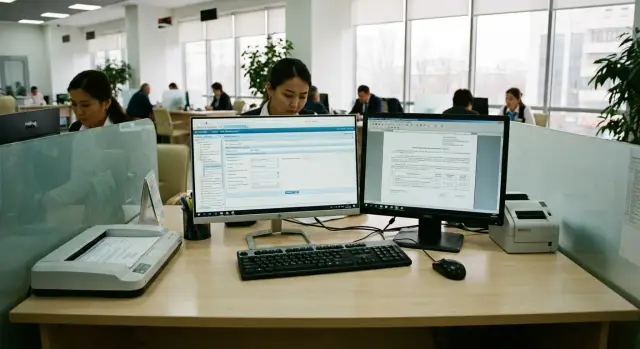
For a teller two screens are often more useful than a slightly faster processor. One monitor can run the main banking system, the other is convenient for documents, email, scans, instructions, or verification windows. This reduces switching and lowers the chance of mistakes made in a hurry.
It's easiest to work with two identical monitors. They have the same resolution, brightness, and font size, so the image looks consistent and setup takes less time. This matters not only at installation but later, when IT needs to replace a screen quickly without lengthy adjustments.
The primary screen should be placed directly in front of the employee, the second slightly to the side at a small angle. The top edge of the screens should be roughly at eye level or slightly below. If one monitor is too high and the other tilted sharply, neck fatigue, dry eyes, and extra strain appear by the end of a shift.
A practical setup is straightforward: the main banking system and data entry on the first screen, documents, scans, PDFs, and internal instructions on the second. It's best to use the same text scaling on both screens and minimize pop-up windows.
Check compatibility before installing at the desk. In practice issues are often not with the monitors themselves but with small details: the wrong cable, an occupied video output, an unstable adapter, or an old monitor that doesn't support the required resolution. If procurement is for a branch, verify the computer's video outputs and monitor inputs in advance and keep spare cables of the same type on hand.
If a document is open to the left and the main service system is in front, the employee works calmer and faster than with constant Alt-Tab switching. Treat dual-monitor mode as an essential part of the work scenario, not a luxury.
Which peripherals matter most
For a teller the priority is predictable operation of the whole station rather than the fastest single device. If a keyboard misses keystrokes, a mouse tires the hand, or a scanner loses connection, the branch queue will pile up even with a good system unit.
The keyboard affects the work pace more than procurement testing suggests. You need a familiar layout, intuitive placement of function keys, and a quiet, even key travel. When an employee types all day, fills forms, and searches fields, extra noise or stiff keys quickly become a nuisance.
The same goes for the mouse. It should sit comfortably in the hand and work smoothly on an ordinary desk surface. A too-small or too-light model may seem fine during a short test but causes fatigue after hours of switching between windows, spreadsheets, and banking programs.
For scanners and printers the main concern is stability, not raw speed. Branches need devices that don't drop connections, don't freeze after several consecutive operations, and don't demand constant attention. One random disconnection during document processing costs more time than a small difference in pages-per-minute.
Check card readers, signature pads, and other connected devices separately. It's best to test them together in a real setup. Individually everything may work fine, but in the full configuration driver conflicts, port shortages, or unstable power can appear.
Local IT should keep a simple reserve: a few tested USB and video cables, a spare mouse and keyboard, and clear labeling of ports and cables. These small things often save a shift from long troubleshooting.
If equipment is bought in kits, it's useful to verify PC and peripheral compatibility as a complete set. This approach is especially convenient when a single supplier handles both hardware and integration. Then what's important is reliable operation of the whole station throughout the shift, not separate boxes.
How to assemble a workstation step by step
Start building a workstation not by choosing the processor but by mapping out a real shift. If you skip this step, it's easy to buy fast PCs that turn out to be inconvenient on the first day.
First, break down a teller's day into simple actions: logging into the banking system, checking a client, printing documents, scanning, working with the queue, email, and internal windows. Understand not only which programs are used but which need to be open at the same time.
Then identify the mandatory devices on the desk. Most often the priority is a complete set without which a shift stops: two monitors, a comfortable keyboard, a mouse, a scanner, access to a printer, a card reader or token, and a headset if needed. If the counter space is limited, take that into account immediately.
Next follow a simple scheme:
- Describe all teller actions in order.
- Mark which programs and windows must be open simultaneously.
- Make a list of required peripherals for each workstation type.
- Build one test kit and give it to a real shift.
- Lock in the typical configuration only after staff feedback.
Pilot before mass procurement
A test kit is mandatory. Let one or two shifts work with it for several days. This stage usually reveals that the second monitor is on the wrong side, the scanner interferes with signing papers, or a needed window is constantly covered by another.
It's useful to track not only opinions but minor failures: how quickly staff log in, how long printing and scanning take, whether peripherals are conveniently connected, and how fast a device can be replaced when it fails. For a bank this matters more than pretty benchmark numbers.
After the pilot, fix the standard build: PC model, monitor size and placement, required ports, peripherals, system image, and replacement procedure. If a single supplier and integrator are used, for example GSE.kz, it's easier to agree in advance not only on the hardware but on support, spare devices, and a unified deployment approach. Then the workstation becomes not just adequate on paper but convenient for every shift and straightforward to maintain.
Mistakes that surface after procurement
The most unpleasant problems appear not at the tender stage but in the first working week. On paper everything looks good: a fast CPU, enough memory, a modern drive. But in real work what matters is a steady shift without small failures.
A common mistake is purchasing by loud specs rather than by real scenarios. If an employee works all day with banking software, a browser, documents, a scanner, receipt printer, and two screens, extra power won't help when there aren't enough ports or when the system becomes unstable after updates.
The same issues tend to recur. Different monitors with different diagonals, brightness, and resolutions cause windows to jump, text to look inconsistent, and eyes to tire faster. A PC might lack ports, so adapters are used daily. Peripherals chosen separately from the main PC may require separate drivers, behave inconsistently, or conflict after updates. There's no ready system image for quick replacement, so the station can be down for half a day instead of getting swapped out quickly. Workstations end up assembled differently and support spends time manually configuring each desk.
For a bank this is critical because failures rarely look like major outages. Usually it's a chain of small things: a scanner not recognized after reboot, the second monitor not taking the right resolution, a USB hub losing the keyboard, or a new system unit incompatible with already purchased peripherals.
Good practice is to buy a coordinated kit rather than separate devices. That way compatibility of monitors, ports, cables, drivers, and the system image is checked in advance. Manufacturers and integrators who supply both equipment and support usually find it easier to organize a unified delivery without mixed models.
Example of a typical shift
A typical morning in a branch doesn't start with speed tests but with a real queue. In the first hours the teller needs to quickly open the banking system, the client's profile, the transaction form, and the print window without freezes and extra clicks.
So the configuration is judged not by test numbers but by whether the computer reliably runs familiar programs, doesn't slow down when switching between windows, and operates all day without unnecessary reboots.
Most often two screens provide more benefit than a slightly faster CPU. On one monitor the employee keeps the client's profile, transaction history, or the bank's internal system. On the second are documents, templates, confirmations, or a verification window. This reduces unnecessary switching and makes it easier to avoid mistakes.
The scanner hardly ever rests during a shift. Every few minutes an ID, application, power of attorney, or accompanying document must be scanned. If the scanner wakes up slowly, loses connection, or needs a manual restart, delays add up quickly because such pauses occur frequently.
The printer situation is even more obvious. While one set of papers is printing, the next client approaches. If the printer freezes, goes into an error state, or doesn't accept the job on the first try, the queue grows within minutes. In that moment it's clear that reliable peripherals matter more than extra unused processing power.
A well-organized shift depends not only on the main PC but on a replacement plan. If there's a pre-configured spare computer with the right settings, access credentials, and connected peripherals, the employee can move with almost no pause. Clients see a short technical delay rather than a half-day shutdown.
This is how a successful configuration is tested: not in a lab, but in real traffic. If the equipment smoothly handles the morning rush, frequent printing, constant scanning, and dual-monitor work, the workstation is set up correctly.
Short checklist before launch
Before a shift begins, check how the workstation behaves in real work, not the PC's paper specs. A good workstation should boot without surprises and be ready for typical operations immediately.
If even a small extra 3–5 minutes is spent on preparation in the morning, delays accumulate over the shift. This is especially critical where employees change shifts and a station is not tied to one person.
Before launch check several things:
- Both monitors operate in the correct order immediately after login, and windows don't jump between screens.
- Printer, scanner, and other peripherals are available without manual driver selection, cable reconnection, or reboot.
- The system starts quickly and consistently every day: account login, opening key programs, and printing the first document occur without freezes.
- There is a simple reserve on site: at least spare power and video cables and a second mouse.
- The employee and the administrator have a clear failure procedure: who to call, what can be restarted, where spare equipment is stored, and the allowed time for PC replacement.
It's useful to run a short test not only in the morning but also at the end of the day: log out and back in, scan a document, print it, and make sure everything opens on the correct screens. For typical workstations repeatability, quick replacement, and stable operation of the whole set — PC, monitors, and peripherals — matter more than benchmarks.
What to do next
If the tasks an employee performs during a shift are clear, the next step is simple: fix a single standard for all branches. For a bank this matters more than differences in performance tests. When configurations are the same, it's easier to train staff, buy spares, and resolve common failures without lengthy diagnostics.
Also define acceptable recovery times. For example, how many minutes are allowed to replace a PC, connect two monitors, check the printer and scanner, and log into the systems. If this standard isn't set in advance, even a small fault can stretch into half a day and disrupt service.
Don't roll out a new configuration across the whole network at once. First run a pilot on several desks in a real shift with the usual load: queues, document printing, card reader use, scanning, and constant window switching. This quickly reveals whether there are enough ports, whether the system unit or all-in-one fits the desk, whether dual-monitor mode works, and how quickly an employee returns to work after a failure.
Look beyond speed. In practice what matters most is how easily a device can be replaced without long reconfiguration, how quickly banking peripherals connect, whether there is a unified set of drivers and a system image, whether the IT team can maintain the fleet, and whether the same standard can be kept across branches.
A simple rule of thumb: it's better to choose slightly modest specs with predictable day-to-day performance. For a bank this is usually more valuable than a more powerful computer that's harder to service or slower to recover after a failure.
If you need a typical equipment fleet for branches, discuss not only devices but support as a single system. GSE.kz can be a convenient option for organizations that value local production, uniform configurations, and equipment integration into an existing IT environment. This approach helps standardize workstations across branches and simplifies ongoing maintenance.
Frequently asked questions
What matters more for a teller's workstation: performance or stability?
For a bank teller, predictable performance throughout the entire shift matters more. The computer should open banking applications quickly, not freeze when switching between windows, and work reliably with peripherals.
What PC configuration is suitable for a bank teller?
A mid-range processor, sufficient RAM, and an SSD are usually enough. This setup handles the banking system, browser, documents, email, and background security services well.
Why does a teller need two monitors?
Two monitors reduce the need to switch between windows. The main screen can display the banking system, while the second can show documents, scans, email, or internal instructions.
What is the best way to position two monitors?
It is best to choose identical models with the same resolution and size. Place the main screen directly in front of the employee and position the second one to the side at a slight angle.
What should you check before connecting a second monitor?
Before installation, check the PC's video outputs, monitor inputs, cables, and required resolution. Unreliable adapters and randomly selected cables often cause display issues.
Which peripherals are critical for a banking workstation?
First, check the keyboard, mouse, scanner, printer, card reader or token, and all required USB connections. These devices must work together with the standard system image, not just individually.
Why does a teller need an SSD?
An SSD speeds up system startup, application launches, and recovery after a reboot. For a branch, this reduces downtime that can quickly create a queue at the counter.
Is a pilot needed before purchasing workstations?
Set up one complete workstation and let employees use it for several days during a normal shift. A pilot will reveal issues with monitor placement, ports, scanning, printing, and window settings before a bulk purchase.
How can work be restored quickly after a PC failure?
Prepare a backup PC with the required settings, access permissions, and drivers. Keep tested cables, a spare mouse and keyboard nearby, along with clear instructions for the employee and IT team.
What should be checked before the shift begins?
In the morning, check system login, screen arrangement, banking application startup, printing of the first document, and scanning. Also make sure the printer, scanner, and authentication devices are available without reconnecting or rebooting.
