6 min read
Autodesk in classrooms: deployment and fast rollback
Autodesk in classrooms: how to deploy software in a lab, configure profiles and updates, and enable fast rollback so PCs are ready for every lesson.
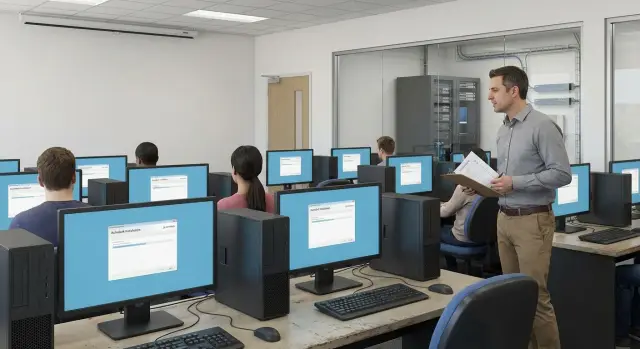
What problem appears with Autodesk in classrooms
Autodesk in classrooms often fails not because of “bad computers” but because the environment slowly changes after each lesson. One group installs fonts and plugins, another saves projects “where it’s convenient,” a third leaves custom settings, caches and update traces. After a couple of weeks the lab becomes a collection of different machines, even though they look the same from the outside.
Typically it looks like this: one student can open the files, another cannot load the same projects or the app crashes. Toolbars and workspaces get reset, paths to libraries and templates change, units switch. Sometimes there are no write permissions for required folders, so a project won’t save. Startup takes longer, licensing and account sign-in behave inconsistently. In the end the instructor spends the first 10–15 minutes of the lesson figuring out “why it’s not the same for everyone.”
For teaching it’s critical that the environment is the same: so instructions match what a student sees, and an exam result doesn’t depend on which PC the student sat at. The second important thing is a fast return to the base state after a lesson. Not “reinstall everything,” but restore a clean, predictable configuration in minutes.
A typical scenario: after a test some students change autosave paths to a USB drive, someone sets nonstandard units, someone installs a third-party exporter. At the next class half the group can’t find files, and the other half can’t open templates. The problem is not the software but the work discipline.
The good news: you can often avoid major infrastructure changes. Usually it’s enough to agree on a basic “reference,” separate “system and data,” forbid student installs, and decide in advance where profiles and settings live so they can be quickly reset.
Where to start: what to collect before deployment
Problems begin when basic decisions aren’t agreed before installation. If you gather the requirements ahead of time, deployment goes faster and support becomes predictable.
First, describe the labs and the real load: how many PCs, how classes are scheduled (two groups per day or not), whether streams change, and if there are times when the room is empty and can be serviced. Also note whether the PCs in different rooms are identical or have different configurations.
Then decide on versions. One course may need the latest release, another may require compatibility with teaching materials or old files. If versions will differ, record that immediately: which rooms, which courses, and how long each version will be supported.
Check the internet conditions. With a stable connection it’s easier to rely on centralized downloads and network installation. If a room sometimes works offline or the internet is available only on a schedule, prepare a local source for installer files and space for a cache.
One more often-underestimated point: who is responsible for the room day-to-day. IT can set things up once, but small issues are often solved by the lab assistant or instructor. This determines what should be doable “in one click” and what should be left to an administrator.
It’s practical to make a short “deployment passport.” Usually five blocks are enough: list of rooms and PCs with usage schedule, list of courses and required Autodesk versions, network conditions (always online or sometimes offline), roles and access (who installs, who updates, who rolls back), and security constraints (user rights, policies, antivirus and exceptions).
Choosing a model: image, centralized install or hybrid
Before installing Autodesk choose a deployment model. This determines how much prep time is needed, how updates will be handled, and how quickly you can return computers to their original state.
Model 1: one image or several
A golden image is convenient when workstations are identical and the software set is stable. One image is easier to maintain, but it only works if all programs, versions and plugins are the same for everyone. If, for example, architects and mechanical engineers share one lab, it’s usually better to have 2–3 images by discipline: fewer unnecessary components, fewer version conflicts, faster and more stable operation.
To avoid drowning in manual tweaks, follow a simple rule: any “special” settings must be documented and applied automatically. Don’t configure one PC “for convenience” if you can’t reproduce that configuration on the others. This applies to template and library paths, licensing and network resource connections.
Model 2: local, centralized or hybrid
Centralized installation and management are convenient where there is a stable channel and disciplined version control. Local installation is simpler for small labs but doesn’t scale: any change becomes a matter of touching every machine.
A hybrid approach often works best: a base image (OS, drivers, essential dependencies) plus centralized deployment and scheduled Autodesk updates.
Also plan disk space. Autodesk installers are large, and the installer cache and temporary files can consume tens of gigabytes. Allocate extra space for updates and cleaning, and direct cache and temp folders to predictable locations so they can be cleaned automatically.
A useful practice is to separate system components and teaching data. Keep the OS and programs on one partition (or disk), and student projects and shared libraries on another (or on network storage). That way, restoring the image won’t risk losing student work, and rollback after an exam is fast.
Step by step: basic deployment for a lab
To make Autodesk predictable, the most important thing is to create the correct reference PC once and then replicate it without surprises.
Start with the reference PC and bring it to a state you can live with for the semester. Install the OS and drivers the same way as on other machines, and immediately remove unnecessary items: autostarts, trial utilities and updaters that might start during a lesson.
Follow a simple sequence. First install the OS, drivers and basic components (like Visual C++), then the required Autodesk products. After that record the composition: build numbers, language, selected modules, plugins, fonts, templates and teaching files.
Be sure to test startup under a normal student account: login without admin rights, open a typical project, save to the working folder, print or export (if required by the syllabus). When the reference is ready, capture the “clean” state: a disk image or snapshot to quickly return to the starting point.
After rolling out to the lab, do a quick check on 3–5 machines from different rows using the same scenario. A practical test: a student logs in, launches AutoCAD or Revit, opens a teaching file, performs 2–3 actions (for example, creates a layer or changes a parameter), saves a copy and closes. If this fits within a couple of minutes without admin prompts or license errors, the room is close to stable.
After replication, freeze the software stack. Don’t add plugins and updates ad hoc on individual PCs. Any change must first be made on the reference, tested under a student account, and only then rolled out to all machines.
User profiles: keep settings from breaking the lab
The goal of profiles in a computer lab is simple: the student should log in quickly, get a familiar environment, and not leave “surprises” for the next group.
Guest login is fast but unsuitable if projects and personal settings need to be saved. Local profiles provide independence from the network but are harder to keep identical. In teaching labs domain accounts with a preconfigured teaching profile are usually the most convenient: they’re identical for everyone and easy to reset.
If groups differ significantly (for example CAD and 3D), it’s more practical to have 2–3 template profiles tied to classes or streams than to configure each PC manually.
Only include in the profile what helps teaching and won’t break the system: workspaces and UI, hotkeys, common paths to libraries and materials, identical templates, and printing/export parameters if they’re standardized.
Keep teaching files outside the profile. A working option is a network drive or a dedicated project folder that isn’t cleared with the profile reset. That way resetting a profile won’t delete student work.
Grant minimal but sufficient rights: a standard user without admin rights, write access to profile folders and the project folder, and access to licensing and required network resources. Installing programs and changing system settings should be restricted.
Updates: how not to break a lesson or lose compatibility
A frequent cause of class failures is auto-updates that start on their own. They load the network, require restarts, change component versions and suddenly ask to sign in again. In a lab this quickly becomes chaos: one PC updated, another not, and the group ends up with different interfaces and sometimes incompatible files.
Choose a clear update window in advance and make it part of the schedule. Usually nights, weekends or a service window between group shifts work best. Separate Autodesk updates from OS updates: apply them in separate waves. This makes it easier to identify the cause of a problem and to roll back.
Before mass deployment test the update on 1–2 machines that are as similar as possible to the rest. Run typical tasks: open last year’s project, do an export or print, check plugins and templates.
To prevent updates from becoming a lottery, adopt a few rules: disable auto-updates during teaching hours, assign a maintenance window and a responsible person, first test on 1–2 PCs, then roll out to the class, and prepare a rollback plan (snapshot, image or other method) in advance.
After each update keep a short record: date and time, what updated (product and version), which PCs were in the wave and how results were verified. This saves hours when you need to quickly investigate an incident.
Fast rollback after an exam or lesson: options and logic
After a lesson traces typically remain in three areas: changes to the user profile (toolbars, paths, cache, settings), changes to the system (small installs, drivers, services) and project files. If you separate these things in advance, rollback becomes fast and predictable.
The main rule is simple: keep student work separate, reset the system boldly. Then you don’t have to manually “clean” the lab or argue about what’s important.
For normal lessons a soft rollback is often sufficient: restore only the user environment, leaving Windows and installed Autodesk intact. This can be a profile reset to the reference and cleaning Autodesk settings and cache folders. Project folders should be placed where rollback does not touch them: a network share or a separate partition.
If there was an exam, someone installed a plugin from a USB or something went seriously wrong, you need a hard rollback: restore the PC to an image or snapshot. This is especially convenient where the fleet is standardized.
Speed comes from standardization. Partition the drive into “system” and “data,” keep a verified image, prepare a reference profile and automate cleaning on schedule or with a single button. Then after an exam you can collect projects into a shared folder, trigger a profile reset on all machines and return the lab to a ready state in 10–15 minutes.
Common mistakes and how to avoid them
Failures are most often caused by one-off decisions. Later plugins break, works are lost after profile cleanup, and the admin spends an evening on manual repairs.
A typical case: you updated all workstations and during class discover that a teaching plugin or department templates don’t work with the new build. Another common issue is storage of works. If students save projects to Desktop or profile folders, everything disappears after rollback. It looks like “the program deleted the file” when in fact the file simply wasn’t in a protected location.
Another mistake is giving students local admin rights “so it runs.” That fixes the immediate problem, but sooner or later extra toolbars appear, system settings change, random plugins get installed, and licenses and file associations break on some PCs.
A less obvious source of problems is disk space and caches. Autodesk writes temp files and render caches heavily. If you don’t control disk usage, accumulation happens silently until projects, updates or renders suddenly fail.
A practical set of habits: keep one test machine for updates and plugin checks, fix a rule for where works are stored, separate roles (students without admin rights, centralized installation), and maintain a “class passport” with Autodesk versions, plugins, key settings and the date of last check.
Short checklist for instructors and admins
Before a lesson it’s enough to check 1–2 computers from different rows. This catches most issues before the group arrives.
- Launch the required Autodesk application and ensure it starts without unexpected updates or prompts.
- Verify the license is active.
- Check there is enough free disk space.
- Open a template teaching file and perform one simple action (save, import, render preview).
- Ensure the submission folder is accessible.
If a student’s settings “broke” (parameters don’t save, panels disappeared, strange access errors), the profile is usually at fault. Don’t waste time manually reconfiguring: switch the user to a fallback profile or perform a reset according to the procedure. A useful rule during troubleshooting: one issue — one record (time, PC number, what happened).
Once a week an admin should do a short technical check: compare versions on the reference PC and several workstations, measure startup time, check free space and review recurring errors.
Case study: a 25-seat lab
At a college there was a 25-PC lab and two streams: AutoCAD one day and Revit another. The issue wasn’t installation but leftover custom settings, plugins, templates and files on the Desktop after each lesson. The next group started with “my setup is different from the teacher’s.”
The solution required no manual reconfiguration of every PC. All machines received the same base Autodesk installation, and differences were moved into profiles and startup templates. Two user groups were created (roughly CAD and BIM) and each got a clean reference profile. When a student logged in they landed in the appropriate profile with the right toolbars, templates and library paths.
To prevent lost work and make it easy for the instructor to collect submissions, they enforced a rule: projects are saved only to a personal folder on the network share (or server). Local folders, Desktop and Downloads are cleaned.
After class an automatic reset ran: cleaning temp files and Autodesk caches, resetting the profile to the reference, and clearing local folders. If something went very wrong, the PC was restored from a system snapshot.
Updates between semesters were done via a pilot: first 1–2 PCs, test opening old works and printing, then scheduled rollout. During the transition installers and reference profiles were kept in one place so they could quickly revert to a previous version if needed.
Next steps: how to formalize the process and who can help
To keep the classroom predictable for the semester, formalize the process and assign responsibilities. Agree on versions and plugins, maintenance windows, storage rules, user rights and rollback scenarios.
A charter usually records: where the reference image is stored and who can change it; how rollback is performed after a lesson or exam and how long it takes; where student works are stored and who is responsible for that structure; and what counts as “class readiness” before a lesson (versions, licenses, folder access, free disk space).
If support resources are limited or you’re building a lab from scratch, it can be easier to involve an integrator who takes responsibility for hardware and the basic operational scheme. For example, GSE.kz (gse.kz) supplies workstations and servers, handles system integration and supports the infrastructure—convenient when you need a uniform configuration across all machines and a fast way to restore the lab to working condition.
Frequently asked questions
Why does Autodesk start to fail in a classroom even though the computers are identical?
Most often the issue is not Autodesk itself but the loss of a uniform environment: after each lesson profiles, caches, paths to templates and libraries change; plugins and fonts appear. Over a few weeks machines become “different” and identical actions produce different results.
What should I start with when preparing a classroom for Autodesk deployment?
Agree on a reference: which Autodesk versions are required, which plugins and fonts are allowed, where templates and libraries are stored, and where projects are saved. Define roles (who updates, who performs rollback) and plan a maintenance window so changes don’t happen during lessons.
What is better: one image, several images, or centralized installation?
If all PCs are identical and the software set is stable, a single image with scheduled updates is convenient. If different disciplines require different versions or components, it’s better to keep 2–3 images or use a hybrid: a base OS image plus centralized Autodesk deployment and scheduled updates.
How do you build a reference PC so there are no surprises later?
Keep one reference PC for the semester: install and test any changes there, then replicate to other machines. Don’t manually tweak individual PCs “for convenience” if you can’t reproduce those changes automatically across the fleet.
What checks should be done before the first lesson to avoid losing 15 minutes?
Check the application under a normal student account without admin rights: login, open a typical teaching file, save to the working folder, print or export if required. This quickly exposes problems with permissions, paths, licensing and profiles.
Which user profiles work best for a computer lab?
Domain accounts with a prepared teaching profile that can be easily reset are optimal. If streams differ significantly, create 2–3 template profiles so CAD and BIM settings and paths don’t interfere with each other.
How should student work be stored so it isn’t deleted by a profile rollback?
Store student work separately from the profile—on a network share or a separate partition that isn’t affected by rollback. That way you can safely reset settings and caches after a lesson without risking project loss.
How to update Autodesk without disrupting lessons or ending up with mixed versions in one class?
Disable auto-updates during teaching hours and schedule a clear maintenance window (night or weekends). First update 1–2 test PCs and verify typical tasks and plugins, then roll out to the whole class with a prepared rollback plan.
Which rollback is better after a lesson or exam: soft or hard?
For regular lessons a “soft” rollback is usually enough: reset the profile to the reference and clean settings and Autodesk caches. If students installed things from USB or there was an exam, perform a “hard” rollback—restore the image or snapshot—provided projects are stored separately.
When should you involve an integrator and how can GSE.kz help?
Bring in an integrator when you need a single contractor for hardware, deployment and support, and it’s important to keep a uniform configuration. For example, GSE.kz (gse.kz) can supply workstations and servers, assist with integration and set up update and rollback procedures so the classroom can be restored quickly.
