8 min read
Autodesk Docs access model for contractors: folders and roles
A practical Autodesk Docs access model for contractors: folders, roles, access durations, action auditing and how to reduce manual admin work.
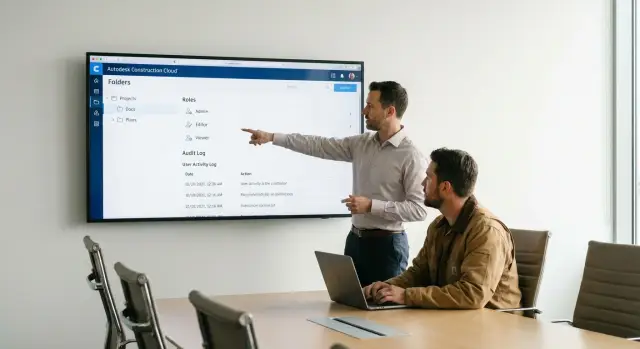
What access problem for contractors happens most often
It usually starts innocently: there are many contractors, they come and go, and access is granted "by request in the chat." The folder structure grows, permissions are set ad hoc, and after a few months no one can confidently say who and why can see specific files.
Then a habit appears: give access "just in case." The contractor is given more permissions than needed so they don't hit limits at every step. Later a subcontractor is added and given the same permissions. At some point someone opens a shared folder with source files, estimates or working versions, and the boundaries of responsibility blur.
The risks are often not theoretical. The most common are:
- data leaks (downloading the wrong file, sending it to the wrong place, saving locally without control);
- accidental edits or deletions (especially if upload and replace rights exist);
- loss of accountability (hard to understand who made changes and on whose instruction when roles are unclear).
When people say "without manual routine," they usually mean a simple thing: permissions should not depend on the memory of a specific administrator. You need rules so access:
- is granted by role, not by person;
- is limited by folder, not the whole project;
- has an expiration date set when granted;
- leaves a clear audit trail for quick investigation later.
In practice the access model is built around several typical roles. Names may vary, but the meaning is usually like this:
- Client: reads approved materials and accepts them, without access to working drafts.
- Chief engineer or project manager: sees all sections, manages approvals.
- Contractor: works in their own area, uploads results, but doesn't touch others' sections.
- Subcontractor: even narrower access, often read-only or upload to a single folder.
Without such a framework, any scheme will gradually creep into exceptions: everyone gets "a little more," and later it's impossible to close access neatly without breaking work.
Principles for an access model that lasts the whole project
A permissions scheme in Autodesk Docs is sustainable only when it can be maintained without heroics. The basic principle is simple: first build a clear folder framework, then apply roles and permissions. If you start by giving people rights, the structure will quickly become a set of exceptions no one remembers.
Build the folder framework first, then roles
Folders should reflect how the project actually operates: by stages (for example, concept, design, working documentation, construction) and by disciplines (ARCH, STR, HVAC, E/M, etc.). That way a contractor can be connected only to their "slice" of work without exposing unnecessary areas.
Separate "working" and "for issue." Working files change frequently and contain many drafts and intermediate versions. The "for issue" folder should be a calm zone that only receives what can be officially handed over: packages, PDFs, approved models. That way a contractor won't download an outdated file and the client won't see something not yet ready to show.
Least privilege as the default, not an exception
Grant access across two axes: by folders and by actions. Most contractors need to view, download, sometimes upload and comment. Delete or move rights should be rare.
To keep the model manageable throughout the project, agree on rules in advance:
- a contractor gets access only to their folders and only for their project stage;
- all external handovers go through the "for issue" folder, not from working folders;
- permissions are expanded only by request and with a clear reason, not "just in case";
- each folder has an owner from the client or main contractor side;
- any exception is recorded: who granted it, to whom, why and for how long.
Who approves the scheme and who maintains it
Usually the scheme is approved by the project manager together with BIM and document control because it affects schedules and risks. One responsible project administrator maintains the scheme, following a simple procedure: add a participant, assign a role, check the expiry date, record the reason.
A practical approach: assign discipline owners who confirm which folders their contractors need. The administrator applies the decisions. This keeps permissions tidy even with frequent personnel changes.
Folder structure: a simple framework that doesn't break
A good folder structure solves half the access problems. When a contractor is given rights not to "everything" but to clear zones, the model becomes manageable and doesn't require daily manual checks. In Autodesk Docs it's more convenient to think not "who will see what" but "what folder will it go into."
A typical framework consists of a few top-level sections. It's important they reflect the status of materials, not a list of people or organizations:
- General (rules, templates, references, contacts)
- By discipline (working materials of teams)
- For review (packages for checking and comments)
- For issue (approved items that can be used on site)
- Archive (closed stages and obsolete versions)
The main principle: separate "sources" from "published." Sources live in discipline folders and are available only to those who actually edit. "For issue" should contain only material that can be used without extra questions: approved PDFs, specifications, reports, model snapshots.
For exchanges with a contractor, allocate a separate area so you don't grant access to the entire tree. A common pattern is "two folders per contractor":
- "Incoming" — what the contractor sends.
- "Outgoing" — what you hand over to them.
In "Incoming" it's usually enough to allow adding files (without viewing others'). In "Outgoing": reading and downloading without edit rights.
Folder naming also affects access control. If names are vague, people will put everything there and you'll have to broaden permissions. Simple rules usually suffice: put the discipline or stage code at the start (ARCH, STR, MEP, Stage-01), status at the end (WIP, Review, Issue, Archive) and a separate "00_README" folder with short rules.
If you want the scheme to repeat across projects, create a template structure for a typical project. Then at kickoff you change roles and expiry dates, not the folder tree.
Roles and permissions: how to grant access without extra privileges
Think of roles in Autodesk Docs as a set of actions, not a job title. The same company can be a contractor for installation and also perform design review for its section. So roles are defined for a task and specific folders, not "just in case."
A basic set that usually covers project needs: administrator (manages access), client (reads and approves), designer (prepares and publishes documentation), contractor (receives current materials and delivers results), observer (view only). It's important to have few administrators and many observers if people only need to see progress.
The most common mistake is giving a contractor broad access "just in case" to avoid interruptions. Permissions in Docs differ by intent, which helps you grant exactly what's needed: view, download, edit, publish. Publishing is almost never required for a contractor unless they release design documentation.
A practical approach: first define what the contractor must deliver and where it should appear. Then grant permissions to the source folder (read) and to the delivery folder (upload), keeping the rest closed or view-only.
Minimal contractor profile in most cases
Usually the following is enough:
- read and download in "For issue" folders to fetch the current version;
- upload and replace files only in the "Contractor delivery" folder;
- no delete rights, especially on large projects;
- no publish rights if version control and release are handled by the designer or BIM coordinator;
- a separate folder for working drafts and correspondence so they don't mix with official files.
Give subcontractors and temporary specialists separate roles, even if they work for the same company. It's easier to keep order than to clean up scattered permissions later.
To avoid slipping into a "everyone can do everything" model, keep a few rules immutable:
- the administrator manages access and does not work on files;
- only the release owner publishes documents;
- permissions are granted to specific folders, not the entire project;
- anything not needed for the task is closed by default;
- exceptions are created as temporary roles, not edits to the main role.
For projects in government, healthcare or finance, least privilege is especially useful: fewer accidental edits, easier incident investigation and faster audits.
Access duration: rules on entry, extension and closure
Set access durations as part of the model. Otherwise contractors stay in the project longer than necessary and admins spend time disabling accounts manually. It's easier to think in work periods: when access opens, which folders it includes and what constitutes a reason to close it.
Access tied to project stages
The simplest method is to tie access to stages. Each stage should have a minimum set of folders and a defined duration.
- Tender: read terms and initial data without access to working drawings and internal protocols.
- Mobilization: add plans, safety requirements, report templates.
- Construction: access to working folders of the contractor's discipline plus exchange folders.
- Handover: upload as-built documentation and closing acts; other access by need.
- Warranty: read final versions and handle defects without edit rights.
This gives a clear answer to "when to open and close access": on stage transitions, not chat requests.
Temporary windows for sensitive folders
Some folders are needed for short periods: commercial proposals, quantity takeoffs, final estimates, claim correspondence. For these, introduce temporary access windows: for example, read access for 5 business days for review, then return to closed state.
The extension procedure should be uniform: the contractor requests an extension with a reason and duration, the client's site supervisor approves, and the administrator applies the same set of permissions and sets a new closing date.
After work is finished, don't "freeze forever" the access. Move it to a safe mode: remove upload and delete rights, leave read access to final materials where warranty requires it, and close exchange folders.
A simple benchmark: if you can't explain in 30 seconds why a contractor still has access, then the expiry wasn't set or isn't controlled.
Step-by-step setup of the access model in a project
Start with a short inventory. Make a table: contractor, contact person, who will actually log in, what tasks they perform and which files they need. At this step it's usually already clear what's unnecessary: for example, an MEP subcontractor doesn't need access to contractual documents.
After that, setup goes faster if you use repeatable templates: one folder framework and several basic roles.
Configuration steps
-
Prepare the folder template and define what belongs at the top level. Decide where working materials, reviews and final versions live.
-
Create basic roles by intent (for example: "View", "Upload and comment", "Edit in working area", "Project administrator"). Describe rights with simple verbs: view, upload, change, delete.
-
Assign roles to groups, not individuals, where possible. A group = one contractor or one function (for example, "HVAC Designer - Contractor A"). Then staff changes won't turn into manual routine.
-
Set permissions at the top level and check inheritance down the structure. If you fix access on every folder, the folder framework or roles are chosen poorly.
-
Test access with a test user: what is visible in folders, what actions are available, can someone accidentally delete or overwrite something important.
Then record the rules in a short procedure of 1–2 pages: who creates groups, who approves access, how many days in advance to request rights extension, and what counts as grounds for closing access.
Common mistakes and traps with contractor access
Problems usually arise not from "bad people" but from overly broad settings. Grant access to the project root once and rights quietly spread to all folders, including contracts, correspondence, internal drafts and finance.
The second trap is mixing working versions and "for issue" materials in one folder. Contractors pick the wrong file, you edit the wrong model, and the dispute ends up as "who uploaded last is at fault."
The most painful slips
Permissions that allow deleting or renaming key folders are particularly dangerous. Even without ill intent, someone can "clean up" the structure and break established paths for the whole team.
Another quiet risk is lack of process owner. If no one is responsible for permission changes, they accumulate chaotically: one admin granted access "just in case," another forgot to remove it, a third created a new folder without correct inheritance.
Classic problem: forgot to close access after personnel changes at a contractor. A former employee keeps access and you learn about it only after an incident or audit.
How to secure the project in one hour
To quickly tidy up access, start with five checks:
- grant access only to needed folders, not the project root;
- separate "Work" and "Issue";
- forbid delete and rename for contractors in folders that define structure;
- appoint a permissions owner (and a backup) with a clear change procedure;
- set an expiry date when inviting and check it at least weekly.
Activity logs often exist, but "no one knows what to look for." For a start, three signals are enough: mass uploads or downloads, renames and deletions, unexpected file moves between folders.
Example: an engineering contractor needs access only to "03_Models/HVAC" and "05_Issue/HVAC." If they suddenly move files into "01_Admin," that's a reason to quickly check who got excessive rights and why.
Audit trails: what to watch and how not to drown in events
Audit in Autodesk Docs is not for total surveillance, but to answer simple questions quickly: who did what, when and with which file.
Most useful are two layers of history:
- activity inside Docs by files and folders: uploads, downloads, new versions, moves and deletions;
- administrative changes at the project level: adding people, changing roles and permissions.
To keep checks to 10–15 minutes a week, set a rhythm and simple filters. For example, one responsible person reviews events only for contractor folders from the last 7 days and drills down only if something unusual appears.
A routine that usually works:
- weekly: activity in key contractor folders;
- after deadlines: selective check of new versions for critical files;
- on incident: file history and related downloads;
- monthly: reconciliation of administrative permission changes.
Define red flags in advance: mass downloads in a short time, deletions or moves without approval, frequent version replacements without comments, access to folders outside the contractor's area, uploading final results to personal or temporary folders.
If you need evidence for an investigation, record the same set: date and time, user and company, folder path, file name, version number, action (downloaded, uploaded, deleted) and supporting proof (file history, activity log, screenshot). Usually that's enough to restore the chain of events.
Example scenario: one project and several contractors
Project: refurbishment of a clinic. The client, designer and three contractors work in Autodesk Docs: HVAC, electrical and low-voltage systems. The goal is simple: contractors quickly get the files they need and deliver results, but don't see unnecessary things or accidentally overwrite others' work.
Folders were made identical for all sections. At the top level there are two zones: "For issue" and "Working." "For issue" contains approved source data and the current versions. "Working" is structured by discipline and stage, but access is restricted.
File flow was fixed in advance: a contractor does not put anything directly into a designer's working folders. They submit materials via their discipline's "Incoming," and a responsible person on the design side checks and moves them further.
Roles were configured by tasks:
- Electrical contractor: read in "For issue" and upload to "Incoming/Electrical."
- HVAC contractor: upload to "Incoming" plus right to update files in their own working area "Working/HVAC/Drafts" (no access to "For issue").
- Low-voltage contractor: only "For issue" and "Incoming/LV."
Each contractor received access for 60 days. Extensions only by request: the site supervisor confirms participation and the administrator extends for the next period. If there's no request, access is closed by rule.
A month later a dispute arose: who replaced a specification file causing quantity takeoffs to change. The activity log quickly showed the event: which user, at what time, which file was uploaded and which version replaced it. It turned out the contractor uploaded a new file into "Incoming," and a responsible person moved it to "Working" without checking. After that, a rule was added: only an assigned reviewer may move from "Incoming," and they must always leave a short version comment.
Quick checklist and next steps
If the model is set up correctly, contractor access in Autodesk Docs behaves predictably: people have the rights they need and the risk of accidental deletions and leaks is much lower. Before a stage starts and after each contractor change, run a quick check.
Short checklist before work starts
- Folders: a framework exists (incoming, working, review, issue, archive) and critical zones are separated from working areas.
- Roles: contractors are added as groups, not as individual user sets.
- Action rights: it's clear who can upload, replace versions and delete. Deletion is enabled only where truly necessary.
- Time-limited access: each contractor has an end date, an extension rule and a closure plan.
- Audit: a responsible person is assigned and red flags for checks are clear.
After that, choose a small test package: let the contractor upload a couple of files, you approve them, then try revoking access and make sure it's closed exactly where needed.
Next steps to avoid returning to manual routine
To let the process survive an administrator's vacation and team changes, formalize the standard:
- project template (folder structure, roles, base permissions, naming rules);
- process owner (and backup), plus a clear channel for requests;
- two-question rule for granting access: what does the person do and for how long;
- simple control metrics: how many active contractors, how many expired accesses, how many roles have delete rights.
If you need help implementing Autodesk Construction Cloud and configuring permissions to match internal policies, this is often done with a systems integrator. For example, GSE.kz provides comprehensive IT solutions and integration, and this task can be included in overall project setup along with support and procedures.
Frequently asked questions
Where should I start when setting up contractor access in Autodesk Docs?
Start with the folder structure: separate working materials, approvals, deliverables, and archives. Then assign roles and permissions to specific folders rather than the entire project.
What permissions does a contractor usually need?
They usually need permission to view and download current materials, as well as upload deliverables to their own folder. Do not grant deletion, moving, or publishing permissions unless the task requires them.
How can I separate contractor exchanges from working files?
Create separate “Incoming” and “Outgoing” folders for each contractor or discipline. In the first, the contractor uploads deliverables; in the second, they view and download approved materials.
Why should working materials be separate from the “For Issue” folder?
Working folders contain drafts and interim versions, so only the people doing the work need access to them. Keep reviewed materials in the “For Issue” folder, where they can be shared with the client and contractors.
How can I control a contractor’s access period?
Tie the access period to the work stage and specify an end date when granting access. To extend it, the contractor provides the reason and required period, the manager approves the request, and the administrator updates the permissions.
What should I do with access after the work is complete?
After the work is complete, revoke upload, deletion, and exchange-folder access. If the contract requires warranty work, leave read-only access to final materials and access to the comments folder.
Why is it better to grant access to groups rather than users?
Assign permissions to groups by company or function rather than to individual people. When an employee changes, the administrator updates the group membership while the folder settings remain unchanged.
How can I check that a contractor cannot see unnecessary files?
Allow the contractor to view only folders containing their source data and upload files only to their own submission area. Use a test user account to verify that they cannot see other disciplines or change the structure.
What should I check in the Autodesk Docs activity log?
Once a week, review uploads, downloads, moves, deletions, and version replacements in contractor folders. Once a month, separately review who received new roles and which permissions were changed.
How can I quickly bring chaotic access permissions under control?
Immediately prevent contractors from deleting and renaming folders, separate drafts from materials for issue, and set end dates for active access. Then assign an access owner and a backup employee.
