8 min read
AutoCAD Electrical & PLC Component Database — storage, backup, and team workflow
How to set up an AutoCAD Electrical component database: where to store catalogs and PLC data, how to back them up and how to prevent inconsistent labels in a team.
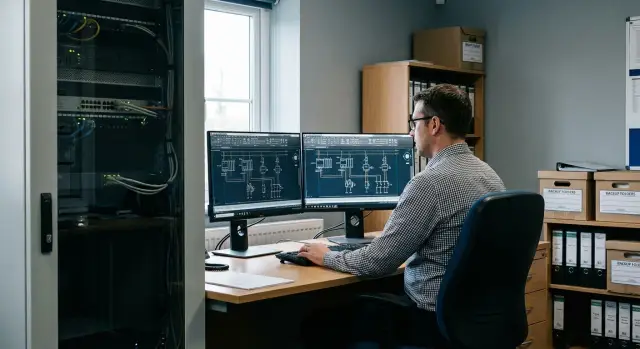
Why databases and labels drift in team work
When several engineers work on the same project, discrepancies start not with big decisions but with small details. One person adds a new part number, another edits a description, a third regenerates PLC addresses with their own rules. As a result, the same project ends up with different codes, device tags and I/O addresses, even though the drawings look the same.
Most often the cause is that the AutoCAD Electrical component database and project settings differ between team members. One takes a part from a local catalog, another from a shared folder, a third manually edits block attributes. The symbol on the drawing can be the same visually, but its "inside" differs: manufacturer, series, part number, description, terminals, contact type. That yields different bills of materials and, consequently, different wiring and terminal lists.
PLC is a separate pain. Even if the same module is chosen, differences arise from addressing, tag formats, I/O templates, or simply because one person updated the PLC database while others did not. Then the same channel can get a different address or point name, and this is noticed only during cabinet assembly.
The consequences are practical and expensive: wrong purchases (ordering the wrong device or series), installation mismatches (addresses not matching markings), rework of documentation and time lost on reconciliations.
Early signs that the database has "drifted": duplicates of the same device with different descriptions or part numbers; identical tags meaning different things on different sheets; the BOM suddenly listing different manufacturers for the same symbol; PLC point addresses diverging or format changing (for example, I:0/1 vs %I0.1); someone making "temporary" manual attribute edits that then live on independently.
Discrepancies grow unnoticed. Each case seems small alone, but together they break the common language the team should share.
What is stored in AutoCAD Electrical: catalogs, PLC, symbols
To keep the team in sync, it’s important to know which data in AutoCAD Electrical lives with the drawing and which is stored separately and can drift. The argument usually starts when one engineer has the "correct" part number in a BOM and another has the same item with a different description or manufacturer. Almost always these are different data sources.
Component catalogs are the foundation of the component database: part numbers, manufacturers, descriptions, parameters, and sometimes notes. These fields end up in reports and BOMs. If a catalog is updated only on one PC, differences appear later when reports are generated.
PLC and I/O data include module composition, channel counts, input/output types, addressing, point descriptions and cross-references. A mistake in one field (for example, an address offset or a different point name) quickly becomes a chain of mismatches across sheets and tables.
Symbol libraries are not just icons. Symbols contain attributes (TAG, DESC, MFG, CAT and others), and those attributes become the single source of truth in reports. If the library contains two similar versions of a symbol with different attribute sets, different people’s reports will differ even if the schematic looks identical.
Project templates and naming rules are separate: tag formats, wire numbering rules, device prefixes, cross-reference settings. These determine how AutoCAD Electrical generates labels. With different templates the same project starts producing different tags.
Typically all this is stored as a set of catalog files (formats depend on version and settings), project files and parameters, folders with DWG symbols and attributes, templates for new drawings, plus auxiliary tables and config files that affect reports.
If you separate in advance what is a shared team resource and what belongs only to a specific project, it’s easier to choose storage and set up backups without surprises.
Where to store databases: PC, shared folder, server, PDM/Vault
The main reason labels and catalogs diverge is almost always that people have different copies of the same files. For AutoCAD Electrical component and PLC databases this is critical because changes spread quickly across projects and are hard to reconcile later.
Storage options and their risks
Local on a PC can work if you are working alone or the project is short and not handed off. The risk is obvious: everyone gets their own "truth." Reinstallation or a broken machine can lose added items, codes, descriptions and settings.
A shared network folder is often the first step. It’s quick and cheap, but requires discipline: stable network, clear access rights and a ban on "taking a copy locally." Otherwise people start editing the database in parallel and the outcome becomes unpredictable.
A dedicated file server is more convenient because it’s easier to control who changes what and to schedule backups. If you have multiple departments and projects, a server yields fewer surprises than a folder on someone’s workstation.
PDM systems such as Autodesk Vault are useful when you need not just a storage location but order: versions, approvals, who changed what and when. This reduces accidental file replacements and helps roll back to prior states if an update broke the catalog.
Practical selection rules:
- 1–2 people and a short project: local storage is acceptable but require regular backups.
- Small team: a shared folder with strict permissions.
- Many projects and departments: a dedicated server and centralized backups.
- Need versions and change control: PDM/Vault.
The "single source of truth" rule
Wherever you store files, designate a single master copy that is edited only according to the rules. A working approach: engineers use the shared database in read-only mode, and one appointed person makes catalog and PLC changes, for example weekly after verification.
A simple scenario: on Monday one engineer adds a new contactor, on Tuesday another adds a similar one with a different code and description. If both edited locally, the project will have two versions of the same item. With a single source of truth the second engineer submits a request to add the item; the owner checks whether it already exists and adds it once — the same for everyone.
Access rights and responsibility for changes
The real cause of discrepancies in teams is usually not "wrong settings" but unclear roles. For the AutoCAD Electrical component and PLC databases it’s important to decide in advance who can change data and who only uses it.
Roles and access rules
A practical minimum:
- Library administrator: makes changes to catalogs, PLC data and templates, enforces unified labels.
- Editor by request: can edit only after approval, e.g. the lead engineer.
- Users: use the library but do not have write rights to the database folders.
- Release manager: records versions and informs the team about updates.
Folder and file permissions should be set so accidental edits are impossible. On a network share: read access for all engineers, write access for 1–2 responsible people. If the database sits on a server, restrict deletion and overwrite and keep requests and examples separately.
Change process and log
Handle changes in a short cycle: request -> test in a sandbox project -> apply -> record version.
Keep a change log in a simple file next to the database: date, who changed what, why, and the version. Agree on a "change window" — for example, once a week in the quieter part of the day so active projects are not affected by mid-day database updates.
Step-by-step setup of a shared database for the team
A shared database delivers consistent results for everyone: the same catalog data, PLC codes and reports. If you’re doing this for the first time, keep the goal simple: every designer must point to the same files, and only the appointed owner may change them.
1) Prepare storage and structure
Choose a single repository (server or a reliable shared folder). Organize folders clearly from the start: catalogs, PLC database, symbol libraries, project templates, shared settings. The structure must not change without agreement, otherwise paths break.
Next steps:
- Create folders and move current working databases and libraries there.
- Appoint a database owner: the person who accepts edits, maintains the change log and issues versions.
- Configure identical paths on workstations in AutoCAD Electrical settings to the shared catalogs, PLC and libraries.
- Test with a sandbox project: insert components and PLC modules, generate BOMs and terminal/wire reports.
- Record the initial version and give the team a short memo: where things are and how to request changes.
2) Test with a real scenario
A useful check: one engineer inserts a standard contactor from the database in one copy of the project, another inserts a PLC module and updates reports in a parallel copy. If part numbers, labels and descriptions match in both cases, the shared database is configured correctly.
If someone still sees different names, the usual cause is a local path pointing to an old folder or a remaining local copy. This is found quickly if the memo explicitly says: don’t copy the database locally; only the owner changes it.
How to organize backup and recovery
If the database or libraries exist only on one computer, you risk losing not only files but the team’s trust in shared labels. After a failure people often create clones of catalogs, and labels in projects start to diverge.
First, define what you are protecting. Usually back up these working folders:
- catalog databases (manufacturer, catalog, footprint and similar tables)
- PLC database and related module description files
- symbol libraries and custom blocks
- project templates, drawing sheets and report templates
- project settings and standard files (numbers, tags, naming rules)
Choose a backup cadence that matches the pace of changes. If catalogs and PLC are edited daily, run daily incremental backups and regular full backups (for example weekly). If changes are rare, you can do it less often, but the rule is: backup more frequently than you’re willing to restore manually.
Keep at least two copies in different locations. One in the general infrastructure, another in separate storage that ordinary users cannot access. Protect backup permissions too: if anyone can clean the folder, the backup is not safe.
Once a month perform a short recovery test: restore a copy to a test folder, open a test project and generate 1–2 reports, add one catalog item and one PLC module, verify tags and labels match project rules, and record the result (date, who tested).
To avoid debates over "whose database is correct," implement versioning and release tags. For example, every two weeks the owner snapshots the database, assigns a version number, and the team uses only that release. Changes accumulate in a draft until the next release.
Unified labeling and naming rules
Discrepancies often start not with settings but with language: who writes tags differently, which abbreviations are used, how I/O are named. If not fixed, even a perfectly configured database quickly produces inconsistent reports.
One dictionary for tags, wires and cables
Agree on rules that apply everywhere: on drawings, lists, BOMs and reports. A short 1–2 page guideline works well.
- Device tags: a single format (for example functional prefix + number), no ad hoc symbols or separators.
- Terminals: one numbering style and a rule for jumpers.
- Wires: a fixed naming principle so identical circuits don’t receive different names.
- Cables: a unified structure (cabinet-purpose-number) and rules for cores and shields.
- No duplicates: if a name is taken, create a new one by the rule, not manually as "(2)".
Create a glossary of abbreviations and stick to it in descriptions and attributes. Otherwise reports fragment into near-duplicates like "Button", "Btn", "BTN."
Manufacturers, equivalents and PLC without duplicates
For manufacturer part numbers set a policy: one primary part number, a list of allowed equivalents and a documented replacement reason (who approved and why). This avoids one person writing "Siemens", another "SIE", and a third creating an equivalent as a new item.
For PLC define a standard naming for modules and I/O points. For example: module = rack/slot/type (R1-S03-DI16), points = channel with leading zeros (CH01, CH02) and a single signal suffix. Also forbid repeating addresses and local names that don’t appear in the shared register.
Small example: if one engineer names an input "DI1_Door" and another "DI01_Door", the system treats them as different signals. One shared naming template prevents this before report checks.
Team workflow: additions, versions, training
To prevent the component database from becoming a set of copies on each workstation, agree that any change is released as a small version. A release has a version number, date, owner and a short change description.
A useful rule: one person or a small group of owners (2–3 people) changes the database; others submit requests. This avoids two engineers editing the same record at the same time and later arguing whose version is correct.
For each release record: version and date, owner, what was added/changed (short list), which projects are affected (if any), and how to roll back (which copy to restore).
New components should be approved with a minimal set of fields to avoid empty cards and inconsistent labels. Typical minimum for a request: manufacturer and part number; type and function (contactor, terminal, sensor); schematic designation and terminal assignments; electrical parameters needed for the project; comment why it was added and for which project.
If the company runs projects with different standards (for example one under GOST, another per client requirements), do not mix rules in a single shared database. Keep a common core dictionary (typical components, vetted labels) and store project-specific deviations separately as local additions.
Train new employees not only by talking but with short practical exercises: where the database lives, how to request a new component, how to check that an element already exists, and how not to bring their old labels from previous jobs. Give one reference project and ask them to add 2–3 components following the rules before they work on live drawings.
Example scenario: shared project and parallel edits
Imagine a department where three people work on the same set of drawings: engineer A adjusts power circuits, engineer B adds terminals and markings, engineer C assembles PLC and creates the I/O list. The project is on a tight schedule and everyone thinks they "just added a few items." After a week it turns out one contactor has two different labels and the BOM shows catalog duplicates.
The solution is usually simple: one person is responsible for the database (catalog + PLC); others don’t edit it directly. They submit requests detailing the component, required fields and accepted labels. That way changes are controlled, not made ad hoc.
What this looks like in practice
Once a day (or before important file exchanges) the team does a brief sync:
- Engineers work in drawings using only approved catalog items.
- PLC is assembled following common templates; new modules are added through the database owner.
- The owner applies changes, records the version (date, initials, what changed) and informs the team.
- Before release run reports: BOM, wire list, terminals, I/O, and search for duplicates.
Reports are useful not for their own sake but as a quick reality check. If a BOM shows two identical devices with different manufacturers or part numbers, this is almost always due to different local entries.
If a conflict occurs
Typical conflict: an engineer has already assigned labels, and later the database rules change or a similar item is added. Steps are simple: roll back to the previous database version, compare fields (type, manufacturer, part number, description), apply a unified record and re-run report checks. Finally, freeze the database version used for the documentation release so the result can be reproduced later without surprises.
Common mistakes that lead to drift
The most common reason is simple: people work carefully but each with their own data copy. The same item ends up with different codes, descriptions and catalog links.
The first trap is keeping the database on every PC and then "merging" changes manually. People remember this only before project submission: someone sends a folder, someone copies files, and some edits get lost. The component database turns into several similar but non-identical variants.
The second mistake is giving everyone edit rights but not assigning responsibility. Without a change log (who changed what and why) quiet edits begin: descriptions changed, manufacturer codes updated, new part numbers added. A week later it’s hard to know which version is correct.
The third problem is mixing AutoCAD Electrical versions and database formats without checking compatibility. Even if the project opens, some fields may be read differently. This is especially noticeable in PLC data and BOMs.
Another risk is changing tag and naming rules mid-project. If recalculation isn’t done and changes aren’t agreed, drawings will show a mix of old and new rules.
Finally, creating duplicate components with different descriptions is dangerous. One engineer adds "KM1, 24VDC" and another enters almost the same item as "Contactor 24V." Later the BOM shows separate positions and different quantities.
A short self-check that your database is drifting: duplicates appear in BOMs; identical tags lead to different descriptions or part numbers; the project suddenly requires massive corrections before release; new symbols or PLC modules are not visible to everyone; recently added items disappear after folder copying.
If you manage a large facility (for example, a government project), these small issues quickly become delays in approvals and procurement errors.
A short checklist and next steps
If labels drift within the team and catalogs behave differently on different PCs, the cause is almost always the lack of a single data source and clear rules about who and how edits are made.
Pre-launch checklist for team work
Check basic items:
- All workstations point to the same source (catalogs, PLC database and project templates). No local copies "just in case."
- Edit rights are restricted: assigned owners for databases and templates; others work as users.
- Backup is enabled and tested: you know where backups are, how often they run, who is responsible, and how recovery is performed.
- Naming rules are written in simple terms and embedded in templates so new projects start with correct settings.
- Every change is logged: who changed what, why and from which date it takes effect.
Next steps
Decide where the single AutoCAD Electrical component database and related infrastructure will live. For a small team a reliable shared folder on a server is often enough. If there are many people, large projects and a need for change history, a centralized repository with versioning and access control is better.
A few immediate actions for the coming week:
-
Appoint a database owner and a template owner.
-
Do a quick cleanup: choose a reference database, remove duplicates and agree on disputed labels.
-
Run a test: one project, two engineers, parallel edits, then compare reports and markings.
If you need to strengthen the foundation (server, workstations, reliable storage and support), it’s often convenient to work with a system integrator. For example, GSE.kz (gse.kz) helps with infrastructure, workstation selection and software supply as part of comprehensive IT deliveries — useful when CAD processes depend on stability and unified team standards.
Frequently asked questions
Why do different engineers in the same project see different part numbers and descriptions?
Most often you are working from different data sources: one person has an up-to-date catalog and PLC database, another has an old copy or local edits. Visually the symbols may be identical, but the attributes inside the blocks and the catalog entries differ, so specifications, terminal lists and I/O diverge.
Which AutoCAD Electrical data must be kept common for the whole team?
You need to synchronize three things: component catalogs, PLC/I-O data, and symbol libraries with attributes — plus project templates with tag and numbering rules. If any of these is local or a different version for someone, reports and labels will start to drift.
Where is it better to store the component and PLC database: on a PC, in a shared folder or on a server?
The safest default is a centralized storage on a server with regular backups and restricted write access. A shared network folder can work if the network is stable and access discipline is enforced. Local storage is acceptable only for single-person or short-term work with strict backups.
How do I check that everyone has the same paths to catalogs and PLC data?
Set a single path to the shared folders in AutoCAD Electrical on every workstation. Then test: insert one component and one PLC module in a test project and compare reports. If part numbers, descriptions and addresses match, the paths are configured correctly.
Why does the same PLC module show different I/O addresses for different users?
It is almost always due to addressing rules and templates rather than the module itself: different tag formats, address offsets, different I/O templates or an updated PLC database on only one machine. The fix is a single PLC database and fixed naming rules for points and addresses that cannot be changed ad hoc.
Who should be allowed to edit catalogs and PLC data in a team?
Assign a database owner who is the only person to make changes to catalogs, PLC data and templates; others submit requests. This prevents parallel edits to the same record and avoids the situation where the same device is entered twice with different fields.
How to add new components correctly so duplicates aren’t created?
Agree a short cycle: request to add, test in a sandbox project, add to the database, release a version and notify the team. If edits are made without versioning and without a change window, you can easily end up with different reports for different engineers during document release.
What exactly should be backed up so the database and libraries survive a failure?
Back up the working folders that contain catalogs, PLC data, symbol libraries and project templates — not only the DWG files. Make backups more often than you are willing to restore manually, and periodically test recovery by restoring to a test folder and verifying reports and labels.
Why is versioning the database needed and how to organize it simply?
Record database releases: version number, date and a short list of changes, and publish them at agreed times. To freeze a project for release, use a specific database version so you can reproduce specifications later without surprises.
How to quickly detect that the database has drifted, and what to do first?
Watch for early signs: duplicate devices with different part numbers, identical tags pointing to different descriptions, different manufacturers for the same symbol, or I/O address mismatches. The quickest detection method is regular report runs and cleaning duplicates in a single data source rather than editing attributes on the sheets.
