7 min read
Arnold Renderer: CPU or GPU — how to choose nodes and avoid queue jams
Arnold Renderer CPU or GPU: how to quickly assess a scene, choose node types and configure the render queue so production keeps moving.
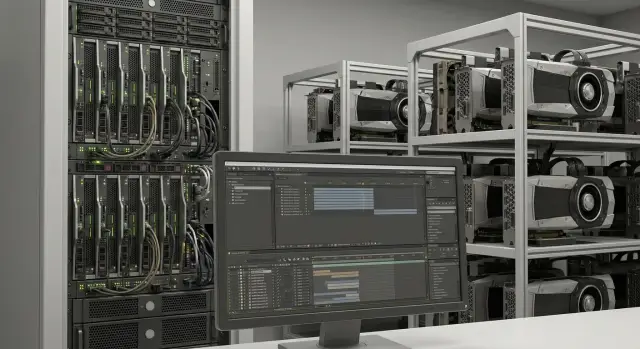
Why choosing CPU or GPU in Arnold affects deadlines
Deadlines slip not only because a scene is "heavy." Often the problem is simpler: the scene was sent to the wrong nodes. Arnold can render on CPU and GPU, but these modes behave differently with materials, lighting, volumes, textures and memory. The wrong choice leads to slow frames, crashes or feature limitations, and ultimately the team waits.
The choice between CPU and GPU usually comes down to three things: speed on your typical scenes, predictability of results, and resource availability. Even if GPU is faster in tests, production can easily hit VRAM limits. Then a frame may take longer or fail to start. Conversely, if a scene runs reliably on CPU but gets sent to random GPU nodes, the queue fills with jobs that run for hours and block others.
When people say “the queue is stuck,” you usually see the same symptoms:
- frames stuck in render/starting for too long
- some nodes idle while others are overloaded
- many retries due to memory errors or incompatible settings
- frame time varying significantly from machine to machine
- priority shots stuck behind a tail of tasks
This hits not only deadlines but also the budget: you pay in staff time, repeated runs and forced quality compromises. The worst part is instability. Today a scene renders fine, tomorrow it crashes after a small change because memory usage shifted.
How CPU and GPU render in Arnold: simply
The same frame in Arnold can be rendered on CPU or GPU, and the difference isn’t just “faster or slower.”
CPU rendering uses general-purpose processor cores. It handles complex shaders, large scenes and heavy effects well, but its speed often depends on core count and clock speed.
GPU rendering uses the graphics card, where thousands of small compute units execute similar operations quickly. Frames with simple materials and high sample counts often gain significant speedups. But GPUs are more sensitive to memory limits and feature compatibility.
The key difference is where data lives. CPU relies on system RAM, which you can add plenty of. GPU is limited by VRAM: if the scene doesn’t fit, the night render can fail with errors, driver crashes or fall back to a slower mode (if your pipeline supports that). Hence the typical case: a “light” frame renders during the day but fails on other nodes at night.
The same frame can behave differently across machines due to small details: versions of Arnold/DCC/plugins, GPU drivers and settings, amount of RAM/VRAM and texture caches, denoiser and color management, timeout limits and queue rules.
Repeatability matters more than record speeds. If you plan to render some shots on CPU and some on GPU, verify image match and noise levels with identical settings beforehand. Keep versions and drivers consistent across nodes; otherwise you’ll get fluctuating quality and unpredictable render times.
Quick scene assessment before production render
Before arguing about which is faster, test the scene on one control frame. This quickly shows the bottleneck: time, memory or expensive effects.
Choose the heaviest—not the prettiest—frame. Typically it’s the moment with the most geometry, dense lighting, effects and close-ups. For animation use the frame where the character is closest to the camera, with most hair or particles and any volumes present.
Run the test in the same conditions as the queue: same AOV list, same denoiser, same settings. Record clear metrics: frame time (use the median of three runs), peak RAM/VRAM, resolution and output format, key sample settings and limits (AA, diffuse, specular, etc.), and enabled heavy options (volumes, displacement, hair, motion blur).
Next, clarify what makes the frame heavy. Often it’s not polygons but shading and secondary rays. In practice problems come from combinations: lots of SSS and transparency, layered materials, textures without mips; dozens of lights and large area lights; dense volumes with small step size and active scattering; groom/particles with excessive counts and tiny parameters; displacement with high subdivision, especially on distant objects.
Estimate growth in time instead of guessing. Doubling resolution yields roughly 3–4× more pixels and a noticeable time increase, but it’s not always linear due to noise and denoising. Raising AA and secondary samples often gives the largest cost increase, so change one parameter at a time and measure.
And most importantly: lock settings in a preset or a render profile. When a project grows, “remembering” settings stops working. One person changes samples, another turns on a different denoiser, and tests no longer compare to production.
Which scenes are usually better on CPU and which on GPU
The choice in Arnold depends on what’s in the frame and the compositor’s needs. In one project the preferred mode may change shot by shot.
When CPU is usually better
CPU typically wins where you’re constrained by memory and complex effects. This is common for scenes with many unique textures and UDIMs, large caches, heavy environment assets and large geometry volumes. CPU is also preferable for many volumes (smoke, fog), complex lighting with long light paths, custom shaders or pipeline nodes that behave differently on GPU.
Another common argument for CPU is predictability. When repeatability frame to frame and stable AOVs matter, surprises cost more than any speed gain.
When GPU usually gives better timing
GPU often gives a noticeable advantage for frames that parallelize well and comfortably fit in VRAM. That includes small and medium scenes without constant streaming, lookdev/lighting/preview work, many iterations and fast feedback. GPU also works well when materials and effects are standard and the AOV set is reasonable rather than dozens of auxiliary passes.
To avoid arguing by feel, agree on a short test: 1–3 representative frames, identical AOVs, identical sampling and denoising. Record not only time but also image match, artifacts and memory usage.
A mixed approach is often the most practical: interactive work and previews on GPU, finals on CPU. Sometimes it’s reversed: the final is light and flies on GPU, while preview stalls on VRAM due to untrimmed textures and caches.
Choosing nodes: workstations, render nodes and servers
In production the node type affects not only frame speed but predictability. Decide in advance what an artist renders locally for quick feedback and what goes to the shared pool for long runs.
A workstation is great for interactive lighting, lookdev and short tests. Responsiveness matters: high CPU clock, fast disk for caches and enough RAM to avoid swapping. Long sequences are better sent to the render pool so one person doesn’t block the pipeline.
Render nodes should be as uniform as possible. A “zoo” of different CPUs/GPUs and memory sizes nearly guarantees surprises: the same frame will render at different speeds, fail on some machines because of VRAM, and differ due to driver versions.
Rack servers or desktop PCs
Individual PCs are easier to buy one at a time, but harder to maintain: more cables, PSUs, manual diagnostics, and harder control of noise and heat. Rack servers are usually more convenient for growth: centralized power and cooling, clear resource accounting and easier scaling. If you build a pool for a studio or department, rack servers tend to be more practical, while workstations remain better for creative tasks.
What matters depends on your scenes. CPU clock helps where there are single-threaded sections, prep and fast tests. Core count matters for steady throughput of many frames on CPU. On GPUs the primary limiter is often VRAM: textures, heavy displacement, instancing and many AOVs quickly exhaust memory. RAM benefits everyone, and having extra almost always pays off because scenes grow toward final stages.
Real example: a shot starts with 6K textures and one character and fits in 12 GB VRAM. By the final stage a second character, more hair/particles and extra AOVs are added; the same shot begins to crash on 12 GB but runs fine on 24 GB. If you don’t plan memory headroom early, the queue fills with restarts and manual task rebuilds.
If nodes are purchased for long-term use, standardization helps. In Kazakhstan such pools are often built on repeatable local configurations from GSE.kz, which produces workstations and rack servers and offers integration and support. This reduces the risk of a heterogeneous park where the same scene behaves inconsistently.
Step-by-step: how to choose CPU or GPU for a specific project
Decide by a short repeatable process rather than by hearsay. That way producers can see scheduling risks and the team argues less.
5 steps that work in production
-
Define the render goal. For previews you need fast response; for finals you need stability and predictable quality; for night runs you want maximum hardware utilization without manual control.
-
Pick 2–3 representative frames: the heaviest, a typical one and a problematic one (e.g., lots of hair or volumes). Run them on CPU and GPU with identical quality settings.
-
Fix constraints in advance. Often the decision hinges on memory and compatibility: is there enough VRAM for textures and caches, does the scene crash, do shaders and AOVs behave the same. If GPU is faster but one shot consistently crashes, that’s almost always more expensive in time.
-
Choose a node profile and simple routing rules. For example: previews on GPU nodes, finals on CPU, and memory-risk shots only on nodes with larger RAM/VRAM buffers.
-
Put this into a short one-page guideline: required tests, where different shot types are sent, and who approves exceptions.
If a project has 20 shots and 3 contain heavy volumes, most can render on GPU for speed while those three are locked to CPU to avoid queue disruption from crashes and retries.
How not to create a queue jam: task management practices
A queue gets blocked not only because hardware is insufficient. A frequent cause is sending tasks as one large monolith. A steadier flow comes when renders are split into small, understandable chunks that are easy to restart.
Split tasks sensibly: by shot or frame ranges, by layers and passes (beauty separate from utility AOVs), by versions (so edits don’t mix), by resolutions (preview separate from final), and by scene type (light vs heavy). This evens out the queue and helps find problematic assets or materials quickly.
Put quick tests first. A few early frames of problem shots quickly reveal noise, flicker, memory, textures and overexposure. Heavy ranges are better sent last or to a separate queue so they don’t block validation.
Limit resources in advance when nodes are shared: fix threads/processes per task, set memory limits and monitor peaks for texture-heavy scenes, use priorities (urgent checks higher, night runs lower), and don’t mix CPU and GPU tasks in one job if nodes differ by profile.
Plan recalculation after edits. If only one layer or composite pass changed, don’t re-render the whole shot. If caches, subdivs or heavy materials changed, clearly mark which frames and passes need re-rendering and submit only those.
Common mistakes that stall renders
Queues often stall not because of “not enough power” but because scenes and environments behave unpredictably. Some frames crash, others take much longer, and the farm idles while everyone waits for resolution.
The most painful cause is memory. On GPU this is usually VRAM: 8K textures, multiple UDIMs, large caches and bloated shading. On CPU a similar issue happens with RAM: a frame may start fine and then fail on a final bucket when additional data loads. If you have memory spikes, don’t expect the farm to absorb them automatically.
The second cause is stacking several expensive effects without limits in a single frame: volumes with tiny steps, dense groom with many primitives, fine-detail displacement. Each effect alone may be tolerable, but together they cause explosive time and memory consumption.
Checks that most often save the queue:
- test the worst frame, not the pretty average
- set limits (volume step, hair density, subdiv levels, displacement quality)
- keep a unified environment on nodes (DCC/Arnold versions, plugins, GPU drivers, color settings)
- use clear quality presets and avoid "each shot has its own rules"
- log crashes and long frames to quickly find the problematic asset or material
Typical scenario: out of 20 shots everything is fine except 3 that “hang” the farm. Later it turns out those 3 use heavier groom, textures were swapped to 16-bit 8K, and one node runs a different driver version, causing image differences and re-renders.
If you build the node pool yourself or via an integrator, agree on a unified system image and preset rules from the start. It’s boring at kickoff, but it removes chaos and downtime in production.
Short pre-submit checklist before queuing a scene
Spend 20–30 minutes before a big launch. It’s almost always cheaper than canceling hundreds of frames over a small issue.
Start with a control frame that includes lights, heavy materials, volumes, hair and particles. Measure render time on 1–2 node types (e.g., a CPU node and a GPU node). If the frame is “average,” the estimate will lie and the queue will drift.
Then check memory. Look at RAM and VRAM peaks for that frame and leave headroom for scene growth: toward the end you’ll almost always add AOVs, geometry, caches and heavier denoise settings. If VRAM is tight, GPU rendering easily becomes a stream of crashes. If CPU RAM is tight, swapping will slow everything down.
Lock quality: save Arnold settings to a clear preset and name it so everyone recognizes its role, e.g. "lookdev_preview", "comp_test", "final_v03". This prevents one shot from being submitted with different sampling and suddenly becoming 2–3× more expensive.
Agree AOVs before the final run: which passes are needed, in which format and with which names. Adding AOVs after half the frames have been rendered forces either a full re-render or an incompatible comp.
Finish checks with a short run: 5–10 consecutive frames, not just one. Watch for stability, memory leaks, frame time drift, random artifacts, textures and paths. If frame 1 is fine and frame 6 fails, the queue sees that as a long block.
- There is a control frame and timing on 1–2 node types
- RAM/VRAM peaks checked and headroom planned
- Quality saved in a preset with a clear name
- AOVs and comp requirements agreed in advance
- A 5–10 frame run completed to check stability
Example: how to distribute renders for a 20-shot project
Project: 20 shots, two locations (interior with many light sources and exterior with atmosphere), deadline in 5 days. The goal is not to squeeze maximum quality but to reliably meet the deadline without queue jams and endless re-renders.
First, pick four test frames: one simple and one problematic from each location. Fix identical settings for tests (samples, denoiser, resolution, motion blur, AOVs). Then run CPU and GPU passes and compare not only images but memory behavior. GPU may be faster, but if the scene hits VRAM limits you’ll end up with crashes or compromises.
After tests the distribution looks like this: everyone gets quick previews (lower resolution and softer time limits per frame) to catch lighting, shading and comp issues quickly. Heavy interior shots with reflections and complex shadows go to CPU nodes where RAM is safer and memory limits are less likely. Exteriors with atmosphere and simple materials render on GPU nodes with VRAM monitoring. After edits, re-render only the ranges that actually changed. Night batches are reserved for final frames; daytime slots remain for tests and quick fixes.
To reduce risk, introduce simple rules: memory and time limits per frame (so a single frame can’t consume a whole night), fixed quality presets (preview, final, "super-heavy"), and a ban on manual one-off settings without approval.
The producer monitors three numbers: average frame time and its spread (stability > top speed), re-render cost (how many hours if an edit touches 30% of frames), and risks (VRAM/RAM limits, crashes, dependence on a specific node type).
Next steps: how to scale rendering without chaos
When a project grows, the problem is rarely "not enough hardware" and more often "no clear rules": which scenes go where, how much reserve to keep and how quickly to fix failures. First formalize typical loads, then expand the node pool.
Create 2–3 project profiles and choose base configurations for each. For example: "light" (simple materials, few effects), "medium" (typical production) and "heavy" (lots of shading, volumes, complex lighting). For each profile decide in advance which mode usually wins on time and stability: CPU or GPU. With that, task routing becomes faster and guessing is reduced.
Plan for growth in parallel. The most frequent bottlenecks during scale-up are memory and re-render wait times after edits. Budget extra RAM and VRAM, keep a small reserve of nodes for urgent fixes and slot time for re-rendering key frames.
To keep support from becoming a lottery, make the park as uniform as possible: unified drivers, DCC and Arnold versions, clear configuration inventory and a simple node-replacement scheme. This reduces downtime more than a targeted upgrade of one "super machine."
Practical one-month plan:
- describe 3 scene profiles and routing rules
- fix a minimum node standard (CPU, GPU, RAM, storage) and stick to it
- keep spare capacity for fixes and emergencies
- log what was rendered, how long it took, where crashes occurred and why
- decide what to expand first: workstations for builds and tests or rack render nodes for the queue
If you want to move away from a hardware "zoo," rely on repeatable rack nodes and same-class workstations. In this sense GSE.kz can help as a local manufacturer (including S200 Series rack servers) and system integrator when consistent configurations, deployment and 24/7 support are critical.
Frequently asked questions
How to quickly decide whether to render a shot in Arnold on CPU or GPU?
Start with 2–3 test frames: the heaviest, a typical one, and a “problem” frame (hair, volumes, lots of glass). Run them on CPU and GPU with identical samples, AOVs, denoiser and resolution. Choose the mode that reliably starts, gives predictable timing and doesn’t hit memory limits, even if it’s slightly slower in one test.
Why does GPU rendering in Arnold often hit memory limits and delay deadlines?
GPUs are limited by VRAM: if the scene doesn’t fit, the frame may fail to start, crash or suddenly slow down. In production this becomes retries and stuck tasks that block the queue. CPUs rely on system RAM, which is easier to provision with headroom, so very large scenes often run more reliably on CPU.
How to pick a control frame for tests before queuing?
Choose a frame that is not the "pretty average" but the one with the most geometry, lights, volumes, hair and close-ups. For animation, use the frame where the character is closest to the camera or where particles are most dense. The goal is to catch peak load; otherwise the test will be overly optimistic and the queue will slip.
Which metrics matter most when comparing CPU and GPU in Arnold?
Compare median frame time from several runs, peak RAM/VRAM, and stability (crashes, retries, hangs at starting). Always fix the same AOVs, denoiser and resolution as in the final render—otherwise the numbers won’t match the real run. If frame times vary a lot between nodes, that’s a scheduling risk.
How to achieve identical image and stable timings across different nodes?
Keep identical versions of DCC, Arnold, plugins and GPU drivers on all nodes. Save render settings as presets and don’t let each shot use its own sampling or denoiser. Before a large batch, run a short sequence of 5–10 frames to catch flicker, memory leaks and random artifacts.
Which scenes are generally safer and more economical to render on CPU?
CPU usually wins when you’re constrained by memory or complex effects: many unique textures and UDIMs, large caches, heavy environment assets and dense geometry. CPU also handles lots of volumes, long light paths and custom shaders more predictably. In these shots, stability and consistency of AOVs matter more than peak speed.
When does GPU in Arnold actually provide a real time advantage?
GPU often wins on small to mid-sized scenes that fit comfortably in VRAM and use standard materials and effects. It’s great for lookdev, lighting and quick iterations where fast feedback matters. But once you’re tight on VRAM, the advantage can quickly turn into constant failures and re-renders.
Is it OK to mix CPU and GPU in one project, and how to organize that?
Yes — mixing is common and practical: previews and interactive work on GPU, finals on CPU, or the opposite if finals are light and reliably fit in VRAM. The key is to define routing rules in advance: which shots go where and what conditions move a shot into the “safe” pool. This prevents the queue from filling with tasks that aren’t suitable for the assigned node type.
How to avoid a render-queue “traffic jam” when launching a large batch?
Break the render into smaller logical pieces: by shot or frame ranges, by layers and passes (beauty separate from utility AOVs), by versions and resolutions. Put quick checks early and heavy ranges later or in a separate queue, so one heavy block doesn’t consume a whole night. Limit resources per task and use priorities to keep critical checks fast.
Which hardware matters most for Arnold: more cores, higher clock speed or VRAM, and how to avoid a heterogeneous node “zoo”?
For a CPU pool you typically want more cores and a healthy RAM buffer so scenes don’t swap or crash at peaks. For GPU pools, VRAM is the critical factor—24 GB often saves shots that fail on 12 GB. To avoid a hardware “zoo”, standardize node images, drivers and configurations; uniform, repeatable nodes reduce downtime far more than buying a single very fast machine. In Kazakhstan, teams often use repeatable workstations and rack servers from GSE.kz for easier maintenance and predictability.
