7 min read
AI search for scanned archives and PDFs: how to build a pipeline
AI search across scanned and PDF archives: we’ll walk through an OCR-to-extraction-to-indexing pipeline and snippet highlighting so you spend less time searching manually.
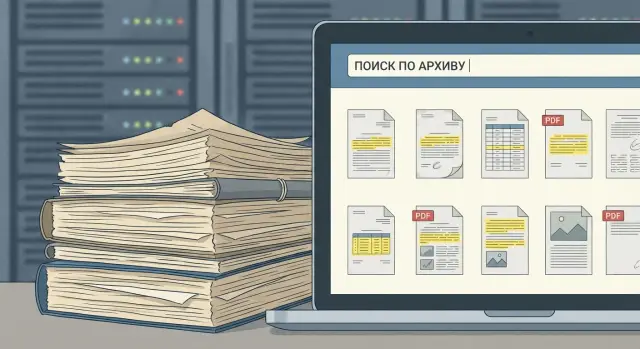
Why do you need AI search for an archive at all
Regular folder and filename search breaks down when an archive grows over years. The same contract can be named “contract_final.pdf”, “scan_1234.pdf” or “IMG_0007.jpg”. The needed amount or date is hidden inside a page, not in the file name. As a result, you’re not searching for a document but guessing how someone named it.
AI search over scanned and PDF archives is needed when the meaning matters more than the file: what kind of document it is, which fields it contains and where exactly they appear. Most often this is contracts and amendments, invoices and acceptance acts, incoming letters, applications, HR documents, medical forms. The value in every case is the same: quickly find the needed fact in text, even if the document exists only as a scan.
Most time is usually spent not on “finding a folder” but on manual verification. You open 5–10 similar PDFs, flip through pages, check IIN/BIN, numbers, dates, amounts, and copy data into a spreadsheet or an email. It’s easy to miss an important line, especially if the scan is skewed or the document is multi-page.
Measure success with practical metrics: time-to-answer, hit accuracy, number of “we didn’t find it although it exists” cases, and how often people stop opening PDFs and retyping fields manually.
Example: an accountant needs to confirm within minutes which contract an invoice belongs to and whether the amount matches the acceptance act. Without smart search this means opening several files and checking visually. With semantic search a query by number or counterparty is enough: the system will show relevant documents and highlight lines with the amount and date.
What documents do you have and what do you need to extract
Before processing, it’s useful to understand what’s in the folders and what you want to find in seconds. A “contract” can be a digital PDF with perfect text or a scan with skewed pages, fold shadows and parts of characters covered by stamps. This affects OCR quality, extraction accuracy and how much manual checking remains.
Take a small sample (for example, 100 files) and sort by type: contracts, invoices, acceptance acts, letters, applications, IDs, minutes. Mark separately where text is an image (scan) and where it’s already live text (digital PDF). Hybrids are common: the main document is text while attachments are scans.
Languages matter too. In Kazakhstan it’s typical to find Russian and Kazakh in the same file, and sometimes both alphabets appear in fields and stamps. This affects recognition of names, addresses and organization names.
Decide which fields should appear in results. A common starter set is: IIN/BIN, document or contract number, date, amount and currency, counterparty (and name and address only if really needed).
Plan confidentiality from the start. Not every employee needs full access to all documents. It’s often better to split roles: who can search and open originals, who only needs metadata, and where showing a snippet without access to the whole file is sufficient.
Also document “hard” elements: stamps and signatures that cover text, tables that break lines, handwritten notes that OCR reads unreliably. If such areas are critical (for example, amounts in tables), treat them as requirements, not a nice-to-have.
Preparing the archive before processing
Search quality usually depends less on “smarter” models and more on how neatly files are prepared before OCR. If the input is crooked scans, disordered pages and chaotic filenames, recognition, extraction and results will be error-prone.
Start with scanning. For most contracts, invoices and letters 300 dpi is enough. If the font is small or there are many stamps and signatures, use 400–600 dpi. Color is needed when stamps, seals or markers matter. Otherwise black-and-white or grayscale produces less noise and smaller files. Watch contrast: overly dark scans lose thin lines.
Next is basic image cleanup. Rotation, skew, large margins and scanner dust worsen accuracy. Simple rule: if a person struggles to read a page, OCR will too.
Multi-page documents and attachments are a separate topic. Agree in advance how you store “contract + attachments + acts”: one file, a set of files or a hybrid. This affects snippet highlighting and how to keep context.
To avoid guessing later, introduce a minimal input standard: clear filenames (date, type, number), source tag (paper archive, e-mail, export from system), folder or case identifier, document language and a flag “scan” or “digital PDF”.
Example: the accounting team pulls records from 2019 and finds some acts as separate pages without order. If you assemble them correctly and add source and period before processing, search by amount and date will find the needed act immediately instead of returning 20 similar pages without context.
OCR: turning scans into searchable text
OCR (text recognition) converts a page image into text. This is the basic step: while a document remains a picture, search works only by filename and rare metadata.
Typical OCR errors are predictable: similar characters confused (0/O, 1/I), lost spaces, glued words, incorrect reading of dates and numbers. The worse the scan (skewed sheet, shadow, blur), the more manual checking is needed.
Simple OCR is often enough for neat printed contracts and letters with good contrast. Settings are needed when there is a lot of noise or complex layout: two-column text, unusual fonts, documents with stamps and signatures, or forms where each field must be precise.
Tables and small fonts are hardest. Preprocessing (deskewing, background removal) and modes that consider page structure help. Don’t remove stamps and seals completely: sometimes they contain a date or number. Mark such zones as less reliable.
Check quality on a sample, not by feel. Take 50–100 pages of different types and compare key fields (dates, amounts, numbers) to the original. Note templates and sources where critical errors occur.
For snippet highlighting it’s important to store not only recognized text but also word coordinates (bounding boxes) and page number. Then the system can show the exact place in the document instead of forcing users to flip through dozens of PDFs.
Document classification: don’t mix everything together
After OCR you might want to “put all text into search.” But without classification results become noisy: the same number appears in a contract, an invoice and an act, and extraction rules differ.
Classification provides two clear benefits. First, you can search by type: “find invoices” or “show powers of attorney for the month.” Second, you can apply type-specific rules: invoices focus on amounts and VAT, contracts on terms and parties, applications on names and dates.
Start with 5–10 most common types (e.g. contract, invoice, act, power of attorney, application) plus a “misc” class.
A special case is “mixed bundles” where one PDF contains different documents or a batch was scanned as one file. Page-level classification helps: the system tags the type of each page and assembles logical documents. For example, first 2 pages are an invoice, the next 3 pages an act.
Differentiating similar documents matters: templates change over years, branches add their own headers, form versions differ by a paragraph. Use a mix of textual markers (keywords), structure (tables, fields), visual cues (stamps, signatures) and metadata (branch, period).
Field extraction: IIN/BIN, numbers, dates, amounts
Fields are short values users search and verify without reading the whole document. For accounting it’s invoice numbers and amounts, for legal teams contract dates and appendix numbers, for HR — IINs, for procurement — supplier BIN and delivery note numbers.
In practice extraction uses a combination of approaches. Easy cases use patterns (IIN/BIN as 12 digits). Where formats vary, keywords nearby help ("IIN", "BIN", "Sum", "Total", "№", "from"). For complex forms context matters: surrounding words tell the model that near “to be paid” is usually an amount, and near “from” is a date.
Normalize text beforehand to avoid variability breaking extraction: join hyphenated line breaks, remove extra spaces, unify similar characters (O/0, I/1), and convert dates to a single format. Account for abbreviations: “№”, “N”, “number”, “тенге”, “тг”, date styles like 01.02.24 and “1 February 2024”.
Make quality checks mandatory. IIN/BIN must be exactly 12 digits. Dates must be in allowed formats and reasonable year ranges. Amounts must include currency, separators and fall in plausible ranges. Numbers should be validated against allowed characters and protected from truncation due to line breaks.
Store not only the value but also its source: page and coordinates or the line it was taken from. This allows showing “Amount: 1 250 000” together with a highlighted spot in the document for quick visual verification.
Indexing: how to make search fast and convenient
Indexing turns a processed archive into fast search: you type a query and immediately see matching documents instead of waiting while the system reads all PDFs.
Practically, use two layers. The first is precise field search (date, number, IIN/BIN, amount, counterparty). The second is full-text search over OCR text to find phrasing and rare details. Together they handle strict queries and “I remember there was something about warranty/delivery/act”.
Put recognized text with page references, extracted fields and their variants (for example, number without spaces), document type, key dates and amounts, and access context (department, project, owner) into the index.
Respect access rights in results. A user should only find what they’re allowed to see, even if they know the exact number or IIN.
To make search robust against typos and variants, normalize: lowercase, trim spaces, handle alternate name forms (e.g. “TOO Romashka” and “Romashka LLP”), be insensitive to keyboard layout and perform gentle typo correction.
Most valuable features are filters by document type and date range, exact phrase search in quotes, and a quick jump to the page where the match was found.
Answers with highlighted snippets: fewer PDF openings
Highlighting solves a simple problem: the system shows not only “document found” but a short fragment with the match highlighted. The user understands why the document appears and often doesn’t open the PDF at all.
Usually a snippet of 1–3 sentences around the match plus a label showing file and page is enough. Context matters: an amount without currency or a date without clarification (“payment date” or “contract date”) can mislead.
A special mode answers questions like “what is the amount”, “what is the term”, “who signed”. A good answer is “value + confirmation”: e.g. “Amount: 1 250 000 KZT” with an adjacent quote from the document.
To avoid confident but wrong answers, enforce a strict rule: an answer is allowed only if it’s based on found fragments. A practical approach is to always store page and coordinates of the snippet; if multiple fragments exist show the 2–3 best; if confidence is low immediately offer to open the document at the right page.
Small UX details matter: page preview with highlighted snippets, quick jump to the match and one-click copy of extracted fields.
Step-by-step rollout plan for the pipeline
Start with a pilot rather than “process the whole archive.” Choose 1–2 clear scenarios that deliver measurable results in 2–4 weeks: find a contract by number and date or pull all invoices for a period with a given amount.
Pilot plan
-
Define goals and document set. Describe who will search, by which fields, and what counts as success: the right document and the right fragment inside it.
-
Configure OCR and test quality on a sample. Take 200–500 files of mixed quality (scans, photos, PDFs) and check not “recognition percentage” but whether IIN/BIN, numbers, dates, amounts and organization names are found.
-
Add classification and field extraction. Start with 5–10 most common types to apply correct rules per type.
-
Build the index and open search to a limited group. 10–20 daily users who work with the archive is ideal. Provide filters for fields and full-text search.
-
Enable highlighting and collect feedback. Ask users to mark “correct/incorrect”, note what’s missing and where OCR failed. This feedback improves quality fastest.
After the pilot, expand: add document types and fields, connect new departments. Monitor: share of documents without text after OCR, extraction accuracy for key fields, search response time, and percent of queries with no results.
Common mistakes and pitfalls at launch
The biggest disappointment comes from trying to do everything perfectly on day one. Systems usually fail not because of the model but because of input quality and organizational details.
Pitfall one: trying to cover all document types at once. Contracts, invoices, orders and acts are different templates with different fields and wording. Start with 1–2 high-value classes, reach acceptable accuracy, then expand.
Pitfall two: expecting OCR to fix poor scans. Skew, stamps over text, tiny fonts and photocopy-of-a-photocopy severely hurt quality. Often it’s cheaper to fix scanning once or rescan part of the archive than to spend months patching results.
Pitfall three: storing only extracted fields and losing connection to the source. Users need to see where a sum or date came from at a glance. Without page/coordinate links trust will be low.
Plan ahead for: separation of test and production data, field validation (IIN/BIN rules and amount ranges), access rights in search results, request/result logging, and a rule “when in doubt — show the original on the right page.”
Practical example: accounting searches “invoice dated 12.03” and gets a nearly correct date due to a smeared stamp. Without checks and a highlighted fragment the wrong date may be used in a report. With validations and a link to the exact spot such errors are caught quickly.
Quick checklist before start
A short check takes an hour or two but saves weeks of rework.
Agree what you are searching for and what counts as a “ready answer.” Some teams need to find a contract quickly, others need to collect amounts and dates across invoices in a minute.
Check: document types and the top 3–5 fields defined (number, date, amount, IIN/BIN, counterparty); access and confidentiality rules; success metrics (time-to-result, field accuracy, share of manual checks); pilot dataset (200–500 files) and ground-truth answers; plan to store OCR with word coordinates for highlighting.
Assign an owner for the process: a person or role that accepts quality, decides on edge cases (e.g. what counts as “contract date”) and collects feedback.
A simple pre-pilot test: take 20 varied documents and ask two employees to find the same field. If they do it differently, refine rules before the pilot.
Realistic example and next steps
Imagine accounting needs to quickly find a contract with a supplier and all acceptance acts from last year. They know the contract number and approximate amount, but documents are scattered in folders as scans and PDFs, and manually this takes hours.
Workflow: the employee types “contract № 18/07 amount 12 500 000” or “18/07 12.5M”, then narrows results by period, counterparty and document type. Results show matching files and highlighted fragments with number, amount and date. If needed, fields are exported to a spreadsheet for reconciliation without retyping.
People open many PDFs because they want to know three things: contract term or payment deadline, final amount and currency, and who signed and whether there’s a stamp or signature. Highlighting addresses these needs fastest.
Measure effect with numbers: average time to find a document before and after, error rate when copying fields, number of queries per day and how many files are reviewed per successful search.
Next steps: pilot on a limited archive (1–2 document types over 3–6 months), tune field extraction, verify quality and only then scale to the whole archive. If you deploy on-premises and integrate with corporate systems, an experienced system integrator helps. For example, GSE.kz can select and supply the server part (including domestic servers), assemble processing infrastructure and provide 24/7 support through its service network.
Frequently asked questions
When is AI search for an archive really needed, and when is a regular search enough?
AI search is useful when you remember the fact, not the file name: a contract number, an amount, a date, a counterparty or a clause wording. It’s especially helpful for archives that accumulated over years and contain scans, photos and PDFs with chaotic file names.
Which fields should be extracted first?
Start with a small set: IIN/BIN (tax IDs), document number, date, amount and currency, and counterparty. This covers most accounting and legal scenarios and gives quick value without complex setup.
What are the scan requirements so OCR and search work well?
For most documents 300 dpi is enough, but if the font is small or there are many stamps and signatures, go for 400–600 dpi. Pages must be straight and readable: skew, shadows and dirt on the scanner glass usually degrade OCR and then break search.
What if documents contain both Russian and Kazakh?
Mixed-language documents are common, so OCR and post-processing should support Russian and Kazakh together. It’s practical to check quality not by overall text but by key fields: how reliably names, organization names, IIN/BIN, dates and amounts are read in bilingual documents.
Why classify documents if you can search the full text?
Classification reduces noise: the same numbers and amounts appear in contracts, invoices and acceptance acts, but their meaning differs. Knowing the document type lets you apply correct extraction rules and present results clearly: the user sees an invoice or a contract, not a mixed list of matches.
How to improve accuracy of extracting IIN/BIN, dates and amounts?
Accuracy relies on three things: text normalization (spaces, line breaks, similar characters), keyword proximity (words near the field) and format checks. For critical fields always store the source — page and coordinates — so the user can verify visually instead of trusting a raw number.
How to design the index so search is fast and useful?
Build search in two layers: a precise layer for fields (date, number, IIN/BIN, amount, counterparty) for quick checks, and a full-text layer from OCR to find wording and rare details. Together they cover strict queries like “number + date” and fuzzy memory of a paragraph’s content.
Why is fragment highlighting useful and better than a simple list of files?
Highlighting shows why a document matched: the user sees a short text fragment and the page where the match was found, often without opening the file. For questions like “what is the amount” the system should show the value together with a quote from the document, otherwise confident but incorrect answers increase.
How to run a pilot and know the project delivers value?
Start with a 2–4 week pilot and one or two scenarios, e.g. “find a contract by number and date” or “collect invoices for a period”. Measure success by time-to-answer, extraction accuracy for key fields, share of queries without results and how often staff still open PDFs manually.
How to ensure privacy and access control in AI search for an archive?
Enforce access rights at the search result level and for fragments: a person should find only what they are allowed to see, even if they know a number or IIN/BIN. In practice it’s convenient to separate access to metadata, snippets and originals so you don’t expose more than necessary while keeping search useful.
